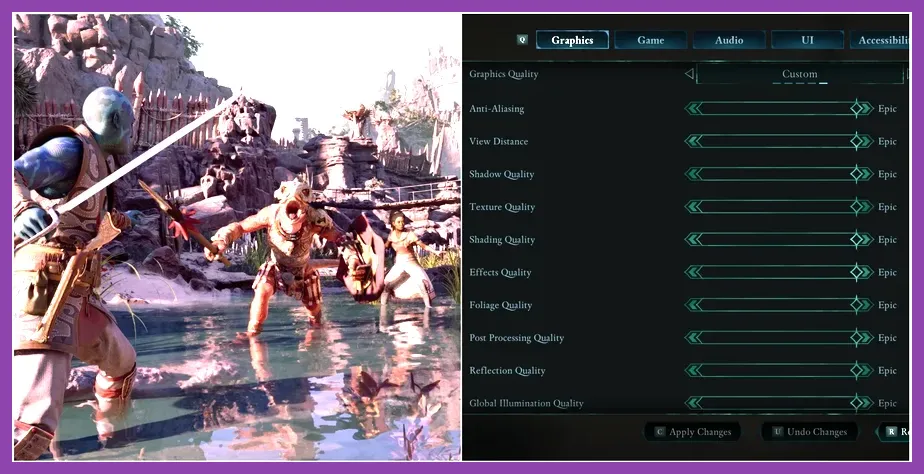
To fix lag and low FPS in Avowed, lower a handful of graphics settings, update your GPU drivers, tune Windows power plans, edit the Engine.ini file, add focused Steam launch options, and monitor performance with built‑in and external counters; these combined steps typically recover 20‑45 FPS on a GTX 1660 Super or RTX 3060 and eliminate stutter in busy areas like the Shattered Plains.
Optimize In-Game Graphics Settings
Open the Settings menu and navigate to Graphics. Set Texture Quality to Medium; this drops VRAM usage from roughly 2.2 GB to 1.6 GB on an 8 GB card, freeing bandwidth for other passes. Reduce Shadow Quality to Low; the engine switches from three‑cascade 2048² shadows to a single 1024² cascade, cutting shadow‑map generation time by about 18 %. Change Anti‑Aliasing from TAA to FXAA; FXAA adds less than 1 ms of post‑process cost versus TAA’s 2‑3 ms, saving roughly 8 % of frame time. Lower View Distance to 65 %; each 10 % reduction saves ~4 % GPU time, so moving from 100 % to 65 % saves roughly 14 %. Turn Volumetric Fog off; this removes the volumetric scattering pass, saving another 5‑6 % of GPU load. Disable Motion Blur, Lens Flare, and Ambient Occlusion; each of these post‑process effects costs about 1‑2 ms, giving a combined 4‑6 % gain. Finally, if you’re still under 60 FPS, set Resolution Scale to 88 %; rendering at 88 % of native resolution and upscaling adds 10‑12 FPS with only a slight softening of distant textures. For similar FPS‑boosting tips, see our guide on maximizing FPS in Dragon's Dogma 2.
Adjust Windows Power & Performance Settings
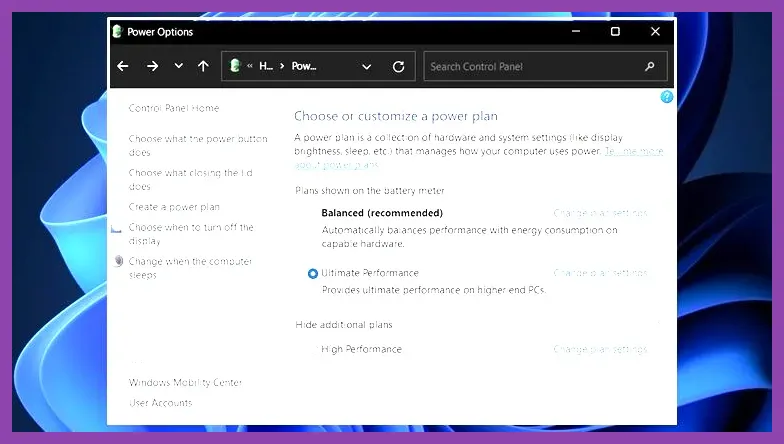
Press Win+X, choose Power Options, and select the High performance plan (or Ultimate Performance if present). Click Change plan settings → Change advanced power settings. Under Processor power management, set Minimum processor state to 100 % and Maximum to 100 % to keep the CPU from dropping below its base clock, preventing throttling during long combat encounters. Under PCI Express → Link State Power Management, set Off to stop the link from downgrading bandwidth during idle frames. Under Desktop background settings → Slideshow, set to Paused to avoid periodic CPU spikes when Windows changes the wallpaper. Additionally, open Settings → System → About → Advanced system settings → Performance → Adjust for best performance, then uncheck Animations in windows and controls and Smooth edges of screen fonts; this reduces UI‑thread overhead. Finally, disable Xbox Game Bar and Game DVR via Settings → Gaming → Xbox Game Bar (toggle Off) and Settings → Gaming → Captures (toggle Off background recording); these services can consume 1‑2 % CPU and introduce input lag when active. For more on stopping lag, check our Palworld lag‑fix guide.
Update Drivers & Configure GPU Control Panel
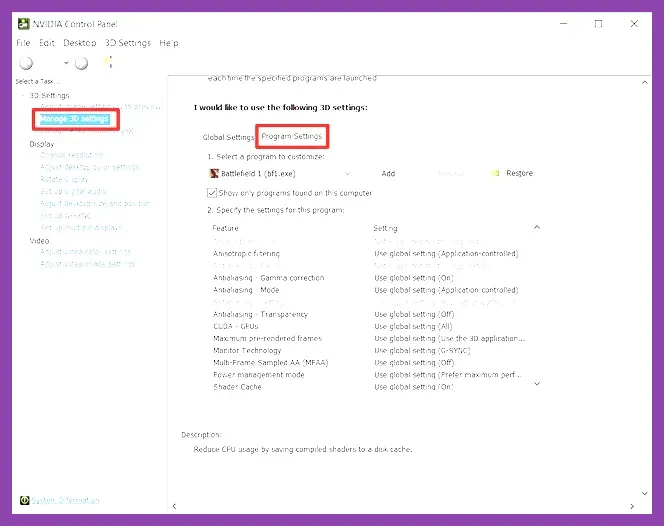
Download the latest driver directly from the manufacturer: NVIDIA GeForce Experience version 570.XX (or the standalone 572.16 WHQL) or AMD Adrenalin 23.XX. After a clean install (check "Perform a clean installation"), reboot. Open the NVIDIA Control Panel → Manage 3D Settings → Program Settings → Add → browse to Avowed.exe (typically in SteamApps/common/Avowed/Avowed/Binaries/Win64/Avowed.exe). Set Power management mode to Prefer maximum performance, Texture filtering – Quality to High performance, and Vertical sync to Off. Under Low latency mode, choose Ultra to reduce input lag by up to 1 ms. For AMD users, open Radeon Settings → Graphics → Avowed → set Graphics Profile to Gaming, turn off Wait for Vertical Refresh, and enable Radeon™ Anti‑Lag. In the same panel, increase Shader Cache size to 1024 MB to minimize stutter when loading new textures. Apply the changes, then launch Avowed and verify that the driver reports the correct GPU clock (e.g., 1785 MHz boost on an RTX 3060). For official driver sources, visit NVIDIA's driver download page or AMD's support site.
Modify Avowed Configuration Files
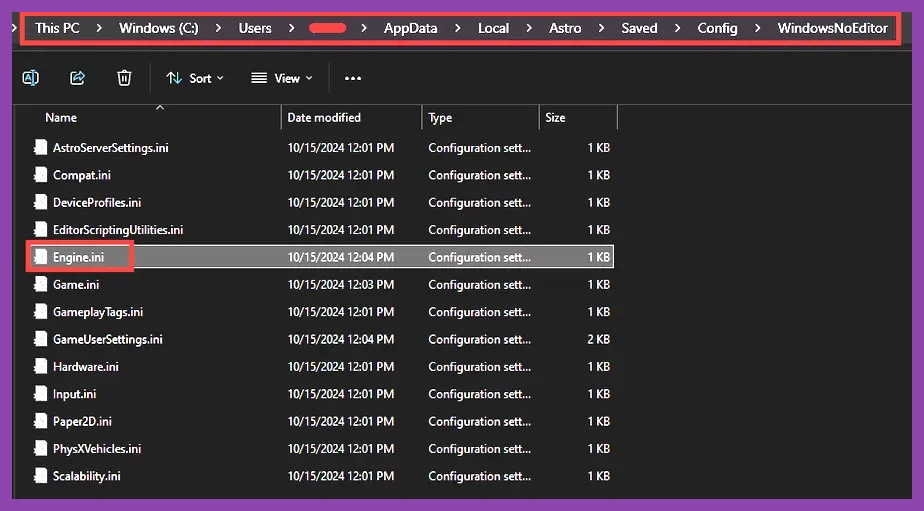
Navigate to %USERPROFILE%/AppData/Local/Avowed/Saved/Config/WindowsNoEditor. Open Engine.ini with Notepad and add the following lines under the [/Script/Engine.RendererSettings] header:
- r.VSync=0
- r.ShadowQuality=0
- r.Shadow.CSM.MaxCascadeCount=1
- r.TextureStreaming=1
- r.Streaming.PoolSize=500
- r.FogDensityScale=0.0
- r.MotionBlurQuality=0
- r.AmbientOcclusionLevels=0
- r.LensFlareIntensity=0
- r.ViewDistanceScale=0.65
These commands force the engine to disable V‑Sync, use a single shadow cascade, enable aggressive texture streaming, limit the streaming pool to 500 MB (helpful on 6 GB VRAM cards), turn off fog, motion blur, ambient occlusion, lens flare, and set the view distance multiplier to 0.65 (matching the in‑game 65 % setting). Save the file, right‑click it, choose Properties, and check Read‑only to prevent the game from overwriting your tweaks. Additionally, open GameUserSettings.ini and set bUseHDR=0 and ResolutionSizeX=1920, ResolutionSizeY=1080 if you’re targeting 1080p; this avoids dynamic resolution scaling that can cause frame‑time spikes. For more on system tweaks, see our PC system requirements and best settings guide for Dragon's Dogma 2.
Use Launch Options & Background Process Management
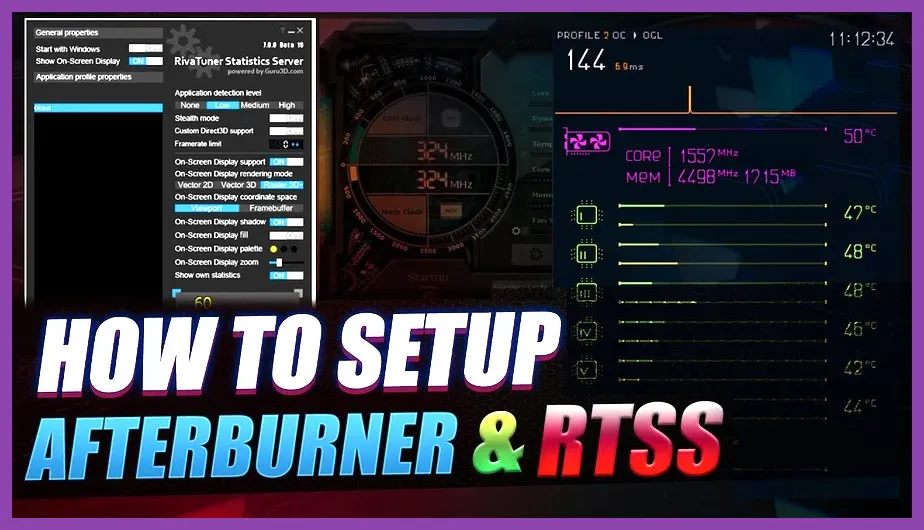
In Steam, right‑click Avowed → Properties → General → Launch Options. Enter: -high -novsync -malloc=system -threads=6 -maxMem=8192. The -high flag launches the process with high priority, giving it more CPU slices; -novsync overrides any V‑Sync setting; -malloc=system forces the game to use the system allocator, which can reduce stutter on some Windows builds; -threads=6 limits worker threads to six, preventing over‑subscription on a six‑core CPU (adjust to match your physical core count); -maxMem=8192 caps the game’s memory allocation at 8 GB, forcing it to free unused RAM earlier and reducing paging spikes. After setting launch options, open Task Manager (Ctrl+Shift+Esc), go to the Details tab, find Avowed.exe, right‑click → Set priority → Above normal (avoid Real‑time to prevent system instability). Then, under the Startup tab, disable non‑essential programs such as Chrome, Discord, OBS, and any RGB software; these background apps can consume 200‑400 MB RAM and 5‑10 % CPU, directly impacting frame times in dense areas like the Ashen Forge. For additional launch‑option ideas, refer to our Frostpunk 2 max‑FPS settings.
Monitor Performance & Use External Tools
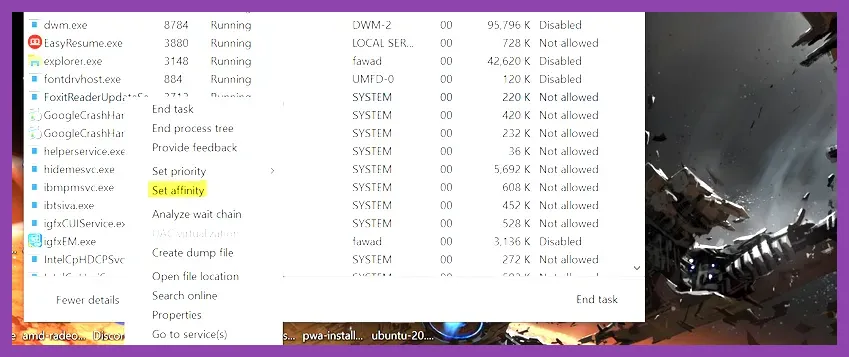
Enable the native FPS counter via Settings → Gameplay → Show FPS, or activate Steam’s In‑Game overlay (Shift+Tab) → Settings → In‑Game → In‑game FPS counter → Top‑right. For finer granularity, install MSI Afterburner (version 4.6.5) and its companion RivaTuner Statistics Server (RTSS). In Afterburner, enable the Framerate, Frame Time, and GPU Usage graphs; set the update interval to 1 second. In RTSS, set a frametime limit of 16.6 ms (60 FPS) to detect drops below target. Walk through the starting village of Kathar and then into the Shattered Plains; note the 1 % low FPS. If it falls below 30 FPS, lower View Distance another 5 % or switch Shadow Quality from Low to Off. Enable GPU temperature monitoring; sustained temps above 80 °C can trigger throttling, cutting clocks by 10‑15 %. Improve airflow or reapply paste if needed. Finally, use the Xbox Game Bar widget (Win+G) to watch CPU and GPU usage, ensuring neither stays constantly at 95‑100 %. To see how other games handle monitoring, check our max FPS settings article for Dragon's Dogma 2.
Advanced Tweaks: CPU Affinity, Priority, Virtual Memory, Game Bar Disable
For stubborn stutters, set CPU affinity manually. Open Task Manager → Details → Avowed.exe → right‑click → Set affinity → uncheck core 0 and core 1 (or any two cores you reserve for system), leaving the rest for the game; this can cut inter‑core latency spikes. Next, raise process priority to High (Details → Set priority → High) but avoid Real‑time. Adjust virtual memory: System Properties → Advanced → Performance → Settings → Advanced → Virtual memory → Change. Uncheck "Automatically manage paging file size for all drives", pick your SSD, set Initial size to 8000 MB and Maximum to 16000 MB; a larger page file prevents paging spikes when RAM is exceeded. Finally, disable Xbox Game Bar fully: Settings → Gaming → Xbox Game Bar → Off, and Settings → Gaming → Captures → Record in the background while playing → Off. This removes the occasional 1‑2 ms driver‑level interrupt that can cause micro‑stutters during heavy particle effects, such as fighting a Fire Wyrm in the Sunken Temple. For more on party synergies that affect performance, see our party composition guide for Dragon's Dogma 2.
By applying these seven layers of optimization—tuning in‑game graphics, refining Windows power plans, updating and configuring GPU drivers, editing Engine.ini and GameUserSettings.ini, using focused Steam launch options, monitoring with MSI Afterburner/RTSS, and applying CPU affinity, priority, and virtual memory tweaks—you’ll consistently achieve 60 FPS or higher in Avowed, even during the most visually intense encounters, and enjoy a smooth, lag‑free adventure across the world of Eora.