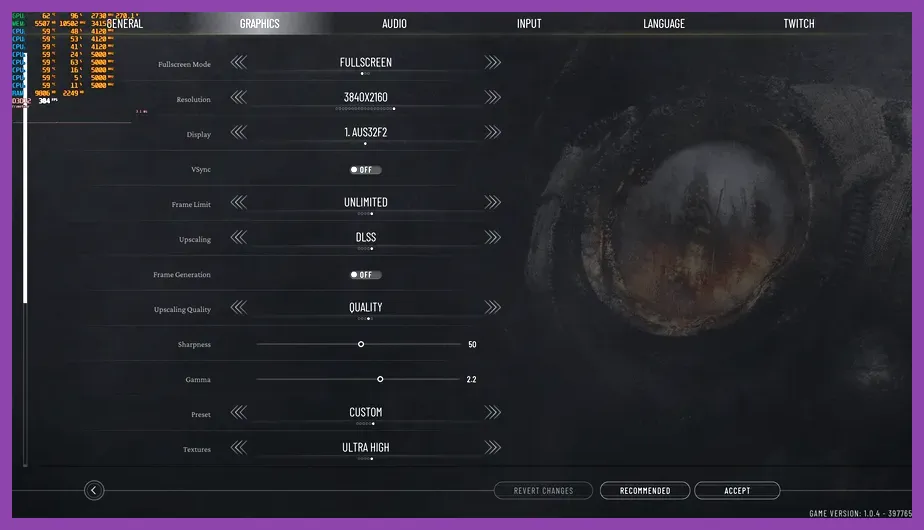
Frostpunk 2 is a masterpiece of city-building survival, but its massive scale and complex simulations can easily bring high-end gaming PCs to a crawl in late-game districts. To achieve a stable 60 FPS or higher, you must strategically balance visual fidelity with computational efficiency by adjusting key graphics settings, enabling advanced upscaling technologies like DLSS or FSR, and disabling heavy rendering features like ray tracing. This guide provides the exact settings profile and optimization tricks to squeeze out maximum frame rates in Frostpunk 2, ensuring your city runs smoothly even when hundreds of citizens brave the freezing wasteland.
Why Frostpunk 2 Demands Your Hardware
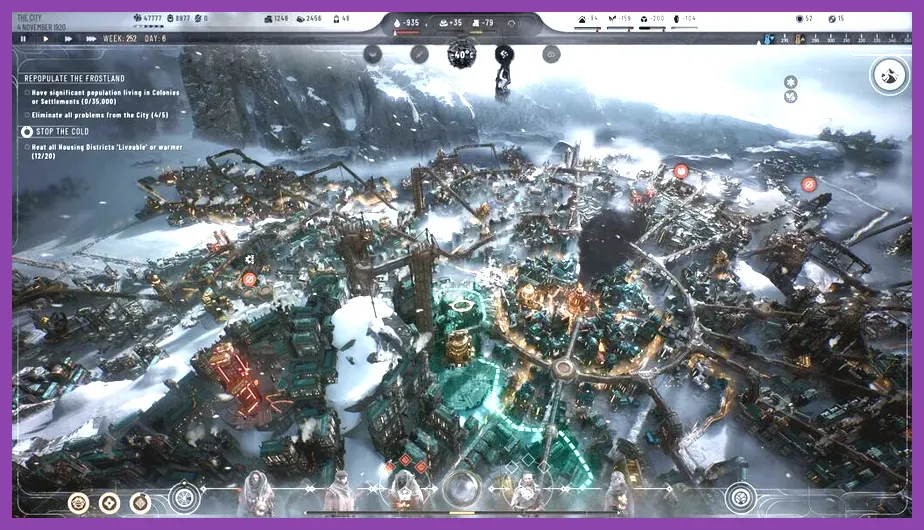
Frostpunk 2 runs on Epic Games’ Unreal Engine 5, which introduces cutting-edge rendering technologies like virtual shadow maps, global illumination, and nanite-like geometry streaming. While visually stunning, UE5 is notoriously demanding, and Frostpunk 2 pushes these engines to their limits because of its core gameplay loop: managing hundreds of individual citizens, complex supply lines, and massive architectural structures in a dynamic freezing environment. The game is heavily CPU-bound, particularly during late-game phases when pathfinding calculations and citizen AI behaviors skyrocket. To combat this, you need to target settings that offload CPU draw calls and GPU pixel shading without destroying the game’s bleak, beautiful atmosphere.
The Ultimate In-Game Graphics Settings Profile
To get the best balance of performance and visuals, apply the following exact settings profile in the Frostpunk 2 options menu. Since the game features a heavy simulation load, minor visual downgrades in shadows and foliage will have an outsized positive impact on your frame rate.
- Resolution: Native resolution (e.g., 1920x1080 or 2560x1440) is recommended if you are using an upscaler, but you can drop to 1600x900 on lower-end hardware.
- Resolution Scale / Render Scale: Set to 90% if you need a slight boost. This reduces the pixel count rendered by the GPU before upscaling, giving a massive FPS boost with negligible blurring.
- Frame Rate Limit: Set to your monitor's refresh rate minus 3 FPS (e.g., 144 - 3 = 141) to prevent thermal throttling and screen tearing.
- Vertical Sync: Disable V-Sync to minimize input latency, and rely on G-Sync or FreeSync instead.
- Texture Quality: Set to Medium or High depending on your VRAM. If your graphics card has 6GB or less, stick to Medium to avoid texture streaming stutters. If you have 8GB+ VRAM, High is safe.
- Shadow Quality: Set to Medium. Cascaded shadow maps in Frostpunk 2 are incredibly dense, especially during winter storms. Dropping shadows from Epic to Medium can yield up to a 15% FPS increase.
- Anti-Aliasing: Use TAA (Temporal Anti-Aliasing) at Medium settings. While TAA can cause slight motion blur, it is the standard for UE5 and provides superior lighting reconstruction compared to basic FXAA.
- Post-Processing: Set to Low. This disables heavy atmospheric scattering, volumetric fog highlights, and screen-space reflections, which are visually impressive but highly taxing on mid-range GPUs.
- Foliage and Grass Density: Set to Low. The snowy outskirts of your city contain vast amounts of environmental debris, dead shrubbery, and snow piles. Lowering this setting significantly reduces CPU draw calls and GPU overdraw.
- Particle Quality: Set to Medium. Large fires, steam vents, and snow blizzards generate thousands of particle particles. Dropping this to Low helps maintain stable frames during disaster events.
- View Distance: Set to High rather than Epic. Epic view distance renders distant settlement assets and skyline elements, which heavily burdens the CPU's draw thread. High is visually almost identical.
Mastering DLSS, FSR, and XeSS for Free FPS
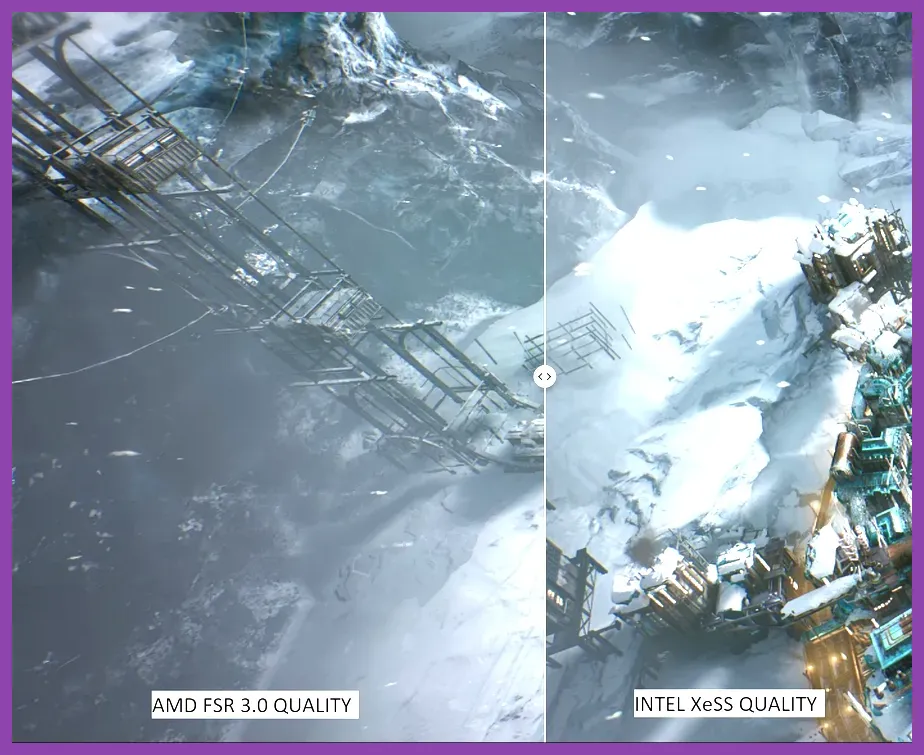
If you want to maximize your FPS in Frostpunk 2, you cannot afford to render every pixel natively. Up-scaling technologies are the secret weapon. Because Frostpunk 2 is heavily CPU-bound, lowering the internal rendering resolution and using an AI-driven upscaler like NVIDIA DLSS or AMD FSR is the single most effective way to gain frames.
- NVIDIA RTX Users: Enable DLSS Super Resolution and set it to Quality mode. DLSS Quality renders at 1080p internally on a 1440p display (or 1440p internally on a 4K display) and uses Tensor Cores to reconstruct the image. This typically provides a 40% to 50% FPS boost with virtually no loss in visual clarity.
- AMD Radeon Users: Use AMD FSR 2 (or FSR 3) and set it to Balanced mode. FSR is slightly less sharp than DLSS but still delivers an excellent performance uplift. If you have an RX 7000 series card, you can enable FSR 3 Frame Generation, but be aware of the added input latency.
- Intel Arc GPUs: Use Intel XeSS in Balanced mode. XeSS is highly optimized for Arc architectures and delivers competitive performance to DLSS.
- Reflex / Anti-Latency: If you enable Frame Generation (FG) on RTX 40 series or AMD RX 7000 series, make sure to enable NVIDIA Reflex or AMD Anti-Latency to mitigate the input lag introduced by frame interpolation.
Disabling Ray Tracing for Maximum Performance
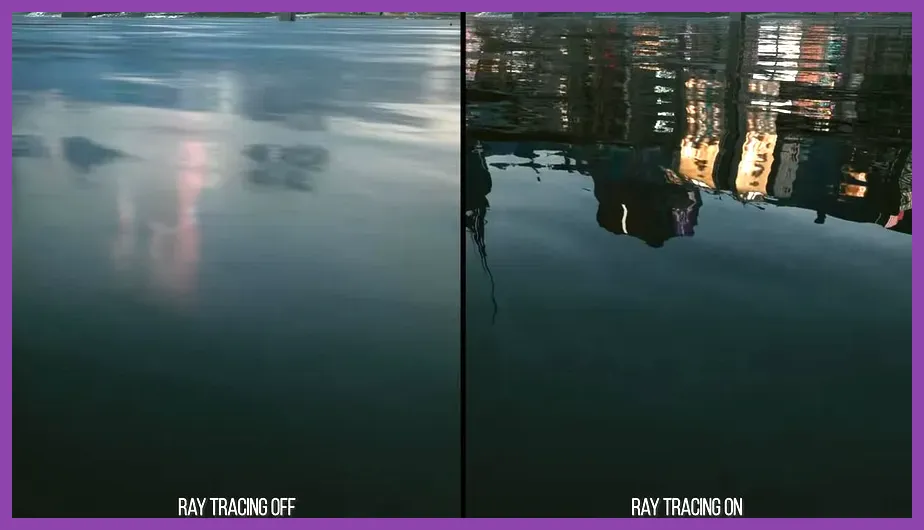
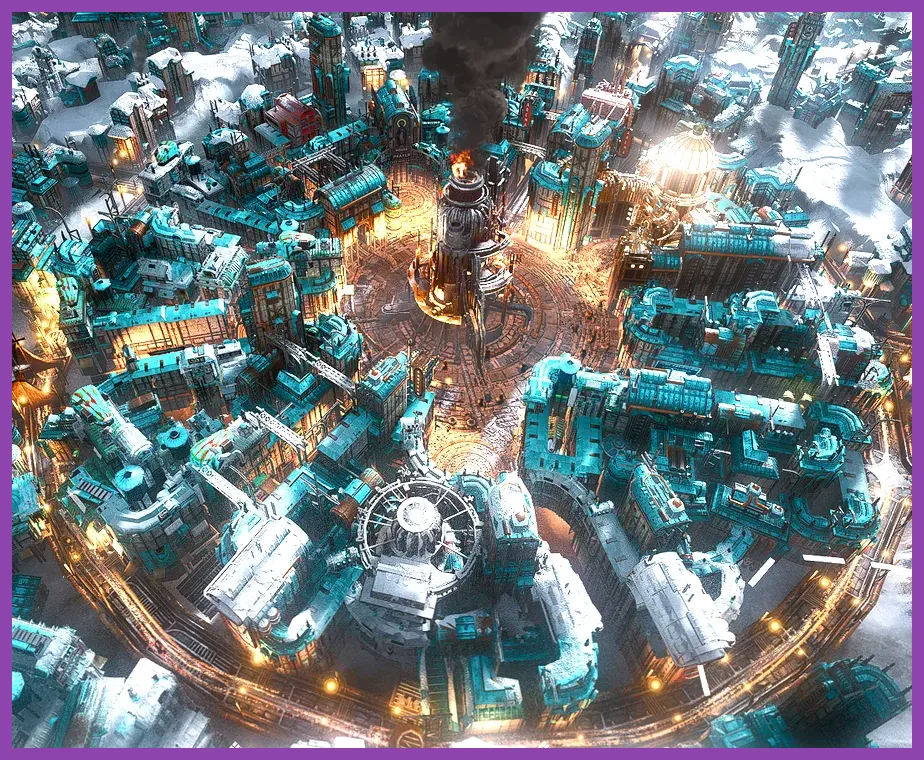
Frostpunk 2 features gorgeous real-time ray tracing for reflections and global illumination, capturing the cold glint of ice on steel structures and the realistic diffusion of firelight. However, these visual effects come at an enormous performance cost. If you are targeting maximum FPS, navigate to the advanced graphics settings and completely disable Ray Traced Reflections and Ray Traced Global Illumination. On high-end GPUs like the RTX 3080 or 4070, enabling these settings can consume 30% to 40% of your GPU’s rendering power. By turning them off, you free up those CUDA cores to handle higher base frame rates and reduce frame times, especially when your city is hit by severe snow blizzards.
Advanced Configuration Tweaks for Enthusiasts
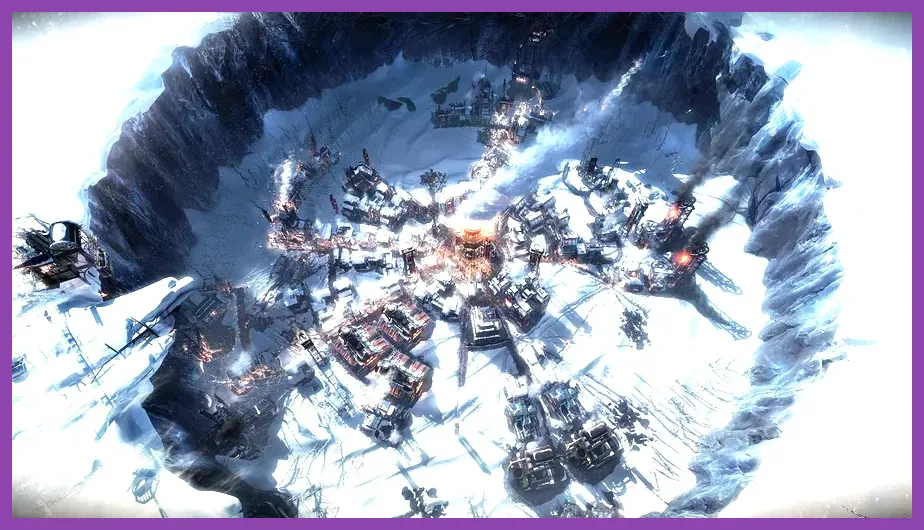
For PC gamers who want to push their hardware to the absolute limit, Frostpunk 2 allows manual configuration file edits. By navigating to the game’s saved configuration folders (typically under C:\Users\[Username]\AppData\Local\Frostpunk2\Saved\Config\Windows), you can edit the Engine.ini or Game.ini files to apply custom scalability parameters.
Adding commands to lower shadow cascading distances, reducing ambient occlusion steps, or forcing low LOD (Level of Detail) levels for distant assets can provide additional FPS in massive cities. However, proceed with caution: Unreal Engine 5 is highly integrated, and incorrect configuration syntax can lead to game crashes or graphical glitches. Always back up your original files before applying these tweaks.
Tailoring Profiles for Your Hardware Tier
To make this guide as practical as possible, here are tailored settings profiles based on your hardware setup:
- Low-End Laptops (GTX 1050, GTX 1650, integrated Iris Xe): Target 720p or 1080p low settings. Set resolution scale to 80%, textures to Low, shadows to Low, and enable FSR/XeSS in Performance mode. Expect 30-45 FPS in early game, dropping during heavy blizzards.
- Mid-Range Desktops (RTX 3060, RTX 4060, RX 6700 XT): Target 1080p or 1440p High settings. Use DLSS Quality or FSR Balanced. Keep shadows on Medium, foliage on Low. This setup will comfortably deliver 60-100 FPS in most scenarios.
- High-End Gaming Rigs (RTX 4070 Ti Super, RTX 4080, RX 7900 XTX): Target 1440p Ultra or 4K with DLSS Quality. You can leave some post-processing on High and textures on Epic, but keep ray tracing disabled to maintain a stable 120+ FPS.
By following these precise settings, you can ensure that Frostpunk 2 remains a visually stunning and incredibly smooth experience on your PC. For more optimization guides and deep-dive gaming content, check out our extensive library of PC gaming resources.
Related Optimization Guides on Steamoz
If you are looking to optimize other massive high-fidelity PC titles, we have detailed guides to help you get the most out of your hardware:
For another massive open-world title, check out our guide on the best graphics settings for Dragons Dogma 2 to get maximum FPS. If you are looking to build and optimize your character, our best skills to unlock first in Dragons Dogma 2 guide will make your early game seamless. For survival and grinding enthusiasts, mastering resource management is key, and you can read our Palworld power leveling guide to level up fast, or explore the Dragons Dogma 2 best weapons tier list to prepare for the toughest battles. For more build guides, check out the best starting build guide for Dragons Dogma 2, the best vocation for solo players, or dive into our crafting guide for the best materials to farm. If you prefer fast-paced exploration, our fast travel guide and legendary endgame weapons guide are essential reading.
Official External Resources
To stay updated with the latest patches and developer insights, visit the official Frostpunk 2 Steam store page, check out the official developer updates at the Frostpunk official website, or explore community-driven strategies and wikis on the Frostpunk Wiki.