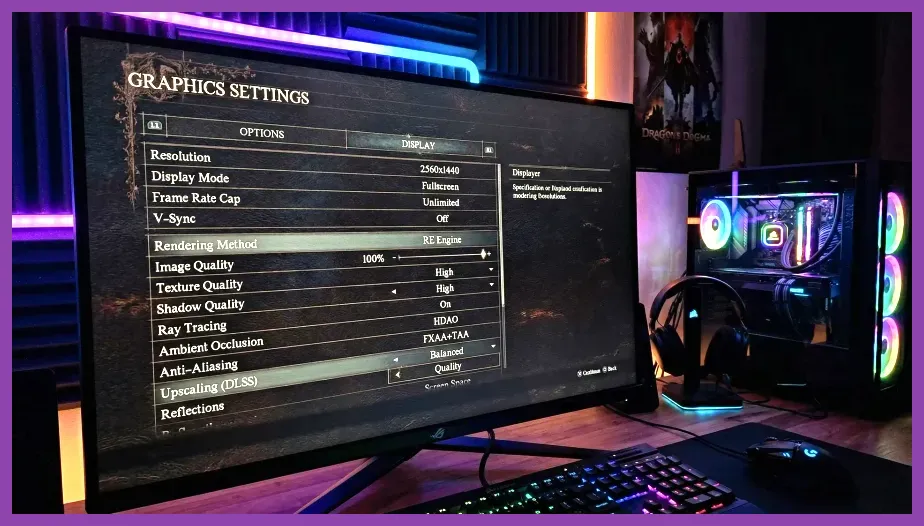
To achieve a stable 60+ FPS in Dragon's Dogma 2 on PC, disable Ray Tracing, set Shadow Quality to Medium, lower Mesh Quality to Mid, and enable DLSS or FSR 3 on Quality mode with Shadow Cache switched to Enabled. This optimized configuration eliminates severe GPU bottlenecks and recovers up to 40% of your baseline frame rate while minimizing the notorious CPU-bound stuttering found in major hub cities like Vernworth and Bakbattahl.
Dragon's Dogma 2 Best Graphics Settings Overview
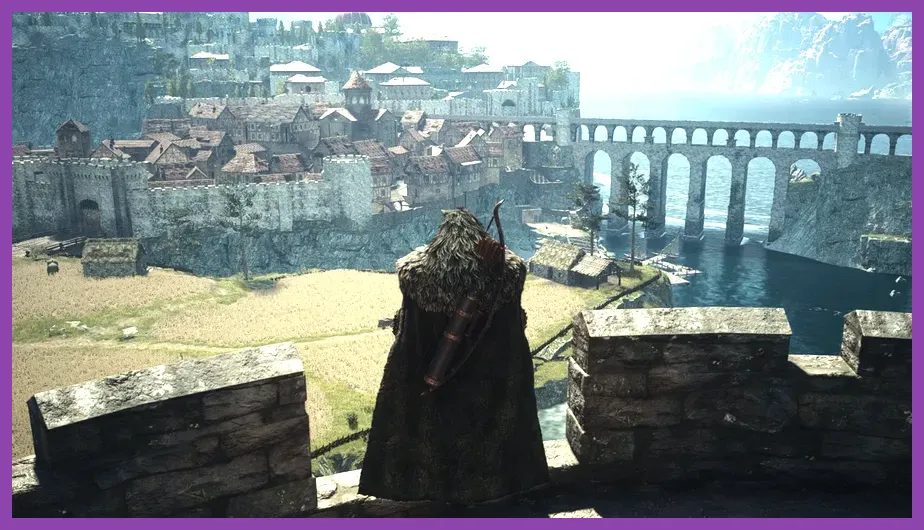
Capcom's RE Engine powers the massive open world of Vermund and Battahl, but the game is notoriously demanding on both processor threads and graphic memory. Before jumping into combat with your Arisen, applying an optimized baseline profile is essential for keeping frame delivery smooth across dense forests and crowded castle plazas. Below is the master settings breakdown designed to maximize framerates without destroying the game's high-fantasy visual fidelity.
- Display Mode: Borderless Fullscreen
- Resolution: Native (1920x1080 / 2560x1440 / 3840x2160)
- Framerate: Uncapped
- V-Sync: Off (Use G-Sync or FreeSync at the driver level)
- Dynamic Resolution: Off
- Upscaling (DLSS / FSR 3 / XeSS): Quality
- DLSS Frame Generation: On (if using RTX 40-series GPUs)
- Image Quality: 100% / Default Slider
- Ray Tracing: Off
- Ambient Occlusion: SDAO
- Shadow Quality: Medium
- Shadow Cache: Enabled
- Contact Shadows: Low
- Motion Blur: Off (Preference, saves marginal GPU cycles)
- Depth of Field: Off
- Bloom: On
- Subsurface Scattering: Medium
- Mesh Quality: Mid
- Texture Filtering: High (4x or 8x)
- Texture Quality: High (2GB for 8GB VRAM cards; High 3GB/4GB for 12GB+ cards)
- Grass/Tree Quality: Medium
- Resource Intense Effects: Low
Applying this baseline immediately stabilizes your render times. If you are starting fresh, combining these visual tweaks with our Dragon's Dogma 2 beginner tips and tricks will ensure your overall journey starts off on the right foot.
Critical Graphics Settings to Lower for Big FPS Gains

Not every setting in Dragon's Dogma 2 impacts your graphics card equally. Out of more than two dozen options in the options menu, four specific settings account for nearly 70% of performance drops outside of CPU bottlenecks. Tweaking these key parameters gives you massive performance gains with negligible loss in image clarity.
1. Ray Tracing (20% to 30% Performance Gain)
Ray Tracing in Dragon's Dogma 2 handles global illumination and reflections, but it carries an immense GPU cost. Turning Ray Tracing Off immediately lifts heavy pressure from mid-tier graphics hardware such as the Nvidia RTX 3060 or AMD Radeon RX 6700 XT. The game's fallback baked lighting and SDAO ambient occlusion deliver crisp, moody dungeon environments without tanking your frames.
2. Shadow Quality and Shadow Cache (12% to 15% Gain)
Setting Shadow Quality to High forces the engine to calculate dynamic high-resolution shadow maps for hundreds of trees and foliage assets simultaneously. Dropping Shadow Quality to Medium preserves clean character shadows while boosting average framerates significantly. Crucially, you must keep Shadow Cache set to Enabled. Disabling the Shadow Cache forces your CPU and GPU to constantly recalculate shadow data every frame, resulting in severe micro-stuttering.
3. Mesh Quality (8% to 10% Gain)
Mesh Quality determines geometric detail levels on terrain, distant structures, and monster armor models. High and Ultra settings cause frame drops during chaotic battles when high-tier spells are cast. Dropping Mesh Quality to Mid maintains sharp enemy silhouettes while preventing mid-fight drops when managing your party with our best party compositions guide.
4. Resource Intense Effects
When playing heavy magic classes like the Sorcerer or Mage, spell visual effects (like Meteoron and Maelstrom) swamp the GPU screen buffer. Switching Resource Intense Effects from High to Low keeps particle physics smooth during intense fights, which is vital when piloting an endgame setup from our best endgame Warfarer build guide.
Fixing CPU Bottlenecks in Vernworth and Major Cities
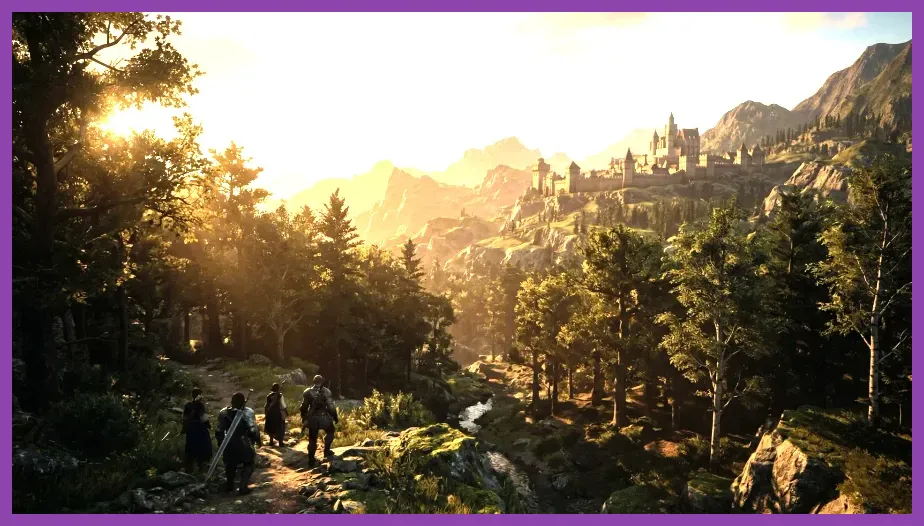
The biggest technical challenge in Dragon's Dogma 2 is its heavy reliance on the CPU inside populated settlements like Vernworth and Bakbattahl. In these locations, hundreds of NPC AI routines, pathfinding threads, and schedule trackers run continuously on the main CPU thread. Even high-end processors like the Ryzen 7 7800X3D or Intel Core i7-13700K can drop below 50 FPS in city centers regardless of your GPU.
To mitigate severe CPU bottlenecks in cities, adjust the following system-level settings:
- Lower Mesh Quality to Mid: Reduces CPU draw call instructions submitted to the rendering queue.
- Enable DLSS 3 or FSR 3 Frame Generation: Frame generation inserts AI-interpolated frames after the CPU step, effectively bypassing the thread bottleneck and smoothing out motion in Vernworth.
- Set Process Priority: Open Task Manager, locate
DD2.exeunder the Details tab, and set Priority to High. - Cap Framerates Outside Cities: If experiencing jarring shifts from 80 FPS in the wild down to 45 FPS in towns, lock your monitor's display cap to 60Hz via Nvidia Control Panel or AMD Software for consistent frame pacing.
Optimizing CPU overhead ensures smooth navigation when hunting down vendors to purchase equipment showcased in our best weapons tier list or tracking gear across best armor sets locations.
Upscaling and Anti-Aliasing Setup: DLSS vs FSR 3
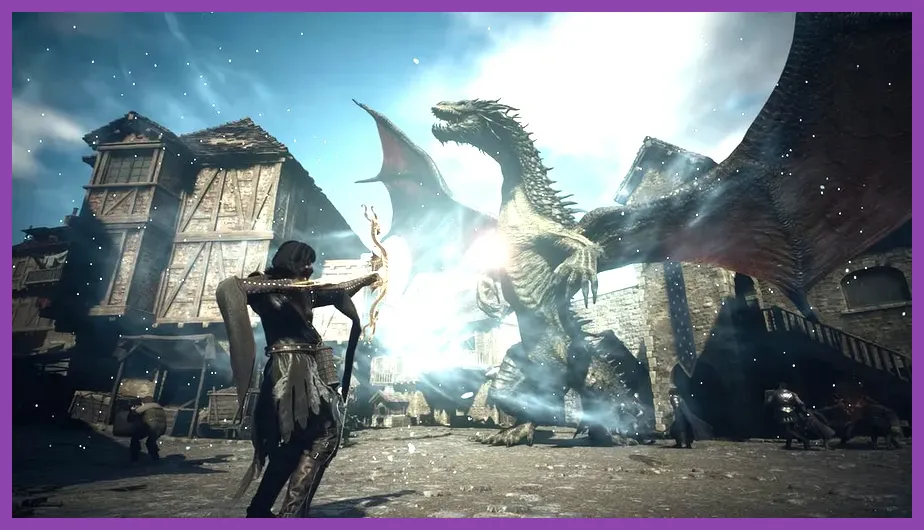
Because Dragon's Dogma 2 renders dense environments and fine detail like foliage, raw native resolution rendering is extremely costly. Utilizing deep learning upscalers is mandatory for maintaining high refresh rates at 1440p and 4K resolutions.
Refer to official performance documentation on the Dragon's Dogma 2 Steam Page and update to the latest hardware drivers from Nvidia or AMD before tweaking upscaling modes.
Nvidia DLSS Configuration
If running an Nvidia RTX graphics card, select DLSS as your Image Scaling mode. Set DLSS Mode to Quality for 1080p and 1440p displays, or Balanced if playing at 4K. Keep the Sharpness slider around 50% to 60% to avoid ringing artifacts around character hair and weapon edges.
AMD FSR 3 & Intel XeSS Configuration
For AMD Radeon GPUs or non-RTX hardware, select FSR 3. Set the mode to Quality. FSR 3 introduces effective temporal upscaling that sharpens open-world vistas. Pair FSR 3 with Native Anti-Aliasing if your GPU has plenty of headroom at 1080p, but stick to Quality mode at 1440p to preserve your framerate budget while exploring distant locations from our all secret locations guide.
Best Graphics Settings Profiles for Mid-Range and High-End PCs
To save time, select one of the tailored graphics profiles below based on your PC hardware specs.
Profile 1: Mid-Range Performance Profile (RTX 3060 / RX 6600 XT / RTX 4060)
Target: Stable 60 FPS at 1080p / 1440p Quality Upscaling.
- Ray Tracing: Off
- Upscaling: DLSS / FSR 3 Quality Mode
- Shadow Quality: Medium
- Shadow Cache: Enabled
- Mesh Quality: Mid
- Texture Quality: High (2GB)
- Subsurface Scattering: Medium
- Ambient Occlusion: SDAO
- Resource Intense Effects: Low
Profile 2: High-End Visuals Profile (RTX 4080 / RTX 4090 / RX 7900 XTX)
Target: 90-120+ FPS at 1440p / 4K with Frame Generation.
- Ray Tracing: On (Optional; turn Off in Vernworth if CPU drops occur)
- Upscaling: DLSS Quality + Frame Generation Enabled
- Shadow Quality: High
- Shadow Cache: Enabled
- Mesh Quality: High
- Texture Quality: High (6GB)
- Subsurface Scattering: High
- Ambient Occlusion: SDAO
- Grass/Tree Quality: High
Dialing in these parameters strikes the ideal balance between low latency gameplay and visual quality. Once your frame rates are smooth, prepare your character build using our best starting build guide, pick your ideal playstyle with the best vocation for solo players, and unlock your combat potential early with the best skills to unlock first. For further updates on Capcom patches, check the official Dragon's Dogma 2 Website.