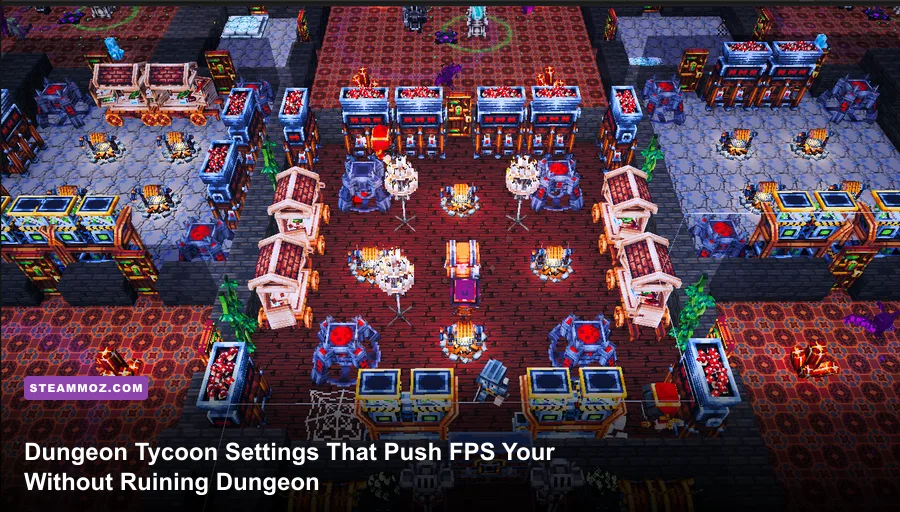
For the best Dungeon Tycoon best graphics settings for max FPS and performance, start with 1080p, disable V-Sync and motion blur, use a 60 FPS cap, keep textures on High, and drop shadows, effects, foliage, and view distance to Medium. That combination protects the sharp look of rooms and menus while cutting the settings most likely to cause stutter when your dungeon grows busy. If you're on integrated graphics or a Steam Deck-class system, use the performance profile below instead.
Best Dungeon Tycoon settings for maximum FPS
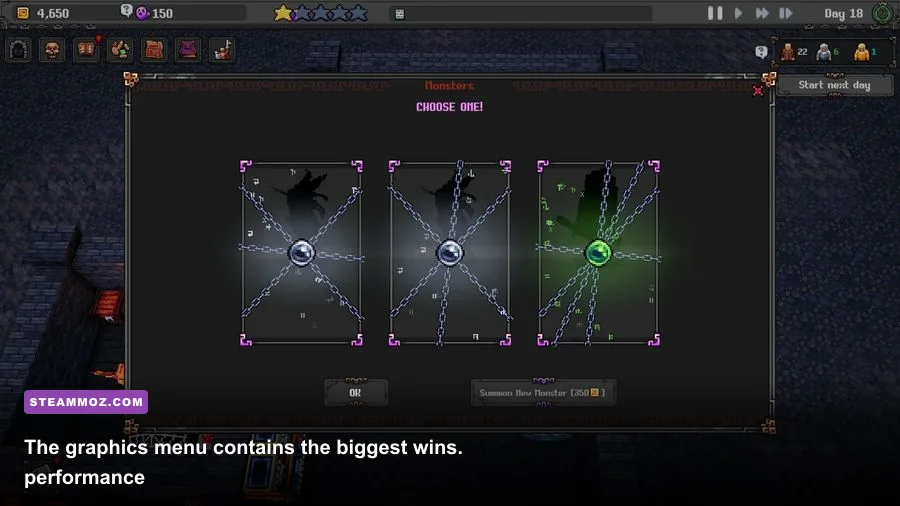
Dungeon Tycoon is not equally demanding everywhere. An empty starting plot is easy to render, while a mature dungeon with multiple rooms, decorations, workers, visitors, lighting sources, and animated systems can push both the GPU and CPU. That means a setting that looks harmless early on—especially shadows or view distance—can become the reason your frame rate collapses later.
Begin by selecting your monitor's native resolution. On a standard 1080p display, lowering resolution should be your last major visual compromise because menus, text, and small room details become noticeably soft. On a 1440p monitor, 1080p is a sensible emergency setting, but use an in-game resolution scale first if Dungeon Tycoon exposes one.
Set V-Sync to Off and apply a frame cap rather than letting the game run completely uncapped. A 60 FPS cap is the safest target for most PCs; 90 or 120 FPS makes sense only if your system holds that number while scrolling across a developed dungeon. Unlimited FPS can create unnecessary heat and inconsistent frame pacing, particularly in management games that alternate between quiet menus and busy simulation scenes.
| Setting | Recommended Value | FPS Impact | Visual Trade-Off |
|---|---|---|---|
| Resolution | Native 1080p or 1440p | High if lowered | Lower values soften text and room details |
| V-Sync | Off | Low to medium gain | May introduce tearing without a frame cap |
| Frame Rate Limit | 60 FPS | Improves consistency | Caps peak refresh-rate output |
| Textures | High | Low on modern GPUs | High preserves materials and decorations |
| Shadows | Medium | High gain | Less defined lighting around rooms |
| Effects | Medium | Medium to high gain | Less intensity from particles and ambient effects |
| View Distance | Medium | Medium gain | Far scenery and objects appear later |
| Motion Blur | Off | Small gain | Cleaner camera movement |
For a second opinion on frame caps and menu-level tuning, compare this setup with Steamoz's Airline Tycoon 2 performance settings. The games aren't identical, but the same rule applies: stable frame pacing beats a flashy number that constantly swings.

🎮 Dungeon Tycoon
Looking to experience this game? Grab your digital key directly on our store for $7.49.
View on Steammoz Store →Use this balanced profile for a sharper dungeon
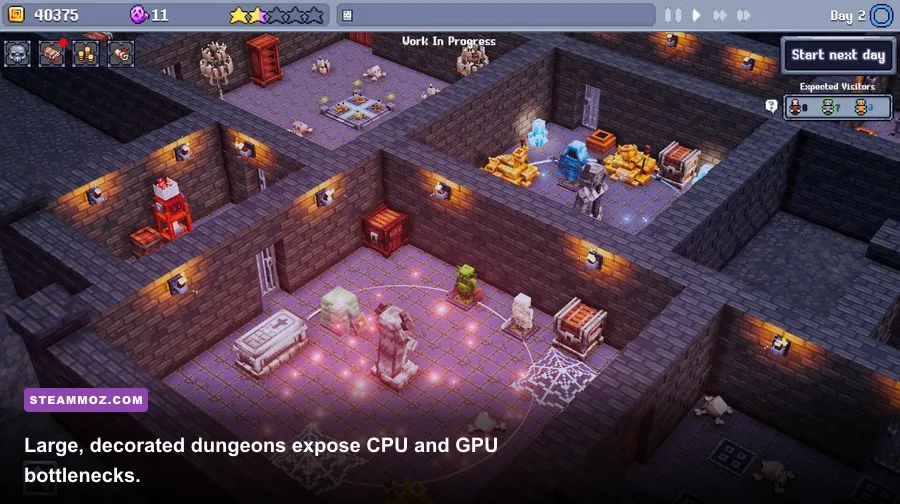
The balanced profile is the one I'd use on a mid-range gaming laptop or desktop with a dedicated GPU. Keep textures at High because texture quality mostly consumes VRAM rather than raw rendering power. If you have 6GB or more of VRAM, High should be a comfortable starting point at 1080p. Reduce textures only when you see hitching while rotating the camera or moving between heavily decorated areas.
Balanced 60 FPS profile
Use native 1080p, High textures, Medium shadows, Medium effects, Medium view distance, Medium anti-aliasing, ambient occlusion on Low or Medium, and foliage or decoration density on Medium. Turn off motion blur, chromatic aberration, film grain, and depth of field if those toggles exist. These effects add little to a top-down management view and can make small interface elements harder to read.
Anti-aliasing deserves a little caution. Dropping it all the way to Low may produce shimmering along walls, fences, and diagonal room edges. Medium is usually the better compromise. If the game offers a resolution scale or upscaler, keep the output at native resolution and test a 90% scale before sacrificing texture quality.
| Hardware Target | Resolution | Core Profile | Expected Goal |
|---|---|---|---|
| Modern dedicated GPU | 1440p native | High textures, Medium shadows, High view distance | 60 FPS with occasional heavy-scene drops |
| Mid-range GPU | 1080p native | High textures, Medium shadows, Medium effects | Stable 60 FPS in most layouts |
| Older gaming laptop | 1080p or 900p | Medium textures, Low shadows, Medium effects | 45-60 FPS depending on dungeon size |
| Integrated graphics | 900p or 720p | Low textures, Low shadows, Low effects | 30-45 FPS with reduced visual density |
| Steam Deck-class hardware | 1280x800 or lower scale | Medium textures, Low shadows, Low effects | Locked 30 or carefully tuned 40 FPS |
Don't confuse a lower frame rate with bad performance. A locked 30 FPS with even frame times feels better than 42 FPS that repeatedly drops to 24 during camera movement. If you play on a handheld, 30 FPS is often the smarter choice because it also reduces power draw and fan noise.
Which settings cost the most performance?
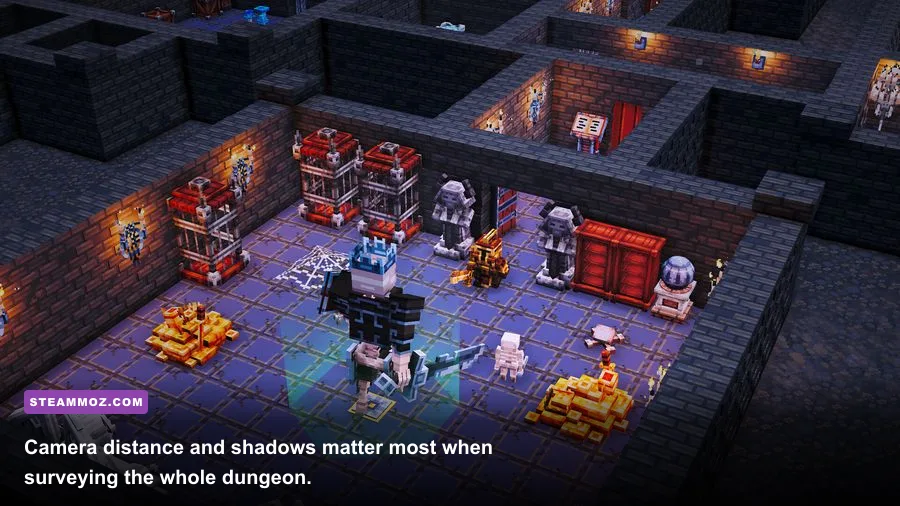
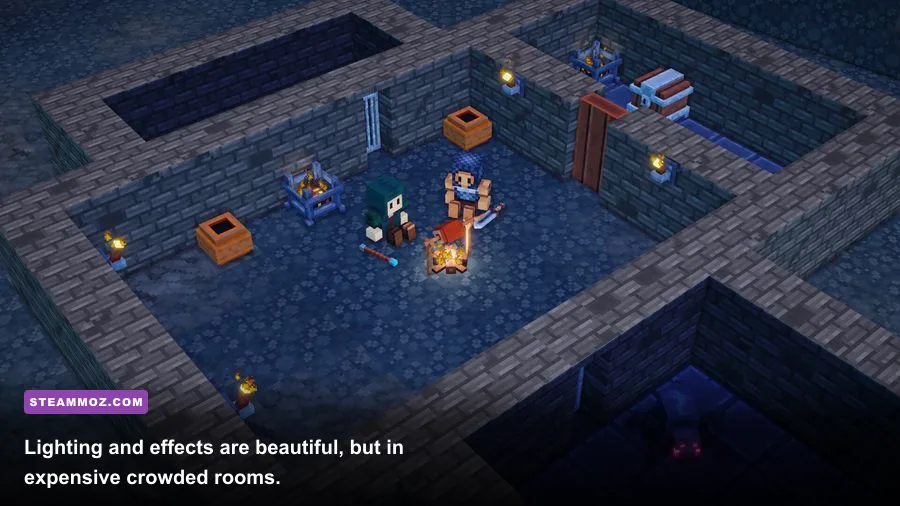
Shadows are usually the first switch to lower. Dynamic lights from torches, rooms, doors, and other dungeon objects can require repeated shadow calculations. High shadows may look excellent in a small chamber, but the cost multiplies when the camera sees a large section of your build. Medium preserves the basic shape of lighting while removing much of that overhead.
Effects are next. Particle-heavy visuals, smoke, sparks, magical bursts, and animated environmental effects can produce sudden GPU spikes rather than a steady average reduction. If your FPS is fine while building but tanks when the dungeon becomes active, lower Effects before Textures.
View Distance affects how many objects and visual systems are submitted at once. In a management game, you may not notice distant detail disappearing because you're focused on the room under the cursor. Medium is a particularly strong setting for crowded layouts.
Foliage, decoration, and object density can be expensive in different ways. They increase geometry and may also increase simulation work if decorative objects are interactive. Lowering density won't always fix CPU limitations, but it reduces the amount of visual clutter your system must draw.
Ambient occlusion adds depth around walls and furniture, yet it can be costly at high quality. Keep it on Low if the dungeon looks too flat without it. Turn it off only after lowering shadows and effects; the visual benefit is usually greater than the FPS benefit on modern GPUs.
For a broader comparison of clean image quality versus performance, Steamoz's smooth 60 FPS settings guide is useful. The practical lesson is the same: cut expensive lighting before cutting the detail that your eyes actually notice.
How to fix stutter in large Dungeon Tycoon layouts
If average FPS looks acceptable but the game still feels jerky, watch frame time rather than the headline FPS counter. A 60 FPS target requires roughly 16.7 milliseconds per frame. Spikes to 30 milliseconds or higher will feel like a hitch even if the counter quickly returns to 60.
Test the same camera route every time
Save a large, active dungeon and use it as your benchmark. Pan from the entrance across your busiest rooms, zoom out to the widest useful view, then zoom back toward the most decorated area. Repeat the route after changing one setting. This removes guesswork and shows whether the problem is camera rendering, simulation load, or streaming.
If the hitch happens while panning across the map, lower View Distance, Shadows, and Effects. If it happens when workers, visitors, or other systems become active, the limitation may be CPU-side. In that case, lowering resolution won't help much. Use a 60 FPS cap, close browser tabs and launchers, and avoid running recording software at an unnecessarily high capture rate.
Install the game on an SSD when possible. Storage won't raise your average FPS, but it can reduce the severity of asset-streaming pauses. Also update your graphics driver and check that Dungeon Tycoon is using the dedicated GPU rather than integrated graphics. On Windows, this is found under Settings, System, Display, Graphics, where you can assign the game's executable to High performance.
Before changing advanced launch options, check the current official Dungeon Tycoon Steam listing for patch notes and verified system information. A post-update stutter problem may be a game build issue, not a setting you can solve locally.
Best low-end and Steam Deck performance profile
Low-end hardware needs a different strategy. Start at 1280x720 or 1280x800, depending on your display, then use Low shadows, Low effects, Low view distance, and Low ambient occlusion. Keep textures at Medium if VRAM allows it; very low textures often make the dungeon look muddy without fixing CPU-side simulation slowdowns.
Set a firm 30 FPS limit on Steam Deck-class hardware. A 40 FPS cap can feel much smoother, but only use it if the frame time remains stable while viewing your biggest dungeon. A 30 FPS lock also gives the handheld more thermal headroom, which helps prevent performance falling after a long session.
| Option | Low-End Recommendation | Why It Helps | When to Raise It |
|---|---|---|---|
| Resolution Scale | 80-90% if available | Reduces GPU workload without changing UI scale | Raise it if GPU usage stays below 90% |
| Textures | Medium | Preserves room and prop clarity | Lower only with VRAM stutter |
| Shadows | Low | Cuts dynamic-light calculations | Raise to Medium on a dedicated GPU |
| Effects | Low | Reduces particle spikes | Raise if busy scenes remain stable |
| View Distance | Low or Medium | Limits distant geometry and draw calls | Medium for larger monitors |
| Frame Cap | 30 FPS | Improves frame pacing and battery life | Use 40 FPS only after testing |
On a desktop, use the same profile as a troubleshooting baseline. If Low settings barely improve FPS, your GPU probably isn't the main bottleneck. Check CPU utilization, background processes, thermal throttling, and whether the slowdown only appears in a large simulated dungeon.
Finally, don't chase a perfect screenshot while managing your build. Dungeon Tycoon is at its best when scrolling feels steady, the interface stays readable, and the simulation doesn't hitch every time you inspect a new room. For more management-game optimization ideas, see Steamoz's Bus Driver Simulator performance analysis and Car Mechanic Simulator coverage. The winning setup here is simple: preserve textures, tame lighting, cap the frame rate, and benchmark your largest dungeon—not the empty tutorial area.