If you want the best Airline Tycoon 2 graphics settings for max FPS and performance, start with 1920×1080 or your monitor’s native resolution, use fullscreen, disable V-Sync when chasing the highest frame rate, and lower anti-aliasing and shadow quality before touching textures. Airline Tycoon 2 is an old, lightly demanding management game, so modern GPUs rarely struggle with raw rendering; the bigger problems are compatibility, frame pacing, CPU simulation spikes, background overlays, and awkward scaling on newer Windows installations.
That distinction matters. A powerful RTX card will not magically remove every hitch when the game is processing aircraft schedules, passengers, staff, shops, and moving vehicles. The goal is therefore not simply a giant FPS number. The best setup gives you a stable frame rate, a readable interface, fast map scrolling, and no ugly stretching across a modern display.
Before changing anything, check the official Steam listing for the current build and community notes. Airline Tycoon 2 is a 2011-era title, and its options can look surprisingly modest compared with modern PC games. Take a screenshot of your original settings first, then apply the profiles below one change at a time.
The best Airline Tycoon 2 settings for maximum FPS
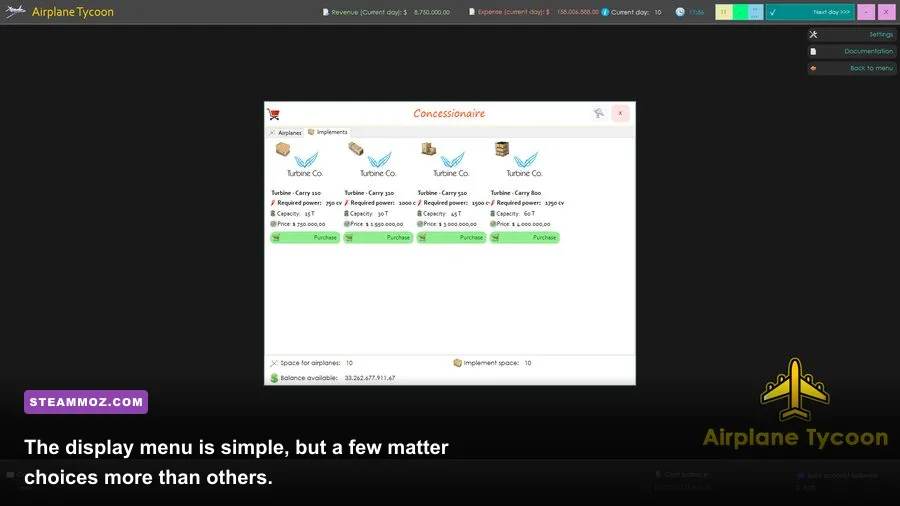
The recommended max-FPS profile is deliberately conservative. It keeps the game sharp at 1080p while removing the settings most likely to cost performance or create inconsistent frame delivery. If your monitor is 1440p or 4K, start at 1080p for testing; once the game is stable, increase resolution before raising expensive effects.
| Setting | Recommended Value | FPS Impact | Visual Note |
|---|---|---|---|
| Resolution | 1920×1080 native | Medium | Sharp interface with a sensible GPU workload |
| Display mode | Fullscreen | Low to medium | Usually gives cleaner focus and fewer desktop-scaling issues |
| V-Sync | Off for max FPS | None on average FPS | May introduce tearing during fast map scrolling |
| Anti-aliasing | Off or the lowest available level | Medium | Edges look less smooth, but the interface remains clear |
| Shadow quality | Low | Medium | Reduces scene-rendering cost around busy terminals |
| Texture quality | Medium or High | Low on modern GPUs | Textures benefit clarity more than frame rate |
| Effects or shader quality | Low or Medium | Low to medium | Useful first reduction if the airport view stutters |
| Draw distance | Medium | Low to medium | Less distant detail without making the management view ugly |
| Ambient occlusion | Off, if available | Medium | Small depth improvement is not worth the frame-time cost |
| Frame limit | 60 FPS externally, if needed | Improves consistency | A stable cap can feel smoother than fluctuating high FPS |
Some versions expose fewer labels than this table suggests. That is normal. If you cannot find a separate effects, shader, or ambient-occlusion option, ignore it rather than hunting through undocumented files. The practical order is resolution, anti-aliasing, shadows, effects, and then draw distance. Texture quality is the last thing to reduce because it usually has the smallest impact on a modern system.
Use a stable 60 FPS profile when the game feels uneven
Maximum FPS is not always the smoothest choice for Airline Tycoon 2. Older engines can produce a high reported average while still delivering uneven frame times during camera movement. If your monitor runs at 60 Hz, enable V-Sync or use a driver-level 60 FPS cap. With a 120 Hz or 144 Hz display, try a 60 FPS cap first, then test 120 only if the game behaves consistently.
Do not stack multiple frame limiters. Using in-game V-Sync, a GPU-driver cap, and an overlay limiter at the same time can add latency or produce odd pacing. Pick one method. For a basic setup, fullscreen plus V-Sync is the least complicated option. For troubleshooting, V-Sync off makes it easier to see whether the engine can actually render above 60 FPS.

🎮 FORM
Looking to experience this game? Grab your digital key directly on our store for $14.99.
View on Steammoz Store →Which settings actually affect performance?
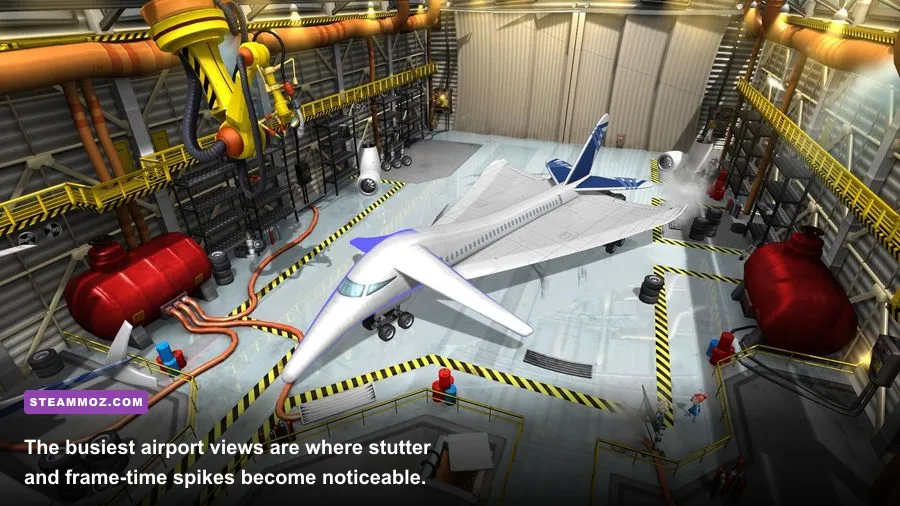
Airline Tycoon 2’s visual load comes from more than the number of aircraft on screen. The game combines an isometric-style management view with animated passengers, vehicles, airport objects, lighting, and simulation updates. A quiet airport can run perfectly while a late-game terminal with multiple flights, queues, shops, and staff causes short dips.
Resolution is the clearest GPU lever. Moving from 1080p to 1440p increases the number of pixels by roughly 78 percent, while 4K renders four times as many pixels as 1080p. That does not mean FPS will fall by exactly those percentages, because the game may become CPU-limited first, but it explains why native 4K is a poor troubleshooting baseline.
Anti-aliasing can also be disproportionately expensive in older games. It smooths the jagged edges around fences, aircraft, counters, and small props, but the interface itself may not look dramatically better. Turn it off first when you need extra headroom. If the game only offers a single on/off anti-aliasing switch, the off position is usually the best performance choice.
Shadows and effects are more situational. Shadows affect many objects at once and can produce spikes as the camera reveals new sections of the airport. Effects quality may control transparency, animated highlights, particles, or lighting passes. Lower both if the frame rate drops while panning across the terminal rather than while opening menus.
| Symptom | Likely Limit | First Change | Why It Helps |
|---|---|---|---|
| Low FPS at every zoom level | Resolution or GPU rendering | Lower resolution one step | Reduces the number of pixels rendered every frame |
| Stutter only over crowded terminals | CPU simulation or shadows | Lower shadows and cap at 60 | Reduces scene work and smooths frame delivery |
| Menus are smooth but camera panning tears | Unsynchronized output | Enable V-Sync or use a 60 FPS cap | Matches presentation to the monitor refresh |
| Blurry image at native resolution | Scaling or non-native mode | Use native resolution and fullscreen | Avoids desktop interpolation and stretched pixels |
| Brief freezes when loading an airport | Asset loading or background software | Close overlays and unnecessary apps | Leaves CPU, disk, and memory bandwidth available |
Texture quality behaves differently. On current graphics cards, the game’s older textures use very little video memory, so reducing them often produces a blurrier airport without a meaningful FPS gain. Keep textures high unless you are using integrated graphics or see visible texture-streaming pauses.
Best settings for low-end laptops and integrated graphics
Airline Tycoon 2 can run on modest hardware, but integrated graphics benefit from a controlled 720p or 900p profile. The important thing is to avoid making the laptop work harder than necessary while keeping text readable. A low-end setup should not blindly choose the lowest value for every option; blurry menus make a management game harder to play and do not always fix CPU-side stutter.
| Component or Option | Minimum Practical Target | Recommended Low-End Profile | Pro-Tuned Profile |
|---|---|---|---|
| Operating system | Supported Windows installation | Updated Windows 10 or 11 | Clean current Windows build with compatibility testing |
| Memory | 4 GB | 8 GB | 16 GB if multitasking or recording |
| Resolution | 1280×720 | 1600×900 | 1920×1080 native |
| Anti-aliasing | Off | Off | Lowest level or off |
| Shadows | Low | Low | Medium if stable |
| Textures | Medium | Medium | High |
| Background apps | Close launchers and browsers | Close overlays and recording tools | Keep only essential monitoring tools |
Begin at 1600×900 if your laptop supports it. That resolution is a useful compromise: it is visibly cleaner than 720p, yet it removes a substantial amount of GPU work compared with 1080p. If panning still dips, move to 1280×720 and keep textures at Medium. Avoid running a browser with dozens of video-heavy tabs, because integrated graphics share system memory and can suffer when Windows is already under pressure.
Power management matters on notebooks. Play while plugged in, select the system’s Best Performance power mode, and check that the game is using the intended GPU. Windows Graphics Settings can assign an executable to a preferred graphics processor, although the exact menu wording changes between Windows versions. A performance profile is especially useful if the laptop normally prioritizes battery life.
Windows fixes for stutter, scaling, and launch problems
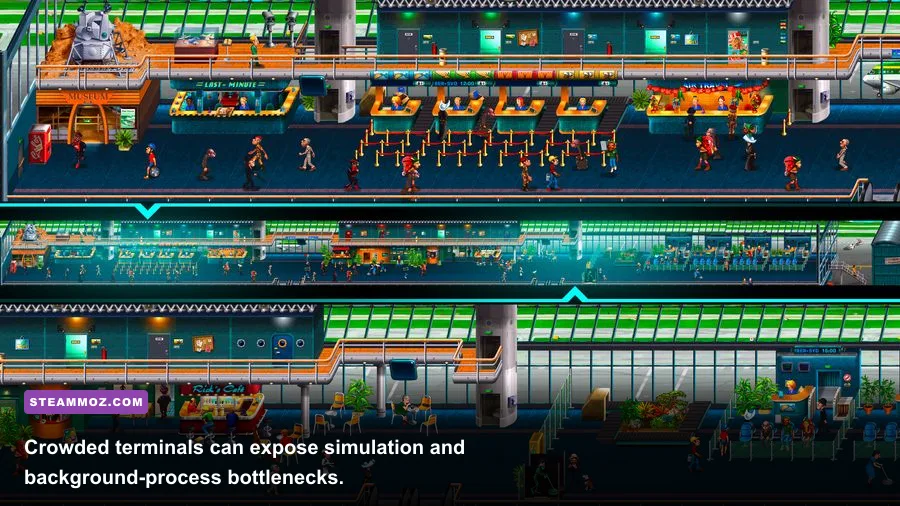
Old PC games often need more help from Windows than from the graphics menu. If Airline Tycoon 2 launches in a tiny window, stretches badly, or stutters despite low settings, test compatibility options before lowering every visual slider. Make a backup of the game’s save folder first, then change one Windows setting at a time.
Fix the display path first
Use the game’s launcher or video menu to select your monitor’s native aspect ratio where possible. Modern displays are generally 16:9, while older games may have been designed around 4:3 resolutions. If a widescreen mode looks stretched, try a lower 16:9 resolution such as 1280×720 or 1600×900 rather than forcing a random custom mode.
Disable Windows display scaling for the game executable if the interface looks soft or oversized. Right-click the executable, open Properties, choose Compatibility, then inspect the high-DPI settings. Test “Application” scaling first. The best option depends on the build and display, so keep the change only if text becomes sharper and the window behaves correctly.
Remove avoidable interference
Turn off Steam Overlay, Xbox Game Bar, Discord overlay, GPU recording, and third-party performance overlays while diagnosing stutter. These tools are usually harmless, but older games can react badly to injection hooks or focus changes. Once the game is stable, re-enable tools individually if you need them.
Also check the GPU control panel. Use the application-controlled profile where possible, disable forced image sharpening, and avoid forcing modern anti-aliasing modes onto the game. A driver-level 60 FPS cap is useful if the in-game limiter is missing, but do not force aggressive low-latency modes or enhanced synchronization until the basic profile works.
If you are using a community patch or compatibility wrapper, read its documentation on the Airline Tycoon community hub before replacing files. Keep a clean backup. Mixing multiple wrappers, DLL replacements, and launch parameters can create problems that look like graphics issues but are actually file or input conflicts.
How to test FPS without fooling yourself
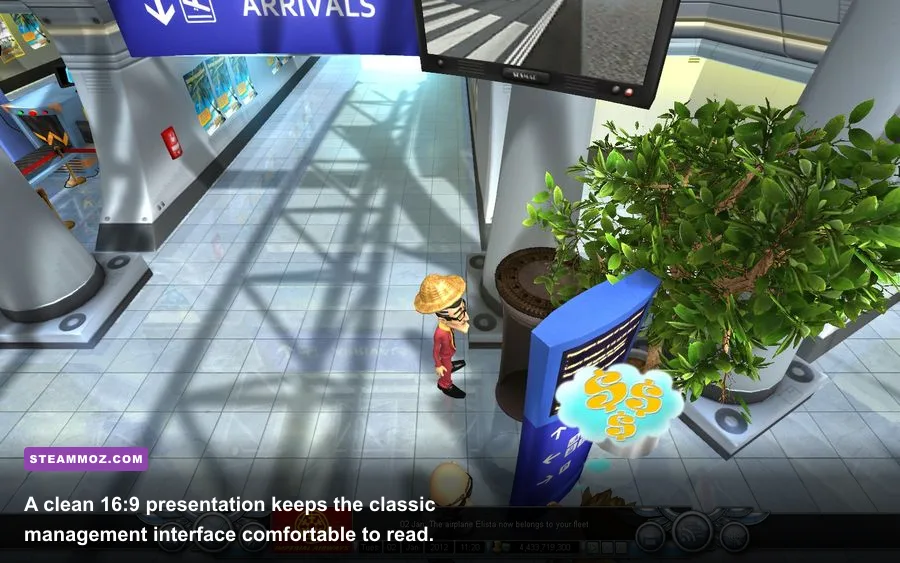
A reliable test needs the same airport, camera position, and activity level every time. The main menu is useless for performance testing. Load a campaign or scenario, zoom to the busiest section of the terminal, pan across the gates, and watch the frame-time graph for at least 60 seconds. Repeat the test after each setting change.
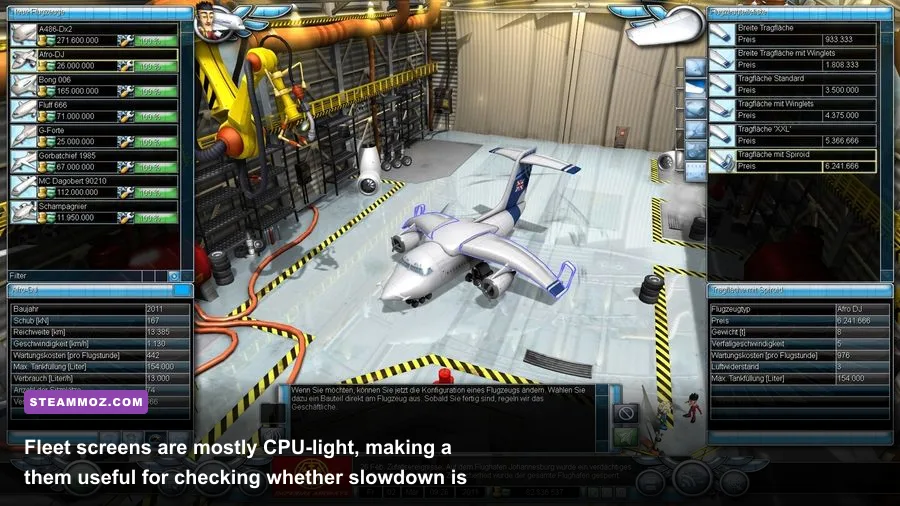
Test three situations: a quiet airport view, a crowded terminal view, and a menu or fleet-management screen. If all three are slow, start with resolution and display mode. If only the crowded view stutters, focus on shadows, effects, overlays, and CPU background load. If menus run quickly but the airport view tears, frame synchronization is the real problem rather than raw rendering power.
| Test Pass | Scene | What to Watch | Good Result |
|---|---|---|---|
| Pass 1 | Quiet airport area | Baseline FPS and image clarity | Stable frame delivery with readable text |
| Pass 2 | Busiest terminal and gates | 1% lows, hitching, camera response | No repeated pauses during panning |
| Pass 3 | Fleet or management screen | Menu responsiveness and focus changes | Instant input with no overlay-related hitch |
| Pass 4 | Window minimize and restore | Black screens, resolution changes, crashes | Returns to the game cleanly |
Prioritize consistency over a peak reading. A locked 60 FPS with clean frame pacing feels better than a counter bouncing between 58 and 180 FPS. If your system cannot hold 60 in the busiest view, cap at 30 only as a last resort; the game remains playable, but camera movement will feel noticeably less responsive. Lowering shadows and effects is preferable to dropping all the way to 30.
For broader PC troubleshooting ideas, our Just Cause 4 PC performance breakdown covers a useful way to separate hardware limits from configuration problems. The same principle applies here: change one variable, repeat the same test, and record the result rather than relying on memory.
The final performance profile to use
For most modern desktops, use 1920×1080, fullscreen, V-Sync on for a 60 Hz display, the lowest anti-aliasing option, Low shadows, Medium effects, Medium draw distance, and High textures. This profile keeps Airline Tycoon 2 crisp while cutting the settings that can cause the largest rendering spikes. If you want uncapped FPS, turn V-Sync off and cap the game externally only after confirming that tearing is acceptable.
On an integrated-GPU laptop, use 1600×900 or 1280×720, fullscreen, V-Sync on, anti-aliasing off, Low shadows, Low effects, Medium textures, and Medium draw distance. Close overlays, plug in the charger, and give the game a clean CPU budget. That combination is more dependable than simply selecting every “low” option and accepting a muddy image.
| Hardware Situation | Resolution | Core Settings | Target Experience |
|---|---|---|---|
| Modern desktop GPU | 1920×1080 or native | Low AA, Low/Medium shadows, High textures | Stable 60 FPS with sharp presentation |
| Older dedicated GPU | 1600×900 or 1920×1080 | AA off, Low shadows, Medium effects | Comfortable management view without major dips |
| Integrated graphics laptop | 1280×720 or 1600×900 | AA off, Low shadows/effects, Medium textures | Playable camera movement and readable menus |
| High-refresh monitor | Native resolution | V-Sync off, test an external 60 or 120 cap | Low latency without unstable frame pacing |
Once the game feels stable, resist the temptation to chase a benchmark number. Airline Tycoon 2’s appeal is watching a whole airport come alive: flights arriving, passengers moving, staff solving problems, and your carefully planned routes finally paying off. A clean 60 FPS, correct scaling, and a responsive camera make that management loop far more enjoyable than a technically higher but erratic frame rate.
For more management-game optimization and strategy reading, see Steamoz’s Bus Driver Simulator performance guide, the Car Mechanic Simulator 2015 breakdown, and our guide to Legend of Keepers’ strongest starting builds. The same veteran rule applies across all three: stable performance gives you more room to focus on the decisions that actually matter.
Finally, keep the official Airline Tycoon website and Steam support resources bookmarked if you run into installation or compatibility trouble. Start with the profile above, test the busiest airport view, and only raise visual quality after your frame pacing is already solid.