The best A New Beginning - Final Cut graphics settings are refresh-rate matched fullscreen, native resolution, V-Sync enabled, and GPU-driver overrides disabled. This is not a modern 3D game that needs shadows, volumetric fog, or texture streaming tuned one slider at a time. Daedalic Entertainment’s 2010 adventure is built around illustrated 2D scenes, pre-rendered backgrounds, character animation, and video sequences. On a current PC, the real performance battle is avoiding bad scaling, forced compatibility modes, frame pacing problems, and needless driver-level filtering. Use the profile below and you should get a stable 60 FPS, sharp dialogue text, clean animation, and almost no GPU load.
That distinction matters. A New Beginning - Final Cut can feel sluggish even when an overlay reports 60 frames per second. The usual culprit is uneven presentation caused by an old fullscreen path, a mismatched desktop refresh rate, or a game running at a non-native aspect ratio. The title has no demanding modern renderer to tame; instead, you want the simplest signal path possible. Let the game render at the display’s native resolution, let one system control synchronization, and avoid stacking Windows compatibility tricks on top of Steam’s launch process.
What the Final Cut version is actually rendering
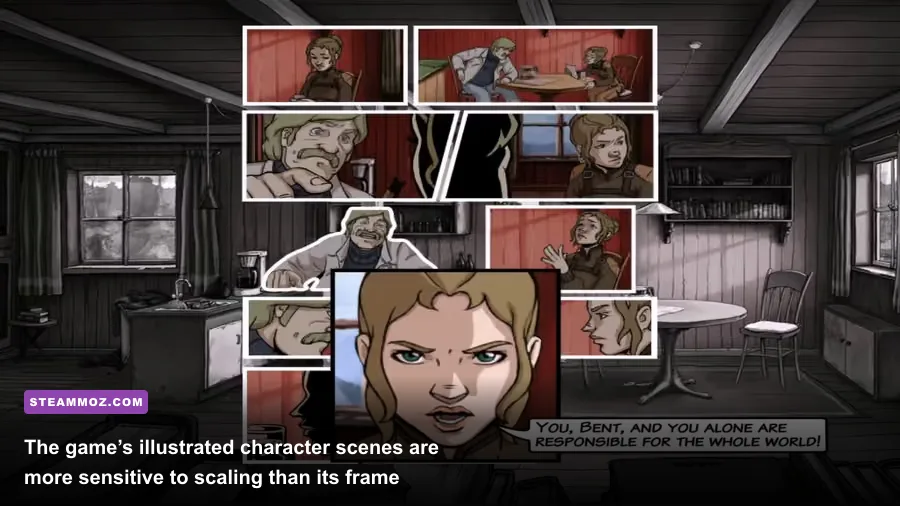
A New Beginning - Final Cut follows climate scientist Bent Svensson and Fay, a time traveler trying to prevent an environmental catastrophe. Its presentation is closer to an interactive animated film than a conventional 3D adventure. Locations use painted backdrops, 2D character layers, effects overlays, and pre-rendered cinematic material. That structure explains why a powerful RTX card will not suddenly produce a dramatically better picture than an integrated Radeon or Intel GPU.
The important visual variables are resolution, aspect ratio, scaling quality, synchronization, and whether Windows is applying compatibility behavior. There is no meaningful shadow-quality ladder to optimize, and lowering the resolution will not create the same large performance gain it would in a game such as Just Cause 4. For a useful comparison, our Just Cause 4 PC specs guide deals with a genuinely GPU-heavy open world. A New Beginning is the opposite: CPU and GPU headroom are plentiful, while presentation consistency is the priority.
| Component | What it affects | Modern-PC expectation | Best approach |
|---|---|---|---|
| 2D backgrounds | Scene sharpness and scaling | Very low GPU demand | Use native output resolution |
| Character animation | Movement and dialogue timing | Very low CPU demand | Prioritize stable frame pacing |
| Video sequences | Cutscene smoothness | Depends more on decoding than GPU power | Keep hardware acceleration normal |
| Display mode | Latency, scaling, alt-tab behavior | Varies by Windows version | Test exclusive fullscreen first |
| V-Sync | Tearing and cadence | Usually negligible performance cost | Enable one sync method only |

🎮 A New Beginning - Final Cut
Looking to experience this game? Grab your digital key directly on our store for $0.99.
View on Steammoz Store →Best graphics settings for maximum FPS
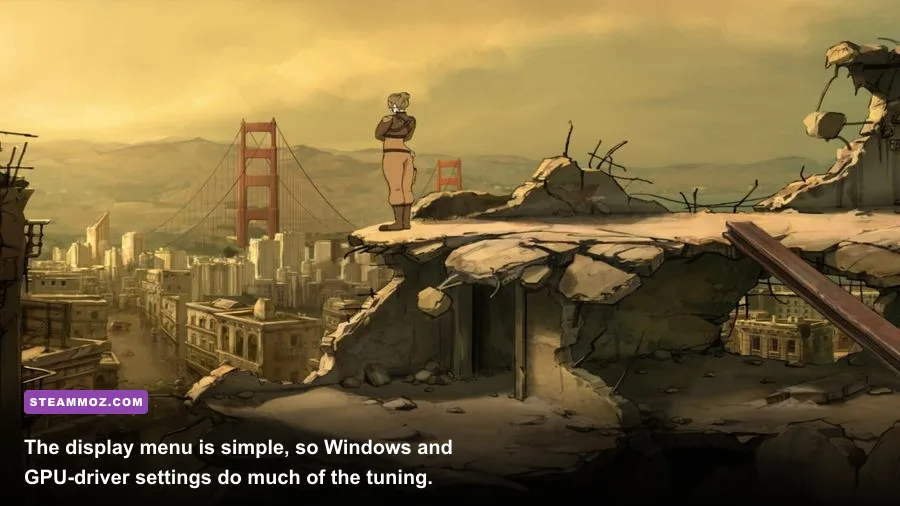
Start with the native resolution of your monitor. On a 1920x1080 panel, select 1920x1080; on a 2560x1440 display, use 2560x1440 if the game exposes it. If Final Cut only presents a smaller list, leave desktop scaling alone and use the highest 16:9 option that does not stretch the image. A clean 1280x720 image scaled evenly to 1920x1080 is preferable to a strange 1366x768 or 1600x900 mode that introduces uneven filtering.
Choose fullscreen before trying borderless windowed mode. Older adventure-game builds sometimes behave better in a window on modern Windows, but fullscreen is the correct first test because it minimizes desktop compositing and makes refresh-rate matching more predictable. If alt-tab becomes unreliable, switch to borderless through your display utility or use a windowed mode at native resolution. Do not sacrifice sharpness just to chase an FPS number the engine cannot meaningfully use.
Set V-Sync to On if you see horizontal tearing during camera movement, scrolling, or scene transitions. If the game exposes an FPS limit, use 60 FPS on a 60 Hz display, 120 FPS on a 120 Hz display, or 144 FPS on a 144 Hz display only if the title actually presents frames cleanly at that rate. A 60 FPS cap is the sensible target because the animation and video assets were not designed around competitive refresh rates. On a VRR monitor, enable Adaptive-Sync at the driver level and cap a few frames below refresh, but only after confirming the game remains stable.
| Setting | Recommended value | FPS impact | Visual or latency note |
|---|---|---|---|
| Display mode | Fullscreen | Low to none | Usually gives the cleanest presentation |
| Resolution | Monitor native resolution | Low on modern hardware | Prevents blurry UI and uneven scaling |
| Aspect ratio | 16:9 or display-native supported ratio | None | Avoid stretched character art |
| V-Sync | On for fixed-refresh displays | Very low | Removes tearing during scene movement |
| Anti-aliasing | Default or application-controlled | Negligible | Driver-forced AA rarely improves 2D art |
| Texture filtering | Application-controlled | Negligible | Forcing anisotropic filtering does little here |
| FPS limit | 60 FPS, or display refresh if available | Can reduce wasted rendering | Improves consistency over an unlimited cap |
| HDR | Off unless the display path is tested | None to low | Can wash out older SDR artwork |
| Windows scaling | 100% for testing | None | Useful when diagnosing fuzzy text |
There is one important caveat: the in-game menu may not expose every option named above. That is normal for Final Cut. Treat the table as a target profile rather than a promise that every toggle exists in every Steam build, operating system, or display mode. The best A New Beginning - Final Cut settings are often the settings you leave at default, provided the output resolution and synchronization are correct.
Why native resolution beats lowering everything
In a modern 3D title, lowering resolution can rescue a struggling GPU. Here, it mostly makes text and line art worse. Bent’s dialogue subtitles, inventory icons, object outlines, and hand-painted background details all depend on clean pixel scaling. A lower resolution may technically raise the reported frame rate from 60 to 200, but that is not a useful win if the presentation becomes soft and the game still displays animation at the same effective cadence.
Use the display’s integer-friendly options whenever possible. A 1280x720 source on a 1920x1080 monitor scales by exactly 1.5 times, which is not integer scaling but remains a standard 16:9 conversion. On a 4K monitor, 1920x1080 scales neatly by 2x and can look surprisingly clean if the game’s internal maximum is 1080p. Enable GPU scaling with preserve-aspect-ratio selected if your monitor stretches older content incorrectly.
Ultrawide users need extra care. A 3440x1440 display may show black bars, a centered 16:9 image, or a horizontally stretched scene depending on the game and driver. Preserve aspect ratio is the safe choice. Do not force a 21:9 resolution through a launch option unless you have confirmed that menus, subtitles, and clickable hotspots remain aligned. Point-and-click adventures are particularly vulnerable to mismatched invisible hotspot coordinates.
Fixing stutter, tearing, and strange frame pacing
If the counter says 60 FPS but movement looks uneven, troubleshoot in this order. First, match Windows to the monitor’s actual refresh rate. A 60 FPS game on a desktop accidentally set to 59.94 Hz can still be fine, but inconsistent fullscreen transitions and background applications can create visible cadence issues. Second, disable duplicate synchronization. Do not run in-game V-Sync, NVIDIA Control Panel V-Sync, Radeon Enhanced Sync, and a third-party limiter at the same time. Pick one limiter and one synchronization path.
For NVIDIA hardware, leave the profile at Use the 3D application setting, then test V-Sync On only if tearing appears. Low Latency Mode should remain Off; there is no competitive input queue to optimize, and the game’s old renderer gains nothing from aggressive driver intervention. For AMD, keep Radeon Chill and Enhanced Sync disabled during the first test. If you use FreeSync, enable it globally or for the game, then cap the frame rate a few frames below the panel’s maximum with a trusted limiter.
Background overlays deserve attention. Steam Overlay, Discord, Xbox Game Bar, GeForce Experience, Radeon recording, and RGB utilities can all hook old DirectX applications. You do not need to disable every overlay permanently, but turning them off for one test quickly reveals whether the stutter is external. Also close browser video tabs and hardware-monitoring overlays before judging performance. This game should not be CPU-bound on a current machine; a sudden spike usually points to software around the game.
| Symptom | Likely cause | First fix | Escalation |
|---|---|---|---|
| Tearing during scrolling | V-Sync disabled | Enable in-game V-Sync | Use driver V-Sync if the game option fails |
| 60 FPS but uneven motion | Refresh mismatch or duplicate limiter | Match refresh and remove extra caps | Try borderless mode |
| Blurry subtitles | Non-native resolution or scaling | Use native 16:9 resolution | Set GPU scaling to preserve aspect ratio |
| Black screen on launch | Unsupported fullscreen mode | Launch windowed or reset display config | Use Windows compatibility troubleshooting |
| Crashes after alt-tab | Old fullscreen handling | Use borderless or windowed mode | Disable overlays and test compatibility mode |
Windows and Steam fixes that actually help
Before changing compatibility settings, verify the installation through Steam and update the game’s files. The official A New Beginning - Final Cut Steam page is the right reference for the current package, supported features, and user reports. The Daedalic Entertainment website is also worth checking for publisher support information, while Steam Support provides the official verification and launch-troubleshooting steps.
Disable fullscreen optimizations on the game executable only if fullscreen produces flicker, incorrect scaling, or repeated alt-tab crashes. Right-click the executable, open Properties, select Compatibility, and test Disable fullscreen optimizations. Avoid blindly enabling Windows 7 compatibility mode: it can fix one issue while creating another, especially with video playback or input focus. Run as administrator only when the game cannot write its configuration files; it should not be your default performance tweak.
Steam launch options should stay minimal. A windowed launch option can help you recover from a black screen, but do not pile on random DirectX flags copied from unrelated games. Once you reach the title screen, set resolution and display mode normally, quit cleanly, and relaunch. That gives the game a chance to save its configuration instead of repeatedly starting with a broken mode.
For handhelds such as Steam Deck, use 1280x800 desktop output while preserving the game’s 16:9 image. Black bars are preferable to stretching. A 60 Hz profile is more than enough, and a 40 FPS cap is unnecessary unless you are chasing battery life; the title is light enough that 60 FPS should be practical. Keep Proton and the game’s default compatibility layer current rather than forcing an experimental version without a specific reason. Our broader PC game performance coverage explains why per-game testing matters more than blindly copying a universal preset.
Recommended profiles for different PCs
There is no high-end preset that transforms Final Cut, so choose a profile based on display behavior rather than hardware bragging rights. The following settings are deliberately conservative. They protect image quality first, then remove the few sources of stutter that can actually affect this older adventure.
| Profile | Resolution and mode | Sync and cap | Best use |
|---|---|---|---|
| Maximum quality | Native resolution, fullscreen | V-Sync On, display refresh cap | Desktop and gaming PCs |
| Stable legacy PC | 1280x720 or highest supported 16:9 mode | V-Sync On, 60 FPS cap | Older laptops and integrated graphics |
| Ultrawide | Highest supported 16:9 mode, preserve aspect | V-Sync or VRR, 60 FPS cap | 3440x1440 and 2560x1080 monitors |
| Steam Deck | 1280x800 output with 16:9 letterboxing | 60 Hz, no aggressive limiter | Handheld play without stretched art |
| Diagnosing stutter | Native windowed mode | V-Sync Off for one test | Finding fullscreen or sync conflicts |
The maximum-quality profile is the one I recommend for almost everyone. It preserves the painted art, keeps subtitles crisp, and avoids the pointless exercise of lowering settings that barely affect GPU utilization. If your machine cannot hold a stable presentation, step down resolution only after trying borderless mode, disabling overlays, and checking refresh-rate configuration.
How to verify your A New Beginning FPS result
Do not test performance only in the opening menu. Load a save with animated characters, several interactive objects, and a scene transition. Play through dialogue, open the inventory, move the cursor over hotspots, and trigger a cinematic. These moments exercise more of the game’s presentation pipeline than a static background.
Use Steam’s in-game FPS counter or a lightweight overlay, but watch frame-time consistency if your tool supports it. A flat 16.7 ms frame time indicates a clean 60 FPS presentation. Occasional spikes during loading are harmless; repeated spikes while scrolling or talking to characters are not. Record the same scene before and after each change. If two settings produce the same frame time, keep the one that gives sharper art and fewer compatibility risks.
Finally, don’t confuse loading pauses with rendering drops. Final Cut can pause briefly while changing locations or starting video content, especially from a hard drive. That is asset loading, not a graphics bottleneck. Installing the game on an SSD may shorten those transitions, but it will not improve the visual quality of the hand-drawn scenes. The best result remains refresh-rate matched fullscreen, native resolution, one synchronization method, and an untouched application-controlled driver profile.
That setup gives A New Beginning - Final Cut exactly what it needs: stable animation, clean illustrated backgrounds, readable subtitles, and no needless modern-PC tinkering. For more focused optimization reading, compare it with our older PC game performance guide and the Kingdom Come: Deliverance II settings and tips coverage. Different engines, same rule: measure the actual problem before sacrificing image quality.