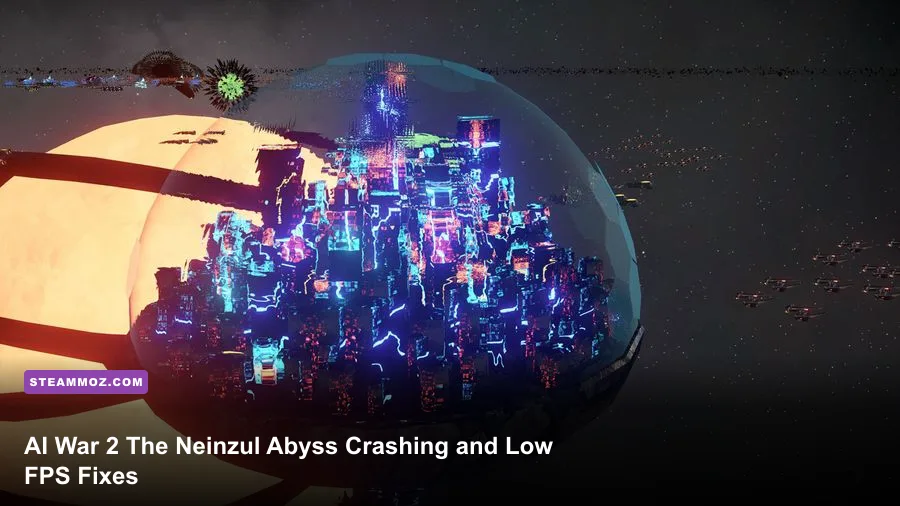
If AI War 2: The Neinzul Abyss crashes or crawls below a playable frame rate on PC, start with a clean file verification, disable overlays, update your graphics driver, and cap the game at 60 FPS. Then lower effects and zoom-related visual settings before touching resolution. The important distinction is that AI War 2 has both a rendering load and a simulation load: a quiet planet can run smoothly while a giant late-game fleet makes the game feel slow even on a powerful GPU.
The Neinzul Abyss is an expansion running inside the AI War 2 ecosystem, so troubleshooting is less about finding one magical DLC switch and more about isolating whether the failure comes from damaged Steam files, a mod, an overlay, a driver conflict, or a campaign whose unit count is overwhelming the CPU. This guide covers all five, with settings that preserve the game's famously readable strategic map.
Before changing anything, check the official AI War 2 Steam page for current updates and confirm that The Neinzul Abyss is installed on the same library branch as the base game. Also keep the Arcen Games support hub nearby. If your broader PC library has similar problems, our guide to fixing crashes and stutters has useful Windows-level checks.
Fix AI War 2 Crashes Before Changing Graphics
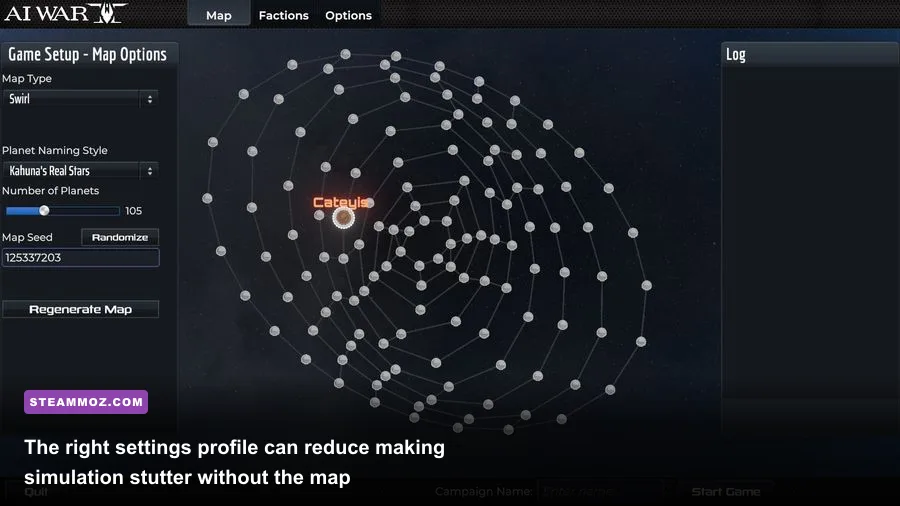
Start with the boring fix because it works. Close AI War 2, restart Steam, and verify the installation through Library > AI War 2 > Properties > Installed Files > Verify integrity of game files. This replaces missing or altered files, including files used by expansion content. If Steam reports one or more files repaired, reboot Windows and test a new campaign before loading your old save.
Use a clean launch test
Disable every mod from the in-game mod manager, even if it does not appear related to The Neinzul Abyss. AI War 2 mods can change unit data, map generation, interface elements, or scripts; an old mod may survive a base-game update and crash only when the expansion's content is generated. Create a fresh small galaxy, play for five minutes, and compare it with the affected save. If the new galaxy works, the problem is probably a mod, a damaged save, or a specific late-game state rather than your GPU.
Next, turn off Steam Overlay, Discord Overlay, Xbox Game Bar, GeForce Experience overlay, MSI Afterburner, and RGB monitoring tools one at a time. Overlay hooks are especially suspicious when the game crashes during alt-tab, loading, or switching between a galaxy and a detailed battle view. Add the game's executable as an exception in antivirus software only after confirming the file path, and never download replacement DLL files from random fix sites.
Update your GPU driver using a normal clean installation, then reboot. On laptops, force AI War 2 onto the dedicated GPU through Windows Graphics settings. If the game crashes immediately after a driver update, test the previous stable driver instead; newer drivers occasionally introduce problems in older 2D or hybrid-rendered games. For more Windows troubleshooting ideas, compare this process with our PC specs and settings guide.

🎮 AI War 2: The Neinzul Abyss
Looking to experience this game? Grab your digital key directly on our store for $3.99.
View on Steammoz Store →Best AI War 2 Settings for Stable FPS
AI War 2 is not a modern cinematic game, so lowering texture quality alone rarely fixes its worst slowdowns. The heavy hitters are usually particle effects, screen shake, post-processing, and the number of objects visible during a battle. Start at native desktop resolution with a 60 FPS cap. A stable cap is better than an uncapped frame rate that swings between 144 FPS in empty space and 25 FPS during a fleet assault.
| Setting | Recommended Value | FPS Impact | Visual Trade-Off |
|---|---|---|---|
| Resolution | Native monitor resolution | Medium on GPU-bound PCs | Keep native; lower only as a last resort |
| Particle Effects | Medium | High during fleet battles | Less projectile and explosion clutter |
| Post-Processing | Off or Low | Low to medium | Flatter effects, clearer performance |
| Screen Shake | Off | Small average gain | Removes distracting camera movement |
| Lighting and Bloom | Low or Medium | Medium in dense fights | Reduced glow around weapons and structures |
| V-Sync | On if tearing appears | Minimal average impact | Cleaner scrolling; may add latency |
| FPS Limit | 60 FPS | Reduces heat and spikes | More consistent input and pacing |
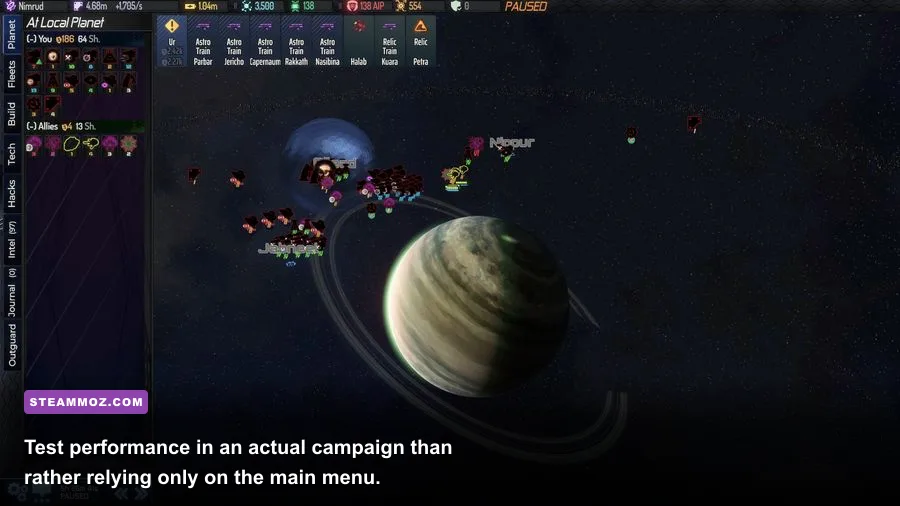
Change one setting at a time and test the same location. A repeatable test matters: pause over a crowded planet, zoom to the busiest fight, unpause for 30 seconds, then zoom back out. If GPU usage is near 99 percent, reduce resolution or effects. If GPU usage is low while the frame rate collapses, you are probably simulation- or CPU-limited, and reducing resolution will barely help.
For integrated graphics, use 1600x900 or 1280x720, Medium particles, Low lighting, disabled post-processing, and a 45 or 60 FPS cap. For a modern six-core desktop with a dedicated GPU, native resolution, Medium-to-High effects, and a 60 FPS cap are sensible. Don't chase 144 FPS in a campaign with thousands of active objects; the simulation can become the bottleneck long before the renderer does.
Why Late-Game AI War 2 Slows Down
AI War 2's signature challenge is also its performance trap: the galaxy becomes busier as the campaign develops. The strategic AI continues managing planets, defenses, fleets, reinforcements, scouting, and attacks while your own forces do the same. The Neinzul Abyss can make a campaign feel heavier when expansion content adds more entities or effects to a busy map, but that does not automatically mean the DLC is broken.
There are three different symptoms. A low average frame rate during explosions points to rendering. A pause every few seconds while the game processes turns or fleet activity points to simulation timing. A long freeze followed by a crash points more strongly toward memory pressure, a mod, corrupted data, or an external overlay. Watch Task Manager while testing: GPU utilization identifies a graphics bottleneck, while one CPU core staying heavily loaded with the GPU mostly idle suggests the simulation is setting the ceiling.
Reduce the number of simultaneous battles rather than only lowering visual quality. Avoid opening several detailed combat views at once, pause before issuing huge batches of orders, and give the game a few seconds to finish processing after a major fleet jump. In an overgrown campaign, zoom out, close unnecessary information panels, and save in a quiet moment instead of immediately after a massive assault.
Autosaves and manual saves can also become slower as a campaign accumulates data. Keep several rotating saves rather than overwriting one file forever. If one save crashes while a previous save loads normally, do not keep hammering the broken file. Load the earlier save, wait for the simulation to settle, remove or retreat the fleet involved in the crash, and save under a new name.
Windows Fixes for Stutter, Freezes, and Memory Errors
Install AI War 2 on an SSD with at least 10 GB of free space on the drive. The game itself is not enormous, but Windows needs room for shader caches, temporary files, updates, and the page file. A nearly full system drive can turn a short loading hitch into a long freeze. Set Windows to manage virtual memory automatically unless you have a specific reason to use a custom page-file size.
| Component | Minimum Troubleshooting Target | Recommended Setup | What It Fixes |
|---|---|---|---|
| Operating system | Fully updated Windows 10 | Updated Windows 10 or 11 64-bit | Compatibility and driver errors |
| Memory | 8 GB RAM | 16 GB RAM with background apps closed | Late-game paging and save freezes |
| Storage | 10 GB free on the system drive | SSD with 15 percent free space | Loading and temporary-file stalls |
| GPU driver | Current stable driver | Clean-installed WHQL driver | Launch and rendering crashes |
| Background software | Overlays disabled | Overlays and monitoring hooks disabled | Alt-tab and startup crashes |
Use Windows Settings > System > Display > Graphics to add the AI War 2 executable and choose High performance on a laptop. Set the Windows power mode to Best performance while testing, plug in the charger, and make sure the system is not throttling because of heat. A laptop that starts at 60 FPS and falls to 25 after ten minutes may have a thermal problem rather than a game-setting problem.
Try disabling fullscreen optimizations on the executable if crashes happen during alt-tab, and test borderless windowed mode if exclusive fullscreen behaves badly. Conversely, if borderless mode stutters, exclusive fullscreen can reduce desktop compositor interference. These are test switches, not universal upgrades. Keep whichever mode produces consistent frametimes on your machine.
Mods, Saves, and The Neinzul Abyss Compatibility Checks
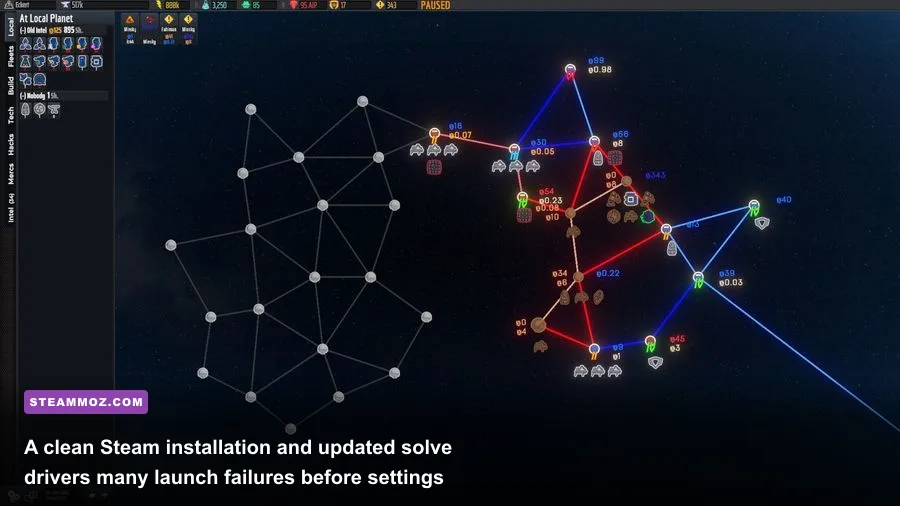
Expansion troubleshooting should always use the same version across the base game, DLC, and mods. Open the official Steam community discussions and check whether a recent patch changed compatibility. Arcen's developer site is also the right place to confirm announcements instead of trusting a random launcher argument or unofficial DLL download.
For a controlled test, unsubscribe from workshop mods, restart Steam, verify files, and launch a new campaign with The Neinzul Abyss enabled. If that works, re-enable mods in small groups. The first group that restores the crash identifies the suspect. Do not immediately delete your save folder; copy it to a separate backup first. This is particularly important if the affected campaign contains rare expansion encounters or many hours of progress.
If crashes happen only when entering one planet, zooming into one battle, or selecting one fleet, reproduce the issue with a different save and record the exact action. Note your Windows version, GPU, driver version, enabled DLC, active mods, and whether overlays are disabled. That information is far more useful to support than “it crashes late game.” You can also compare optimization habits with our guide to pushing FPS without ruining readability and our PC settings breakdown.
The most reliable profile for AI War 2: The Neinzul Abyss is simple: verified files, no outdated mods, overlays disabled, a current stable driver, Medium particles, Low post-processing, native resolution, and a 60 FPS cap. If the game still slows only during enormous battles, your PC probably isn't failing; the campaign is hitting the simulation ceiling. Keep the galaxy manageable, rotate saves, and test a clean campaign before blaming the expansion. That approach fixes the common crashes while preserving the tactical detail that makes AI War 2 worth playing.