
If Eternal Destiny keeps crashing, freezing, or running below a playable frame rate on PC, start with three fixes: verify the Steam installation, update or clean-install your GPU driver, and run the game at 1080p with shadows, effects, and post-processing reduced. Then cap the frame rate to a stable target instead of chasing an erratic peak. The steps below separate launch crashes from mid-game stutter, so you can fix the actual bottleneck rather than randomly lowering every setting.
Before changing anything, close overlays and record what happens. A crash before the first menu usually points to missing files, permissions, an incompatible driver, or a damaged configuration file. A crash after several minutes can indicate VRAM pressure, overheating, or an overlay conflict. Low FPS in every scene suggests GPU or CPU limits; sudden hitching when entering a new area is more commonly shader compilation, asset streaming, or a background process.
Start with the fixes that solve most crashes
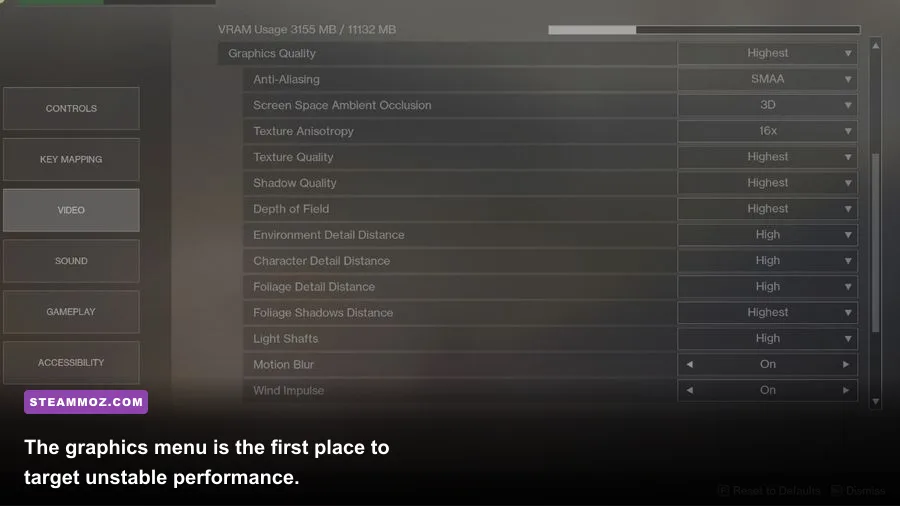
Do these in order, launching Eternal Destiny after each major change. This keeps the troubleshooting process measurable and prevents five different fixes from hiding the real cause.
1. Verify the installation through Steam
Open Steam, right-click Eternal Destiny, choose Properties, select Installed Files, and click Verify integrity of game files. Steam will replace damaged or missing files, but it won't repair every problem: a broken user configuration can survive verification, and third-party antivirus software can quarantine a file again after the repair.
2. Clear the game's local configuration
If the crash began after changing resolution, enabling an experimental graphics option, or moving the game between monitors, reset its local settings. First close Steam and back up any save folder you can identify. Check %LOCALAPPDATA%, %APPDATA%, and Documents\My Games for an Eternal Destiny folder. Rename a settings or configuration folder rather than deleting it. On the next launch, the game should create clean defaults. Do not remove save data unless you have confirmed it is synchronized or copied elsewhere.
3. Clean-install the graphics driver
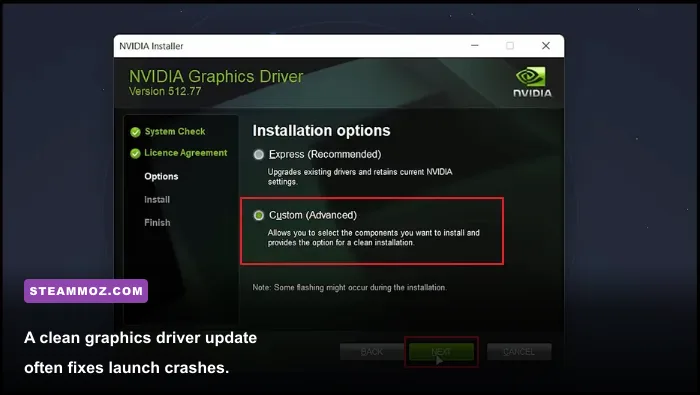
Install the current driver directly from the official NVIDIA driver page or the official AMD support page. If the problem appeared immediately after a driver update, test the previous stable driver instead. During installation, choose the clean-install option when available. Intel Arc users should use Intel's official driver tool and avoid relying solely on Windows Update.
4. Remove overlay conflicts
Disable Steam Overlay, Discord Overlay, Xbox Game Bar, NVIDIA ShadowPlay, AMD recording, MSI Afterburner OSD, and RGB-monitoring utilities for one test session. These tools hook into the rendering pipeline. They are convenient, but a crash that disappears when the overlay is gone is not a hardware failure. Re-enable them one at a time later.
For Steam-specific account and installation problems, the official Steam Support portal is worth checking before reinstalling the entire game. Reinstallation is a last resort, not the first move.

🎮 Eternal Destiny
Looking to experience this game? Grab your digital key directly on our store for $1.99.
View on Steammoz Store →Use this low-FPS profile before lowering everything

The fastest route to smoother gameplay is a controlled baseline. Set the display to 1920×1080, use exclusive fullscreen if the game provides it, turn V-Sync off while testing, and cap the frame rate to 60 FPS. If your PC cannot hold 60, use a stable 30 FPS cap rather than allowing the frame time to swing between 35 and 90. Consistency feels better than a higher average with constant spikes.
| Setting | Recommended value | FPS impact | Visual trade-off |
|---|---|---|---|
| Resolution | 1920×1080 | High on GPU-limited systems | Sharper than 900p; reduce only if necessary |
| Display mode | Fullscreen or borderless for testing | Low to medium | Fullscreen may reduce desktop interference |
| V-Sync | Off while diagnosing | Does not raise raw FPS | May introduce tearing |
| Frame-rate cap | 60, or 30 if 60 is unstable | Improves frame pacing | Lower peak performance, fewer spikes |
| Shadows | Low or Medium | Medium to high | Edges and contact shadows become simpler |
| Effects and particles | Medium | Medium during combat | Large spell and impact effects look less dense |
| Post-processing | Low or Medium | Low to medium | Less bloom, blur, and cinematic filtering |
| Anti-aliasing | Medium or the lighter available option | Low to medium | More shimmering on fine edges |
| Textures | High if VRAM allows; Medium otherwise | Usually low until VRAM fills | Lower surface detail, but often minimal FPS gain |
Shadows and effects deserve priority because they can load the GPU during crowded fights without making the whole scene look dramatically worse. Textures are different. Dropping textures from High to Low often fails to fix low FPS when the problem is shader compilation or CPU overhead, while making environments noticeably muddy. Keep textures as high as your VRAM allows and lower them only if you see texture pop-in, severe hitching, or an out-of-memory crash.
Find out whether your CPU, GPU, or VRAM is the culprit
Use Steam's performance overlay, Xbox Game Bar, or a trusted monitoring tool and watch GPU usage, CPU usage, VRAM, system RAM, temperatures, and frame time. The FPS number alone is not enough. A flat 55 FPS with even frame pacing can feel smooth; a counter showing 100 FPS with repeated 200-millisecond frame-time spikes feels broken.
| What you observe | Likely cause | Best first change | What not to do |
|---|---|---|---|
| GPU stays near 95–100% | GPU-limited rendering | Lower resolution, shadows, effects, or post-processing | Do not close background apps expecting a major GPU gain |
| GPU usage drops while one CPU core is busy | CPU or game-thread limit | Reduce crowd, simulation, view-distance, or background load if available | Do not keep lowering textures |
| VRAM is nearly full and hitching worsens | Texture or asset-streaming pressure | Lower textures one step and close browser windows | Do not increase texture quality to fix stutter |
| FPS is fine but frame time spikes when entering areas | Shader or asset compilation | Let the area load, then repeat it; use an SSD | Do not repeatedly restart after every hitch |
| Performance degrades after 20–30 minutes | Thermal throttling or memory pressure | Check temperatures, airflow, and RAM usage | Do not overclock before stabilizing the game |
If the GPU is below 90% while FPS is poor, lowering resolution may do almost nothing. That is the classic CPU-limit trap. Close launchers, browser tabs, recording software, and hardware-monitoring tools, then test again. On laptops, force Eternal Destiny to use the dedicated GPU in Windows Graphics settings or the NVIDIA/AMD control panel, and play while connected to AC power with the system's performance mode enabled.
Stop stutter caused by Windows and storage

Install Eternal Destiny on an SSD with at least 15–20% free space. A nearly full drive can slow shader caches, temporary files, and asset streaming. If the game is installed on a hard drive, moving it to an SSD may help area transitions and reduce hitching even when average FPS barely changes.
Set Windows to Best performance or use your laptop manufacturer's performance profile. Disable unnecessary startup applications, pause cloud synchronization during play, and add the game folder as an exclusion in security software only if you trust the installation. Never permanently disable antivirus protection as a blind fix.
Windows Game Mode is usually safe to leave enabled, but test Hardware-accelerated GPU scheduling if you still have inconsistent frame times. It helps some systems and hurts others, so compare the same save location twice. Also check that your monitor is actually running at its intended refresh rate. A 144Hz panel set to 60Hz won't create low game FPS, but it can make a stable 60 feel less responsive than expected.
Handle crashes that happen during loading or combat
Crashes during a loading screen often involve corrupted files, a bad shader cache, insufficient permissions, or a memory spike. Crashes during visually busy combat point more toward VRAM pressure, driver instability, or an overlay hook. Start the game with every optional overlay disabled and use the baseline profile above. If that works, restore settings in this order: resolution, textures, anti-aliasing, effects, then shadows. Testing one category at a time tells you exactly which option breaks stability.
Use launch options carefully
Do not paste random Unreal Engine commands or “FPS boost” parameters from an unrelated game. Launch options are engine-specific, and a bad command can cause a failed boot or disable useful rendering features. Only use a documented option from the game's official Steam listing and community notices. If the game has no documented launch commands, leave the field empty.
Check Windows crash evidence
Open Reliability Monitor by searching Windows for View reliability history. Look for the Eternal Destiny crash time and note whether the faulting module is the game executable, a graphics driver DLL, an overlay, or a Windows component. A driver-related entry supports a clean driver install; an overlay-related entry supports disabling that software. This is far more useful than reinstalling Windows or changing BIOS settings without evidence.
For broader troubleshooting patterns, Steamoz's guides to Fade to Silence crashes and low FPS, Firefighting Simulator: Ignite performance fixes, and Hop Step Sing! VR crashes cover similar driver, overlay, and configuration failures. The hardware diagnosis is transferable even when each game uses different settings.
A stable Eternal Destiny profile for three PC types
| PC profile | Resolution and cap | Graphics profile | Expected goal |
|---|---|---|---|
| Integrated graphics or older laptop | 1600×900 or 1280×720, 30 FPS | Low shadows, Low effects, Medium textures if memory permits | Stable frame pacing over image quality |
| Mainstream gaming PC | 1920×1080, 60 FPS | Medium shadows and effects, High textures, lighter post-processing | Consistent combat performance |
| Modern mid-range or high-end PC | 1920×1080 or 2560×1440, 60–120 FPS | High textures, Medium/High effects, shadows adjusted by GPU load | Higher clarity without sacrificing frame time |
Use the lowest profile that stays stable in the game's busiest scene, not the quietest menu or an empty field. If the game runs well for ten minutes and then crashes, stability matters more than a benchmark screenshot. Keep an eye on temperatures, leave overlays disabled until the problem is gone, and restore visual options slowly.
If none of these steps works, collect the crash time, Windows Reliability Monitor entry, GPU model, driver version, RAM amount, installation drive, and whether the crash occurs before or after the main menu. Send that information through the game's official support route or its Steam discussion hub. A precise report gives the developer something actionable; “it crashes” usually doesn't.
For more PC optimization reading, see Steamoz's Don't Escape 4: Days to Survive FPS settings and Edge of Eternity beginner guide. The key lesson is the same: establish a clean baseline, measure the bottleneck, and change one variable at a time. That approach fixes Eternal Destiny far faster than blindly setting every option to Low.