Firefighting Simulator: Ignite usually stops crashing and gains much smoother FPS after three changes: update the GPU driver, disable overlays and unstable frame-generation features, then lower volumetric effects, shadows, and resolution scaling. Start with the 60 FPS profile below, verify the game files in Steam, and only raise texture quality after you confirm that VRAM is not overflowing. That order matters. A pretty-looking fire can hammer the GPU, while a crash during loading is more often a driver, shader-cache, overlay, or corrupted-file problem.
Before changing everything at once, record your symptoms. Does Ignite close while launching, crash when loading a mission, stutter only inside burning buildings, or run slowly everywhere? Those clues point to different fixes. The developer’s official Steam listing is also worth checking for hotfix notes, updated system requirements, and reports from other players.
Start with this five-minute crash fix
First, restart Windows rather than simply relaunching Steam. A failed shader compilation or a driver timeout can leave a game process and graphics driver in a bad state. Then open Steam, right-click Firefighting Simulator: Ignite, choose Properties, select Installed Files, and run Verify integrity of game files. This replaces damaged downloads without deleting your saves.
Next, close every overlay for the first test: Steam Overlay, Discord, Xbox Game Bar, NVIDIA App overlay, AMD Adrenalin overlay, MSI Afterburner’s OSD, and RGB or motherboard utilities. Overlay hooks are useful, but a new game update can make one of them collide with the renderer. If the crash disappears, re-enable them individually instead of turning everything back on together.
Use a clean GPU-driver installation if the problem began after an update. NVIDIA users can choose the clean-install option in the driver installer; AMD users should use the factory-reset option in Adrenalin. Download drivers from NVIDIA’s official driver page or AMD’s official support page, not a random driver mirror.
Finally, remove launch tweaks. In Steam’s Properties window, clear the Launch Options box. Do not stack commands copied from unrelated Unreal Engine games. Test the unmodified build first, then add one change at a time. If Ignite crashes before reaching the menu, temporarily disable cloud synchronization, rename its local configuration folder rather than deleting it, launch once, and let the game create a clean settings file. Back up saves before touching any folder.

🎮 Firefighting Simulator: Ignite
Looking to experience this game? Grab your digital key directly on our store for $20.99.
View on Steammoz Store →The best starting graphics profile for 60 FPS
Use this profile at your monitor’s native resolution. It is deliberately conservative: texture detail stays high because it often looks good without the same frame-time cost as volumetric smoke, shadows, or reflections. If the game offers DLSS, FSR, or XeSS, choose the option designed for your GPU and begin at Quality. On older hardware, Balanced is the sensible next step; Performance should be a last resort because hoses, signage, and distant building edges become noticeably soft.
| Setting | Recommended value | FPS impact | Visual trade-off |
|---|---|---|---|
| Resolution | Native 1080p or 1440p | Very high | Lowering it improves GPU load but reduces clarity |
| Upscaling | DLSS/FSR/XeSS Quality | High | Small detail loss, usually the best performance gain |
| Textures | High, or Medium with 6 GB VRAM | Low to medium | Mostly affects surfaces and VRAM usage |
| Shadows | Medium | High | Less contact detail around trucks and buildings |
| Volumetric fog and smoke | Medium or Low | Very high during fires | Smoke looks less dense, but gameplay stays readable |
| Effects and particles | Medium | High | Fewer sparks, embers, and hose spray details |
| Reflections | Medium | Medium to high | Wet roads and glass lose some fidelity |
| View distance | High | Medium | Lower values can make distant geometry pop in |
| Motion blur | Off | Small | Cleaner camera movement and easier troubleshooting |
| V-Sync | Off initially | Variable | Use it only if frame pacing or tearing demands it |
Cap the frame rate a few frames below your display’s refresh rate once performance is stable. A 60 Hz screen can use a 58 or 60 FPS cap; a 144 Hz display may feel better at 90 or 120 if Ignite cannot hold 144 during a warehouse fire. A locked 60 with consistent frame times feels far better than swinging between 48 and 90.
Fix low FPS by finding the real bottleneck
Do not assume the GPU is always responsible. Firefighting Simulator: Ignite has active smoke, fire spread, vehicle systems, AI, physics, and co-op events running together. That makes the CPU a potential limiter, especially at 1080p with a powerful graphics card. Watch GPU utilization and per-core CPU usage with an overlay only after the game is stable.
If GPU usage sits near 95–99% and the frame rate rises when you lower resolution or upscaling quality, you are GPU-bound. Reduce volumetric smoke, shadows, effects, and reflections in that order. If GPU usage is much lower while one or two CPU cores are saturated, lowering resolution will barely help. Reduce view distance, crowd or simulation-heavy options if available, close browser tabs, and use Windows’ High performance power mode while playing.
Shader stutter is a different beast. The first run after a driver update can hitch while shaders compile, and repeatedly clearing the shader cache can make this worse by forcing the process to begin again. Let the game sit at the menu for a few minutes, load a small mission, and avoid judging performance from the first thirty seconds. Stutter that remains every time at the same doorway or fire scene is more likely a streaming or settings problem.
For more PC troubleshooting habits, compare this approach with Steamoz’s Exogate Initiative performance guide and Edge of Sanity settings breakdown. The principle is the same: identify whether the frame is waiting on the GPU, CPU, storage, or shader compilation before lowering random options.
Stop crashes caused by VRAM, heat, and unstable overclocks
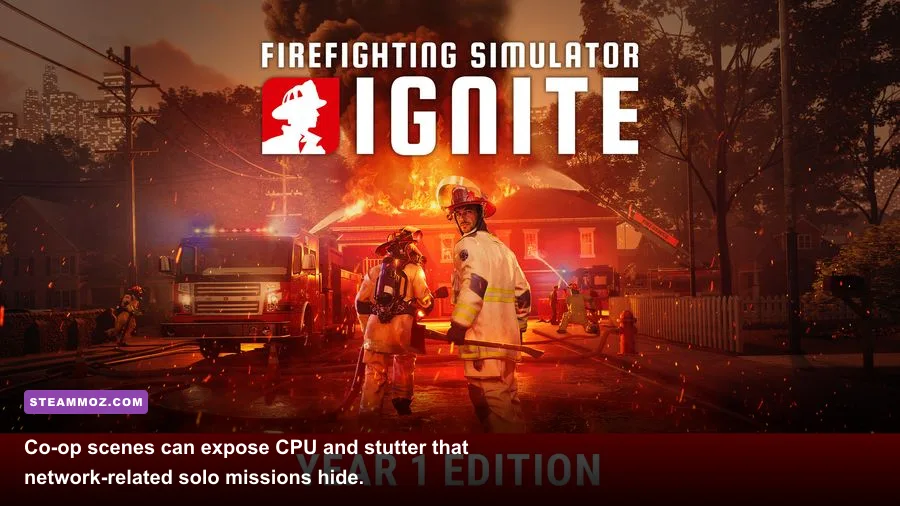
Texture quality is rarely the first setting to lower for FPS, but it is one of the best crash tests when your graphics card is running out of VRAM. Warning signs include flickering textures, missing surfaces, sudden freezes when entering a new building, and a crash after several minutes rather than immediately. Drop textures from High to Medium, restart the game, and test the same mission. Do not rely on Windows virtual memory to hide a VRAM shortage; it can turn a clean crash into severe hitching.
Remove GPU and CPU overclocks, undervolts, and aggressive memory profiles for one session. A system can pass a synthetic benchmark and still fail when Ignite combines smoke particles, lighting, streaming, and vehicle simulation. If stock settings fix the crash, restore your tuning gradually and test each change. Watch temperatures too: a GPU approaching its thermal limit may lower clocks and create the illusion of a graphics-setting problem.
Install the game on an SSD with meaningful free space. Streaming-heavy missions can stutter badly when a drive is nearly full or busy with downloads. Pause Steam downloads, cloud backup, video recording, and antivirus scans during testing. Windows Security should remain active, but adding the game folder as an exclusion can be a useful temporary diagnostic step if security software is clearly blocking files. Remove the exclusion afterward if it changes nothing.
Use the right profile for your hardware
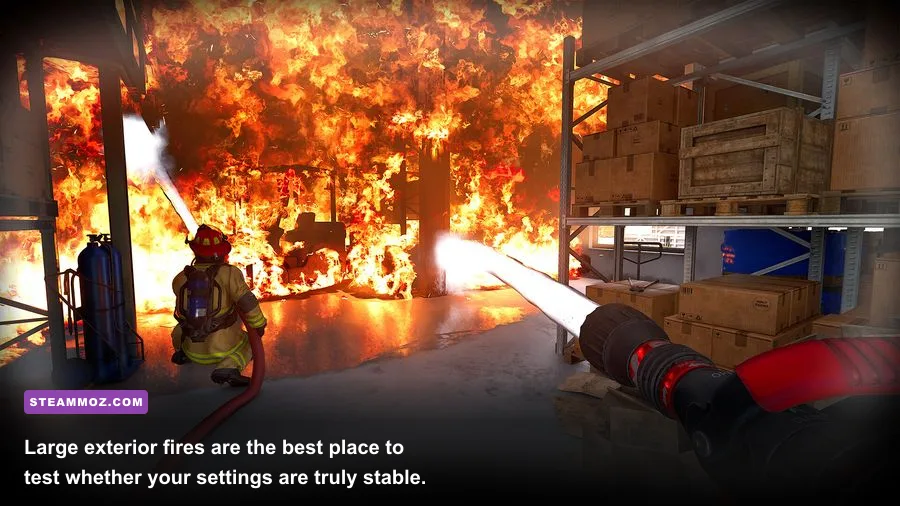
The table below is a practical starting point, not a replacement for the current Steam requirements. Hardware generations vary widely, and laptop GPUs often carry lower power limits than their desktop namesakes. Match the profile to your target frame rate, then adjust one setting at a time.
| Hardware situation | Resolution and upscaling | Core settings | Realistic target |
|---|---|---|---|
| Older 4-core CPU or entry-level GPU | 1080p, Balanced or Performance | Low smoke, Low shadows, Medium textures | 30–60 FPS depending on fire intensity |
| Mainstream 6-core CPU and 8 GB GPU | 1080p, Quality | Medium shadows and smoke, High textures | Stable 60 FPS in most missions |
| Modern 6–8-core CPU and midrange GPU | 1440p, Quality | High textures, Medium smoke, High view distance | 60 FPS with heavy-fire dips possible |
| High-end desktop GPU | 1440p or 4K, Quality | High textures, High distance, Medium smoke first | High refresh outside the heaviest scenes |
On a laptop, plug in the charger, select the manufacturer’s performance mode, and make sure Ignite uses the discrete GPU rather than integrated graphics. Windows Settings lets you assign a high-performance GPU per application. Also disable battery-saving frame caps and test with the laptop raised for airflow. A laptop that runs acceptably for five minutes and then collapses is usually heat-soaked, not under-configured.
Test the fix without guessing
Use the same mission, route, and camera angle for every test. A bright exterior scene is not comparable to a smoke-filled interior. Record average FPS, the one-percent-low feel, GPU utilization, and whether the crash occurs. Change only one variable, restart if the setting requires it, and run for at least five minutes. This turns troubleshooting into a controlled test instead of an endless graphics-menu lottery.
If crashes continue after file verification, a clean driver install, overlay removal, stock clocks, and a fresh configuration, report the exact mission, GPU model, driver version, Windows build, and crash timing through the game’s official support channels. Include whether co-op is involved and whether the crash happens before or after a loading screen. The Steam client support hub can also help isolate installation and launch problems, while Intel’s driver center is useful for systems using Intel graphics or integrated-chipset drivers.
For a final sanity check, compare your results with Steamoz’s Drizzlepath: Glass settings guide and Firefighters 2014 mission tips. Keep textures as high as your VRAM allows, cut smoke and shadows first, and favor a stable frame cap over an impressive but erratic counter. That combination usually delivers the smoothest, most dependable response when Ignite turns a routine callout into a screen-filling inferno.