For the best Edge of Sanity performance, start at 1920×1080 fullscreen, use the High preset, disable motion blur, keep VSync off if you have VRR, and lower shadows and post-processing before textures. The game’s hand-drawn 2D presentation is not especially demanding on modern hardware, but its Unreal Engine lighting, screen effects, and scene transitions can create uneven frame times. A locked 60 FPS is usually the sweet spot; chasing an uncapped number brings little benefit in a side-scrolling survival-horror game and can make pacing feel worse.
This guide targets the PC version and focuses on stable frame delivery rather than a flashy benchmark peak. The exact labels available can vary slightly between builds, so treat the profiles below as practical starting points. Before changing anything, check the official Steam listing for current patches and system requirements.
Use These Edge of Sanity Presets First
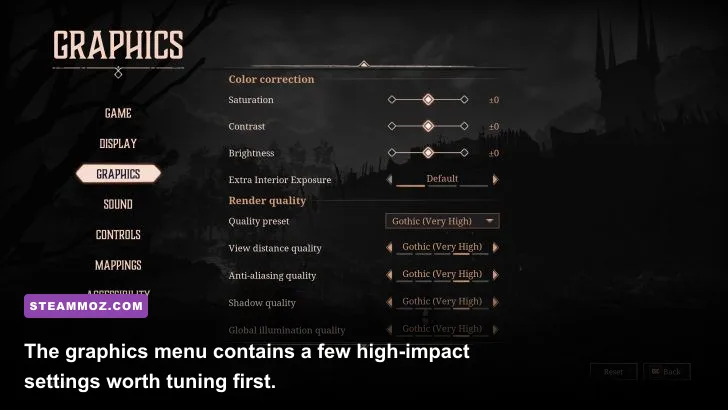
There’s no reason to run Edge of Sanity at a muddy resolution on a capable gaming PC. The game’s painted characters and environments retain their identity at Medium settings, while the biggest performance costs come from lighting-related effects rather than surface detail. Start with the High profile, play through an exterior area, visit your camp, and then test a dark interior. Those three situations expose most stutter and GPU-load problems.
| Profile | Resolution and Mode | Key Settings | Target Hardware | Expected Target |
|---|---|---|---|---|
| High-FPS | 1920×1080 fullscreen | Textures High, shadows Medium, post-processing Low, motion blur Off | GTX 1060, RX 580, or newer | 60 FPS locked |
| Balanced | 1920×1080 fullscreen | Textures Medium, shadows Low, effects Medium, VSync On | GTX 960, GTX 1050 Ti, RX 560 | Stable 45–60 FPS |
| Maximum Performance | 1600×900 or 1280×720 fullscreen | Textures Low, shadows Low, post-processing Low, effects Low | Integrated graphics or older laptop GPU | 30–60 FPS |
| Visual Quality | 2560×1440 fullscreen | Textures High, shadows High, effects High, post-processing High | RTX 2060, RX 6600, or newer | 60 FPS target |
The High-FPS profile is the one I’d recommend for most players. Keep textures high unless you’re running short on VRAM; dropping them rarely fixes a CPU-side hitch, and the illustrated backgrounds can look noticeably softer. If your monitor runs at 120Hz or higher, still cap the game at 60 FPS unless testing proves that an unlocked mode is perfectly consistent. Consistent frame pacing beats a counter that jumps between 78 and 137.

🎮 Edge of Sanity
Looking to experience this game? Grab your digital key directly on our store for $5.99.
View on Steammoz Store →Every Graphics Setting Ranked by FPS Impact
Edge of Sanity doesn’t offer the enormous settings list found in a modern open-world game, which is good news. You can isolate the expensive options quickly. Change one setting at a time, restart only if the game asks you to, and compare the same location rather than wandering into a different scene. A dark cave with multiple lights is a much heavier test than a quiet menu or empty snow path.
| Setting | Recommended Value | FPS Impact | Visual Trade-Off |
|---|---|---|---|
| Resolution | Native display resolution | Very High | Lowering it softens all artwork and UI |
| Shadows | Medium or Low | High | Less depth in caves and around characters |
| Post-Processing | Low or Medium | Medium to High | Reduced bloom, color grading, and screen effects |
| Effects Quality | Medium | Medium | Less detail in smoke, sparks, and environmental effects |
| Anti-Aliasing | High or default | Low to Medium | Lower values create rougher edges and shimmer |
| Texture Quality | High if VRAM allows | Low | Lower-resolution surfaces and environmental art |
| Motion Blur | Off | Small | Cleaner movement and easier visual tracking |
| VSync | Off with VRR, On without it | Variable | Controls tearing versus input latency |
Shadows are your first serious performance lever. They affect more than character silhouettes: cave lights, props, and moving objects all contribute to the workload. Set shadows to Medium first. If the GPU still struggles in interiors, Low is the next sensible step. The visual loss is real, but it’s far less damaging than dropping the entire game to 720p.
Post-processing is the second setting to attack. Lowering it can reduce the cost of bloom, vignette-like effects, color grading, and other full-screen passes. That matters during supernatural encounters, where several effects may stack at once. Motion blur should simply be disabled. It adds no useful information in a careful exploration game and makes quick camera movement look smeared.
Anti-aliasing deserves a little more caution. Edge of Sanity’s illustrated outlines can look jagged if you push it too low, especially at 1080p. Leave it at High or the default value, then reduce shadows and post-processing around it. Textures are the last place to cut unless your GPU has limited VRAM or you’re seeing texture pop-in.
Best Resolution, VSync, and Frame-Cap Setup
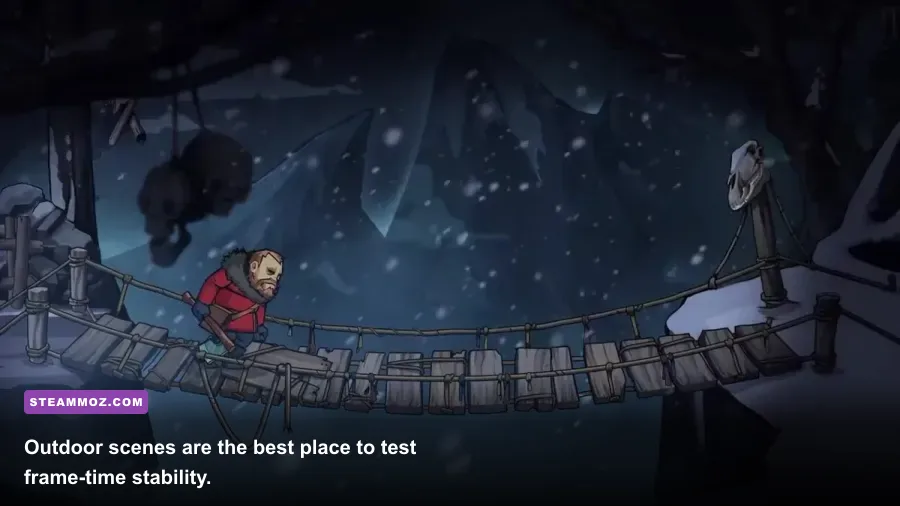
Resolution has the largest raw impact because it changes the number of pixels every pass must process. At 1080p, the GPU renders 2,073,600 pixels per frame. 1440p raises that to 3,686,400, roughly 78 percent more work. If your graphics card is the bottleneck, moving from 1440p to 1080p can rescue performance immediately. If the processor is causing the hitch, however, lowering resolution won’t solve it.
Use exclusive fullscreen where the game provides it, or standard fullscreen if that is the only option. Borderless mode is convenient for switching applications but can introduce compositor latency on some Windows setups. Set the resolution to your monitor’s native output first. Only use 1600×900 or 1280×720 after lowering shadows and effects fails to maintain your target.
| Display Setup | VSync | Frame Cap | Why It Works |
|---|---|---|---|
| G-SYNC or FreeSync monitor | Off in game | 60 FPS or 2–3 FPS below refresh | Low latency with tear-free VRR behavior |
| Fixed 60Hz monitor | On | 60 FPS | Prevents tearing and smooths uneven delivery |
| 144Hz monitor without VRR | On | 60 FPS | Prioritizes consistent pacing over refresh rate |
| Low-end laptop | On | 30 FPS if necessary | A firm 30 is better than a fluctuating 35–55 |
If you use G-SYNC or FreeSync, enable VRR in Windows and your driver, disable in-game VSync, and cap the game at 60 FPS. For a 144Hz display, a 60 FPS cap is still perfectly reasonable here. If the title’s built-in limiter feels inconsistent, use the NVIDIA Control Panel, AMD Software, or RTSS instead. Don’t stack several limiters at once; that can add latency and make troubleshooting confusing.
Players on a fixed-refresh monitor should enable VSync if tearing distracts them. VSync can add a little input delay, but Edge of Sanity isn’t a twitch shooter. A clean, stable image is usually worth more than shaving a few milliseconds from movement response.
Fix Stutter Before Sacrificing Image Quality
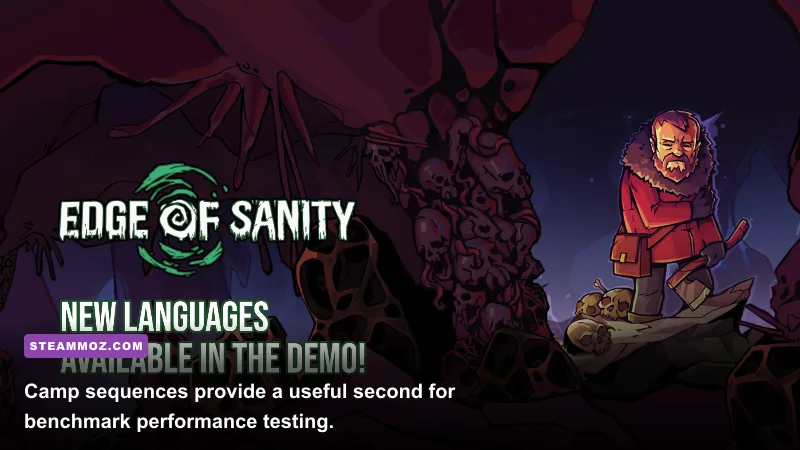
A low average FPS number and a stutter are different problems. If the counter says 60 but movement pauses for a fraction of a second when entering a new room, the culprit is more likely shader compilation, asset streaming, background activity, or a driver issue than a graphics preset. That’s why blindly selecting Low often fails to fix the experience.
Build a clean test case
Restart the game after applying major changes, then test an outdoor route, the survivor camp, and a dark interior. Watch for the exact moment the hitch occurs. If it happens only on entering a new area, let the game run through that route once; some shader or asset work may settle after the first pass. If it repeats constantly, continue troubleshooting rather than accepting a broken frame-time graph.
- Install the game on an SSD when possible. This won’t magically raise average FPS, but it can reduce streaming pauses.
- Close browsers, recording tools, RGB utilities, and overlays before testing. Discord and Steam overlays are convenient, but each adds another variable.
- Use the dedicated GPU on laptops and set Windows power mode to Best Performance while plugged in.
- Update your graphics driver, then verify the installation through Steam if effects or textures appear corrupted.
- Disable fullscreen optimizations only if fullscreen behavior is inconsistent; test both states instead of assuming one is universally faster.
The official Steam Discussions are useful for checking whether a sudden hitch appeared after a particular patch. For broader PC troubleshooting, Steamoz’s BloodRayne low-FPS fixes and Drizzlepath Glass settings guide cover the same driver, overlay, and display checks.
Hardware Targets and the Best Final Profile
The official minimum specification is a useful floor, not a guarantee of a locked 60 FPS at every quality setting. Steam lists Windows 10, 8GB of RAM, and older hardware such as an Intel Core i5-4460 or AMD FX-8350 paired with a GTX 960 or Radeon R9 380-class GPU. The recommended tier moves toward a Core i7-4770 or Ryzen 5 1600, 16GB of RAM, and a GTX 1060 or RX 580-class card. Those parts are dated now, which is why a sensible modern entry-level GPU should have no trouble at 1080p.
| Component | Listed Minimum | Comfortable 1080p Target | Pro-Tuned Recommendation |
|---|---|---|---|
| CPU | Core i5-4460 or FX-8350 class | Core i5-8400 or Ryzen 5 2600 | Modern six-core CPU |
| Memory | 8GB RAM | 16GB RAM | 16GB with minimal background apps |
| GPU | GTX 960 or R9 380 class | GTX 1060, RX 580, or newer | RTX 2060, RX 6600, or newer |
| Storage | Available game drive space | SATA SSD | NVMe SSD with ample free space |
| Target | 30 FPS at reduced settings | 60 FPS at 1080p High | 60 FPS with higher resolution effects |
My final recommendation is simple: native 1080p, fullscreen, textures High, anti-aliasing High, shadows Medium, effects Medium, post-processing Low, motion blur Off, and a 60 FPS cap. Turn VSync On for a fixed-refresh display and Off when VRR handles synchronization. If performance dips, lower shadows to Low, then effects, and only after that reduce resolution.
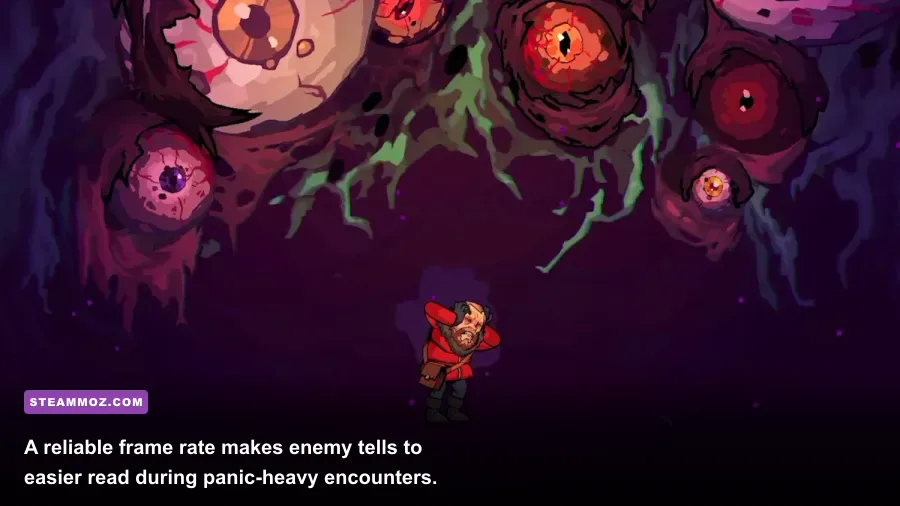
Edge of Sanity’s deliberate pacing rewards stability. You’re reading enemy movement, managing scarce supplies, and navigating oppressive spaces—not racing through a competitive arena. A locked 60 keeps those tense moments clear without sacrificing the game’s striking painted art. For more PC tuning, compare this approach with Steamoz’s Borderlands 2 max-FPS settings and Cricket Through the Ages performance guide. For official news and patch information, follow Vixa Games and the game’s official Edge of Sanity updates.