For the best Borderlands 2: Tiny Tina's Assault on Dragon Keep graphics settings for max FPS, start with 1080p, Texture Quality High, Anisotropic Filtering 8x, View Distance High, FXAA Off, Dynamic Shadows Off, Ambient Occlusion Off, Depth of Field Off, Bullet Decals Medium, and PhysX Effects Low or Off. Cap the game at 60 FPS for the smoothest Unreal Engine 3 frame pacing, then raise the cap to 120 or 144 only after testing combat-heavy areas such as The Forest and Dragon Keep Castle.
That profile keeps the chunky comic-book outlines, weapon detail, and colorful fantasy scenery intact while removing the settings that create the biggest frame-time spikes. Tiny Tina's Assault on Dragon Keep is an old expansion, but its age doesn't make every option cheap to render. PhysX debris, dynamic shadows, ambient occlusion, and stacked elemental effects can still hammer a laptop GPU or produce ugly stutter during a four-player fight.

The best starting profile for high FPS
Before changing anything, select your native resolution and use exclusive fullscreen if your display and operating system behave properly with it. Borderless mode is convenient for tabbing out, but exclusive fullscreen usually gives older Unreal Engine 3 games cleaner frame pacing. Turn V-Sync off in-game if you're using a modern driver-level limiter or FreeSync/G-SYNC. If you see tearing, use a cap three frames below refresh rate: 57 FPS for 60 Hz, 117 FPS for 120 Hz, or 141 FPS for 144 Hz.
| Setting | Recommended Value | FPS Impact | Visual Trade-Off |
|---|---|---|---|
| Resolution | Native 1080p | Very High | Best clarity; lower to 900p or 720p for weak GPUs |
| Texture Quality | High | Low to Medium | High preserves weapon and environment detail |
| Anisotropic Filtering | 8x | Low | Keeps floors and roads sharp at oblique angles |
| View Distance | High | Medium | Maintains distant geometry across outdoor zones |
| FXAA | Off | Low | Sharper image, but more jagged edges |
| Dynamic Shadows | Off | Medium to High | Fewer moving shadows from enemies and props |
| Ambient Occlusion | Off | Medium | Less contact shading around corners and objects |
| Depth of Field | Off | Low | Cleaner aiming and less blur during transitions |
| Bullet Decals | Medium | Low to Medium | Impacts and scorch marks disappear sooner |
| PhysX Effects | Low or Off | High in combat | Reduces debris, cloth, smoke, and particle simulation |
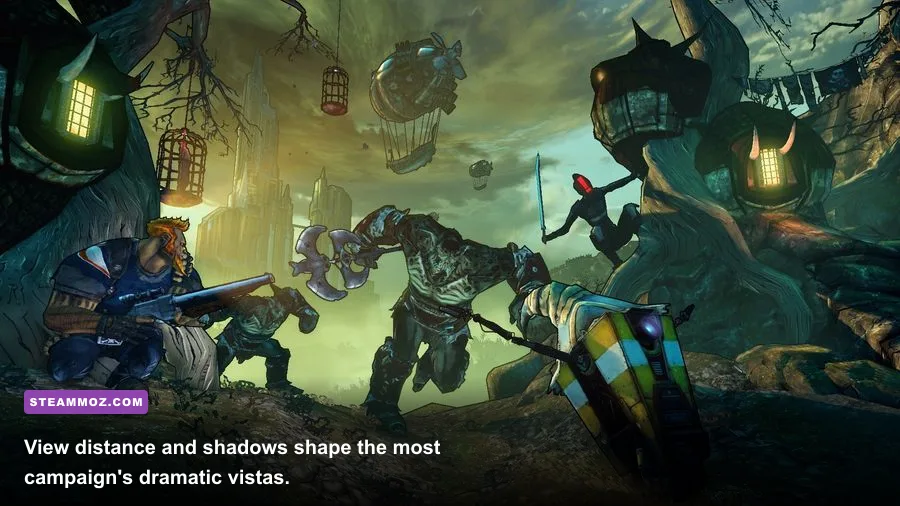
The key compromise is FXAA. It costs relatively little, but Borderlands 2's post-process anti-aliasing softens the already stylized image. At 1080p, most players will prefer it off. If shimmering bothers you more than softness, enable FXAA before lowering textures or view distance. Those latter options affect the scene's actual detail and are more visible throughout the campaign.

🎮 Borderlands 2: Tiny Tina's Assault on Dragon Keep
Looking to experience this game? Grab your digital key directly on our store for $3.29.
View on Steammoz Store →Which settings actually cost the most frames
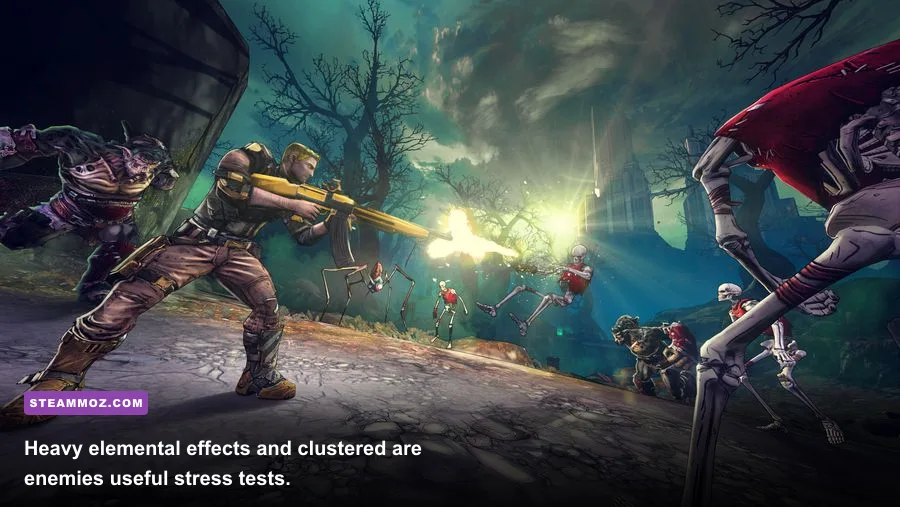
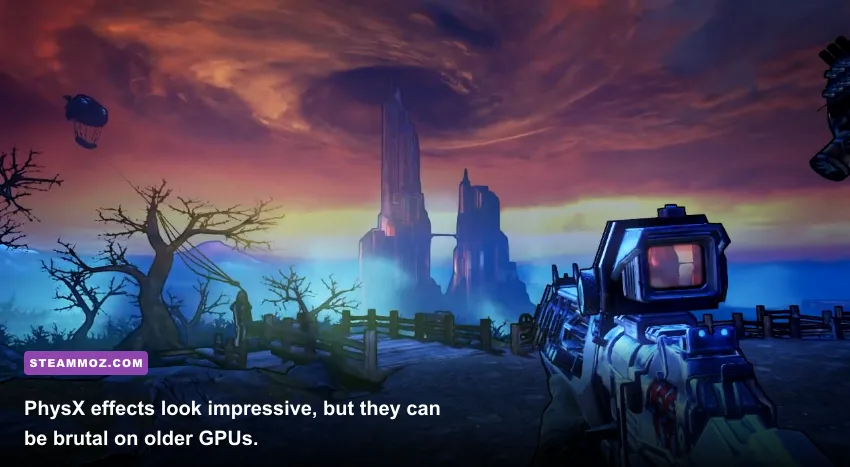
PhysX is the first setting to investigate when the average FPS looks fine but battles feel broken. In Dragon Keep, skeleton swarms, elemental explosions, magic projectiles, destructible objects, and Tiny Tina's deliberately over-the-top set pieces can all create short GPU or CPU spikes. On an NVIDIA card, the high PhysX option can be processed by the GPU; on many AMD systems, it falls back to the CPU. Either way, High is rarely worth the instability when your goal is consistent performance.
Dynamic Shadows are the next major offender. They calculate moving shadows from characters, enemies, weapons, and lights. Turning them off makes indoor scenes flatter, but it removes a frequent source of minimum-FPS drops. Ambient Occlusion is subtler: it adds depth under platforms, around rocks, and where characters meet the ground. It looks good in screenshots but is one of the easiest settings to sacrifice during ordinary play.
| Performance Tier | GPU Example | CPU Example | Target Profile |
|---|---|---|---|
| Entry-level | Intel UHD 630, GTX 750 Ti | Core i5-4590 or Ryzen 3 3200G | 900p/720p, Low PhysX, shadows off, 60 FPS cap |
| Mainstream | GTX 1060, RX 580, GTX 1650 | Core i5-8400 or Ryzen 5 2600 | 1080p High textures, 8x AF, PhysX Low, 60-120 FPS |
| Modern midrange | RTX 3060, RX 6600 | Core i5-12400 or Ryzen 5 5600 | 1080p/1440p High, selective shadows, 120 FPS target |
| High-end | RTX 4070, RX 7800 XT | Core i7-12700 or Ryzen 7 5800X | 1440p High, PhysX tested carefully, high-refresh cap |
These are sensible starting points rather than strict requirements. Borderlands 2 can be CPU-limited in busy scenes because the game relies on an older Unreal Engine 3 pipeline. A powerful graphics card won't prevent stutter if a background process, shader compilation, thermal throttle, or overloaded single CPU thread is responsible. Watch GPU utilization while testing. If the GPU sits below roughly 90 percent during a low-FPS moment, lowering resolution probably won't fix the problem.
Best settings for 60, 120, and 144 FPS
60 FPS locked profile
This is the profile I'd recommend for most systems and especially for co-op sessions. Use native 1080p, High textures, 8x anisotropic filtering, High view distance, FXAA off, shadows off, ambient occlusion off, depth of field off, medium bullet decals, and Low PhysX. A locked 60 FPS feels much better than an unstable 90 FPS that dives into the forties when a room fills with elemental effects.
For older laptops, lower View Distance to Medium only after disabling PhysX and shadows. View distance can increase CPU work, but it doesn't usually hurt image quality as dramatically as dropping texture quality. Keep Texture Quality at High if your video memory allows it. Borderlands 2's weapon skins, shield effects, and fantasy props lose detail quickly on Low.
120 FPS competitive-feeling profile
At 120 FPS, use 1080p, High textures, 8x or 16x AF, Medium or High view distance, FXAA off, shadows off, ambient occlusion off, depth of field off, low bullet decals, and PhysX off. This is a good choice for fast mouse aiming with Maya, Zer0, or Salvador, where input response matters more than atmospheric shadowing.
Don't assume the menu's frame-rate option guarantees perfect delivery. Test a busy fight rather than an empty corridor. Run through The Forest, trigger multiple elemental effects, and fight a dense group of skeletons. If your frame time spikes despite a high average, use a 90 or 100 FPS cap. A stable cap always beats a number that looks better in a benchmark but collapses during actual combat.
144 FPS high-refresh profile
For 144 Hz displays, use the same settings as the 120 FPS profile and begin with a 141 FPS external cap. High view distance may become CPU-expensive in open areas, so Medium is acceptable if your processor is the bottleneck. Keep V-Sync off with adaptive sync enabled, and avoid stacking caps in the game, driver, and third-party limiter until you know which one is controlling frame pacing.
Fixing stutter beyond the graphics menu
If the recommended settings don't solve hitching, check the launcher and configuration files. Borderlands 2 stores its PC settings under the game's Documents folder, commonly at Documents\My Games\Borderlands 2\WillowGame\Config. Back up WillowEngine.ini before editing it. Search for bSmoothFrameRate, MinSmoothedFrameRate, and MaxSmoothedFrameRate; use a sensible range rather than forcing an unlimited frame rate and then blaming the game for uneven delivery.
Do not blindly copy an old “FPS boost” config from a random video. Unreal Engine 3 tweaks can disable useful effects, break multiplayer consistency, or create excessive physics speed in edge cases. Change one item at a time, launch the game, and verify that resolution, FOV, controller input, and co-op matchmaking still work. If the game keeps resetting settings, check file permissions and remove read-only status from the configuration file.
Also disable overlays you don't need. Steam, Discord, GeForce Experience, Radeon Software, Xbox Game Bar, and recording tools can all add another layer to an old DirectX 9/11 title. Update your GPU driver, close browser tabs that are using hardware acceleration, and make sure the game is running on the dedicated GPU rather than integrated graphics. On a laptop, plug in the charger and select the manufacturer's performance profile.
For additional troubleshooting context, our guide to BloodRayne: Terminal Cut crashing and low-FPS fixes covers several useful Windows-side checks that also apply to older PC ports.
How to benchmark Dragon Keep properly
Don't benchmark only from the title screen or a quiet hub. The expansion's worst drops happen when the game combines long sightlines, multiple enemies, particle-heavy weapons, and scripted scenery. Start a repeatable route through The Forest or Unassuming Docks, then repeat it with the same character, weapon, and enemy encounters. Record average FPS and one-percent lows with an overlay such as MSI Afterburner, but pay attention to frame-time graphs and visible hitching too.
- Apply the 60 FPS profile first. Launch into a demanding area and let the game run for several minutes so background shader and asset activity settles.
- Test PhysX separately. Fire an explosive weapon into a group of enemies, throw a grenade, and inspect the one-percent lows. If they collapse, keep PhysX Low or Off.
- Test resolution next. Move from 1080p to 900p or 720p. If FPS barely changes, your CPU or engine thread is the limit, not the GPU.
- Test view distance and shadows. Compare outdoor traversal and indoor fights. Keep the option that improves lows without making the image unpleasant.
- Set the final cap. Choose the highest rate that remains stable through combat, not the highest number seen while staring at the sky.
There are a few visual settings worth protecting. High textures matter because the campaign constantly presents distinctive gun models, spell-like elemental effects, and colorful terrain. Anisotropic filtering at 8x is also a bargain: it sharpens surfaces at distance for almost no meaningful performance penalty on modern hardware. By contrast, depth of field mostly affects cinematic blur and aiming clarity, so turning it off is an easy win.
| Symptom | Likely Cause | First Fix | What Not to Change First |
|---|---|---|---|
| Low FPS during explosions | PhysX or particle workload | Set PhysX to Low or Off | Texture Quality |
| Stutter outdoors | CPU, view distance, or asset streaming | Lower View Distance to Medium | Anisotropic Filtering |
| Soft, blurry image | FXAA or low resolution | Disable FXAA and restore native resolution | Dynamic Shadows |
| Steady low FPS everywhere | GPU limit, thermal throttle, or wrong GPU | Check utilization, temperatures, and power mode | Config-file tweaks |
| Tearing at high FPS | Unsynchronized presentation | Use adaptive sync or a refresh-matched cap | Raising every quality option |
Tiny Tina's Assault on Dragon Keep remains one of Borderlands 2's most visually memorable adventures, and you don't need to turn it into a blurry low-detail shooter to make it run well. High textures, strong anisotropic filtering, and a sensible view distance preserve the game's personality. Disable the expensive extras, cap the frame rate around your system's real minimum, and the result is sharper, steadier, and far more enjoyable in the chaotic fights where this DLC shines.
For the official PC listing and platform information, see the Borderlands 2 Steam page. You can also compare the standalone release details on the Tiny Tina's Assault on Dragon Keep Steam page and check the publisher's official Borderlands website. If you're tuning an older RPG alongside it, Steamoz's guide to Dungeon Siege starter builds is another useful stop for classic-PC gaming advice.