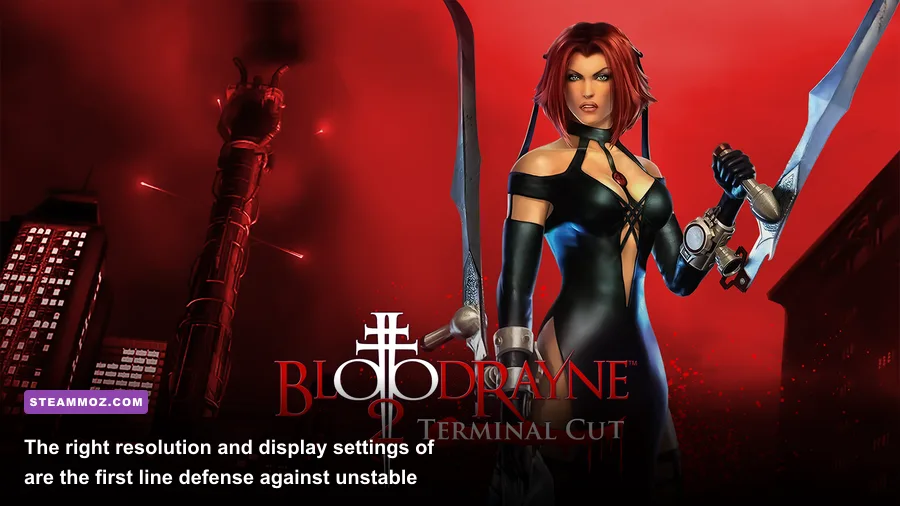
If BloodRayne: Terminal Cut crashes, refuses to launch, or crawls with low FPS on your PC, start with three fixes: verify the Steam installation, disable every overlay, and run the game at a capped 60 FPS with a conservative resolution. Then reset its local configuration and test compatibility mode only if the crash survives those steps. Terminal Cut is an older action game with a modern distribution layer, so the usual problem is a conflict between Windows, overlays, display scaling, or a corrupted config—not a lack of GPU power.
This guide targets the Steam version on Windows 10 and Windows 11. It separates launch crashes from in-game stutter because they usually have different causes. Before changing anything, close the game, note your current resolution and refresh rate, and make a backup of any save files you find in the game's local folders. You can also compare the baseline against our PC crash and low-FPS troubleshooting guide, but BloodRayne needs a few old-engine-specific steps.
First, identify what kind of BloodRayne crash you have
Don't throw every fix at the game at once. Reproduce the problem and match it to the symptom. A crash before the main menu points toward files, permissions, overlays, or a runtime issue. A crash when loading a level can indicate a damaged installation or configuration file. Low FPS that appears only during combat is more likely a frame-pacing, resolution, or background-process issue.
| Symptom | Most likely cause | First test | What success looks like |
|---|---|---|---|
| Closes immediately after Play | Overlay, permissions, or broken files | Verify files and disable Steam Overlay | Game reaches the title screen |
| Black screen, then crash | Unsupported display mode or stale config | Reset configuration and use 1280×720 | Menu appears in a window |
| Crash while loading a chapter | Corrupt file or bad local setting | Verify files, then rename the config folder | Previously failing area loads |
| Low FPS everywhere | Wrong resolution, sync conflict, or power mode | Use 1080p, 60 Hz, and a 60 FPS cap | Stable frame delivery |
| Short freezes during fights | Shader or background hitching | Disable overlays and background capture | Fewer repeated stutters |
Terminal Cut does not need a modern gaming PC for its original visual workload. If it runs badly on a machine that handles recent 3D games, assume software friction first. For reference, check the official Steam listing for the current platform details and supported distribution information.

🎮 BloodRayne: Terminal Cut
Looking to experience this game? Grab your digital key directly on our store for $5.99.
View on Steammoz Store →Stop launch crashes with a clean Steam baseline
1. Verify the installation
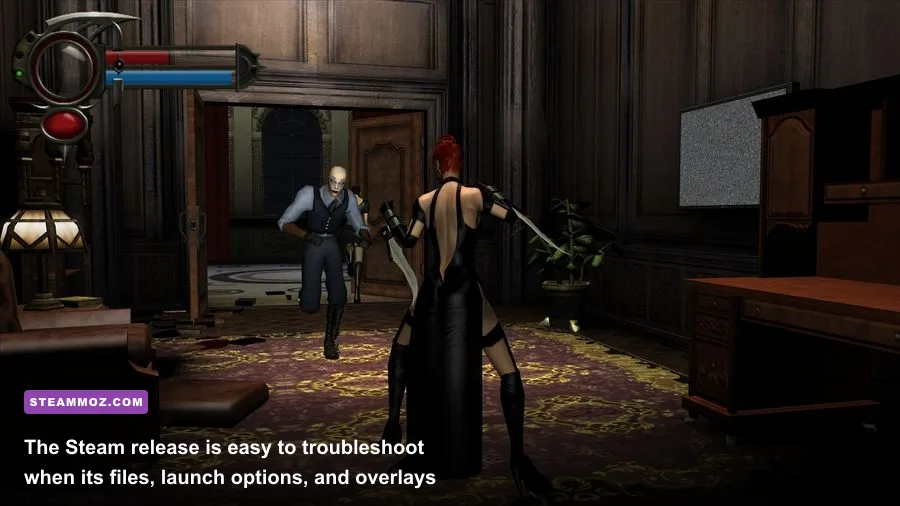
Open Steam, right-click BloodRayne: Terminal Cut, choose Properties, open Installed Files, and select Verify integrity of game files. Wait for Steam to finish before launching anything else. This replaces missing or damaged files without touching the rest of your library. If Steam reports that one or more files were reacquired, restart Steam and test the game again.
2. Remove overlay conflicts
Turn off Steam Overlay for this game under Properties > General. Also disable Xbox Game Bar, Discord overlay, NVIDIA App or GeForce Experience overlay, AMD Adrenalin overlay, MSI Afterburner/RivaTuner OSD, and OBS Game Capture. Old games can fail when several programs hook the same DirectX presentation process. Don't just hide the overlays; fully exit the programs for the first test.
Cloud synchronization can reintroduce a broken configuration after you reset it. If the game crashes before reaching its menu, temporarily disable Steam Cloud for BloodRayne, launch once, quit normally, and then re-enable it after confirming that the new profile works. This is a controlled test, not a permanent requirement.
3. Launch the executable directly
Use Steam's Browse local files command and locate the game's main executable. Launching it directly can reveal whether Steam's overlay layer is involved. If Windows shows a missing runtime message, install updates from Microsoft rather than downloading random DLL files from third-party sites. Keep Windows, your GPU driver, and Steam updated, but avoid installing unofficial DLL packs.
4. Test administrator and compatibility settings carefully
Right-click the executable, open Properties > Compatibility, and test Run this program as an administrator only if the game cannot write its settings or crashes while saving. If that changes nothing, test Windows 7 compatibility mode. Don't stack compatibility mode, forced DPI overrides, and administrator privileges immediately; each change makes diagnosis harder. Undo a setting if it doesn't solve the specific crash.
For additional publisher information, use Ziggurat Interactive's official website and its support channels. The official Steam Community discussions can also expose version-specific reports, but treat random launch options as experiments rather than guaranteed fixes.
Reset BloodRayne Terminal Cut's display configuration
A bad resolution or refresh-rate entry is one of the easiest ways to create a black screen or startup crash. In Steam, use Browse local files and look for configuration files in the installation directory or in your Windows user folders. The exact filename can vary by release, so search for files modified immediately after your last launch. Rename a suspected configuration file or folder instead of deleting it—for example, change settings.ini to settings.ini.backup. This preserves a recovery copy.
If you cannot locate the configuration, use Windows Search for BloodRayne inside %USERPROFILE%, %APPDATA%, and %LOCALAPPDATA%. Do not delete the entire Steam installation or save folders blindly. The goal is to reset display preferences, not erase progress. After renaming the configuration, launch at the monitor's native 16:9 resolution if the game offers it. If the menu still fails, try a temporary 1280×720 windowed mode, then raise the resolution after the game proves stable.
| Profile | Resolution and refresh | Frame cap | Best use |
|---|---|---|---|
| Safe recovery | 1280×720 windowed, 60 Hz | 60 FPS | Black screens and first-launch crashes |
| Balanced | 1920×1080, 60 Hz | 60 FPS | Most modern 1080p systems |
| High-resolution test | 2560×1440, 60 Hz | 60 FPS | Powerful PCs after stability is confirmed |
| High-refresh monitor | Native resolution, 120/144 Hz | 60 FPS first | Testing whether refresh rate causes instability |
Start with the Balanced profile even if your monitor supports 144 Hz. A high-refresh display does not automatically make an older title render more smoothly. If frame pacing is poor at 144 Hz, set the desktop and game to 60 Hz for testing, or use your GPU driver's per-game profile to cap BloodRayne at 60 FPS. Once that works, try 120 Hz while keeping the 60 FPS cap.
Best settings for fixing low FPS and stutter
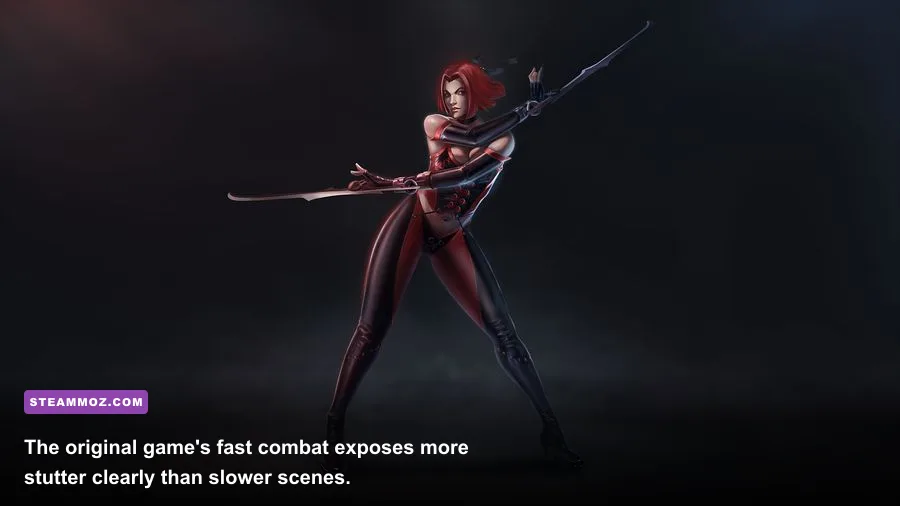
Change one setting at a time and measure in the same place. Use a repeatable section with several enemies on screen rather than judging performance from a quiet corridor. Rayne's close-range combat, rapid camera movement, and multiple enemies are more useful for finding stutter than standing still in a menu.
| Setting or variable | Recommended value | FPS impact | Visual or stability note |
|---|---|---|---|
| Resolution | 1920×1080 first | High if GPU-limited | Drop to 1280×720 only for diagnosis |
| Refresh rate | 60 Hz during testing | Medium for frame pacing | Removes high-refresh timing from the equation |
| VSync | Use one method only | Low to medium | Avoid in-game and driver VSync fighting each other |
| Frame rate limit | 60 FPS | Stability gain | More consistent than an uncapped old-engine loop |
| Anti-aliasing | Off or lowest available | Low to medium | Use as a final performance trade-off |
| Texture quality | Highest stable option | Usually low on modern GPUs | Lower it only if memory usage is a problem |
| Fullscreen mode | Test exclusive and borderless | Variable | Borderless can reduce alt-tab crashes on Windows 11 |
| Background capture | Off | Removes hitching | Disable Game Bar and instant replay first |
Don't lower every option to minimum and expect a miracle. If the frame rate barely changes after reducing resolution, the GPU isn't the bottleneck. Check Task Manager while playing: a CPU core hitting 100%, a power-saving laptop profile, or an overlay process can explain the result. Plug in a laptop, select Best performance in Windows power settings, and set the game's GPU preference to the dedicated GPU under Settings > System > Display > Graphics.
For NVIDIA users, create a BloodRayne-specific profile and set Power management mode to Prefer maximum performance only for testing. For AMD users, disable Enhanced Sync for the game while diagnosing. Both brands should avoid forcing aggressive sharpening, frame generation, or driver-level image tricks onto a title that predates those features. They can add latency or odd presentation problems without improving the underlying frame rate.
If you regularly tune older PC games, our guides to maximum FPS settings and frame-rate troubleshooting cover the same process of separating GPU limits from frame-pacing issues.
Windows fixes for persistent stutter and random exits
When verification and clean settings don't solve the problem, isolate Windows features that interact with fullscreen games. Open the executable's Compatibility tab and test Disable fullscreen optimizations. If Windows scaling makes the image blurry or causes an incorrect mouse position, select Change high DPI settings, enable the application override, and leave the scaling performed by Application. Only keep the override if it fixes a visible problem.
Close browser tabs playing video, hardware monitoring tools, RGB utilities, motherboard launchers, and aggressive antivirus game shields for one test session. Add the game folder as an antivirus exclusion only if you understand the security trade-off and only after confirming the executable is the legitimate Steam installation. Never download a replacement executable to fix a crash.
Use Windows Event Viewer when the crash remains random. Press Win+X, open Event Viewer, choose Windows Logs > Application, and find the error at the crash time. A faulting module connected to an overlay, capture tool, or graphics driver gives you a direction. A recurring game executable fault after a clean verification points back to configuration, compatibility, or a release-specific bug.
Use a clean test order
- Restart Windows and Steam.
- Verify BloodRayne's files.
- Disable Steam, Discord, GPU, and Xbox overlays.
- Reset the game's display configuration.
- Launch at 1280×720 windowed and 60 Hz.
- Cap the game at 60 FPS and test a combat encounter.
- Restore 1080p, fullscreen, and higher visual settings one at a time.
This order matters because it creates a known-good baseline. If the game becomes stable at 720p windowed, the installation is probably fine and the failure lives in display mode, scaling, refresh rate, or an overlay. If it still crashes before the menu, focus on files, permissions, compatibility, and official support rather than endlessly reducing graphics quality.
A stable 60 FPS profile for BloodRayne Terminal Cut
For most players, the sensible final profile is 1920×1080 at 60 Hz, a 60 FPS cap, one active VSync method, overlays disabled, and no driver-level enhancements. Keep textures high if they don't cause instability; lowering texture quality is rarely the first answer on current hardware. If your monitor is ultrawide or 144 Hz, prove the game stable at 16:9 and 60 Hz before experimenting with wider resolutions or higher refresh rates.
Don't chase an impressive counter if the game feels uneven. A locked 60 FPS with consistent frame times suits BloodRayne's sword swings, gunplay, and camera movement better than an uncapped reading that jumps between 90 and 200 FPS while hitching every few seconds. If 60 cannot hold, use 30 FPS as a diagnostic fallback rather than immediately blaming the GPU. A stable 30 confirms that the game is rendering correctly but exposes a performance or timing limit at the higher target.
Finally, keep a note of the one change that fixed your copy. Terminal Cut updates, GPU drivers, Windows patches, and overlay software can alter behavior later. If a future launch starts crashing again, restore the known-good 60 FPS profile first, verify files, and repeat the clean overlay test. That approach is faster—and far less frustrating—than reinstalling the entire game every time Rayne refuses to reach the title screen.
For more focused PC troubleshooting, see Steamoz's best-settings breakdown and low-spec PC optimization guide. With a clean installation, reset configuration, disabled hooks, and a restrained 60 FPS target, BloodRayne: Terminal Cut should run reliably on modern Windows hardware without sacrificing the game's aggressive, stylish combat.