To fix Freedom Wars Remastered crashing and low FPS on PC, start with a clean game-file verification, disable overlays and background hooks, then use a 60 FPS-focused graphics profile with shadows, anti-aliasing, and post-processing reduced before touching texture quality. The remaster is not uniformly demanding, but crowded Abductor battles can expose unstable frame times that menus and small corridors hide.
This guide targets the Steam version and covers both repeatable crashes and performance dips. The fixes are arranged from safest to more invasive, so you won't need to start by deleting saves or blindly changing Windows settings. Before troubleshooting, check the official Steam page for the latest build, minimum requirements, and patch information.

Start with the fixes that solve most PC crashes
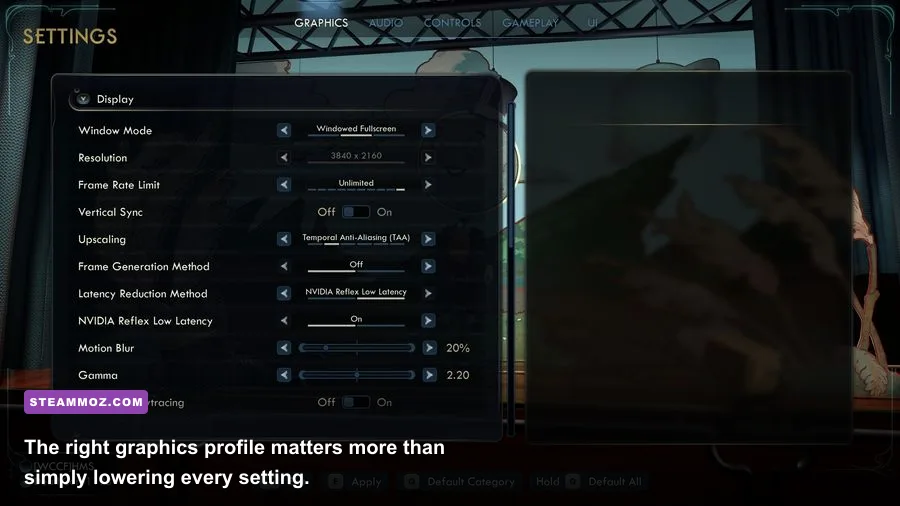
Crashes immediately after launch usually come from damaged files, an overlay injection, an outdated graphics driver, or a permissions problem. Do these checks in order. Launch the game after each major change rather than changing ten variables at once; that makes the culprit much easier to identify.
- Verify the installation. In Steam, right-click FREEDOM WARS Remastered, choose Properties, open Installed Files, and select Verify integrity of game files. Let Steam finish completely, then reboot before testing.
- Update the GPU driver with a clean option. Install the current NVIDIA or AMD driver for your card. If the problem began immediately after a driver update, roll back one stable version instead. A clean driver installation is preferable when the game crashes during shader compilation or on the first loading screen.
- Turn off overlays. Disable the Steam Overlay, Discord overlay, Xbox Game Bar, NVIDIA App or GeForce overlay, AMD overlay, MSI Afterburner OSD, and RivaTuner Statistics Server. These tools hook into the same rendering path and can conflict with fullscreen or controller handling.
- Remove forced driver overrides. In NVIDIA Control Panel or AMD Software, return FREEDOM WARS Remastered to application-controlled settings. Disable forced sharpening, enhanced sync, custom anti-aliasing, frame generation, and third-party color filters while testing.
- Run the game normally first. Don't begin with compatibility mode or administrator privileges. If Windows Security or controlled-folder access blocks the executable, allow the game through deliberately rather than permanently disabling security features.
If the crash only happens when loading a mission, disconnect unnecessary USB devices and test with a standard XInput controller or keyboard and mouse. Faulty virtual controllers, steering-wheel drivers, and aggressive remapping software can make a game fail when it initializes input. Also check the official Steam troubleshooting guidance before reinstalling.
| Symptom | Most likely cause | First fix to try | What not to change yet |
|---|---|---|---|
| Crash before the title screen | Overlay, driver hook, damaged file | Verify files and disable every overlay | Save folders |
| Crash when loading a mission | Shader compilation, controller hook, memory pressure | Update driver, unplug extra USB devices, lower textures | Windows page file |
| Crash after changing resolution | Bad fullscreen state or display handshake | Return to native resolution and use borderless windowed | Registry edits |
| Random desktop crash after 20–40 minutes | GPU temperature, unstable overclock, overlay | Remove overclocks and monitor temperatures | Deleting configuration files |
🎮 FREEDOM WARS Remastered
Looking to experience this game? Grab your digital key directly on our store for $9.99.
View on Steammoz Store →Use this graphics profile for a stable 60 FPS
Don't slash texture quality first. Textures mostly affect VRAM use and image clarity, while shadows, anti-aliasing, ambient occlusion, and effects are more likely to punish the GPU during a fight with multiple enemies, allies, Thorn effects, and destructible Abductor parts.
Begin at your monitor's native resolution with a 60 FPS cap. If your display is 1440p or 4K and your GPU is close to the minimum class, render at 1920×1080 or use a lower internal resolution if the game exposes one. A locked 60 feels dramatically better than a fluctuating 45–90 FPS range, especially while aiming the Thorn around an Abductor's limbs.
| Setting | Recommended value | FPS impact | Visual trade-off |
|---|---|---|---|
| Display mode | Borderless windowed for troubleshooting; fullscreen after stability | Low | Borderless avoids many alt-tab and resolution crashes |
| Resolution | Native at 1080p; 1920×1080 on weaker 1440p systems | Very high | Lower resolution is softer but gives the biggest GPU gain |
| Texture quality | High with 6–8 GB VRAM; Medium with 4 GB or less | Medium | Medium reduces surface detail but usually preserves geometry |
| Shadow quality | Medium | High | Lower shadows cost little during hectic combat |
| Anti-aliasing | Medium or the second-highest option | Medium to high | Reducing it can produce shimmer on wires and buildings |
| Ambient occlusion | Low or Medium | Medium | Lower values flatten contact shadows around characters |
| Effects and particles | Medium | High in Abductor fights | Lower settings reduce bursts, sparks, and Thorn-heavy frame drops |
| Motion blur | Off | Small | Sharper camera movement and easier target tracking |
| Depth of field | Off for testing | Small to medium | Removes cinematic blur during transitions and close-ups |
| V-Sync | On for a fixed 60 Hz display; otherwise cap externally | Variable | Prevents tearing but may add latency or expose stutter |
After applying the profile, test the same mission for at least five minutes. Fight near a large Abductor, use the Thorn repeatedly, and allow allied NPCs to fill the screen. A quiet Panopticon hallway is not a useful benchmark. If performance remains unstable, lower effects and shadows together. If FPS is high but the game still feels jerky, investigate frame pacing, overlays, and refresh-rate settings instead of dropping resolution again.
Fix stutter, shader pauses, and inconsistent frame times
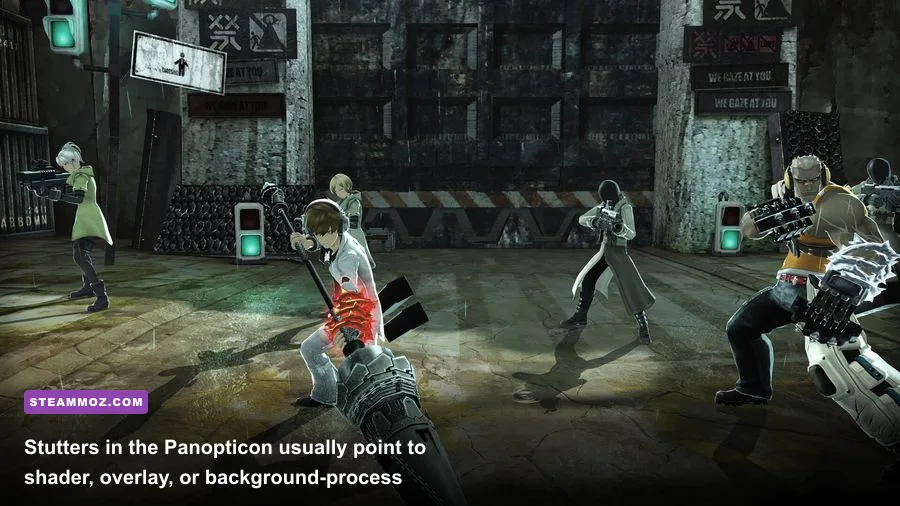
Low average FPS and bad frame pacing are different problems. If the counter says 60 but the camera hitches every few seconds, the game may be compiling shaders, streaming assets from a slow drive, or fighting another application for CPU time. Freedom Wars Remastered's mission transitions and visually busy combat are where this usually becomes obvious.
Cap the frame rate instead of chasing maximum FPS
Use the in-game limiter if it behaves consistently. If it doesn't, cap the executable with NVIDIA Control Panel, AMD Software, or RTSS. For a 60 Hz monitor, set 60 FPS; for a 120 Hz display, try 60 or 120 depending on whether your GPU can hold the higher target. A cap a few frames below refresh can help with VRR displays, but consistency matters more than a theoretically perfect number.
Keep the game on an SSD
Installing on an SSD won't magically increase GPU-limited FPS, but it can shorten loading and reduce asset-streaming pauses. Keep several gigabytes free on the drive, close browsers with heavy video tabs, and pause downloads while testing. Windows Defender scans and cloud-sync clients can also create short CPU or disk spikes; schedule them rather than disabling protection permanently.
Watch the right telemetry
GPU usage near 95–99 percent means resolution or visual quality is the bottleneck. GPU usage that repeatedly falls while one CPU core is saturated points toward a CPU or game-thread limit. VRAM sitting at the card's ceiling can cause hitching when textures stream, so lower texture quality one step if you have a 4 GB card. Temperatures above the low 80s Celsius on a GPU or sustained CPU thermal throttling deserve attention before any game-specific tweak.
For related troubleshooting habits, Steamoz's guide to PC crashes and low FPS in Decay: The Mare covers the same useful process of separating rendering problems from overlay and file-integrity issues.
Match the settings to your hardware
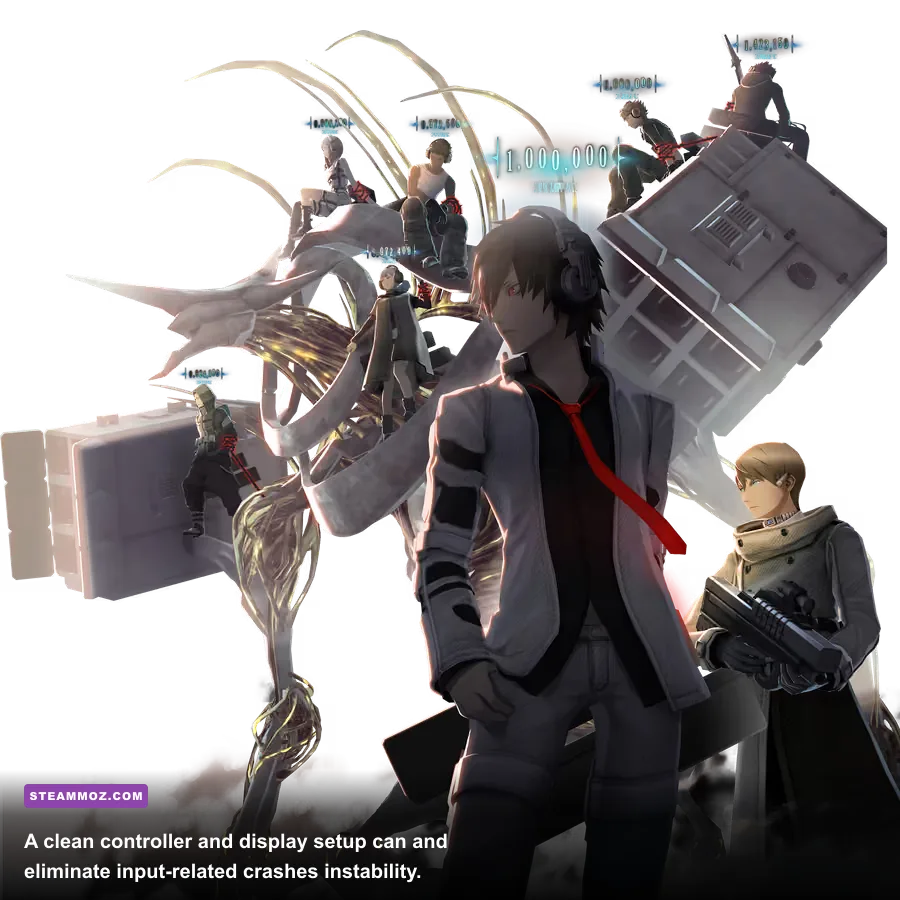
The published PC requirements are a sensible starting point, not a promise of a locked high-refresh experience. The minimum target lists an Intel Core i5-6600, 8 GB of RAM, and a GeForce GTX 1060 3 GB or Radeon RX 580-class GPU. The recommended tier moves to an Intel Core i7-7700, 16 GB of RAM, and a GeForce GTX 1070 8 GB or Radeon Vega 56-class card. Laptop GPUs with similar names can perform very differently, so use the actual GPU model and VRAM capacity.
| PC profile | Suggested resolution | Texture and effects | Realistic target |
|---|---|---|---|
| Minimum-class PC, 4-core CPU, 3–4 GB VRAM | 1080p, reduce if needed | Medium textures, Low shadows, Low effects | 30–60 FPS with dips in large fights |
| Mainstream 1080p PC, 6-core CPU, 6–8 GB VRAM | 1920×1080 | High textures, Medium shadows and effects | Stable 60 FPS in most missions |
| Recommended-class PC, 8-core CPU, 8 GB VRAM | 1080p or 1440p | High textures, High geometry, Medium effects | 60 FPS with headroom |
| High-end PC, modern CPU and GPU | 1440p or 4K | High settings, effects tested separately | Higher resolution; cap for better frame pacing |
Eight gigabytes of system RAM is enough to launch the game, but 16 GB is the more comfortable target if you keep a browser, Discord, and capture software open. Laptop owners should select the dedicated GPU in Windows Graphics settings, connect AC power, and use the laptop maker's performance mode. Battery or quiet modes can cut clocks so aggressively that the game looks broken even when the hardware is capable.
Don't use resolution scaling and aggressive sharpening at the same time while diagnosing a crash. First prove the game is stable at a simple 1080p profile. Then add quality features one at a time. This is slower than copying a random forum preset, but it tells you exactly which setting causes the next hitch.
Stop crashes caused by fullscreen, controllers, and overlays
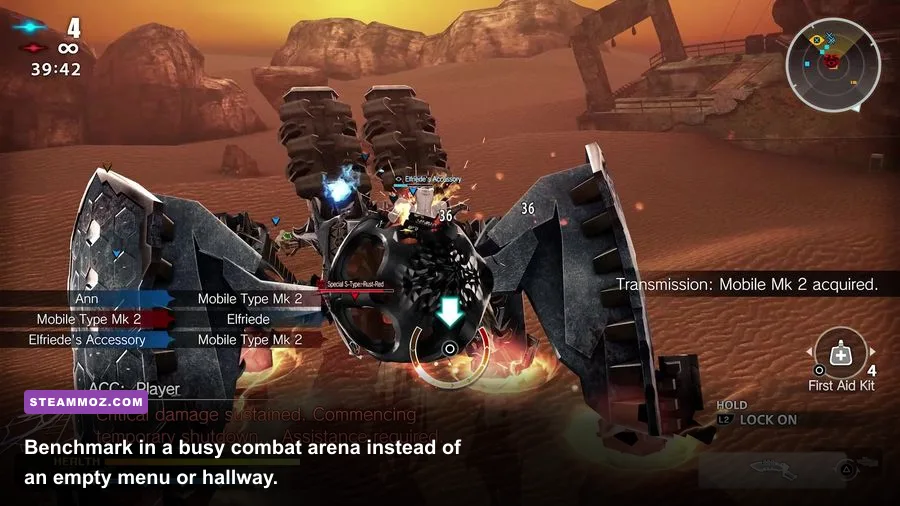
Some failures aren't performance failures at all. They occur when Windows changes display modes, a controller driver reconnects, or a recording tool injects into the game. Test with a clean launch: no overlay, no capture software, one monitor if possible, and only your normal input device connected.
Fullscreen and monitor fixes
If changing resolution causes a crash or a black screen, start in borderless windowed mode at your desktop resolution. Disable HDR temporarily, especially if the game is switching between an HDR desktop and an SDR display. Turn off Windows fullscreen optimizations only as a test through the executable's Compatibility properties; keep whichever mode produces fewer crashes.
Controller fixes
Use Steam Input only if the controller needs it. If the game already recognizes an Xbox-style pad correctly, try disabling Steam Input for this title so two input layers aren't competing. Remove virtual controller programs such as DS4Windows from the test, then reconnect the controller after launching Steam. This won't improve FPS, but it can stop crashes that happen during menu navigation or mission loading.
Overlay and capture fixes
Disable instant replay, recording, hardware monitoring overlays, and RGB utilities for the first clean test. OBS itself is often fine when using display capture, but game capture hooks are another variable. Once the game is stable, re-enable tools one at a time. The moment the crash returns, you've found a compatibility suspect.
Keep Windows and your motherboard chipset drivers current, but avoid installing several beta utilities at once. If you're using an overclock or undervolt, return the GPU and CPU to stock clocks. A setting that survives a synthetic benchmark can still fail when Freedom Wars Remastered combines streaming, physics, particles, and controller input in a single mission.
When nothing works, use a clean diagnostic reset
If verification, driver work, and a low preset don't solve the issue, isolate the configuration without risking your progress. Back up the game's save data and any configuration folder before moving files. Don't delete saves as a first resort: a graphics setting reset and a save reset are not the same thing.
- Exit the game and Steam completely, including the Steam process in the system tray.
- Back up the game's save directory and screenshots to another folder.
- Move only configuration files from the game's user-data location, then launch once to let the game recreate defaults. The exact location can vary by build, so use Steam Cloud and the developer's support instructions rather than deleting random folders.
- Disable Steam Cloud temporarily if it keeps restoring a broken configuration. Re-enable it after confirming the new profile works and your local save is safe.
- Test a new mission or a fresh profile. If the new profile is stable but the old one crashes at one specific load, report that reproducibly instead of repeatedly forcing the same corrupted state.
Document your GPU model, driver version, CPU, RAM, Windows version, resolution, graphics preset, crash location, and whether overlays were enabled. Send that information through Bandai Namco's official support portal, and check the game's official Steam announcements for known issues before performing a full reinstall.
A reinstall is worth trying only after the clean diagnostic steps. Uninstall, manually check for leftover files if the support instructions recommend it, reboot, and reinstall to an SSD. Avoid restoring every old overlay profile and graphics override immediately afterward.
The best practical target for most players is simple: native 1080p, High textures, Medium shadows, Medium effects, motion blur and depth of field off, and a locked 60 FPS. That profile protects the remaster's sharp character and environment detail while removing the settings most likely to trigger combat dips. If you enjoy methodical PC tuning, compare the approach with Steamoz's smoother FPS settings guide for Everdream Valley and maximum-FPS settings breakdown. The principle is the same: establish stability first, then spend your performance budget where your eyes actually notice it.