For the best Hack Slash Loot performance, run the game at your monitor’s native resolution, use fullscreen if it behaves correctly, disable VSync when you want the lowest input latency, and leave every visual option at its highest value unless your display is scaling badly. Hack Slash Loot is a lightweight, turn-based roguelike rather than a modern 3D production, so chasing 200 FPS usually won’t change the game. The real wins are stable frame pacing, crisp tile rendering, quick alt-tab recovery, and a display mode that doesn’t introduce blur or stutter.
That distinction matters. You aren’t optimizing volumetric fog, ray tracing, shadow cascades, or texture streaming here. Hack Slash Loot’s dungeon is built around readable tiles, short animations, interface text, and deliberate turn-by-turn decisions. A badly chosen resolution can make those tiles muddy; an awkward fullscreen mode can make the entire game feel less responsive than its hardware demands. This guide focuses on the settings that actually matter, plus the Windows and driver tweaks that help when the game is running on an older laptop or handheld.
Before changing anything, check the game’s current listing through the official Steam search page. The Steam build and older standalone releases can expose slightly different display behavior, so treat the menu you see in your installation as the final authority. For broader troubleshooting, our guide to Assassin’s Creed Brotherhood settings covers the same fullscreen, frame-pacing, and driver principles on a much heavier game.
The Best Hack Slash Loot Settings for Max FPS
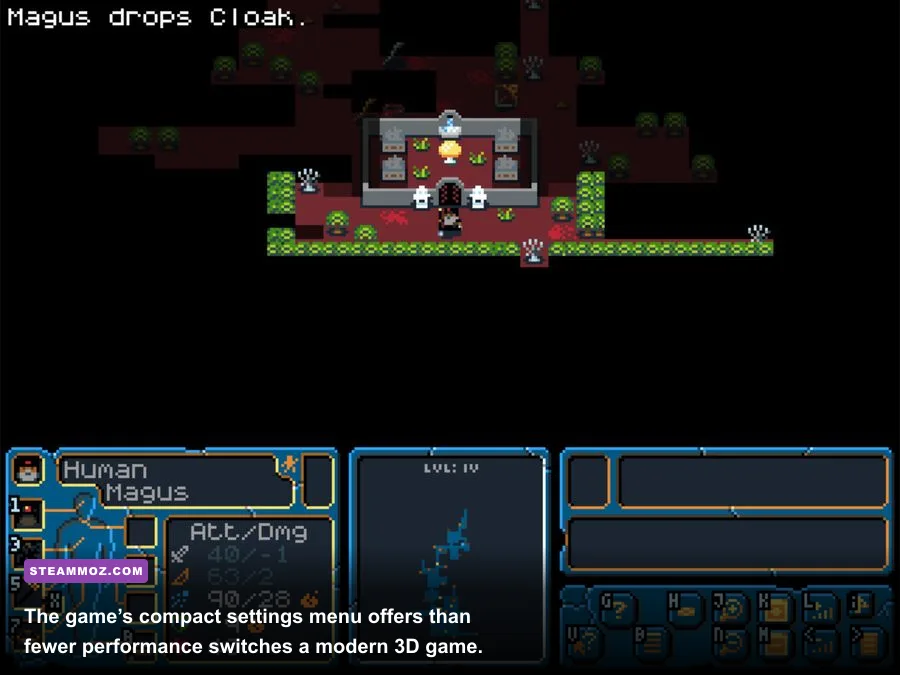
Start with a clean baseline instead of blindly turning everything down. Hack Slash Loot’s visual load is tiny by modern standards, and most systems should have enough headroom to keep its artwork and interface intact. Use the highest stable resolution your monitor supports, then test fullscreen and borderless behavior separately. If fullscreen produces a black screen, incorrect scaling, or slow alt-tab transitions, borderless windowed is the better practical choice even if a benchmark shows a tiny theoretical loss.
| Setting | Recommended Value | FPS Impact | Visual or Input Note |
|---|---|---|---|
| Display mode | Fullscreen first; borderless if unstable | Low | Fullscreen can reduce desktop compositing overhead, while borderless usually alt-tabs more reliably. |
| Resolution | Native monitor resolution | Very low | Preserves sharp dungeon tiles and readable text; lowering it is rarely necessary. |
| VSync | Off for lowest latency; On for tearing | Low | Off removes synchronization delay, while On can make scrolling and animations look cleaner. |
| Frame limit | Monitor refresh rate, if available | Low | A cap prevents needless rendering and keeps clocks and temperatures down. |
| Texture quality | Highest available | Negligible | The game’s tile artwork is not a serious VRAM burden. |
| Effects or particles | Highest, then test | Negligible to low | Only reduce this if a crowded room causes visible hitching. |
| Anti-aliasing | Off or application default | Negligible | Pixel-style tiles can look softer with smoothing enabled. |
| Post-processing | Off if exposed and unnecessary | Low | Removes extra scaling or filtering without changing the underlying turn-based systems. |
Why native resolution is usually the right call
On a 1080p display, start at 1920×1080. On a 1440p panel, start at 2560×1440. On a 4K screen, use 3840×2160 only if the interface remains comfortable at your viewing distance. Reducing resolution from 4K to 1080p can lower the number of pixels dramatically, but Hack Slash Loot generally doesn’t need that horsepower in the first place. The trade-off is obvious: less sharp text and softer tile edges for almost no meaningful gameplay benefit.
The exception is a very old integrated GPU driving a high-resolution desktop, especially if Windows is applying unusual DPI scaling. In that situation, test one step below native resolution and compare not just the FPS counter, but also tile edges, menu text, and mouse response. If the game’s artwork looks smeared, return to native resolution and use a lower desktop refresh rate or borderless mode instead.

🎮 FORM
Looking to experience this game? Grab your digital key directly on our store for $14.99.
View on Steammoz Store →Fullscreen, VSync, and Frame Pacing Explained
Hack Slash Loot doesn’t demand high refresh-rate reflexes, but frame pacing still affects how polished the game feels. Your character may move one tile at a time, yet menus, camera movement, transitions, and cursor interaction can feel rough when frames arrive unevenly. That’s why “maximum FPS” and “best performance” aren’t always the same target.
Use this profile for competitive-feeling responsiveness
Choose fullscreen, disable VSync, and set a frame cap at your monitor’s refresh rate if the game provides one. If there is no in-game limiter, your graphics driver can cap the application. AMD users can use Radeon Software’s per-game frame-rate target; Nvidia users can use the Program Settings profile in Nvidia Control Panel. Don’t enable several limiters at once. Stacking an in-game cap, driver cap, and third-party overlay cap can create uneven delivery.
VSync off is the cleanest latency choice, but it can expose tearing during map movement. In Hack Slash Loot, that visual defect is usually less distracting than in a fast first-person shooter because movement is grid-based and deliberate. Still, if horizontal tearing bothers you, enable VSync. A stable synchronized presentation is more valuable than a large counter number you never meaningfully use.
Use this profile for smooth, quiet play
Choose borderless windowed, leave VSync enabled, and cap frames to 60 FPS or your display’s refresh rate. This is the profile I’d use on a laptop, Steam Deck-like handheld, or older office PC. It reduces unnecessary GPU activity while you’re reading room layouts, checking inventory, or deciding whether a corridor is safe. If your panel is 120Hz or 144Hz, a 60 FPS cap is still sensible if the game’s animation timing looks correct and you want lower power draw.
Do not assume a high refresh rate automatically improves a turn-based roguelike. A 144Hz display can make cursor movement feel pleasant, but the important performance metric is consistency. A locked 60 FPS is preferable to a wildly fluctuating 60-to-240 FPS range that causes clock changes, fan noise, or occasional stutter during transitions.
| Hardware Situation | Display Profile | Target | Expected Result |
|---|---|---|---|
| Modern desktop GPU | Native resolution, fullscreen, VSync off | Highest stable refresh | Minimal latency with ample performance headroom. |
| Older integrated graphics | Native or one step below, borderless, VSync on | Stable 60 FPS | Clean presentation without wasting power on excessive frames. |
| Gaming laptop on battery | Native resolution, borderless, 60 FPS cap | Stable 60 FPS | Lower heat, fan noise, and battery drain. |
| 4K desktop monitor | Native 4K if text is readable; otherwise 1440p | Stable refresh | Prioritizes legibility over a pointless reduction in quality. |
| Steam Deck or handheld PC | Native handheld resolution, 40 or 60 FPS cap | Stable cap | Better battery efficiency while retaining crisp tile edges. |
Windows and GPU Tweaks That Actually Help
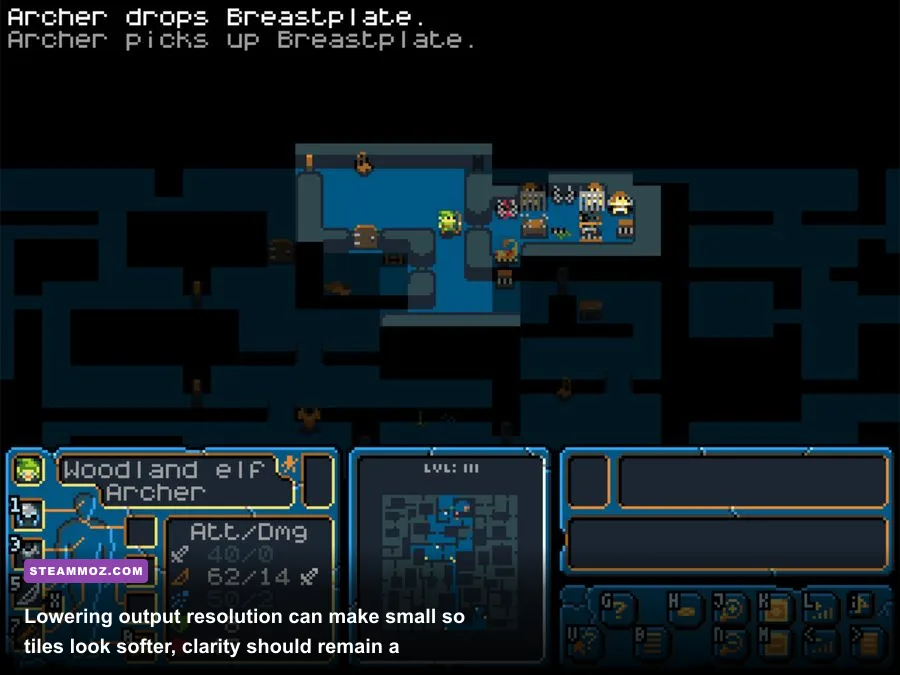
Because the game is so light, operating-system problems can matter more than graphics quality. A background browser with video playback, a cloud-sync client, an aggressive overlay, or a broken compatibility layer can cause the only stutters you notice. Close unnecessary launchers, pause large downloads, and test Hack Slash Loot with Steam Overlay disabled if input feels delayed or the window flickers.
Keep your GPU driver current, but don’t chase beta drivers for this game. In Nvidia Control Panel or AMD Software, create a per-game profile rather than globally forcing settings. Leave texture filtering, sharpening, and image upscaling at application controlled. These features target 3D workloads and can make a tile-based game look worse without delivering useful FPS.
Windows Game Mode is worth leaving enabled, especially on a laptop with many background services. Hardware-accelerated GPU scheduling can be tested, but it isn’t a guaranteed improvement for an older 2D title. If performance changes after enabling it, keep whichever setting produces steadier frametimes. The goal is not to win a synthetic benchmark; it’s to prevent a hitch while you’re navigating a room and reading the next threat.
Fix scaling and blurry text before lowering quality
If the game looks blurry at an otherwise high frame rate, investigate scaling first. Right-click the executable, open Properties, choose Compatibility, and inspect high-DPI settings. Windows scaling can stretch an older game’s framebuffer, especially when a 1080p application is being displayed on a 1440p or 4K desktop. Try the application-controlled DPI option, relaunch the game, and compare the menu text.
Use integer-like scaling where possible for pixel artwork. A non-even scale can make alternating tiles appear different widths or soften diagonal edges. If your monitor’s own scaling looks cleaner than the GPU’s, set scaling to display in the driver panel. This is a clarity fix, not an FPS trick, but it’s often more noticeable in Hack Slash Loot than a tiny graphics preset change.
For comparison, our King’s Bounty II PC fixes guide covers compatibility modes and display problems in another turn-based RPG. The same rule applies here: fix presentation and scaling before sacrificing resolution.
How to Benchmark Hack Slash Loot Properly
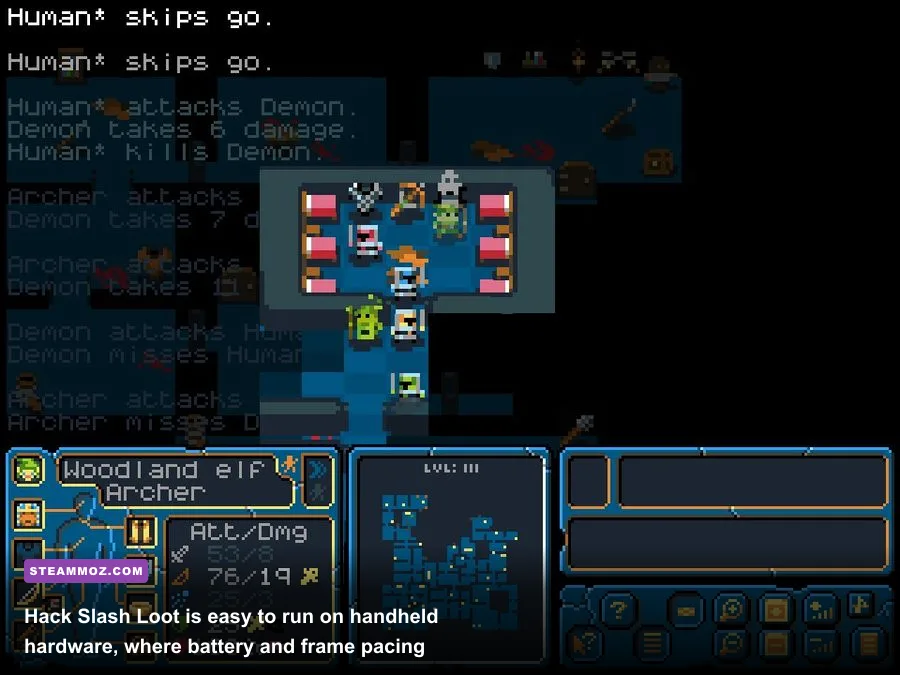
Don’t judge performance from the title screen. A menu can run perfectly while a busy dungeon, large room, or transition exposes a driver problem. Use a repeatable test: launch the same saved run, enter a room with several visible objects or enemies, move the cursor across the map, open inventory, close it, and repeat the same three or four turns. Record the average FPS and the one-percent-low behavior if your overlay offers it.
There may be no meaningful built-in benchmark, so an external overlay is fine for diagnosis. Steam’s FPS counter is enough for a quick comparison. MSI Afterburner or similar tools can show frametime graphs, but avoid leaving every monitoring widget active while testing. Each overlay adds another possible source of interference.
| Test | What to Watch | Likely Cause of a Problem | Best Fix |
|---|---|---|---|
| Title screen to dungeon load | Black-screen delay or freeze | Fullscreen mode, compatibility, overlay conflict | Try borderless and disable overlays one at a time. |
| Scrolling across a large room | Uneven motion or tearing | VSync mismatch or unstable frame delivery | Test VSync on, then use a single frame limiter. |
| Inventory and menu opening | Cursor delay or brief hitch | Overlay hook, DPI scaling, background process | Disable overlays and test application DPI handling. |
| Several repeated turns | Consistent frame pacing | Power-management clock changes | Use a balanced or high-performance profile while plugged in. |
| Alt-tab and return | Resolution reset or flicker | Exclusive fullscreen compatibility | Switch to borderless windowed mode. |
Run each profile for at least two minutes rather than trusting the first number. Older games can produce a high average while still hitching during window focus changes. If the average is already well above your monitor refresh rate and frametimes are flat, stop optimizing. Turning off every visual feature at that point only makes Hack Slash Loot less pleasant to look at.
My Recommended Performance Profiles
Here are three practical profiles you can copy. The first is the best general recommendation: native resolution, fullscreen, VSync off, and maximum visual quality. The second is for battery-conscious play. The third is a troubleshooting profile for systems that show stutter despite having enough raw GPU power.
| Profile | Resolution and Mode | Sync and Cap | When to Use It |
|---|---|---|---|
| Native competitive | Monitor native, fullscreen | VSync off, refresh-rate cap | Desktop play when low input latency matters most. |
| Quiet handheld | Native handheld resolution, borderless | VSync on, 60 FPS or 40 FPS cap | Battery play, laptops, and Steam Deck-style devices. |
| Compatibility fallback | Native or 1080p, borderless | VSync on, 60 FPS cap | Black screens, flicker, bad alt-tab behavior, or tearing. |
| Low-power emergency | One step below native, borderless | VSync on, 30 or 60 FPS cap | Only when scaling or integrated graphics genuinely causes drops. |
My default pick is the native competitive profile on a desktop and the quiet handheld profile everywhere else. Hack Slash Loot’s strength is its readable, compact dungeon presentation, so don’t flatten that artwork for a performance gain you can’t feel. If the game still stutters after these changes, look outside the graphics menu: test a clean Steam launch, disable overlays, check DPI scaling, and compare fullscreen against borderless.
That approach also keeps troubleshooting grounded. You can borrow the frame-pacing habits from our Kingdom Come: Deliverance PC specs guide, but don’t apply its heavy-game assumptions to Hack Slash Loot. You likely don’t need reduced textures, aggressive upscaling, or a dramatically lower resolution. You need a stable display path.
Finally, remember what performance means in this particular roguelike. A flawless frame counter won’t save a bad decision in a corridor, and no setting can replace reading the map before spending a turn. Keep tiles sharp, eliminate avoidable stutter, cap the game sensibly, and leave the rest alone. For additional game-specific information, consult the official Hack Slash Loot website, the game’s Steam listing, and the available official Steam community discussions before changing launch options or compatibility files.
For more performance-focused reading, Steamoz’s max-FPS settings guide is useful when you move from this lightweight roguelike to a more demanding action game. Here, though, the answer stays refreshingly simple: native resolution, stable frame pacing, and no unnecessary visual sacrifices.