If Aliens vs. Predator crashes on startup or crawls below 60 FPS, the fastest reliable fix is to verify the Steam installation, disable overlays, run the game with Windows compatibility adjustments, and lower shadows, ambient occlusion, and DirectX 11 effects first. The 2010 Rebellion shooter is old enough to dislike modern overlay software and new enough to punish weak frame-time performance, so fixing both problems requires more than simply turning every option to Low.
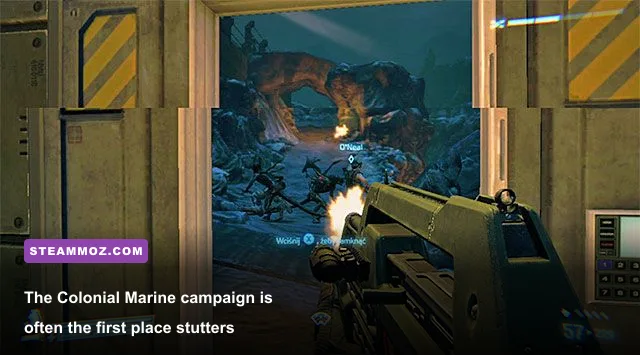
This guide targets the Steam version of Aliens vs. Predator, also known as AVP 2010. Before changing anything, make a note of your current resolution and graphics settings. The game has three very different campaigns—Ellen Ripley’s Colonial Marines, the Alien, and the Predator—and each stresses the renderer differently. Marine corridors expose shadow and texture streaming issues, while the Predator’s jungle levels can hammer lighting and post-processing.
Start with the crash fixes that actually matter
First, open Steam, right-click Aliens vs. Predator, select Properties, choose Installed Files, and click Verify integrity of game files. This repairs missing executables, damaged archives, and incomplete updates without touching your save files. It’s the correct first move after a crash following an update or driver installation. You can also compare your installed build with the game’s official Steam listing.
Next, shut down every overlay before launching. Disable Steam Overlay in the game’s Properties menu, then temporarily turn off Discord Overlay, Xbox Game Bar, NVIDIA App or GeForce Experience overlay, AMD Adrenalin overlay, MSI Afterburner’s RivaTuner overlay, and ReShade. AVP’s 32-bit executable is especially sensitive to hook conflicts. If the game suddenly works after this step, re-enable overlays one at a time to identify the offender.
Locate the game executable in your Steam library folder, usually steamapps\common\Aliens vs Predator\AvP.exe. Open Properties, select Compatibility, tick Disable fullscreen optimizations, and use Run this program as an administrator only if the game still fails to save settings or crashes before the menu. Do not blindly enable every compatibility mode. Windows 7 compatibility can help on some systems, but it can also create audio or resolution problems; test it only after the simpler settings above.
Update your GPU driver with a clean installation if the crash began immediately after a driver change. Laptop owners should force AvP.exe onto the dedicated NVIDIA or AMD GPU through Windows Graphics settings. Also install pending Windows updates, but avoid third-party “game booster” utilities. They rarely fix AVP and can interfere with its old input and rendering libraries.
If the game crashes after changing resolution, delete or rename its configuration folder rather than repeatedly relaunching it. Save locations vary by installation and Windows account, so search Windows for files and folders named Aliens vs Predator under Documents, Saved Games, and %LOCALAPPDATA%. Back up saves first, then remove only configuration files—not the whole folder—so the game can rebuild clean defaults. Rebellion’s official support page is the safest place to check for current compatibility notices.

🎮 Aliens vs. Predator
Looking to experience this game? Grab your digital key directly on our store for $3.74.
View on Steammoz Store →Use this graphics profile before chasing tiny tweaks
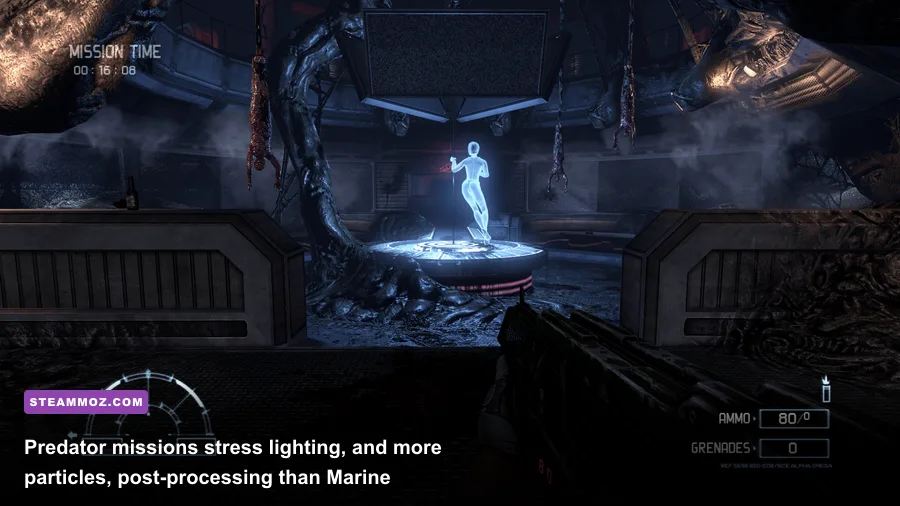
AVP 2010 does not scale evenly. Texture quality mostly affects VRAM, while shadows, ambient occlusion, anti-aliasing, and DirectX 11 features affect GPU workload and frame time. A modern graphics card can still produce ugly stutters if one of those settings causes a sudden render spike. Start with the balanced profile below at 1080p, then raise textures if your card has enough memory.
| Setting | Recommended Value | FPS Impact | Visual Note |
|---|---|---|---|
| Resolution | 1920x1080 | Very high | Drop to 1600x900 before lowering every quality option. |
| Texture Detail | High | Low to medium | Keep High if your GPU has 2GB or more VRAM. |
| Shadow Quality | Medium | High | The best first reduction for jungle and hive scenes. |
| Ambient Occlusion | Off or Low | High | Restores headroom in dark corridors and dense geometry. |
| Anti-Aliasing | 2x or Off | Medium to high | Use 2x before touching textures. |
| DirectX 11 Effects | Off for troubleshooting | High | Re-enable only after frame pacing is stable. |
| Motion Blur | Off | Low | Improves clarity during Alien wall movement. |
| Vertical Sync | Off initially | Variable | Use an external cap after measuring performance. |
The biggest trap is assuming a low average FPS is the only issue. A level can report 70 FPS and still feel broken if it repeatedly falls from 70 to 25 for a fraction of a second. That is a frame-time problem. Shadows and ambient occlusion are the usual culprits, especially when the Alien is moving quickly across layered hive surfaces or the Predator activates thermal vision.
Once the game is stable, use a frame cap. If your monitor runs at 60Hz, cap AVP at 60 FPS through your GPU control panel. For 144Hz displays, a 72 or 90 FPS cap is often more consistent than allowing an old 32-bit game to run uncapped. Keep V-Sync off during testing; if tearing becomes distracting, enable it after finding a stable cap.
Fix low FPS without making AVP look lifeless
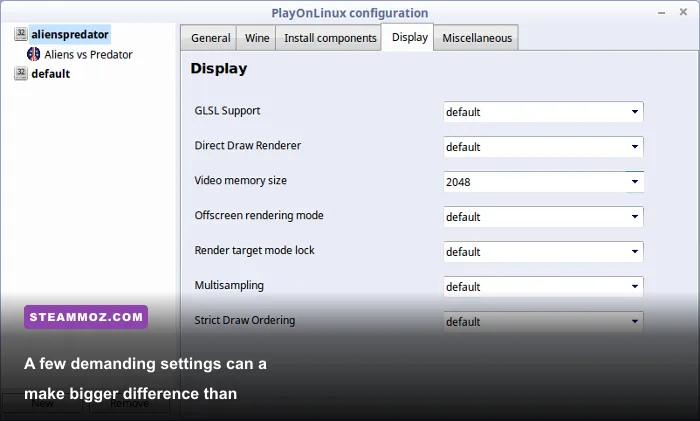
Lowering everything to Low makes the Alien’s environments flat and doesn’t necessarily fix the worst dips. Use a targeted order instead. Reduce shadows from High to Medium, disable ambient occlusion, set anti-aliasing to 2x, and turn off DirectX 11 effects. Test the same checkpoint for at least two minutes after every change. The Predator’s first jungle sequence and the Marine’s early Weyland-Yutani interiors are useful repeatable tests because they contain heavy lighting and geometry.
Keep textures at High unless the game is hitching while turning corners or your GPU is close to its VRAM limit. Texture streaming stutter feels like a brief freeze when the camera enters a new room. If that happens, lower textures one step and close browsers, launchers, and recording tools. VRAM pressure causes asset swapping; reducing resolution alone may not solve it.
For Nvidia users, set the game’s power management mode to Prefer maximum performance and leave shader cache enabled. AMD users should use the game profile in Adrenalin, disable Radeon Chill while testing, and avoid forcing enhanced sync. On either platform, don’t force modern anti-aliasing or sharpening through the driver until the native settings are stable. Old engines can interpret those overrides badly.
CPU-related stutter is less common than GPU overload, but background tasks still matter. Pause cloud-sync clients, browser video, RGB utilities, and hardware monitoring scans. Set Windows to a normal or high-performance power plan on desktop PCs, and play while plugged in on laptops. Do not use real-time process priority changes as a permanent fix; they can starve audio, input, or Windows services and create a different kind of hitching.
For more frame-by-frame tuning ideas, Steamoz’s guide to settings that make every frame count covers the same practical principle: identify the expensive setting instead of destroying image quality across the board.
Stop freezes caused by fullscreen, audio, and input conflicts
Fullscreen behavior is a frequent source of black screens and instant exits. Test three modes: exclusive fullscreen, borderless windowed, and windowed. If exclusive fullscreen crashes after the splash screen, choose borderless and disable Windows fullscreen optimizations on AvP.exe. If the game launches but alt-tabbing kills it, borderless is usually the least painful solution.
Set the desktop and game to the same refresh rate and aspect ratio. Avoid unusual ultrawide resolutions until the standard 16:9 profile works. A mismatched resolution can produce a black screen that looks like a crash even though the process is still running. Press Alt+Enter once at the menu to switch modes, then restart normally.
Audio can also trigger instability on older systems. In Windows Sound settings, select your active device and test a standard 48kHz, 16-bit format. Disable unused HDMI audio devices temporarily, especially if the game hangs while loading a campaign. Turn off spatial audio, virtual surround, and aggressive enhancement suites. The goal is a plain stereo output while diagnosing; you can restore enhancements once the campaign loads consistently.
Disconnect virtual controllers and remapping tools such as DS4Windows, reWASD, or Steam Input layers if the game freezes when entering a menu. AVP supports keyboard, mouse, and controller input, but stacked input wrappers can create duplicate commands or lock the game during device detection. A wired Xbox controller with Steam Input disabled is the cleanest controller test.
Finally, check Windows Event Viewer after a repeatable crash. Open Windows Logs, Application, and find the error for AvP.exe. A faulting module pointing to a graphics driver suggests a driver or overlay problem; an audio DLL points toward sound enhancements; and a missing executable or runtime points back to verification or installation repair. This is far more useful than guessing from the crash timing alone.
A clean reinstall is the last resort, not the first move
If AVP still crashes after verification, overlays, compatibility settings, and a rebuilt configuration, perform a genuinely clean reinstall. Uninstall through Steam, manually inspect steamapps\common for leftover Aliens vs Predator files, and back up your saves and settings before removing anything. Reinstall to a short path on an SSD, launch once with overlays disabled, and test the default 1080p profile before restoring custom settings.
Keep your troubleshooting order disciplined. Change one variable, launch the same campaign, and record whether the crash or hitch returned. Installing unofficial DLL packs, random command-line switches, or fan-made executable replacements can make the Steam build less predictable. If you do experiment, create a restore point and preserve the original executable.
| Symptom | Most Likely Cause | First Fix | Fallback |
|---|---|---|---|
| Crash before menu | Overlay or corrupted files | Disable overlays and verify files | Rebuild configuration files |
| Black screen after launch | Fullscreen or invalid resolution | Use borderless and press Alt+Enter | Reset display configuration |
| Low average FPS | Shadows, AA, or DX11 effects | Lower those three settings | Reduce resolution |
| Brief freezes entering rooms | Texture streaming or VRAM pressure | Lower Texture Detail to Medium | Close background applications |
| Crash after alt-tab | Exclusive fullscreen conflict | Switch to borderless | Disable fullscreen optimizations |
Once the game is stable, you can safely add quality back: textures first, then anti-aliasing, then shadows. Leave ambient occlusion and DirectX 11 effects for last because they’re the settings most likely to turn a smooth 60 FPS run into a stuttery mess. The same measured approach works across older PC releases, whether you’re following our PC performance testing tips or tuning another demanding classic.
For official ownership and installation details, use the Steam store page, and check Rebellion’s website for developer information. With overlays removed, a clean configuration, borderless fullscreen, and shadows plus DX11 effects under control, AVP 2010 remains perfectly playable on modern PCs—and its three campaigns deserve better than a preventable crash or a 25 FPS ambush.