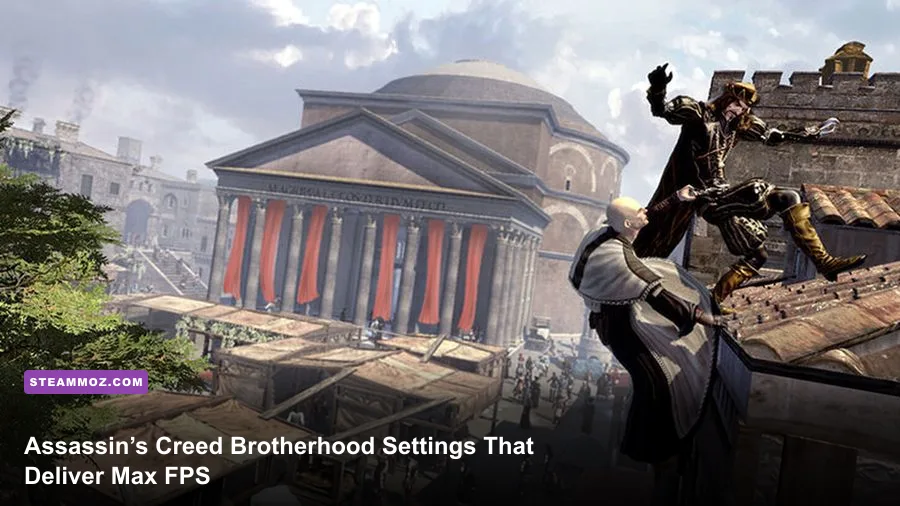
For the best Assassin's Creed Brotherhood graphics settings for max FPS, run 1920x1080 or your monitor's native resolution, disable V-Sync, use FXAA or the game's lowest anti-aliasing option, keep textures and environment quality high, and lower shadows first. On modern PCs, the original PC release is usually limited less by your GPU than by its older DirectX 9-era engine, inconsistent frame pacing, background overlays, and CPU-heavy crowd scenes in Rome.
That distinction matters. Dropping every option to Low can make the game look noticeably worse while barely improving performance in busy districts. Brotherhood's biggest slowdowns arrive when the engine is drawing crowds, horses, market stalls, distant buildings, and AI routines at the same time. The winning setup keeps the details that make Rome attractive and cuts the settings that cost frames without adding much clarity.

🎮 Get Assassin's Creed Brotherhood
Ready to dive in? Grab your copy today for just $4.99.
Check OfferThe Best Brotherhood Settings for a Fast, Clean Image
Start with a clean baseline rather than chasing a maximum number in an empty alley. Load a save in central Rome, preferably around the Campagna or a busy market, then pan the camera across rooftops and street level. Those areas expose stutter far better than the quiet countryside around Monteriggioni.
Use the native resolution of your display first. At 1080p, Brotherhood still looks sharp enough with moderate anti-aliasing, and 1440p is viable on almost any recent discrete GPU. If you have a 4K monitor, test 2560x1440 before jumping to 3840x2160; the engine's older image scaling and edge treatment can make native 4K expensive without delivering a proportional visual upgrade.
| Setting | Recommended Value | FPS Impact | Visual Note |
|---|---|---|---|
| Resolution | Native 1080p or 1440p | High at 4K | Native resolution gives the cleanest HUD and geometry. |
| V-Sync | Off initially | Low to moderate | Removes the traditional 30/60 FPS lock, but may cause tearing. |
| Anti-aliasing | FXAA or lowest available option | Moderate | Reduces roof and railing shimmer with a small softness penalty. |
| Texture quality | High | Low on modern GPUs | Preserves fabric, stone, leather, and character detail. |
| Shadow quality | Medium | Moderate to high | Large performance win in streets and courtyards. |
| Environment quality | High, then Medium if needed | Moderate | Controls distant city detail and scene density. |
| Post-processing | High unless GPU-limited | Low to moderate | Keep it for lighting and atmosphere; lower only after shadows. |
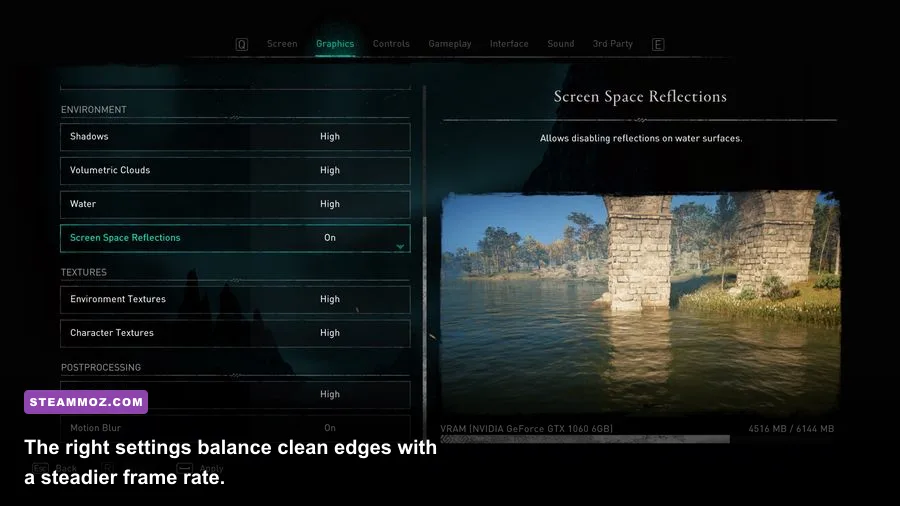
Textures are the easy recommendation: keep them High unless your graphics card has very limited VRAM or the game is hitching while turning. Texture quality mostly affects memory use, not the CPU-heavy simulation that causes the worst drops. Shadows are different. They require the engine to render extra depth information across a large view, and their cost becomes obvious when Ezio looks down a long street filled with buildings and NPCs.
Anti-aliasing needs a little judgment. Higher multisampling can make the image cleaner around rooflines, flags, and window frames, but it is one of the first options worth reducing at 1440p or 4K. At 1080p, FXAA is a sensible compromise. It introduces mild softness around fine details, yet that is less distracting than aggressive shimmering while sprinting across Rome.
🎮 Assassin's Creed Brotherhood
Looking to experience this game? Grab your digital key directly on our store for $4.99.
View on Steammoz Store →Two Tested Profiles for Different Gaming PCs
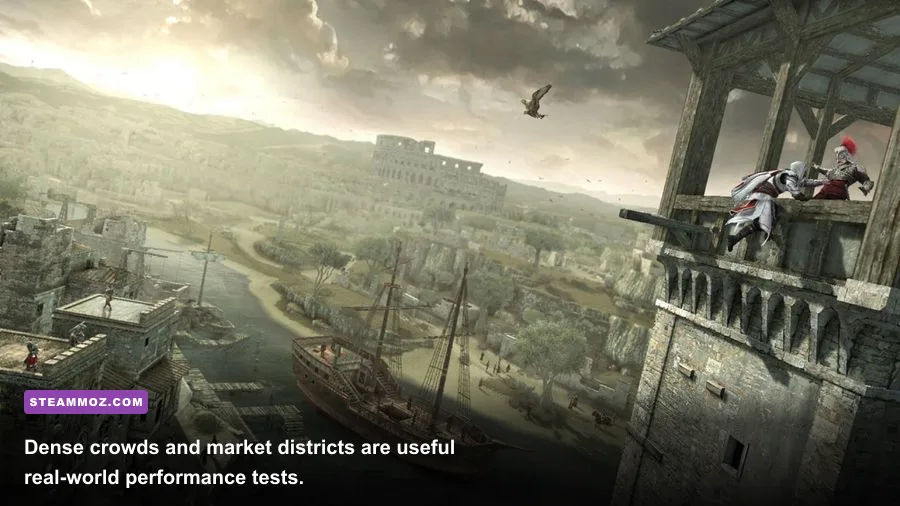
There isn't one perfect preset because Brotherhood behaves differently on a modern six-core desktop, an integrated-graphics laptop, and a high-refresh gaming PC. These profiles are practical starting points, not magic switches. Apply one, restart the game, and test the same route before changing several options at once.
Profile A: 60 FPS quality setup
Use native 1080p, High textures, High environment detail, Medium shadows, FXAA or low anti-aliasing, and V-Sync Off. Set your monitor or driver to a 60 Hz-compatible mode if you want the simplest experience. Brotherhood's animation and camera behavior were designed around older console-era targets, so a perfectly stable 60 FPS generally feels better than a fluctuating 90-140 FPS reading.
If tearing is severe, enable V-Sync through the GPU control panel rather than immediately accepting the game's own behavior. On some systems, the in-game option can introduce a noticeable lock or uneven pacing. A frame limiter set to 60, 59, or 58 FPS through your driver can help a variable-refresh display stay inside its operating range. Do not stack multiple limiters until you have tested them separately; conflicting caps can create more hitching than they solve.
Profile B: low-end laptop performance setup
Choose 1280x720 or 1600x900, Medium textures, Medium environment detail, Low shadows, and the lowest anti-aliasing option. Keep post-processing on Medium if the image remains readable. If the game still drops in crowded areas, lower environment detail before textures. This preserves Ezio's clothing and the architecture while reducing the amount of Rome the engine must maintain at once.
| Performance Target | Resolution | Textures / Environment | Shadows / AA | Best Use |
|---|---|---|---|---|
| High-quality 60 FPS | 1080p | High / High | Medium / FXAA | Modern desktop or gaming laptop |
| Balanced 60 FPS | 1080p | High / Medium | Low-Medium / FXAA | Older mid-range GPU |
| Stable 30-45 FPS | 900p or 720p | Medium / Medium | Low / Lowest | Integrated graphics or thin laptop |
| High-refresh experiment | 1080p+ | High / High | Medium / Low | Powerful PC willing to tune frame pacing |
For more general PC optimization ideas, our Dead in Antares FPS settings guide covers the same useful order of operations: resolution first, then expensive lighting and shadows, then detail density. The principle applies especially well to older PC ports.
Why Brotherhood Stutters and Drops Frames
The common mistake is blaming the graphics card for every dip. Brotherhood can be CPU-limited when a scene contains dozens of pedestrians, guards, horses, and scripted routines. GPU usage may sit below 90 percent while the frame rate falls because one processor thread is handling the engine's busiest work. Lowering resolution in that situation may change almost nothing.
Use an overlay such as MSI Afterburner or the Xbox Game Bar performance widget to compare GPU usage, CPU utilization, temperatures, and frame time. A low GPU load combined with long frame-time spikes points toward a CPU or engine limit. A GPU pinned near 99 percent means resolution, anti-aliasing, shadows, or post-processing are the more likely culprits.
Test three locations rather than trusting one benchmark. First, sprint through a dense market near the Centro district. Second, climb a tall viewpoint and rotate across the skyline. Third, trigger a public combat encounter with several guards. The market tests crowds, the viewpoint tests distant geometry and shadows, and combat tests animation, AI, and camera movement together.
Fix the frame-time problems before chasing extra frames
Install the game on an SSD if possible. Brotherhood is old enough that storage speed won't transform its average FPS, but it can reduce texture-streaming pauses and shorten loading. Close browser tabs, recording software, RGB utilities, and overlays you don't need. Ubisoft Connect, Steam, Discord, and GPU overlays can each add hooks to an older game; disable them one at a time if stutter persists.
Use the latest stable graphics driver, but don't assume the newest driver is automatically ideal for a 2010-era title. If the game began stuttering after a driver update, a clean installation or rollback is worth testing. Also check Windows power mode: a laptop running on battery or a conservative efficiency profile may throttle the CPU long before the GPU reaches its limit.
Windowed and borderless modes can behave differently depending on Windows' fullscreen optimizations. Test exclusive fullscreen first. If Alt-Tab causes black screens or the game returns with broken scaling, borderless may be more convenient, but compare frame-time consistency rather than average FPS alone. A steady 58-60 feels substantially better than a nominal 75 with repeated half-second pauses.
Players dealing with crashes should separate that problem from graphics tuning. Our guide to fixing crashes, stutters, and low FPS has a useful checklist for overlays, files, and background applications. Verify Brotherhood's files through its official Steam listing before reinstalling anything.
High FPS, V-Sync, and Controller Feel
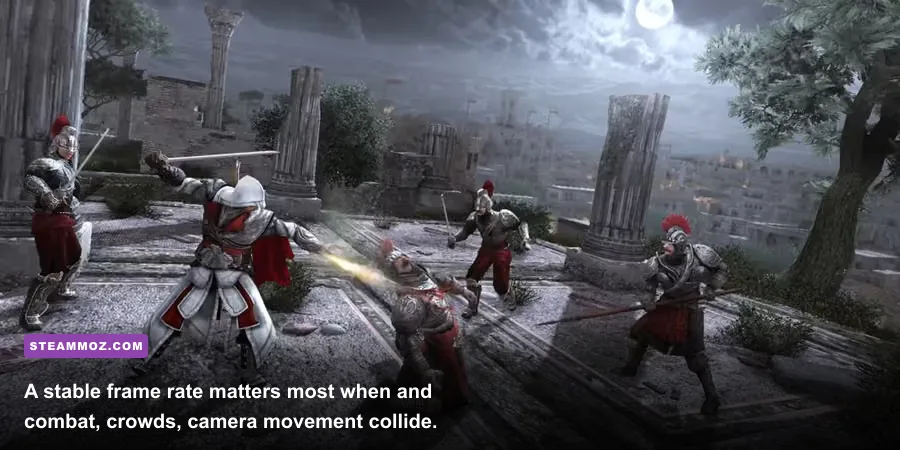
Brotherhood was built for 30 FPS console-era presentation, and the PC version can be temperamental when pushed far beyond 60. You may see smoother camera movement at 90 or 120 FPS, but animations, menus, cutscene timing, and traversal can feel inconsistent depending on the system. The safest recommendation is a stable 60 FPS cap. If 60 isn't possible, a locked 30 or 40 is preferable to a constantly fluctuating 35-60.
V-Sync is a trade-off, not a quality setting. Off gives the lowest latency and avoids a hard synchronization cap, but fast pans across rooftops may show horizontal tearing. On removes tearing when your output stays synchronized, though older implementations can add latency or produce uneven delivery. With a modern variable-refresh monitor, start with in-game V-Sync Off and use a driver-level cap a few frames below the panel's maximum refresh rate.
Don't judge performance only by the FPS counter. Watch frame time while riding through Rome and turning the camera quickly. A 16.7 ms line means roughly 60 FPS; spikes to 25-40 ms are the stutters you actually feel. If your average is high but the graph is jagged, reduce environment detail and shadows before reducing resolution.
Controller users should also test input after changing display modes. Some older PC configurations introduce a slight delay with V-Sync, especially when the game is already missing its target. For precise free-running, climbing, and counter-kills, the difference is subtle but real. A stable cap with low latency is more valuable than a benchmark screenshot showing triple-digit FPS.
A Final Optimization Checklist for Rome
Before starting a new sequence, save a repeatable test route and make changes in a controlled order. That keeps you from lowering five settings, gaining three frames, and never learning which option mattered. The following sequence works particularly well with Brotherhood's older engine.
- Set native resolution and confirm Windows is using the monitor's intended refresh rate.
- Turn V-Sync off for testing, then measure average FPS and frame-time consistency in a crowded district.
- Lower shadows to Medium or Low if the GPU is heavily loaded or distant scenes cause drops.
- Reduce environment detail when street crowds and city panoramas are the problem.
- Keep textures High unless VRAM use, texture pop-in, or hitching points to memory pressure.
- Use FXAA or low anti-aliasing at 1080p; lower it further at 1440p if you need extra GPU headroom.
- Cap the frame rate at the highest level the game can hold consistently, usually 60 rather than an unstable higher number.
- Disable unnecessary overlays and test fullscreen, borderless, and driver settings separately.
For visual troubleshooting in another demanding older PC game, see our Deadfall Adventures graphics guide. It reinforces the same key lesson: image quality is not evenly priced. Some settings sharpen the presentation for almost free, while others quietly consume performance in every frame.
Brotherhood remains a gorgeous game when its strengths are protected: high-resolution textures, detailed Roman architecture, warm lighting, and a clear view across the rooftops. Keep those intact, cut shadows and environment density only as needed, and target a stable frame rate instead of a bragging-rights peak. If you need the latest compatibility information, compare your installation with Ubisoft's official Assassin's Creed page and the current support notes before applying community fixes.
The short version is simple: High textures, Medium shadows, High or Medium environment detail, low anti-aliasing, native resolution, and a stable 60 FPS cap are the sweet spot for most PCs. Start there, benchmark Rome's busiest streets, and only trade away visual quality when the frame-time graph proves the setting is costing you real performance.