For the best Deadfall Adventures Digital Deluxe graphics settings, start at 1080p, use High textures, Medium shadows, High effects, FXAA or the lowest available anti-aliasing option, and disable motion blur. Turn V-Sync off while testing, cap the game to a stable frame rate through your GPU driver, and lower shadows before textures if performance dips. The Digital Deluxe Edition does not need a separate performance profile: its extra content doesn't change the renderer, levels, or frame-rate behavior of the base PC game.
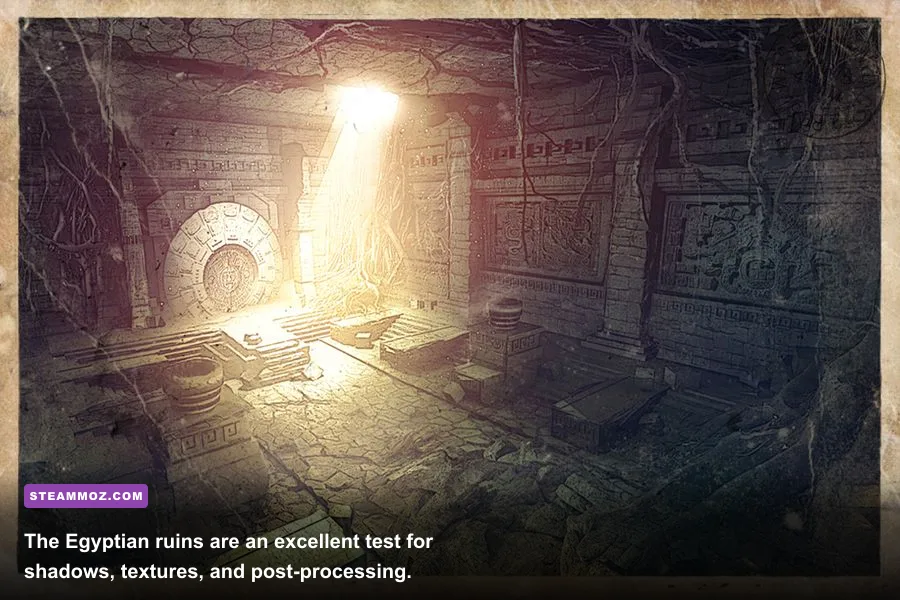
That recommendation sounds simple, but Deadfall Adventures is an older Unreal Engine 3 shooter with a few awkward performance quirks. It can look wonderfully atmospheric in the Egyptian tombs, Arctic ruins, and Mayan temples, yet its frame pacing can feel rough if the frame rate jumps between 60 and 40 fps. The goal isn't to chase a huge peak number in an empty corridor. The goal is a consistent profile that survives a torch-filled room, a large outdoor vista, and a busy fight without turning the adventure into a stuttery museum tour.
This guide focuses on the Steam version of Deadfall Adventures, including the Digital Deluxe Edition. The game follows adventurer James Lee Quatermain and Eva through a pulpy supernatural expedition, so image quality matters: dark stone, glowing artifacts, snow, foliage, and reflective surfaces make more difference than a generic benchmark scene. If you're also tuning older PC games, our guide to Freshly Frosted smoother FPS settings covers the same kind of frame-pacing discipline.
The Best 1080p Profile for Most PCs
Use the following as the starting point for a modern integrated GPU, an older GTX or Radeon card, or any gaming PC that comfortably exceeds the game's original requirements. The important distinction is between image-quality settings and frame-time settings. Textures mostly affect video memory and sharpness. Shadows, post-processing, and effects are more likely to create momentary GPU spikes.
| Setting | Recommended Value | FPS Impact | Visual Note |
|---|---|---|---|
| Resolution | 1920x1080 | High if raised | Native resolution is cleaner than supersampling or driver scaling. |
| Display mode | Fullscreen | Low | Usually gives the most predictable presentation on older Windows systems. |
| Texture quality | High | Low to medium | Keep this high unless you are short on VRAM or see texture streaming. |
| Shadow quality | Medium | Medium to high | The best first reduction for unstable frame rates. |
| Effects quality | High | Medium | Preserves fire, dust, smoke, and supernatural visual effects. |
| Post-processing | Medium or High | Medium | Lower it if dark scenes become expensive or blurry. |
| Anti-aliasing | FXAA or lowest available | Low to medium | Reduces jagged geometry without the cost of heavy multisampling. |
| Motion blur | Off | Small | Sharper aiming and less smear during quick turns. |
| V-Sync | Off for testing | Variable | Enable only after finding a stable cap and checking for tearing. |
Why keep textures at High while shadows sit at Medium? Deadfall Adventures is full of carved walls, weapon surfaces, bookcases, and artifact details that become visibly muddy when textures are reduced. Medium shadows, by comparison, mainly soften contact shadows and reduce the distance at which the engine draws detailed shadow maps. In a fast-moving firefight, you will notice muddy textures for the entire level; you may only notice the shadow downgrade when standing still under a torch.
Set the resolution to your monitor's native output rather than using a lower resolution with sharpening. The game was designed around older displays, and its anti-aliasing can already soften the image. A native 1080p presentation with motion blur disabled is usually the cleanest result. At 1440p, use the same profile if your GPU has room, but lower shadows and post-processing before dropping textures. At 4K, the engine's age won't save you from the raw pixel cost, so a 60 fps target may require Medium textures, Low shadows, and reduced effects.

🎮 Deadfall Adventures Digital Deluxe
Looking to experience this game? Grab your digital key directly on our store for $6.24.
View on Steammoz Store →Which Settings Actually Cost the Most FPS?
Deadfall Adventures doesn't offer the granular control found in modern shooters, and menu labels can vary slightly by build or translation. Treat the presets as broad groups rather than perfectly isolated sliders. Change one option at a time, then test in a demanding section instead of judging performance in a quiet hallway.
Shadows are the first serious performance lever
Shadow quality is the setting most likely to punish an older GPU. Tomb interiors combine several lights with hard-edged architecture, while outdoor areas add longer shadow distances. High shadows can look attractive around torches, but they don't improve enemy readability. Medium is the sweet spot. Low is perfectly playable if you need a locked 60 fps, although walls and characters can look flatter.
Effects control the action-heavy moments
Effects quality covers the visual workload around gunfire, explosions, dust, smoke, fire, and supernatural events. The average frame rate may look fine on a quiet walk through a ruin, then collapse when several enemies attack beside burning scenery. Keep Effects on High if your GPU is modern. If the frame-time graph spikes during combat, lower Effects before resolution.
Post-processing is attractive but easy to overvalue
Post-processing contributes bloom, screen effects, color treatment, and other finishing touches. High post-processing gives magical objects and fires more punch, but it can also make already-dark corridors look hazy. Medium is a strong compromise. Low is useful for weak laptops, especially when paired with disabled motion blur.
Anti-aliasing needs a reality check
Heavy anti-aliasing can be a poor trade in a 2013 shooter. It smooths stair-stepping on railings and temple edges, but it also softens the game's already modest texture detail. Use FXAA or the lowest in-game AA option first. If the menu offers no useful low setting, disable it and test your GPU driver's lightweight post-process AA. Don't force demanding MSAA through the driver; the visual gain is rarely worth the frame-time cost here.
| Performance Problem | First Change | Second Change | What You Give Up |
|---|---|---|---|
| Low average FPS everywhere | Lower resolution one step | Use Low shadows | Sharpness, then lighting depth |
| Stutters during firefights | Lower Effects | Lower Post-processing | Smoke, fire, and bloom detail |
| Texture pop-in or blurry walls | Keep textures High | Close background GPU apps | Little image quality, but more VRAM headroom |
| Unstable outdoor performance | Lower Shadows | Lower Effects | Shadow distance and foliage-related effects |
| Tearing on a fast monitor | Use driver frame cap | Enable V-Sync | Potential input latency or uneven synchronization |
Don't chase a maximum FPS number by setting everything to Low if the result looks worse than it needs to. Deadfall Adventures is a linear campaign, not a competitive arena shooter. A stable 45 fps can feel better than an erratic 70 fps if your display supports a matching refresh mode. That is especially true when the game transitions between narrow tomb corridors and large exterior spaces.
Three Profiles for Different Hardware
Pick a target before touching the menu. The best profile for a 60 Hz display is not automatically the best profile for a 144 Hz monitor, and a laptop's thermal limits can matter more than its advertised GPU. The original Steam community hub is also useful for spotting version-specific display issues, but test changes in your own installation because old PC releases can behave differently across drivers.
High-quality 60 fps profile
Use 1920x1080, High textures, Medium shadows, High effects, High post-processing, low FXAA, and motion blur off. This is the profile to try on a GTX 1060, RX 580, newer integrated graphics, or a comparable card. A 60 fps lock is preferable to letting the game render 90 fps in a corridor and then plunge during a large battle.
Balanced 60 fps profile
Use 1920x1080, High textures, Low shadows, Medium effects, Medium post-processing, and low anti-aliasing. This profile protects frame pacing while keeping the game's stonework and weapons sharp. It is the most sensible choice for older mainstream GPUs such as a GTX 750 Ti, GTX 950, Radeon R7-class card, or a low-power laptop GPU with similar performance.
Performance profile
Use 1600x900 or 1280x720, Medium textures, Low shadows, Low effects, Low post-processing, and motion blur off. Choose fullscreen and cap the frame rate to 30 or 40 fps if 60 isn't realistic. The resolution drop is obvious, but it is better than allowing the engine to hitch whenever a group of enemies, dynamic lights, and particle effects appear together.
| Profile | Resolution | Core Settings | Target Hardware |
|---|---|---|---|
| High-quality 60 | 1920x1080 | High textures, Medium shadows, High effects | GTX 1060, RX 580, or similar |
| Balanced 60 | 1920x1080 | High textures, Low shadows, Medium effects | GTX 750 Ti, GTX 950, or similar |
| Performance | 1600x900 or 1280x720 | Medium textures, Low shadows, Low effects | Older laptops and entry-level GPUs |
These are starting points, not promises of identical results. CPU-heavy sections, background applications, driver overhead, and thermal throttling all change the result. Use an overlay such as Steam's FPS counter or your GPU software, but watch frame-time consistency when possible. A displayed 60 fps can still feel uneven if individual frames arrive at 16 ms, 30 ms, and 16 ms in rotation.
How to Test the Settings Properly
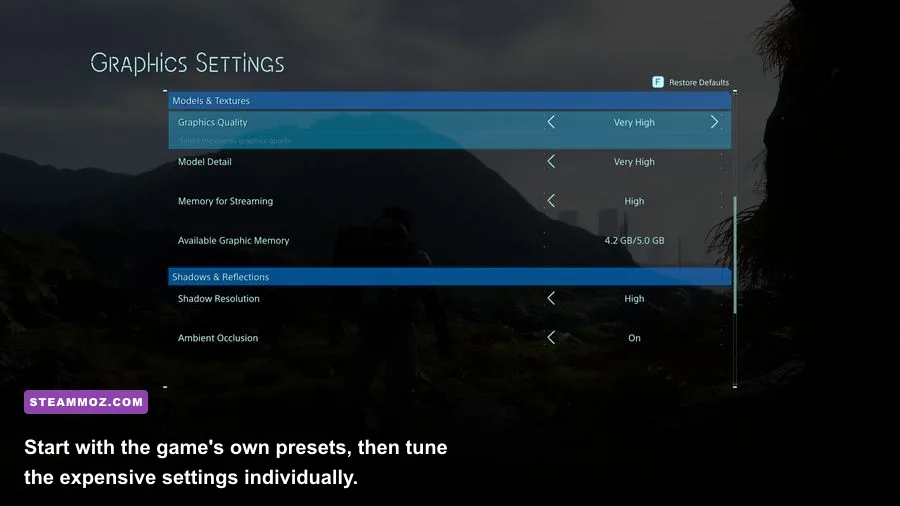
Don't benchmark the first quiet corridor after loading a save. It tells you almost nothing. Deadfall Adventures' demanding moments come from a mixture of lighting, open geometry, effects, and enemy activity. Use a repeatable three-part test so you don't mistake a lucky scene for a good configuration.
- Test an interior lighting scene. Walk through an Egyptian tomb with torches or glowing relics visible. Check for sudden drops when turning toward several light sources. If performance falls here, lower shadows and post-processing.
- Test a combat encounter. Fire the Webley revolver and other available weapons while several enemies are on screen. Watch for stutter as muzzle flashes, smoke, impacts, and enemy animations overlap. Lower Effects if this is the weak point.
- Test an outdoor vista. Turn toward distant ruins, snowfields, or dense jungle geometry in the Arctic and Mayan sections. If this scene dips while interiors are smooth, shadows and resolution are the likely culprits.
Restart the game after major changes if the menu doesn't clearly confirm that settings were applied. Older PC games sometimes update the display mode immediately but delay texture or shadow changes until the next level load. Keep a note of each profile, including resolution and frame cap. That sounds excessive for a short campaign, but it saves time when a driver update or Windows display change resets the configuration.
For tearing, test with V-Sync off first. If the game runs above your monitor's refresh rate, use a driver-level cap a few frames below that refresh rate. On a 60 Hz panel, 60 fps or a 59 fps cap is a reasonable starting point; if the game cannot hold 60, a fixed 30 fps cap may feel cleaner than fluctuating between 45 and 60. Adaptive synchronization is preferable where available, though older engines can still show occasional hitching during loading transitions.
Fixes for Stutter, Blur, and Startup Problems
Deadfall Adventures predates today's shader-compilation conveniences, so some hitching can come from asset loading rather than a setting being too high. Keep the game installed on an SSD when possible, close browsers and recording tools, and avoid running a high-resolution video stream in the background. The Digital Deluxe extras don't require a stronger GPU, but downloadable content and saved configuration files can still be affected by permissions or cloud-sync conflicts.
When textures look blurry
Confirm that Texture Quality is actually set to High after restarting. Check your output resolution, disable driver-level resolution scaling, and make sure the game isn't using a lower internal resolution through a launcher argument. If High textures cause streaming stutter, try Medium textures while leaving resolution at 1080p. Texture quality and resolution solve different problems: the first affects surface detail, while the second affects the entire image.
When the image looks washed out
Disable motion blur and reduce post-processing to Medium or Low. Check your monitor's picture mode and GPU color range if black stone looks gray. Don't automatically raise brightness to compensate for aggressive bloom; Deadfall's atmosphere depends on dark interiors, and over-brightening can make artifacts and torchlight lose their contrast.
When the game crashes or refuses the chosen resolution
Return to a safe windowed or borderless mode, verify the installation through Steam, and update to a stable graphics driver rather than a beta branch. The developer's official site is the best place to check for developer information, while the Steam discussions can reveal workarounds for unusual hardware. If a configuration file is corrupted, back it up before deleting or renaming it so you don't lose useful control mappings.
Windows compatibility modes are a last resort, not a default recommendation. They can fix a launch issue on a specific system while introducing mouse, fullscreen, or audio problems elsewhere. Change one compatibility option at a time. Also disable unnecessary overlays when diagnosing crashes: Steam Overlay, Discord, GPU capture tools, and RGB utilities can all hook into an old DirectX game.
Final Recommended Settings
For most players, the winning Deadfall Adventures Digital Deluxe setup is 1080p fullscreen, High textures, Medium shadows, High effects, Medium post-processing, low FXAA, motion blur off, and V-Sync disabled during testing. Once you confirm stable frame pacing, use a sensible cap or enable synchronization to eliminate tearing. If the frame rate dips, reduce shadows first, then effects, then post-processing. Only lower textures when VRAM or texture streaming is the actual problem.
That order preserves what makes Deadfall Adventures worth revisiting: readable weapons, crisp carved temples, convincing snow and jungle surfaces, and the dramatic lighting around its supernatural set pieces. The game won't suddenly become a modern benchmark, but the right profile makes James Lee Quatermain's journey feel much smoother on contemporary hardware. For more PC optimization advice, compare this approach with our Gearshifters settings guide and Dungeons 3 PC performance breakdown.
Quick verdict: prioritize a stable frame rate over Ultra-style presets, keep textures higher than shadows, and turn motion blur off. The Digital Deluxe Edition runs on the same graphics profile as the standard release, so these settings apply across the Steam versions without sacrificing its bonus content.