
Gearshifters should run comfortably on a mid-range gaming PC, but its official minimum is much more demanding than its simple top-down presentation suggests. You'll want at least an Intel Core i5-4590 or AMD FX-8350, 8 GB of RAM, and a GeForce GTX 970 or Radeon R9 290 with 4 GB of VRAM. For a steadier 1080p experience, the practical target is an Intel Core i7-7700 or Ryzen 5 2600, 16 GB of memory, and a GTX 1070 or Radeon Vega 56.
Those are the published PC requirements for Gearshifters on Steam, not a guarantee of one fixed frame rate. The game is a top-down vehicular roguelite, so the processor has to keep track of enemy vehicles, projectiles, collisions, explosions, and upgrade effects at the same time. A machine that handles quiet roads perfectly can still dip when a convoy, drones, fire trails, and multiple weapon effects fill the screen.
Gearshifters system requirements at a glance
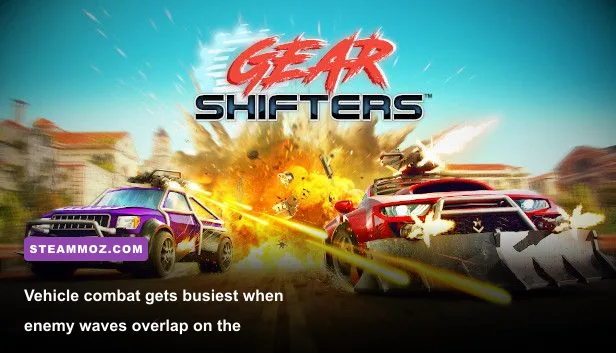
The minimum specification is best understood as an entry point for 720p or modest 1080p play, rather than a promise of locked 60 fps at maximum quality. The GTX 970 and R9 290 are both older 4 GB cards, and the latter can draw considerably more power and run hotter. If your system only just reaches this tier, reducing effects and shadows will matter more than chasing ultra textures.
| Component | Minimum PC specs | Recommended PC specs | Practical meaning |
|---|---|---|---|
| Operating system | Windows 10 64-bit | Windows 10 64-bit | Keep Windows and GPU drivers current |
| Processor | Intel Core i5-4590 or AMD FX-8350 | Intel Core i7-7700 or AMD Ryzen 5 2600 | CPU headroom helps during crowded encounters |
| Memory | 8 GB RAM | 16 GB RAM | 16 GB is safer with browsers and background apps open |
| Graphics | GeForce GTX 970 or Radeon R9 290 | GeForce GTX 1070 or Radeon Vega 56 | 4 GB VRAM is the sensible floor for the listed cards |
| Storage | 10 GB available space | 10 GB available space | An SSD improves loading and update convenience |
The storage requirement is small, but don't confuse capacity with drive speed. Gearshifters doesn't need a huge install, yet an SSD can reduce the friction between garage management, route selection, and restarting a failed run. An SSD won't magically add frames, but it makes repeated runs feel less sluggish.
Can an integrated GPU run Gearshifters?
Officially, integrated graphics aren't listed as supported. Newer Radeon 680M or 780M systems may launch the game at reduced settings, but that is an experiment rather than a dependable recommendation. Older Intel UHD graphics are particularly risky because they share system memory and don't offer the dedicated VRAM expected by the listed minimum cards.
For a laptop, compare your exact GPU rather than the product family name. A laptop RTX 3050, for example, is generally a much safer bet than an old GTX 970, while a low-power MX-series chip may struggle despite having a newer label. Check the GPU's wattage, dedicated memory, and current driver before blaming the game.

🎮 Gearshifters
Looking to experience this game? Grab your digital key directly on our store for $6.24.
View on Steammoz Store →What the minimum specification really delivers
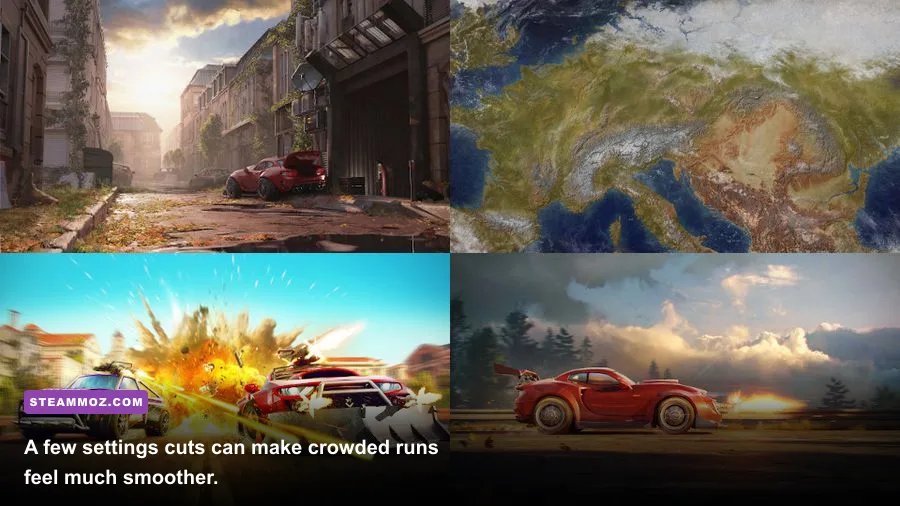
On hardware close to the minimum, start with 1280x720 or 1600x900, the Low preset, and a 60 fps cap. That combination reduces the pressure created by explosions and dense enemy formations without making the road unreadable. If the game stays above 55 fps during a quiet section but falls into the 30s during fights, the system isn't truly delivering a stable 60; tune for the combat scenario, not the garage.
The CPU requirement deserves special attention. Gearshifters isn't a traditional first-person shooter where the GPU does nearly all the visible work. Every vehicle has movement, collision, targeting, and damage logic. As a run grows more chaotic, the processor may become the limiter even when GPU usage appears modest. That's why lowering resolution can fail to solve stutter on an older four-core CPU.
| Hardware tier | Starting resolution | Target frame rate | Likely adjustment |
|---|---|---|---|
| Below minimum | 720p Low, if it launches | 30 fps | Close background apps; expect compromises |
| Minimum-class PC | 720p to 900p Low | 30-60 fps | Cut effects and shadows during convoy fights |
| Recommended-class PC | 1080p High | 60 fps | Use a frame cap for consistent pacing |
| Modern mid-range PC | 1080p Ultra or higher resolution | 60-144 fps | Raise settings gradually and test heavy routes |
Don't use the first five minutes as your benchmark. A clean opening route tells you very little about late-run performance. Test a section with several enemy vehicles, continuous firing, and overlapping explosions. If frame-time spikes appear only during those moments, reduce particles and effects before touching texture quality.
That approach is useful in other demanding PC games too. Steamoz's guide to crashes and low FPS fixes covers the same broad diagnostic principle: identify whether the GPU, CPU, memory, or software layer is actually responsible before randomly lowering every option.
Best Gearshifters graphics settings for 60 fps
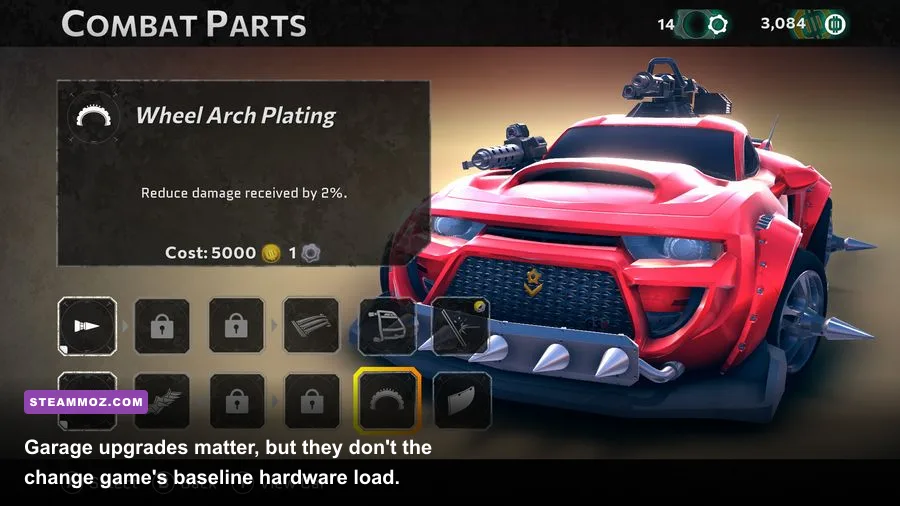
The recommended PC spec should handle 1080p at 60 fps with sensible settings, but “High” isn't always the best profile. In a vehicle roguelite, clarity and consistent frame pacing beat a handful of extra shadows. Explosions, smoke, glowing projectiles, and road hazards are gameplay information, so tune those options with visibility in mind.
| Setting | Recommended value | FPS impact | Visual or gameplay note |
|---|---|---|---|
| Resolution | Native 1080p | High | Lower only if GPU usage remains near 99% |
| Texture quality | High | Low to medium | Keep high if you have 4 GB or more VRAM |
| Shadows | Medium | Medium | Good cut for older GPUs with limited visual loss |
| Effects or particles | Medium | Medium to high | Most useful reduction during explosions and convoy waves |
| Ambient occlusion | Medium or Off | Low to medium | Disable first on a weaker graphics card |
| Anti-aliasing | Default or medium | Low to medium | Reduce if edges shimmer or the GPU is saturated |
| V-sync | On with a 60 fps cap | Variable | Helps avoid tearing; test Off if input feels delayed |
| Motion blur | Off | Negligible | Sharper view makes hazards easier to read |
A reliable tuning order
First confirm the game is using the dedicated GPU, especially on a gaming laptop. Then select native resolution, disable motion blur, and cap the frame rate to your monitor's refresh target. If performance is poor, lower effects and shadows before textures. Texture quality mostly affects VRAM use, while effects and shadows are more likely to hit frame rate during combat.
If you still see hitching, close browser tabs, recording software, RGB utilities, and overlays. Eight gigabytes of RAM can disappear quickly when Windows, Steam, and a browser are open together. A clean boot won't fix a weak GPU, but it can remove the background memory pressure that turns occasional stutter into constant hitching.
For troubleshooting habits, the settings guide for Alone in the Dark Anthology is also worth a look. Its central lesson applies here: a locked, predictable frame rate usually feels better than a higher number that collapses whenever the screen becomes busy.
Upgrade priorities before you hit the road
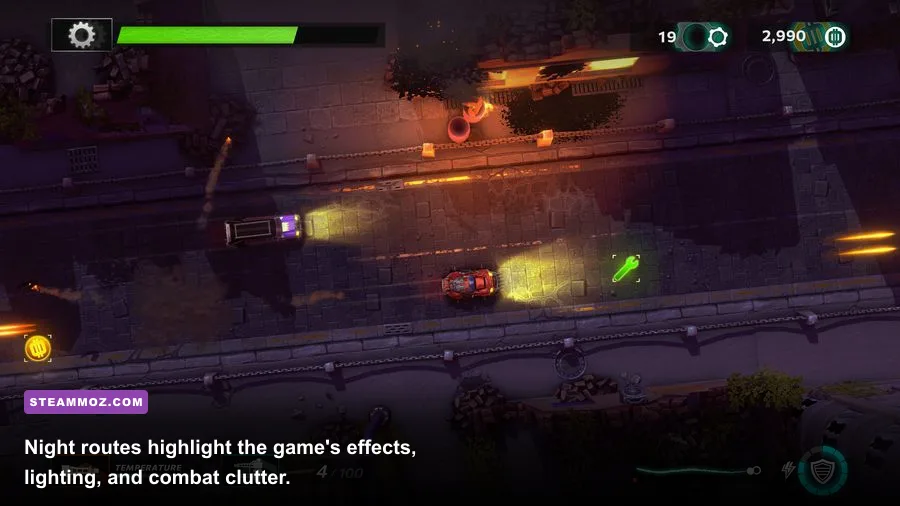
If your PC falls short, upgrade in the right order. A graphics card is the first move when GPU utilization stays at 95-100% and lowering resolution produces a clear frame-rate improvement. Aim for a modern card with at least 6 GB of VRAM if you're buying new; that gives you more room for 1080p games beyond Gearshifters.
Upgrade the CPU when GPU utilization is low but frame times spike during enemy-heavy encounters. Older FX processors and four-core chips can meet a paper requirement while still feeling uneven. A Ryzen 5 5600-class processor or a modern Core i5 provides substantially more practical headroom than the minimum listing, particularly if you stream, record, or keep other programs open.
| Problem you observe | Most likely limit | First fix | When to upgrade |
|---|---|---|---|
| Low FPS at every resolution | GPU or driver issue | Update driver and lower effects | GPU remains fully utilized |
| Big dips only in combat | CPU or effects workload | Lower effects and cap FPS | CPU frame time stays high |
| Stutter with browser open | 8 GB system memory | Close apps or add RAM | Memory use approaches 90-100% |
| Long loading transitions | Mechanical hard drive | Move installation to SSD | Only if load times are the annoyance |
RAM is the quiet upgrade. Eight gigabytes meets the minimum, but 16 GB is the sensible baseline for a modern Windows gaming machine. Use two matching modules when possible so the system can run dual-channel memory. That won't transform Gearshifters into a faster game by itself, but it improves general frame pacing and leaves room for Steam, voice chat, and capture tools.
Before spending money, check the obvious software issues: verify the installation through Steam, remove unofficial overlays, select the high-performance power profile, and make sure the game isn't running on integrated graphics. If you use a laptop, play while plugged in and set the manufacturer utility to performance mode. Battery profiles can throttle both CPU and GPU well below their advertised capability.
Bottom line on Gearshifters PC performance
Gearshifters doesn't require a cutting-edge gaming rig, but the minimum GTX 970/R9 290 class is a real requirement rather than a decorative number. An older PC can play it by targeting 720p or 900p, reducing shadows and effects, and accepting that the busiest encounters may not hold 60 fps. The recommended i7-7700/Ryzen 5 2600, 16 GB RAM, and GTX 1070/Vega 56 combination is the comfortable 1080p target.
For the cleanest experience, prioritize stable frame pacing over ultra presets. The game is at its best when you can read enemy movement, steer through hazards, and react to incoming fire without a sudden hitch. If you enjoy tuning games as much as playing them, Steamoz's Hunt: Showdown settings breakdown and games like Hunt: Showdown recommendations offer useful comparisons for performance-focused PC players.
For final confirmation, compare your machine against the official Steam listing and check Cloudfire Studios' official website for updates. The game's compact install and forgiving visual style make it approachable, but the right settings profile is what turns a merely playable run into a smooth one.