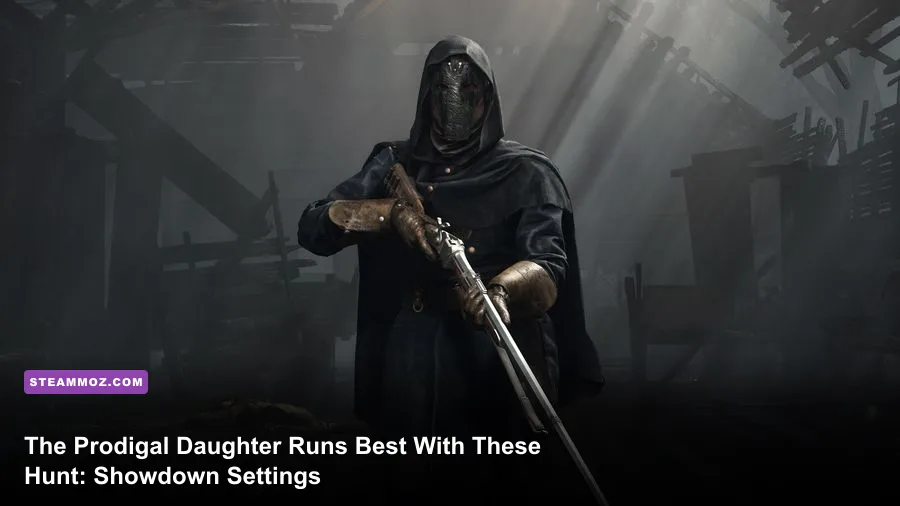
For the best Hunt: Showdown 1896 - The Prodigal Daughter performance, start with 1080p or 1440p native resolution, Object Quality on Low, Texture Quality on High, Texture Filtering at 16x, Lighting and Shadows on Low, and Post-Process Effects on Low. Disable V-Sync, enable NVIDIA Reflex if you have a GeForce card, and use DLSS Quality or FSR 2 Quality only when your GPU cannot hold its target frame rate. This combination preserves weapon clarity and useful silhouette detail while cutting the expensive shadows, fog, and effects that cause dips during compound fights.
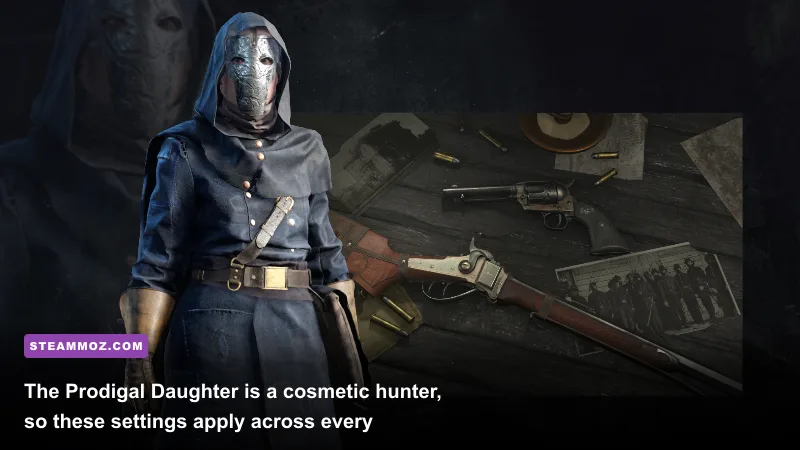
The Prodigal Daughter itself doesn't require a special graphics profile. She's a legendary Hunter, not a separate game mode or a performance-heavy character model. The real workload comes from Hunt's dense CryEngine environments, volumetric atmosphere, dynamic lighting, water, and long sightlines. That distinction matters: chasing a sharper costume texture while leaving shadows and post-processing high is a poor trade in a game where the first stutter during an extraction fight can cost a Hunter.

Best competitive settings for maximum FPS
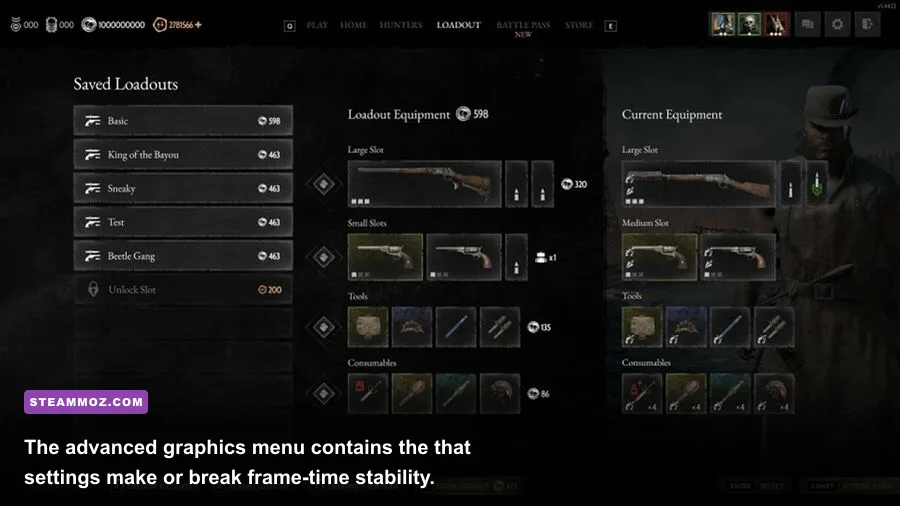
Hunt is unusually sensitive to frame-time spikes. A high average FPS number looks impressive, but a sudden drop from 120 to 65 FPS while a team pushes a compound feels much worse than a locked 90. Build around a frame-rate cap your system can actually sustain. A 144Hz monitor does not automatically mean you should chase 144 FPS; if your Ryzen 5 5600 and RTX 3060 fluctuate between 80 and 140, a stable 90 or 100 is the better competitive target.
Use exclusive fullscreen if it behaves correctly on your system, set the resolution to your monitor's native output, and keep the render scale at 100 percent before touching upscaling. Hunt's distant hunters and iron sights become noticeably mushier when resolution scale is reduced. If you need more performance, DLSS Quality at 1440p is usually a cleaner compromise than dropping the entire game to 1080p. On Radeon hardware, FSR 2 Quality is the first mode worth testing, though foliage and thin branches can shimmer more aggressively.
| Setting | Recommended value | FPS impact | Visual and gameplay note |
|---|---|---|---|
| Display mode | Fullscreen | Low | Usually reduces desktop interference and keeps frame delivery consistent. |
| Resolution | Native 1080p or 1440p | Very high | Native output protects distant target clarity and sight-picture sharpness. |
| Resolution scale | 100% | High | Do not lower this before testing DLSS or FSR Quality. |
| V-Sync | Off | Low | Removes added latency; use a driver-level cap if tearing bothers you. |
| NVIDIA Reflex | On or On + Boost | Small | On is preferable; Boost can raise power use and temperatures. |
| Object Quality | Low or Medium | High | One of the strongest performance levers for compounds and long views. |
| Texture Quality | High | Low to medium | Mostly consumes VRAM; keep it high if your card has 8GB or more. |
| Texture Filtering | 16x | Very low | Improves ground and wood texture definition with almost no modern GPU cost. |
| Lighting Quality | Low | Medium to high | Reduces expensive dynamic lighting without destroying target silhouettes. |
| Shadow Quality | Low | High | High shadows look cinematic but punish frame time around buildings. |
| Post-Process Effects | Low | Medium | Limits blur and expensive image effects that can soften enemy movement. |
| Effects Quality | Low or Medium | Medium | Lower values help with fire, explosions, dust, and concertina-heavy fights. |
| Water Quality | Low | Medium | Worth reducing on water-rich compounds and older GPUs. |
Keep Texture Filtering at 16x because it is one of the rare settings that delivers free clarity. Low filtering makes mud, planks, and rooftops blur at oblique angles, while the performance saving is generally tiny. Texture Quality works differently: it primarily affects VRAM usage. On a 4GB card, Medium can prevent hitching; on an 8GB or 12GB card, High is sensible. Ultra is difficult to justify when the extra texture detail doesn't help you identify a hunter through a window.
If you're also fighting Windows-level stutter, our PC settings guide for smoother FPS covers background capture, power plans, and frame pacing without pushing dubious registry tweaks.

🎮 FORM
Looking to experience this game? Grab your digital key directly on our store for $14.99.
View on Steammoz Store →The balanced 1440p profile for mid-range PCs
For a modern mid-range machine such as a Ryzen 5 5600X or Core i5-12400F paired with an RTX 3060 Ti, RTX 4060, RX 6700 XT, or similar GPU, the balanced profile should prioritize clean sight lines over maximum spectacle. Set 1440p native resolution, Texture Quality High, Texture Filtering 16x, Object Quality Medium, Lighting Low, Shadows Low, Effects Medium, Water Low, and Post-Process Low. Start with anti-aliasing at SMAA 1X if the option is available; increase it only if shimmering is unbearable.
Object Quality deserves special attention. It controls more than the prettiness of a fence. Higher values can increase the distance at which environmental geometry and detail are maintained, which makes the setting expensive in large compounds and across open fields. Low is the correct choice for maximum FPS, but Medium is a reasonable compromise at 1440p if your GPU has headroom. Don't blindly set it to High because a benchmark in an empty training area looked fine.
| Hardware target | Resolution and upscaling | Core profile | Practical FPS target |
|---|---|---|---|
| GTX 1660 Super / RX 5600 XT, 6GB | 1080p native, 100% scale | Low preset, Textures Medium, Filtering 16x | 60-90 FPS depending on compound and weather |
| RTX 3060 / RX 6600 XT, 8GB | 1080p native or 1440p FSR Quality | Object Low, Textures High, shadows and lighting Low | 75-110 FPS |
| RTX 4060 / RX 6700 XT, 8-12GB | 1440p native or DLSS/FSR Quality | Object Medium, Textures High, Effects Medium | 80-120 FPS |
| RTX 4070 / RX 7800 XT and above | 1440p native, optional Quality upscaling | Object Medium-High, Textures High, shadows Medium | 100-165 FPS with scene-dependent dips |
| Steam Deck and low-power PC | 1280x800, lowest sensible scale | All Low, Textures Medium if VRAM allows | Expect compromises and inconsistent busy-scene performance |
These are planning targets, not promises. Hunt's performance changes with map geometry, weather, server activity, and driver versions. Measure in an actual match near a compound rather than trusting an empty firing range. Look at the 1% low or frametime graph if your overlay provides one. A locked 72 FPS with clean delivery beats a nominal 110 FPS that collapses whenever sparks, fire, and multiple hunters fill the screen.
Which settings hurt visibility the most?
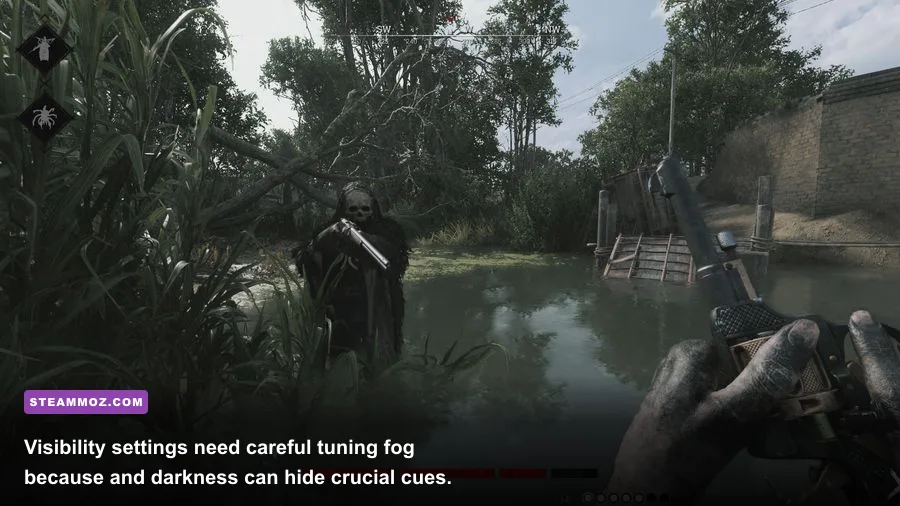
There is a persistent myth that turning every option to Low gives a competitive advantage. It doesn't. Some reductions remove visual noise, but others make the world harder to read. Hunt's darkness, smoke, fog, and foliage are gameplay information, not harmless decoration.
Post-Process Effects are usually the first place to start because high values can introduce blur, bloom, and other image treatment that makes rapid movement less crisp. Keep them Low. Motion blur should be disabled if exposed separately. Film grain should also be off when available. These effects don't make a hunter easier to spot; they simply smear the scene when you turn quickly.
Lighting and Shadows are more complicated. Low lighting can make interiors look flatter, but High lighting costs heavily in barns, churches, and multi-room compounds. Low shadows also remove some atmospheric depth while improving consistency. I recommend Low for both in serious play, then raising Lighting to Medium only if the image feels too muddy and your GPU has spare capacity.
Fog and volumetric effects can be especially punishing during foggy or night conditions. Don't expect a graphics setting to remove the intended weather gameplay entirely. You should never use third-party filters or injectors to brighten the game; that can violate fair-play expectations and create an uneven competitive environment. Use your monitor's properly calibrated sRGB mode instead, and avoid extreme black equalizer settings that crush or reveal detail unnaturally.
Anti-aliasing is the main visual trade-off. SMAA 1X gives a sharper image but leaves more foliage shimmer. Higher anti-aliasing smooths edges at a performance cost and can soften distant silhouettes. DLSS Quality often provides a better overall balance at 1440p, but inspect wire fences, branches, and weapon sights after enabling it. If a moving hunter looks like a flickering outline, sharpness is not worth the theoretical frame gain.
DLSS, FSR, Reflex, and frame cap recommendations
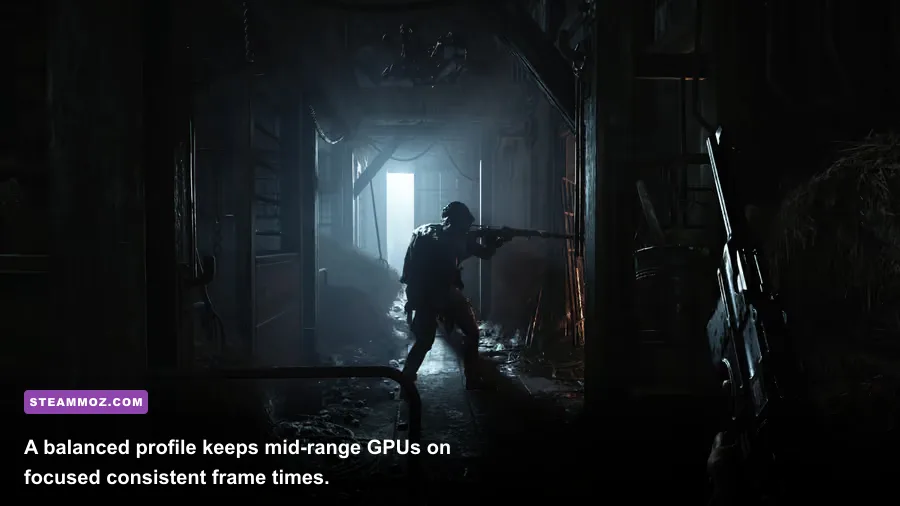
NVIDIA Reflex and upscaling solve different problems. Reflex reduces the queue between your input and the rendered frame, while DLSS or FSR reduces GPU workload. Turn Reflex on when supported. Use On + Boost only if your GPU is not already running at high clocks; Boost can increase consumption and heat for limited benefit on a desktop system.
DLSS Quality is the best first test for RTX owners at 1440p. Balanced can rescue a GPU that misses its target, but it introduces more reconstruction artifacts around foliage and thin geometry. At 1080p, native rendering or DLSS Quality is usually preferable because the lower input resolution gives the reconstruction less information. Radeon players should test FSR 2 Quality first, then Balanced only when necessary. Don't stack a low resolution scale with an aggressive upscaling mode unless you accept a very soft image.
| Goal | Recommended configuration | Why it works | Main drawback |
|---|---|---|---|
| Lowest latency | Native resolution, V-Sync Off, Reflex On, FPS cap below monitor refresh | Keeps the render queue short and image detail intact. | Requires enough GPU power to maintain the cap. |
| 1440p performance | DLSS Quality or FSR 2 Quality, 100% output scale | Recovers GPU headroom without immediately destroying clarity. | Foliage and wire edges may shimmer. |
| Weak GPU | 1080p, Quality upscaling, Object Low, Lighting Low, Shadows Low | Targets the largest GPU costs first. | Distant targets and fine geometry become softer. |
| VRR monitor | V-Sync Off in-game, cap 2-3 FPS below refresh | Reduces tearing while keeping latency low. | Needs a stable cap and properly configured G-SYNC or FreeSync. |
For a 144Hz VRR display, cap at 141 FPS only if your system can genuinely hold it. If not, use 120, 100, or 90. Nvidia Control Panel and Radeon Software caps can be useful when the in-game limiter behaves inconsistently. Test the cap with an actual bounty match, not a quiet menu. If your GPU sits at 99 percent and your 1% lows collapse, lower Object Quality or enable Quality upscaling before sacrificing Texture Filtering.
How to test Hunt settings without fooling yourself
Change one group of settings at a time and record average FPS, the lowest sustained moments, GPU utilization, VRAM use, and frametime behavior. A five-minute test through a quiet patch of terrain tells you almost nothing. Run through a busy compound, look toward open sight lines, trigger fire or explosions when possible, and rotate quickly. Those situations reveal the CPU and GPU spikes that decide real gunfights.
- Restart the game after major graphics changes, especially resolution, upscaling, or driver-level settings.
- Play the same map and weather type for several minutes if you can, because Hunt's atmospheric conditions alter the workload.
- Check whether the GPU or CPU is the limit. Lowering textures won't fix a CPU-bound compound fight, while lowering Object Quality may.
- Watch for VRAM pressure. Stutters that appear after moving between compounds often point to texture allocation rather than average GPU load.
- Choose the highest image quality that keeps your chosen cap during the worst scene, not the prettiest screenshot.
Shader compilation, driver updates, overlays, and background recording can all muddy your results. Disable unnecessary overlays while testing, keep GPU drivers current, and avoid judging performance during the first seconds after loading into a new area. If crashes or hitching persist beyond graphics tuning, see our max-FPS settings troubleshooting guide and our article on crashes and low FPS fixes.
Also check the game's current technical notes through the official Hunt: Showdown website, the Hunt: Showdown 1896 Steam page, and Crytek's official news feed. Updates can change performance behavior, supported upscalers, or the exact names of menu options.
The final Prodigal Daughter profile
For most players, the sensible final setup is native 1440p or 1080p, 100 percent resolution scale, Texture Quality High when VRAM allows, Texture Filtering 16x, Object Quality Low or Medium, Lighting Low, Shadows Low, Water Low, Effects Medium, Post-Process Low, V-Sync Off, and Reflex On. Add DLSS Quality on GeForce RTX cards or FSR 2 Quality on compatible Radeon systems only when native resolution misses your target. That profile won't make the bayou look like a cinematic trailer, but it keeps the image sharp where it counts and the frame time steady when The Prodigal Daughter walks into a fight.
Hunt rewards consistency more than benchmark bragging rights. A stable frame cap, readable silhouettes, low input latency, and predictable visibility will do more for your extraction rate than Ultra shadows ever will. Save the extra GPU headroom for the moment a shotgun door opens, a hive bomb bursts, and three hunters suddenly decide the same compound belongs to them.