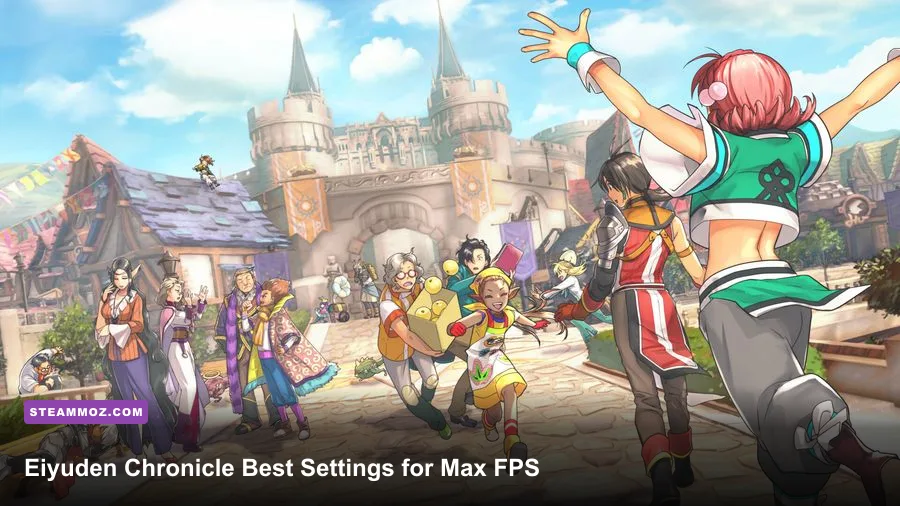
The best Eiyuden Chronicle: Hundred Heroes graphics settings for max FPS are 1080p, fullscreen, V-Sync off, a 60 FPS cap, medium shadows, medium effects, high textures, and low post-processing. That combination keeps the pixel-art characters crisp while cutting the options most likely to create GPU spikes during war battles, crowded towns, and flashy skill animations. If your PC still struggles, drop resolution before turning textures down.
These recommendations target the Steam version and are built around a sensible priority: preserve the game's sharp 2D sprites and colorful environments, then trim expensive lighting and effects. Eiyuden Chronicle isn't a cutting-edge 3D showcase, but its hybrid presentation can still produce uneven frame pacing. A stable 60 FPS feels much better than a counter that jumps between 75 and 45.
Best Eiyuden Chronicle PC settings for maximum FPS
Begin with the game's own display menu rather than relying on a global GPU preset. Set the resolution to your monitor's native output, choose fullscreen if the option is available, and disable V-Sync while testing. Use a 60 FPS limit for most systems. An unlimited frame rate can make menus and light exploration look fast, but it also increases power draw and often exposes brief stutters when the engine loads a new area.
At 1080p, the profile below is the strongest starting point for a mainstream gaming PC with a GTX 1660, RX 5600 XT, RTX 2060, or newer graphics card. Keep textures high because they usually affect VRAM more than raw GPU workload. Shadows, effects, and post-processing are the first cuts because they influence scenes with multiple characters and combat particles.
| Setting | Recommended value | FPS impact | Visual note |
|---|---|---|---|
| Resolution | 1920×1080 native | Very high | Best balance of sharp sprites and performance |
| Display mode | Fullscreen | Low | Usually gives steadier frame pacing |
| Frame-rate limit | 60 FPS | Stability gain | Prevents unnecessary GPU spikes |
| V-Sync | Off for testing | Low | Reduces input delay; enable it if tearing bothers you |
| Texture quality | High | Low to medium | Keep high unless VRAM is limited |
| Shadow quality | Medium | Medium to high | One of the safest settings to lower |
| Effects quality | Medium | Medium | Reduces spell and battle-combat spikes |
| Post-processing | Low | Medium | Less blur and visual haze, cleaner image |
| Anti-aliasing | Medium or default | Low to medium | Lower only if GPU usage remains high |
| Ambient occlusion | Low or off | Medium | Small depth improvement for a measurable cost |
Names can vary slightly between patches and PC configurations, so treat this as a tuning order rather than a promise that every build exposes identical toggles. The important idea is consistent: textures are not your first performance target. If you are coming from another demanding RPG, the same “cut shadows before textures” logic also applies to our BioShock Infinite PC settings guide.

🎮 Eiyuden Chronicle: Hundred Heroes
Looking to experience this game? Grab your digital key directly on our store for $14.99.
View on Steammoz Store →Which settings cost the most performance?
Resolution is still the biggest lever. Moving from 1440p to 1080p gives the GPU roughly 44 percent fewer pixels to render, while dropping from 1080p to 720p cuts the pixel workload by about 56 percent. The trade-off is obvious in Eiyuden Chronicle: the sprites remain recognizable, but fine outlines and menus look softer. Use an in-game resolution change or a driver-level resolution scale if the title provides one; avoid stretching a low-resolution image across an ultrawide panel without checking the result.
Shadows are usually next. They add depth to towns and battlefields, but their contribution is subtle compared with the clarity of the characters. Medium shadows preserve most of the look. Low shadows are a good move on integrated graphics, particularly when walking through scenes filled with NPCs and layered environmental detail.
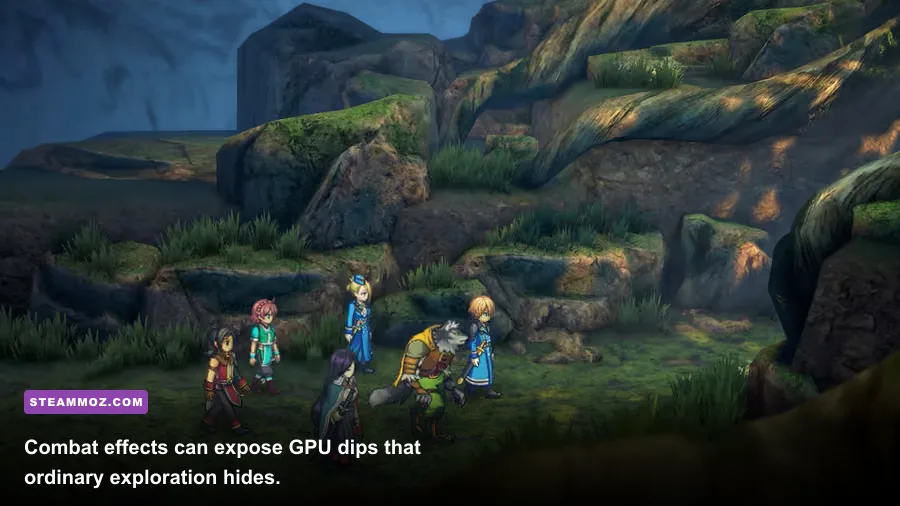
Effects quality matters most during Rune-Lens abilities, Unite Attacks, and large encounters. These moments can briefly combine translucent particles, flashes, and several animated characters. Lowering effects won't improve the turn-based decision-making, but it can stop a 60 FPS scene from dipping into the 40s when the screen fills with spell effects.
Post-processing is an easy win if you dislike blur. Lower values generally reduce extra image treatment around lighting, depth, and screen effects. The visual loss is less severe than lowering resolution, and the result can actually look cleaner. Ambient occlusion is also expendable. It adds contact shading under objects and around corners, but it is not essential to reading the game's deliberately stylized environments.
| Performance tier | 1080p profile | Expected target | Best use case |
|---|---|---|---|
| Quality 60 | High textures, medium shadows, medium effects, medium post-processing | Locked 60 FPS on a mid-range GPU | GTX 1660, RX 5600 XT, RTX 2060 class systems |
| Balanced 60 | High textures, low shadows, medium effects, low post-processing | Mostly stable 60 FPS | Older gaming laptops and entry-level GPUs |
| Competitive smooth | Medium textures, low shadows, low effects, low post-processing | Highest practical consistency | Systems with frequent battle dips |
| Integrated graphics | 720p, low shadows, low effects, low post-processing | 30 FPS target | Modern Radeon or Intel integrated graphics |
Best settings for low-end PCs and gaming laptops
If your laptop uses Intel UHD, older Vega graphics, or a low-power GeForce MX chip, aim for a stable 30 FPS instead of chasing an unstable 60. Set 1280×720 first, use low shadows and effects, turn post-processing down, and keep the 30 FPS cap enabled. A consistent 30 feels fine for a turn-based RPG; a fluctuating 45-to-25 FPS range feels rough whenever the game streams a new area.
Plug the laptop into AC power, set Windows to Best Performance, and check that the game uses the discrete GPU rather than integrated graphics. Close browser tabs, recording software, and RGB utilities before testing. These steps won't magically transform a weak GPU, but they can remove the background interruptions that feel like random stutter.
For systems with 4GB of VRAM or less, high textures may eventually produce loading hitching if other applications are consuming memory. In that case, use medium textures rather than immediately lowering every option. Texture reduction helps memory pressure; it does little for a GPU that is actually limited by shadows or effects.
Don't judge performance from the opening town alone. Walk through a busy settlement, trigger several battles, use party abilities with visible effects, and load a different region. Eiyuden Chronicle's average FPS can look healthy while its one-percent lows tell a different story. Tools such as MSI Afterburner, AMD Adrenalin, or the NVIDIA performance overlay make those dips easier to identify. Our Citizen Sleeper 2 low-FPS troubleshooting guide covers the same frame-pacing mindset for another dialogue-heavy RPG.
Best Steam Deck settings for smooth performance
Steam Deck players should start at 1280×800 with a 30 FPS cap. Use low shadows, low effects, and low post-processing, then leave textures at medium if memory usage remains comfortable. A 40 FPS target can work in lighter areas, but it is harder to maintain during busy scenes and consumes more battery. For a long RPG campaign, a locked 30 FPS profile is the more sensible choice.
Use the SteamOS per-game performance menu to cap the frame rate, and don't stack multiple limiters without a reason. If you enable V-Sync in the game and a second limiter in SteamOS, input response can feel sluggish. Test one setup at a time. When tearing is minimal, a single frame cap usually gives the cleanest result.
Battery life also benefits from reducing effects and shadows. Those options can keep the GPU clock higher during combat, while a 30 FPS cap allows the Deck to spend less power in quiet exploration. The goal isn't to make the handheld version look identical to a desktop at 1440p; it's to keep the colorful sprite work readable without turning every battle into a battery drain.
How to stop stutter after changing settings
Change one option at a time and restart the game if the menu requests it. Sudden stutter may be shader compilation, asset streaming, a driver issue, or an unstable overclock rather than a setting that is simply too high. Start by restoring GPU and CPU tuning to stock, updating your graphics driver, and verifying the installation through Steam.
Windows users should also test exclusive fullscreen against borderless mode. Borderless is convenient for alt-tabbing, but fullscreen can deliver more consistent frame pacing on some systems. If fullscreen causes flicker or strange resolution behavior, use borderless and cap the game externally through the NVIDIA Control Panel or AMD Adrenalin.
Keep the official patch history in view through the Eiyuden Chronicle: Hundred Heroes Steam page. Updates can alter performance, fix crashes, or change how a graphics option behaves. The Rabbit & Bear Studios website is also worth checking for developer announcements, while the official Eiyuden Chronicle site provides broader game information.
Finally, remember that the FPS counter isn't the whole story. If the game holds 60 FPS in exploration but dips briefly during a dramatic Unite Attack, medium effects may be the right compromise. If dips happen every time you enter a town, lower shadows and test borderless versus fullscreen. If the image looks blurry but performance is excellent, restore high textures and increase resolution before touching anything else.
The quick profile to use right now
For most desktop players, select 1080p fullscreen, 60 FPS, high textures, medium shadows, medium effects, low post-processing, and low ambient occlusion. For low-end PCs, use 720p and a 30 FPS cap. For Steam Deck, use 1280×800, low shadows and effects, medium textures, and a locked 30 FPS. Those profiles protect the parts of Eiyuden Chronicle that matter most—the expressive sprites, colorful towns, and readable combat—while cutting the settings responsible for the ugliest performance swings.
Once that baseline is stable, raise only one option at a time. You'll quickly find whether your bottleneck is resolution, VRAM, or scene complexity, and you won't sacrifice the entire image quality chasing a few extra frames. For more performance-focused RPG advice, compare these settings with Steamoz's PC settings guide for turning stutter into smooth FPS and our Deadlight: Director's Cut PC fixes.