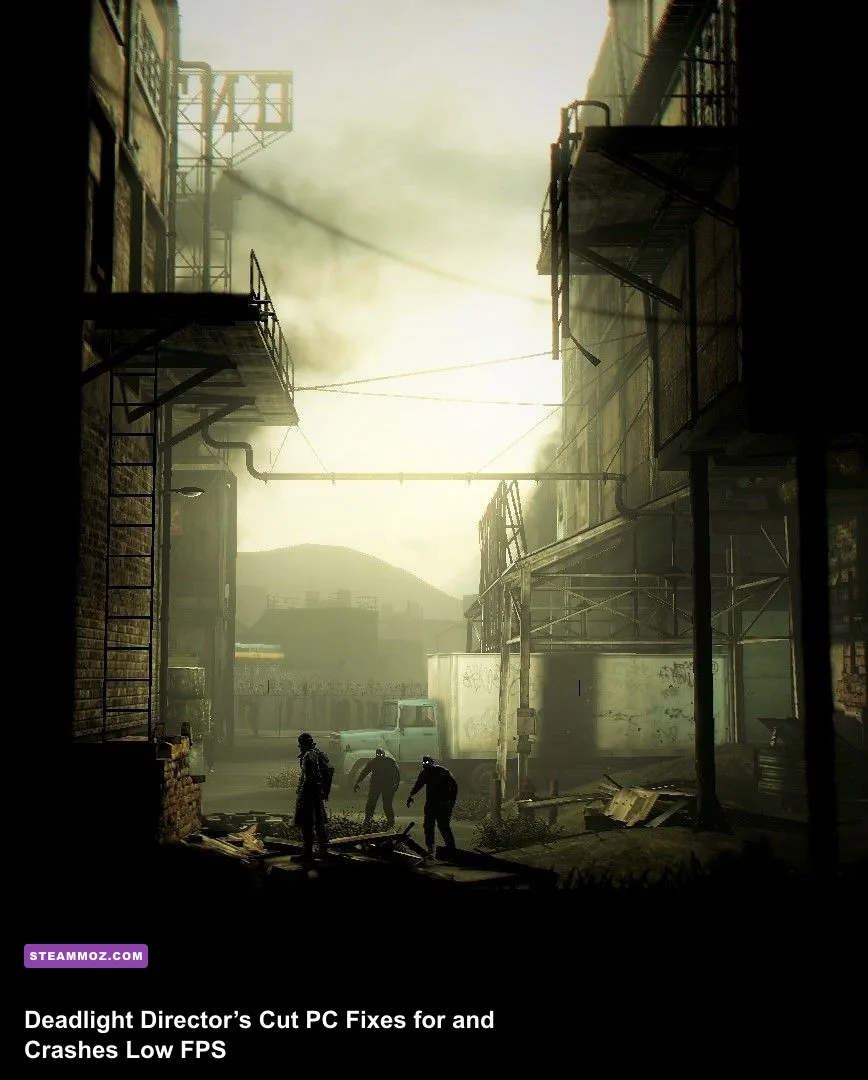
If Deadlight: Director’s Cut crashes on startup or crawls below a playable frame rate, start with a clean Steam-file verification, disable every overlay, and run the game at 1280×720 with shadows and anti-aliasing reduced. The game is an older Unreal Engine title, so modern Windows features, hybrid-GPU driver profiles, fullscreen scaling, and corrupted configuration files are more likely troublemakers than your hardware.
This fix order is designed for the Steam release of Tequila Works’ 2016 remaster. It covers black screens, instant desktop crashes, infinite loading, stutter, unstable fullscreen performance, and systems that technically exceed the requirements but still feel rough. Before changing anything, note your current resolution and back up any save or configuration folders you find under %USERPROFILE%\Documents\My Games or %LOCALAPPDATA% that contain a Deadlight folder.
Check the PC baseline before changing settings
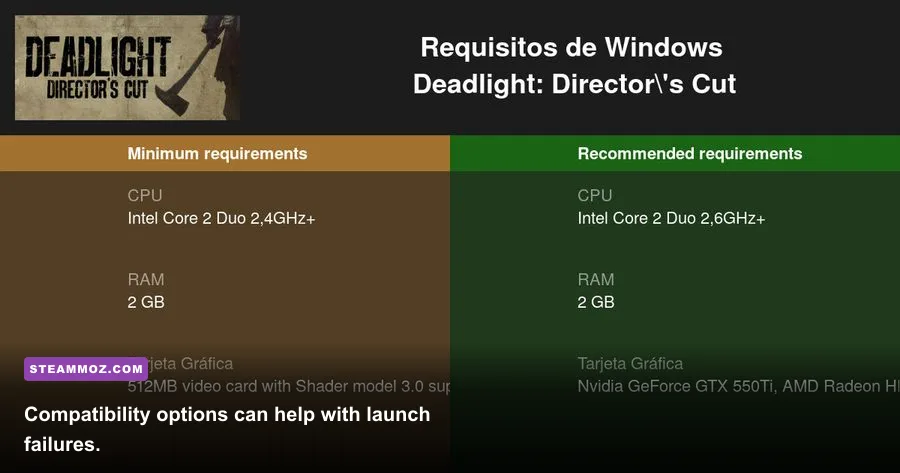
Deadlight: Director’s Cut is a 2.5D survival platformer starring Randall Wayne, set in a zombie-ravaged Seattle in 1986. Its published PC requirements are extremely modest by modern standards, but that doesn’t guarantee perfect behavior on Windows 10 or Windows 11. The original release targets older DirectX-era drivers, while the Director’s Cut adds remastered presentation and the extra Survival Arena content.
Use the table below as a practical diagnostic rather than a promise of a locked frame rate. If you have integrated graphics, the biggest win is making sure Windows launches the game on the discrete GPU. On a laptop, plug in the charger, set Windows power mode to Best performance, and assign the game executable to High performance in Settings > System > Display > Graphics.
| Component | Published baseline | Practical target | What it affects |
|---|---|---|---|
| Operating system | Windows XP SP3, Vista, or 7-era support | Windows 10/11 fully updated | Compatibility, drivers, fullscreen behavior |
| Processor | Dual-core around 2 GHz | Modern 4-core CPU | Streaming, physics, frame-time spikes |
| Memory | 2 GB RAM | 8 GB or more | Background-app headroom |
| Graphics | GeForce 8800 GT or Radeon HD 3850 class | Any current GTX, Radeon, or Arc card | Resolution, shadows, anti-aliasing |
| DirectX/storage | DirectX 9-era hardware and roughly 9 GB storage | Updated GPU driver and 15 GB free space | Installation, shader and cache reliability |
For comparison, our Citizen Sleeper 2 PC fixes guide deals with a much newer game. Deadlight needs a different mindset: compatibility and frame pacing usually matter more than raw GPU power.
🎮 Deadlight: Director's Cut
Looking to experience this game? Grab your digital key directly on our store for $1.79.
View on Steammoz Store →Fix Deadlight crashing on startup and black screens
1. Verify the installation first
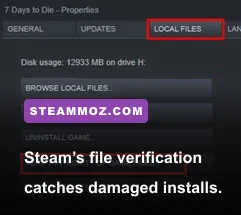
In Steam, right-click Deadlight: Director’s Cut, choose Properties > Installed Files > Verify integrity of game files, and let the process finish completely. A missing executable, damaged archive, or interrupted update can cause an immediate crash before the menu appears. Restart Steam afterward instead of launching from an old desktop shortcut.
Next, close overlays: Steam Overlay, Discord, Xbox Game Bar, GeForce Experience, AMD Adrenalin recording, MSI Afterburner and RivaTuner Statistics Server. These hooks can conflict with older DirectX renderers. Don’t stack multiple fixes at once; launch after disabling them so you know which change worked.
2. Repair the Windows dependencies
Install the latest supported graphics driver from NVIDIA, AMD, or Intel. Choose a clean installation if the crash began immediately after a driver update. Also install Microsoft’s DirectX End-User Runtime; modern Windows includes newer DirectX versions, but older games may still need legacy D3DX components.
Repair or install the x86 Microsoft Visual C++ redistributables if the game reports a missing DLL or silently closes. Use Microsoft’s official downloads rather than third-party DLL websites. A missing legacy runtime is a software dependency problem, not a reason to replace your graphics card.
3. Test compatibility settings carefully
Browse to the game’s installation folder through Steam’s Installed Files > Browse. Right-click the game executable, open Properties > Compatibility, and test Disable fullscreen optimizations. If Windows 11 still produces a black screen, try Windows 7 compatibility mode for that executable only. Avoid forcing Windows XP mode first: it can create input, audio, or permissions problems on current systems.
On high-DPI displays, open Change high DPI settings and test Override high DPI scaling behavior with Application. This is particularly useful when the game launches off-screen, renders a cropped image, or returns to the desktop after switching resolution. Run as administrator only as a temporary test, not as the permanent default.
Use a stable graphics profile instead of chasing maximum quality
Deadlight’s side-on camera makes resolution and anti-aliasing more visible than you might expect, but shadows and post-processing are the first settings to reduce when the frame rate dips in crowded scenes. Start in windowed or borderless mode if exclusive fullscreen crashes during alt-tab. Once stable, test fullscreen again; some systems gain smoother pacing there.
| Setting | Recommended value | FPS impact | Visual trade-off |
|---|---|---|---|
| Resolution | Native desktop resolution; 1280×720 for troubleshooting | High | Lower resolution is the fastest GPU test |
| Anti-aliasing | Low or Off | Medium | More jagged edges, especially around silhouettes |
| Shadows | Low or Medium | Medium to high | Less depth in tunnels and ruined streets |
| Texture quality | High if VRAM allows; Medium on integrated graphics | Low to medium | Lower detail on scenery and character surfaces |
| VSync | Off for testing; On if tearing is distracting | Variable | On can introduce latency or lock behavior |
| Fullscreen mode | Borderless first, exclusive fullscreen second | Low to medium | Borderless is usually easier to alt-tab |
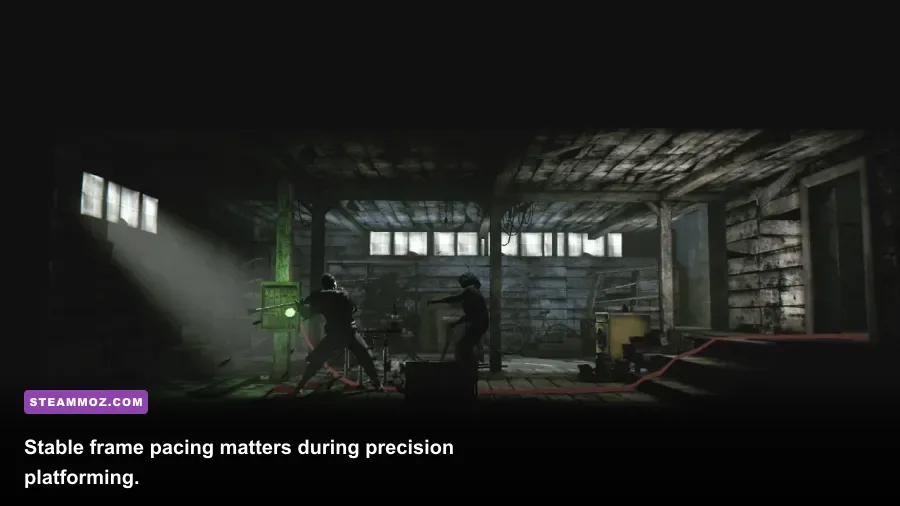
Don’t judge performance from the opening menu. Load a demanding section with several Shadows, smoke, or collapsing scenery, then watch whether the problem is low average FPS or uneven frame times. A 45 FPS readout with regular pacing can feel better than 60 FPS that repeatedly hitches for a quarter-second.
If your monitor runs at 144 Hz, try a 60 Hz desktop mode while troubleshooting. Older games sometimes behave badly when their presentation timing meets unusual refresh rates. After stability returns, restore your normal refresh rate and test again.
Stop stutter caused by drivers, overlays, and background apps
Low FPS and stutter aren’t always the same problem. Deadlight can run at a respectable average while hitching whenever a new area streams in. Shut down browsers with video tabs, RGB utilities, hardware monitors, cloud-sync clients, and recording software. Windows Security scans and large downloads can also produce temporary spikes, so test with Steam finished updating.
In NVIDIA Control Panel or AMD Software, create a profile for the Deadlight executable. Leave most options application-controlled. Disable forced sharpening, driver-level anti-aliasing, frame generation, and enhanced sync. Set power management to maximum performance only for this game profile, not globally. On a laptop, confirm the executable is assigned to the high-performance GPU in both Windows Graphics settings and the vendor control panel.
Cap the game to a frame rate your system can sustain. If it fluctuates between 60 and 40, a stable 30 or 45 FPS cap may feel dramatically smoother during Randall’s jumps and melee encounters. Use your GPU driver’s limiter or RTSS only after disabling every other overlay; running several frame counters and limiters together can create the stutter you’re trying to remove.
For more Windows-side troubleshooting, the PC settings guide for turning stutter into smooth FPS explains the same frame-time checks in broader detail. The key here is restraint: change one limiter, one overlay, or one driver option at a time.
Reset broken configuration files without losing progress
A crash that begins after changing resolution, enabling fullscreen, or moving the game between monitors often points to a bad configuration value. First close Steam and back up any Deadlight-related folders under Documents\My Games, %LOCALAPPDATA%, and the Steam userdata directory. Cloud saves can restore progress, but configuration files are not always handled the same way, so keep a manual copy.
Search those locations for files or folders containing Deadlight. Rename the configuration folder to something like Deadlight_backup rather than deleting it. Relaunch the game so it creates fresh defaults, then set 1280×720, windowed mode, low shadows, and VSync off. If the game now works, restore settings individually until the offending option is identified.
If the crash happens only when loading a particular checkpoint, verify files again and temporarily disable Steam Cloud before testing the clean configuration. Don’t overwrite your backup. A damaged local save is rarer than a renderer problem, but preserving the original folder gives you a recovery path instead of turning one crash into lost progress.
For the authoritative store listing and current platform notes, check the Deadlight: Director’s Cut Steam page and Tequila Works’ official site. If none of the steps work, collect your GPU model, Windows build, crash timing, and whether the game reaches the menu before contacting Steam Support. That information is far more useful than simply reporting “low FPS.”
The winning setup for most modern PCs is deliberately boring: verified files, current GPU drivers, no overlays, borderless or stable fullscreen, 1280×720 for the first test, low shadows, reduced anti-aliasing, and a sensible frame cap. Once Deadlight survives a full run through a busy Seattle section without hitching or crashing, raise resolution first, then textures, and leave shadows for last. That approach keeps Randall’s desperate escape readable without letting a 2016 remaster’s compatibility quirks ruin the experience.