
The best Education graphics settings for max FPS are 1080p resolution, medium textures, low shadows, disabled motion blur, and a capped frame rate that your PC can hold consistently. Start with V-Sync off, set the display mode to exclusive fullscreen if the option exists, and lower shadows before textures. Those changes usually deliver the biggest performance gain while preserving the visual detail that makes rooms, objects, and interactable items easy to read.
Education is not the kind of game where a flashy average FPS number tells the whole story. A system can report 100 frames per second and still feel rough if frame times spike while you move between areas or turn quickly. The target here is stable delivery: 60 FPS for entry-level hardware, 90–120 FPS for a modern gaming PC, and 144 FPS only when your GPU can hold that number outside quiet rooms. Use the profiles below as a starting point, then tune one setting at a time.
Before changing anything, update your graphics driver, close browser tabs and overlays, and let the game finish any first-run shader or asset preparation. If you regularly troubleshoot PC games, Steamoz’s guide to turning stutter into smooth FPS covers the same frame-pacing traps in more detail.
Best Education settings for maximum FPS
Use the following profile first if your priority is responsiveness. It is deliberately conservative: shadows and post-processing are reduced, while textures stay high enough to keep surfaces and objects from looking muddy. If your PC has 6GB or more of VRAM, you can usually raise textures without meaningfully reducing average FPS.
| Setting | Recommended value | FPS impact | Visual note |
|---|---|---|---|
| Display mode | Fullscreen | Low | Can reduce desktop-compositor interference and input latency. |
| Resolution | 1920×1080 | Very high | The best starting point for 1080p monitors and modest GPUs. |
| Resolution scale | 100% | Very high | Lower to 90% or 80% only when the GPU is the bottleneck. |
| Textures | Medium or High | Low to medium | Mostly affects VRAM use; keep this higher than shadows when possible. |
| Shadows | Low | High | The best first cut for crowded scenes and indoor lighting. |
| Effects | Medium | Medium | Preserves important visual feedback without expensive flourishes. |
| Post-processing | Low | Medium | Reduces blur, bloom, depth of field, and similar screen effects. |
| Ambient occlusion | Off or Low | Medium to high | Removes contact shading but can noticeably improve frame time. |
| Anti-aliasing | Medium or the lowest temporal option | Medium | Use the lowest setting that keeps edges from crawling. |
| Motion blur | Off | Small | Improves clarity during quick turns and costs virtually no visual value for many players. |
| V-Sync | Off | None to small | Disable it when using a variable-refresh monitor or an external frame cap. |
| Frame limit | 60, 90, 120, or 144 FPS | Stability gain | Choose a limit your system can sustain rather than its peak burst. |
The most important distinction is between GPU-heavy and CPU-heavy settings. Resolution scale, anti-aliasing, ambient occlusion, and effects generally load the graphics card. View distance, object density, shadows, and simulation-heavy scenes can lean harder on the processor. If lowering resolution from 100% to 80% barely changes your FPS, stop reducing image quality: your CPU, memory, or background software is probably limiting performance.
Textures deserve special treatment. They consume video memory rather than raw shader power. On a graphics card with 4GB of VRAM, High textures can trigger hitching when Education streams a new area, even if the average FPS looks healthy. Medium textures are safer for 4GB cards. A 6GB card can generally use High, while 8GB or more gives you room to test the highest available texture preset. Watch for delayed texture loading, sudden pauses, or surfaces appearing blurry after movement; those symptoms point to VRAM pressure.

🎮 Education
Looking to experience this game? Grab your digital key directly on our store for $0.99.
View on Steammoz Store →Best 60 FPS, 120 FPS, and low-end PC profiles
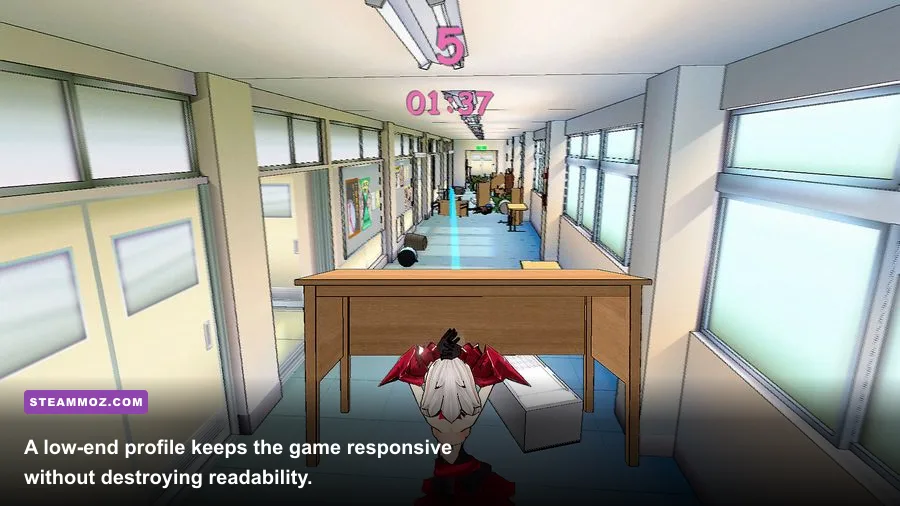
There is no prize for running every slider at its lowest value. The right Education profile depends on your monitor and hardware. A locked 60 FPS with clean frame pacing feels far better than 47–85 FPS that constantly jumps. Likewise, a 120Hz display is wasted if the game spends most of its time below 90 FPS. Pick a target, test a demanding section, and build around the result.
| Target profile | Suggested hardware | Core settings | Expected behavior |
|---|---|---|---|
| Low-end 30–60 FPS | Integrated graphics or older 4GB GPU, 8GB RAM | 1600×900 or 1920×1080, 80–90% scale, Low shadows, Low effects, Medium textures | Prioritizes playability and reduces large frame-time spikes. |
| Stable 60 FPS | GTX 1650, RX 570, or similar; 16GB RAM | 1080p, 100% scale, Medium textures, Low shadows, Medium effects | A sensible profile for standard 60Hz monitors. |
| High-refresh 90–120 FPS | RTX 2060/3060 or RX 6600-class GPU; modern six-core CPU | 1080p, 100% scale, High textures, Low or Medium shadows, Medium post-processing | Good clarity and fast response, with a cap around 90 or 120 FPS. |
| 1440p quality | RTX 3060 Ti/4060 Ti or RX 6700 XT-class GPU | 2560×1440, 100% scale, High textures, Medium shadows, Low ambient occlusion | Sharper image, but crowded or heavily lit areas may need a lower cap. |
| Visual-quality priority | RTX 4070/RX 7800 XT-class GPU and above | 1440p, High textures, High effects, Medium shadows, motion blur off | Best image quality without paying the extreme cost of maximum shadows. |
Low-end PC: protect frame time first
On integrated graphics or an older card, begin at 1600×900 if 1080p feels unstable. This is often a better compromise than dropping all the way to a blurry 720p image. Set resolution scale to 80–90%, disable ambient occlusion, and keep shadows Low. If you still see pauses, lower textures from High to Medium and close every hardware-accelerated browser window. Eight gigabytes of system memory can work, but 16GB gives Windows and the game much more breathing room.
60 FPS profile: the safe default
For a GTX 1650, RX 570, or comparable card, use 1080p at 100% scale, Medium textures, Low shadows, Medium effects, and Low post-processing. Keep anti-aliasing at Medium unless edges shimmer badly. Cap the game at 60 FPS only if your system stays above that number in its busiest scenes. If it falls to 55 or 57, a 50 FPS cap can feel smoother than an unstable 60, although 60 remains the better target whenever the hardware can sustain it.
120 FPS profile: reduce the expensive details, not everything
High-refresh play needs discipline. Use High textures if VRAM allows, but keep shadows at Low or Medium because their cost rises in scenes with several light sources. Turn off motion blur and depth of field so fast camera movement stays readable. If you own a FreeSync or G-Sync display, cap the game a few frames below refresh rate—117 FPS on a 120Hz panel or 141 FPS on a 144Hz panel—to keep the variable-refresh range engaged without constant synchronization handoffs.
For more examples of sensible high-FPS tuning, compare these Steamoz guides for high-FPS settings and PC specifications and graphics settings.
Which Education settings should you lower first?

When Education runs below your target, change settings in an order that protects the image. Do not immediately turn every option to Low. That makes it harder to identify the actual bottleneck and can leave you with a muddy picture while the real problem—usually shadows, resolution scale, or background load—remains.
- Check resolution scale. If the GPU is pinned near 99% usage, reduce scale from 100% to 90%. This usually produces a larger FPS gain than lowering textures. At 80%, image softness becomes obvious, so treat it as a rescue setting rather than a default.
- Lower shadows. Move High to Medium, then Medium to Low. Shadow quality affects filtering, distance, and the number of objects casting shadows. Low shadows are often the best performance bargain in the menu.
- Disable ambient occlusion. It adds subtle darkness where surfaces meet, but its cost can be surprisingly high in rooms containing many objects. You lose some depth; you gain cleaner frame times.
- Reduce effects and post-processing. These settings cover bloom, depth of field, volumetric effects, and screen-space treatments. Lower them if turning toward bright lighting or visual effects causes drops.
- Lower anti-aliasing only after testing. It can improve FPS, but a low temporal setting may introduce shimmering or ghosting during movement. Medium AA is usually worth keeping at 1080p.
- Lower textures last if VRAM is sufficient. Textures rarely rescue a GPU that is shader-bound, but they matter when the card is running out of memory and stuttering during traversal.
| Symptom | Likely bottleneck | First change | What not to change first |
|---|---|---|---|
| GPU usage stays 95–99% | GPU rendering load | Resolution scale, shadows, ambient occlusion | Textures, unless VRAM is full |
| GPU usage is low and FPS barely rises at lower resolution | CPU, RAM, or background tasks | View distance, object density, overlays, background apps | Resolution scale |
| Short pauses when entering new areas | VRAM, storage, or shader compilation | Textures, shader cache, SSD installation | Only lowering shadows |
| FPS looks high but movement feels uneven | Frame-time spikes or synchronization | Use a stable cap and variable refresh | Chasing a higher average FPS |
| Image looks blurry | Low resolution scale or temporal reconstruction | Return scale to 100%, then reduce another setting | Lowering textures further |
Use an overlay such as NVIDIA FrameView, AMD Adrenalin metrics, or the Xbox Game Bar performance widget to watch GPU utilization, VRAM, system memory, FPS, and frame time. Average FPS is useful, but the 1% low is often more revealing. If the average is 90 and the 1% low is 28, the game will feel rough whenever the engine hits that workload. A locked 60 with a much stronger 1% low is the better result.
Fix Education stutter, input lag, and uneven frame pacing
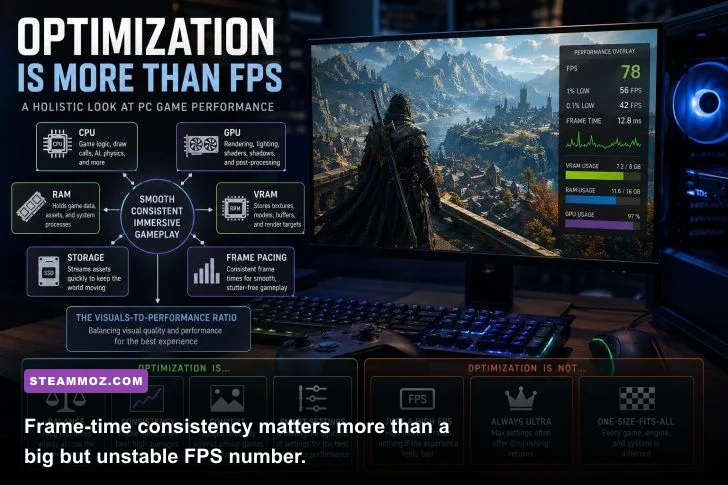
Stutter is not always a graphics-quality problem. It can come from shader compilation, a full VRAM pool, a slow hard drive, power-saving behavior, or an uncapped frame rate bouncing against the limits of your hardware. Work through the following sequence rather than reinstalling the game immediately.
Use a sensible frame cap
Uncapped FPS can make a GPU run at maximum power even when your monitor cannot display the extra frames. If your system fluctuates between 78 and 112 FPS, cap it at 90 or 100 and check whether camera movement becomes smoother. With a 60Hz monitor, cap at 60 or 59. With a 144Hz variable-refresh display, start at 141. The best limit is the highest number you can hold during the most demanding repeatable section—not the number shown while staring at an empty room.
Choose the right synchronization method
V-Sync prevents tearing but can add latency and may cause a sharp drop when the game misses the refresh interval. If you have FreeSync or G-Sync, enable the monitor’s adaptive-sync feature, disable in-game V-Sync if testing shows added latency, and use a cap below the panel’s maximum refresh. If you do not have variable refresh, V-Sync is still worthwhile when tearing bothers you; just accept that the control response may feel less immediate.
Install Education on an SSD
Moving a modern game from a hard drive to an SSD will not magically double average FPS, but it can reduce asset-streaming pauses and shorten loading. Keep at least 10–15% free space on the drive, verify the game files through Steam, and avoid running a large download or antivirus scan during play. Windows’ Game Mode can stay enabled, but test overlays individually. Discord, Steam, GeForce Experience, Radeon Software, and recording tools can each add another layer to frame pacing.
If the problem is game startup or crashing rather than ordinary FPS drops, Steamoz’s crash and low-FPS troubleshooting guide has a useful checklist for drivers, file verification, and configuration resets.
How to test your final Education graphics profile

Do not judge a new setting while standing in the easiest part of the game. Create a repeatable test: load the same area, move through a doorway or corridor, rotate the camera through the busiest view, and repeat the route after each change. Spend at least two minutes per profile. The first run can be less representative if shaders or assets are being prepared, so compare the second and third passes.
| Test stage | What to record | Good result | Warning sign |
|---|---|---|---|
| Idle scene | Average FPS and GPU usage | GPU has headroom near your target | GPU is maxed before movement begins |
| Fast camera movement | 1% low and frame-time graph | Frame-time line remains reasonably even | Sharp spikes or visible hitching |
| Area transition | Stutter duration and asset loading | Brief, barely noticeable pause | Repeated freezes or texture pop-in |
| Long session | VRAM and system memory usage | Memory use remains stable | Performance worsens after 20–30 minutes |
| Input check | Mouse or controller response | Immediate response at the chosen cap | Floaty controls despite high FPS |
For a practical final setup, try 1080p at 100% resolution scale, High textures, Low shadows, Medium effects, Low post-processing, disabled ambient occlusion, motion blur off, and a 60 FPS cap. If your GPU holds 60 comfortably, raise shadows to Medium and test again. If it still holds, try a 90 FPS cap. Keep the first setting that causes a repeatable drop rather than sacrificing everything for a benchmark number.
Owners of 1440p monitors should begin at native resolution with High textures and Medium shadows. If the GPU cannot maintain the desired target, reduce resolution scale to 90% before dropping textures. That preserves the monitor’s output resolution while cutting the internal rendering workload. If the result looks soft, restore 100% scale and lower effects or anti-aliasing instead.
Finally, save a screenshot of your working settings before experimenting. Education may reset options after a driver update, display change, or configuration-file repair. If you need hardware context, Steam’s Education Steam listing search is the safest place to confirm the current PC build and requirements, while Microsoft’s official Windows specifications can help verify your operating-system baseline.
The short version is simple: keep textures as high as your VRAM allows, cut shadows and ambient occlusion first, disable motion blur, and cap FPS to a number Education can actually sustain. Stable frame times make exploration and quick camera movement feel better than a volatile peak FPS figure. Once the game is smooth, raise one visual setting at a time and stop as soon as the 1% lows begin to collapse.