If you want the highest FPS in Hyper Knights: Battles, start with 1080p, exclusive fullscreen, V-Sync off, shadows on Low, effects on Medium, and anti-aliasing on Low or Medium. That combination usually preserves the game's colorful arenas while cutting the settings most likely to hurt frame time during crowded fights. For a 60-FPS target, use the Balanced profile below; for 120 FPS or higher, drop resolution scaling and effects before touching textures.
This guide focuses on the settings that actually affect responsiveness, not placebo tweaks. Arena combat is especially sensitive to sudden frame-time spikes: a locked 90 FPS feels better than an unstable 140 FPS that collapses whenever several attacks, hit sparks, and environmental effects appear together. Before changing anything, check the current build and hardware notes on the official Steam listing, because menu names and available options can change between updates.
Best Hyper Knights: Battles settings for max FPS
The first pass should be quick and deliberate. Set the display mode to Fullscreen if the game offers it; borderless is more convenient for alt-tabbing, but exclusive fullscreen can reduce desktop compositor overhead and deliver steadier frame pacing on some systems. Choose your monitor's native resolution first, then use resolution scale only if you still need more performance.
Do not immediately lower texture quality. Textures mostly consume VRAM, while shadows, effects, ambient occlusion, and anti-aliasing tend to hit the GPU every frame. If your graphics card has 4GB or less VRAM, Medium textures are a sensible ceiling. Cards with 6GB or more can generally use High textures without losing much FPS, provided the game isn't streaming a large amount of arena data.
| Setting | Recommended value | Typical FPS impact | Visual trade-off |
|---|---|---|---|
| Display mode | Fullscreen | Low, but improves consistency | Less convenient than borderless |
| Resolution | Native 1080p | Very high if reduced | Lower resolution looks softer |
| Resolution scale | 100%; 85–90% for high FPS | High | Reduced clarity below 90% |
| V-Sync | Off; use VRR instead | Can add latency | Possible tearing without VRR |
| Textures | Medium or High | Low unless VRAM is full | Lower surface detail |
| Shadows | Low | Medium to high | Fewer and softer shadows |
| Effects | Medium | High during clashes | Less dramatic particles |
| Anti-aliasing | Low or Medium | Medium | More edge shimmer |
| Ambient occlusion | Off or Low | Medium | Flatter contact shading |
| View distance | Medium | Low to medium | Fewer distant details |
| Motion blur | Off | Small performance gain | Cleaner camera movement |
Why shadows and effects come first
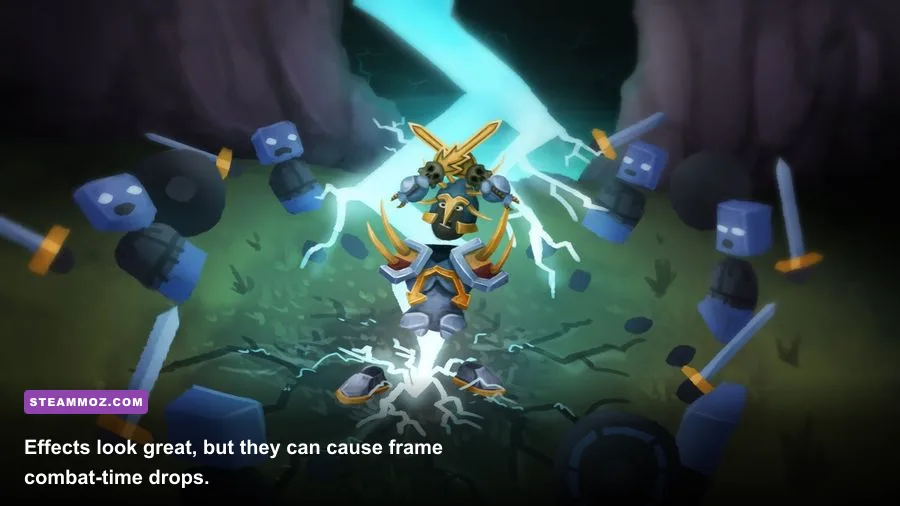
Shadows are expensive because the engine must render extra depth information and update it as characters move. Effects are even more troublesome during a real match: sword impacts, dash trails, smoke, sparks, and overlapping ability effects can create a short GPU burst. That burst is what produces the irritating hitch you feel during a close exchange, even when the average FPS counter looks healthy.
For that reason, lower effects before textures. If the game has separate options for effects quality, particle quality, or screen-space effects, reduce those in that order. Keep textures higher if the image looks too muddy; they usually don't fix combat stutter.

🎮 FORM
Looking to experience this game? Grab your digital key directly on our store for $14.99.
View on Steammoz Store →Three tested-style graphics profiles for different PCs
There isn't one perfect preset for every Hyper Knights: Battles player. A competitive player on a 144Hz display wants low latency and stable frame delivery, while a laptop player may prefer a locked 60 FPS that avoids heat-related throttling. These profiles give you a practical starting point rather than blindly selecting a global Low preset.
| Profile | Resolution and target | Core settings | Best for |
|---|---|---|---|
| Competitive | 1080p, 120–165 FPS | Textures High, shadows Low, effects Low, AO Off, AA Low, V-Sync Off | High-refresh monitors and ranked play |
| Balanced | 1080p, locked 60–100 FPS | Textures High, shadows Low, effects Medium, AO Low, AA Medium | Most mid-range desktops |
| Low-end | 900p or 720p, locked 60 FPS | Textures Medium, shadows Low, effects Low, AO Off, scale 80–90% | Integrated graphics and older laptops |
| Visual | 1440p, 60 FPS | Textures High, shadows Medium, effects High, AO Medium, AA High | Modern GPUs prioritizing image quality |
The Competitive profile is the one I recommend for serious duels. Low effects make attack silhouettes easier to read, and turning off motion blur keeps dash movement crisp. A locked frame rate also matters: cap the game a few frames below your display's maximum refresh rate when using G-SYNC or FreeSync. For example, use 141 FPS on a 144Hz screen or ನಿರ?
Use the Balanced profile if you care about atmosphere but don't want visual noise to overwhelm the action. Medium effects retain impact flashes without making every clash a miniature fireworks show. The Low-end profile should use resolution scale carefully. Dropping from 100% to 90% is often hard to notice in motion; dropping to 70% usually produces obvious blur around knight outlines and UI text.
How to eliminate stutter, input delay, and frame-time spikes
Average FPS isn't enough for a melee game. Monitor frame time with your GPU overlay and watch what happens when several fighters enter the same screen. A stable 16.6ms frame time equals 60 FPS; 8.3ms equals 120 FPS. If the graph repeatedly jumps to 30ms or 40ms during effects, lower effects, shadows, and ambient occlusion before reducing resolution.
Use a sensible frame-rate cap
If your system swings between 75 and 120 FPS, don't leave it uncapped and assume the highest number is best. Set a cap your PC can hold in the busiest arena scenario. A reliable 90 FPS cap is preferable to a 120 FPS target that regularly falls to 55. Use the in-game limiter if it behaves smoothly; otherwise, the NVIDIA App, AMD Adrenalin, or RTSS can provide a cleaner cap.
Reduce background interference
Close browsers with video tabs, RGB utilities, launchers, and recording software before testing. Disable overlays one at a time rather than blaming the game immediately. Steam's overlay is usually harmless, but multiple overlays can compete for presentation and produce inconsistent frametimes. This is the same basic diagnostic logic used in our Destroy All Humans stutter fixes and Dinosaur Fossil Hunter performance guide.
Check power and temperature limits
Laptops should be plugged in and set to a performance power mode. If the first match runs well and later matches slow down, temperature is the likely culprit rather than a graphics preset. Watch GPU and CPU clocks, not just temperature. A laptop that drops GPU frequency after ten minutes will need a lower FPS cap or a cooler operating profile, even if its opening benchmark looks excellent.
Best settings for low-end PCs and gaming laptops

On integrated graphics or older GTX-class hardware, begin at 1600x900 or 1280x720 rather than lowering every quality slider immediately. Resolution is the largest lever, but an excessively low internal resolution makes combat readability worse. Keep textures at Medium if VRAM allows it, then set shadows, effects, ambient occlusion, and post-processing to Low or Off.
Dynamic resolution, if available, is worth testing for a 60-FPS target. Set the minimum scale around 80% first. A dynamic system that briefly drops resolution during a crowded clash is less distracting than a hard stutter, but aggressive scaling can make the arena shimmer. If the game includes an option for render scale sharpening, use a modest value rather than maximum sharpening, which can exaggerate particle noise and jagged edges.
Don't confuse display resolution with render resolution. Running a 1080p monitor at 900p can look softer than keeping the display at 1080p and reducing internal scale to 85–90%. Test both approaches for 30 seconds in the busiest battle you can reproduce, then keep the one with the steadier frame-time graph.
Final performance checklist before you play
Apply the settings, restart Hyper Knights: Battles if the game asks you to, and test in a real match rather than an empty menu. Menus rarely reproduce the particle load and character count that cause performance problems. Play through the same arena or battle scenario three times, because shader compilation and asset streaming can make the first run look worse.
- Set fullscreen, native resolution, and V-Sync off.
- Choose a realistic cap: 60, 90, 120, or 144 FPS.
- Lower effects and shadows before textures.
- Turn ambient occlusion and motion blur off if frame time is uneven.
- Keep textures as high as your VRAM permits.
- Test the busiest fight and watch frame time, not only average FPS.
- Update your GPU driver, then retest after every major game patch.
For most players, the sweet spot is 1080p, High textures, Low shadows, Medium effects, Low or Medium anti-aliasing, Low ambient occlusion, and a frame cap your hardware can hold. That setup keeps Hyper Knights: Battles sharp enough to read while protecting the split-second timing that makes its clashes satisfying. If you're comparing hardware before an upgrade, our Earth Defense Force 5 PC guide and GTA V Enhanced performance breakdown offer the same useful approach: identify the settings that change frame time, then spend visual quality where your GPU can actually afford it.
Keep an eye on the game's official Steam announcements and Steam community updates after patches. Performance can shift when shaders, arenas, or effects are rebuilt. If a new update suddenly causes hitching, reset the profile once, clear any shader cache your driver exposes, and reapply the Balanced settings instead of assuming your hardware has suddenly become inadequate.