Earth Defense Force 5 runs comfortably on older gaming PCs, but its recommended specs are the safer target for stable 60fps action. The official minimum calls for an Intel Core i5-4440 or AMD FX-6300, 8GB of RAM, and a GeForce GTX 760 or Radeon R7 260X with 2GB of VRAM. For a smoother experience, aim for an Intel Core i7-4770 or Ryzen 5 1500X, 8GB of RAM, and a GTX 970 or Radeon R9 290 with 4GB of VRAM. You’ll also need a 64-bit version of Windows, DirectX 11 support, and roughly 45GB of free storage.
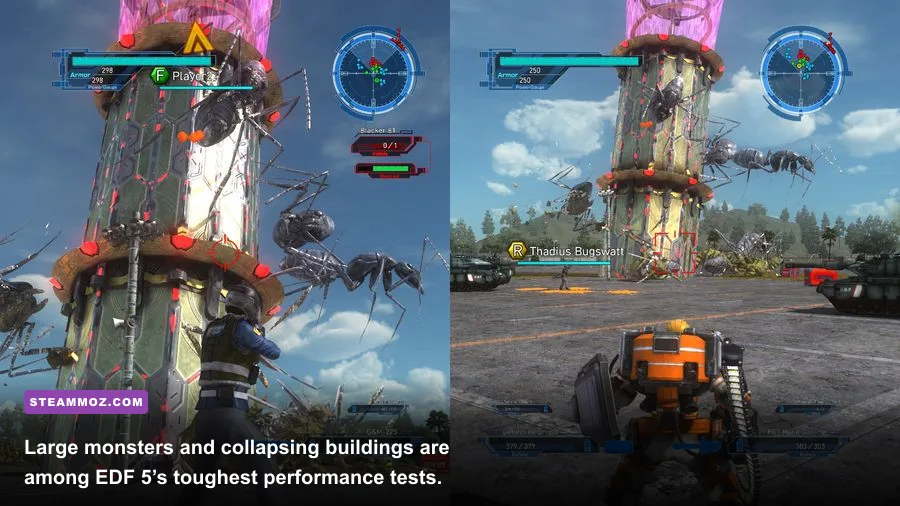
That hardware list looks modest by modern standards, yet EDF 5 can still punish weak CPUs when hundreds of enemies, vehicles, projectiles, physics objects, and destruction effects collide on screen. This isn’t a quiet corridor shooter. It’s a deliberately chaotic insect apocalypse where a single mission can turn a suburban street into a crater field. Here are the real PC requirements, what they mean in practice, and the settings that matter most.
Earth Defense Force 5 minimum and recommended specs
The minimum specification is enough to launch and play Earth Defense Force 5, but it describes a baseline rather than a guaranteed 60fps experience. The GTX 760 and R7 260X are both older 2GB cards, and their performance will vary sharply depending on resolution, driver condition, and how many enemies are active. Expect to make compromises during the biggest swarms.
The recommended specification is more useful if you want to play the campaign without constantly chasing dips. A GTX 970 or Radeon R9 290 gives the game more breathing room at 1080p, while the faster Core i7-4770 and Ryzen 5 1500X are better equipped for missions packed with giant insects, Deroys, artillery, and destructible scenery.
| Component | Minimum | Recommended |
|---|---|---|
| Operating system | Windows 7 64-bit | Windows 10 64-bit |
| Processor | Intel Core i5-4440 3.1GHz or AMD FX-6300 | Intel Core i7-4770 3.4GHz or AMD Ryzen 5 1500X |
| Memory | 8GB RAM | 8GB RAM |
| Graphics card | GeForce GTX 760 2GB or Radeon R7 260X 2GB | GeForce GTX 970 4GB or Radeon R9 290 4GB |
| DirectX | Version 11 | Version 11 |
| Storage | 45GB available | 45GB available |
What the minimum spec really means
On a machine close to the minimum, 720p or 900p is the sensible starting point. The game’s campaign can run acceptably in quieter missions, but performance may fall during late-game encounters. The processor matters just as much as the graphics card because EDF 5 constantly tracks enemy movement, projectile behavior, destruction, vehicles, drops, and ally activity.
Don’t confuse 8GB of system memory with 8GB of graphics memory. EDF 5 officially asks for 8GB of RAM and a 2GB graphics card at minimum. A system with only 8GB RAM can work, but closing browsers, launchers, recording software, and RGB utilities will reduce background memory pressure. If you’re upgrading specifically for this game, 16GB is a more comfortable modern target.
What the recommended spec really means
The recommended parts are aimed at 1080p play with substantially better consistency, not necessarily flawless performance in every absurd battle. A GTX 970-class GPU is fine for the game’s older rendering technology, but the CPU still decides how well the most crowded missions hold together. A modern six-core processor paired with a GTX 1660, RTX 2060, RX 5600 XT, or better should have no trouble at 1080p.
Check the official EDF 5 Steam page before buying, since operating-system support and storefront requirements can change. You can also compare your setup with our advice for smooth 60fps PC settings if you’re building a broader performance checklist.

🎮 EARTH DEFENSE FORCE 5
Looking to experience this game? Grab your digital key directly on our store for $24.59.
View on Steammoz Store →How demanding is EDF 5 during real missions?
EDF 5’s benchmark isn’t just walking around an empty map. The difficult moments arrive when the game throws an entire ecosystem at you: hundreds of giant ants, red ants, spiders, flying drones, teleportation ships, aliens, vehicles, explosions, and collapsing structures. A graphics card handles resolution, effects, shadows, and post-processing, but the CPU has to keep the battlefield simulation moving.
That division explains why lowering resolution doesn’t always fix a stutter. If your GPU is overloaded, dropping from 1080p to 900p can help immediately. If your processor is saturated by enemy logic and physics, the frame rate may barely change. Watch GPU utilization while playing. A GPU sitting around 95–99 percent means you’re graphics-limited; a much lower GPU load alongside a sharp fps drop often points to the CPU or game-thread workload.
| Scenario | Main hardware pressure | Likely symptom | Best response |
|---|---|---|---|
| Quiet early mission | GPU and storage streaming | Mostly stable frame rate | Use native 1080p if available |
| Large insect swarm | CPU, GPU effects, draw calls | Frame-time spikes | Lower shadows and effects first |
| Deroy or giant robot battle | CPU simulation and GPU geometry | Short heavy dips | Reduce resolution scale or effects |
| Urban destruction | CPU physics, debris, particles | Stutter during collapses | Use a faster CPU and SSD |
| Four-player online mission | CPU, network, effects | Visual clutter and inconsistent frame pacing | Cap fps and disable background capture |
Why 60fps is valuable in EDF 5
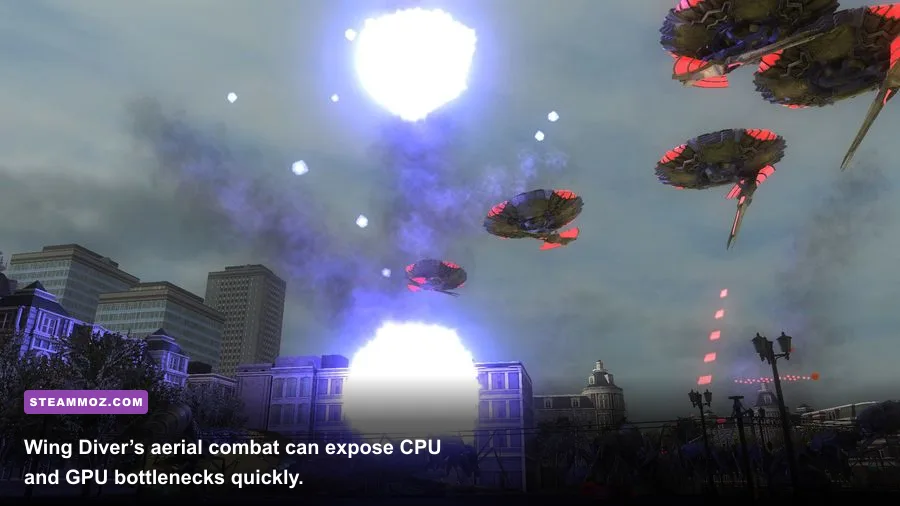
A locked 60fps makes aiming, dodging, and vehicle control feel much cleaner, especially for Wing Diver and Fencer. Wing Diver’s flight bursts and energy weapons demand quick camera corrections, while Fencer’s boost-dash movement can feel sluggish when frame pacing is uneven. You don’t need 144fps to enjoy the game, but a stable cap is preferable to a wildly fluctuating number.
On a high-refresh monitor, test 120fps only after confirming that your PC can maintain it in crowded missions. EDF 5’s older engine and heavy battles can produce inconsistent frame times even when the average fps looks impressive. A stable 60fps cap is often the better choice than chasing a number your system can’t hold.
Best EDF 5 graphics settings for smooth 60fps
Start with the game’s native 1080p resolution, then adjust the settings that have the biggest performance cost. Don’t immediately turn everything to Low: EDF 5 benefits from keeping texture quality and resolution high, while shadows and effects are usually safer sacrifices. If you’re on a budget GPU, 900p or 1600x900 can deliver a noticeable boost without making the battlefield look muddy.
| Setting | Recommended value | FPS impact | Visual trade-off |
|---|---|---|---|
| Resolution | 1920x1080 | Very high | Lowering it softens the image but gives the biggest GPU gain |
| Resolution scale | 100%; try 90% on weak GPUs | High | Small reductions are less obvious during combat |
| Texture quality | High if VRAM allows | Low to medium | Lower settings make buildings and enemies look flatter |
| Shadow quality | Medium | Medium to high | Fewer detailed shadows, especially around structures |
| Effects quality | Medium or High | High in explosions | Lower values reduce smoke, sparks, and blast detail |
| Anti-aliasing | Use the lowest clean option | Medium | Lower AA introduces jagged edges on buildings and insects |
| Ambient occlusion | Low or Medium | Medium | Less contact shading around rubble and characters |
| Motion blur | Off for clarity | Minimal | Sharper camera movement and easier target tracking |
| V-sync | Off with VRR; On if tearing appears | Low | Prevents tearing but may add latency or pacing limits |
Three practical graphics profiles
Minimum-spec profile: Use 1600x900 or 1280x720, 90 percent resolution scale, medium textures, low shadows, low effects, and minimal anti-aliasing. Cap the game at 30 or 60fps depending on what your CPU can actually sustain. A stable 30fps is playable, but the difference between 30 and 60 is obvious when aiming at fast drones.
Recommended 1080p profile: Keep native 1080p, 100 percent scale, high textures, medium shadows, medium-to-high effects, and a moderate AA setting. This is the sweet spot for a GTX 970-class card or a modern mid-range GPU. If late missions dip, reduce effects before textures.
Modern performance profile: At 1080p or 1440p, use high textures and effects, medium shadows, and a stable 60fps cap. A stronger GPU can handle the image quality, but don’t assume it eliminates CPU dips in huge battles. If you still see stutter, test a frame cap through your driver or RTSS and disable overlays.
For troubleshooting habits that also apply to EDF 5, our guide to turning PC stutters into smoother fps covers the same useful checks: drivers, overlays, frame caps, and background processes. If you’re dealing with crashes rather than low performance, the fixes in our PC crash and low-fps guide are worth applying here too.
Which EDF 5 classes stress your PC most?
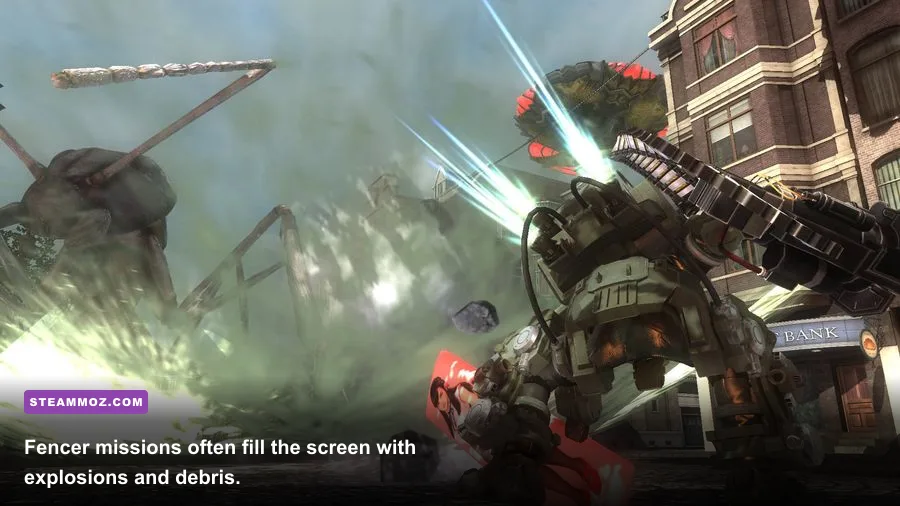
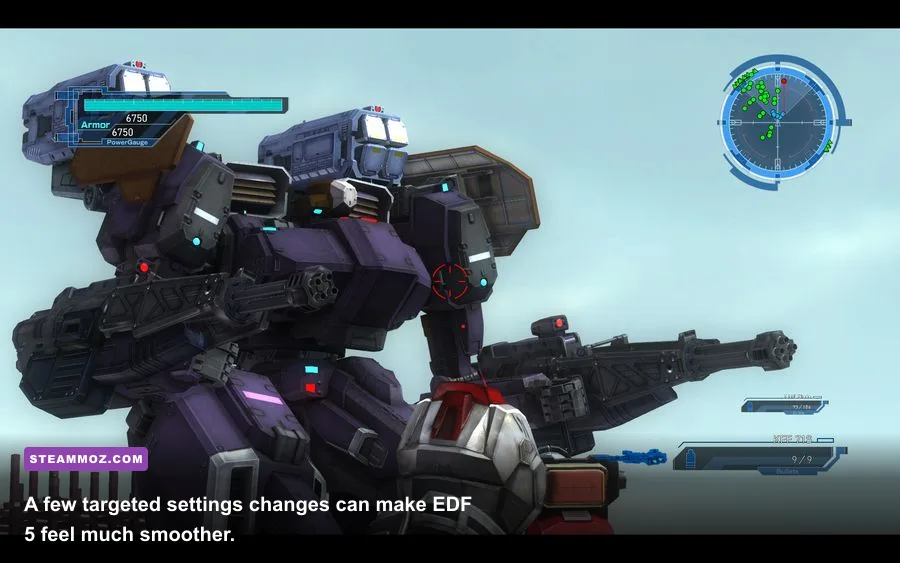
Every class can create a demanding scene, but they do it differently. Ranger is the cleanest baseline because his assault rifles, shotguns, and rocket launchers produce predictable effects. Air Raider is more likely to fill the screen with bombing runs, vehicles, gunships, turrets, and satellite strikes. Wing Diver’s energy effects and aerial movement can create heavy visual activity, while Fencer combines large weapons with boost movement and substantial debris in close combat.
| Class | Typical loadout pressure | Performance concern | Useful test mission behavior |
|---|---|---|---|
| Ranger | Assault rifles, shotguns, rockets | Moderate effects and enemy count | Best class for checking baseline 1080p performance |
| Wing Diver | Energy weapons and flight | Effects, particles, rapid camera movement | Watch for frame-time spikes during aerial swarms |
| Air Raider | Vehicles, artillery, bombing support | Explosions, AI units, overlapping effects | Excellent stress test in open urban maps |
| Fencer | Heavy weapons, shields, boost dash | Close-range destruction and debris | Tests CPU consistency during dense ground fights |
Why Air Raider can make a powerful PC sweat
Air Raider is the biggest practical warning for low-end systems. Calling in artillery, bomber support, gunships, vehicles, and deployable turrets creates overlapping effects and additional battlefield entities. A mission that feels smooth with Ranger may dip when Air Raider turns the horizon into a chain of explosions.
That doesn’t mean you should avoid the class. It means you should benchmark the game honestly. Load a mission with a dense enemy group, deploy support equipment, and watch the frame-time graph rather than relying only on the average fps counter. If the graph shows repeated spikes, lower effects and shadows before sacrificing resolution.
Class choice affects visibility, not just performance
Graphics settings can change how easily you read enemy attacks. Lowering effects too far may remove visual clutter, which can actually help, but it can also make rockets, explosions, and impact cues less obvious. For Wing Diver, keep enough effects quality to distinguish weapon trails and incoming attacks. For Fencer, motion blur off is particularly helpful when boost-dashing around a massive target.
PC upgrades and optimization that actually matter
If your computer falls below the minimum, prioritize the graphics card and CPU rather than buying more memory alone. Moving from 8GB to 16GB improves general Windows comfort and reduces background-related hitching, but it won’t rescue a GTX 760 from a GPU-bound 1080p workload. Likewise, a powerful GPU can’t fully prevent CPU dips if an old dual-core processor is trying to simulate a massive swarm.
| Upgrade or tweak | When it helps | Expected benefit | Priority |
|---|---|---|---|
| Install on an SSD | Long loads or streaming hitching | Faster loading and smoother asset access | High if using a hard drive |
| Move to 16GB RAM | Heavy background multitasking | Less system swapping and fewer interruptions | Medium to high |
| Upgrade CPU | GPU usage drops during huge swarms | Better frame times and fewer simulation dips | High for late-game missions |
| Upgrade GPU | GPU is pinned at 99 percent | Higher resolution and effects settings | High for 1440p |
| Disable overlays | Random hitching or crashes | Cleaner frame pacing and fewer conflicts | Easy first step |
| Cap frame rate | Uneven frame pacing | More consistent controls and delivery | High for weak or variable systems |
Driver, overlay, and storage checks
Update your graphics driver, verify the game files through Steam, and install EDF 5 on an SSD if possible. Disable unnecessary Discord, GeForce Experience, Xbox Game Bar, and capture overlays while testing. These tools aren’t automatically harmful, but removing them gives you a clean baseline when diagnosing stutters.
Keep at least 50GB free even though the listed requirement is approximately 45GB. A nearly full drive can slow updates and shader or cache operations. Windows should also have room for its own temporary files. If the game suddenly performs worse after a driver update, try a clean driver installation and retest the same mission rather than judging performance from a different map.
For wider PC tuning ideas, our guide to settings that maximize fps has a useful approach: change one setting at a time, record the result, and test a repeatable scenario. That method is far more reliable than blindly switching every option to Low.
Controller and display considerations
EDF 5 feels excellent with a controller, but input devices don’t change the hardware requirements. If you’re using a 120Hz or 144Hz display, enable variable refresh rate if your monitor and GPU support it. A FreeSync or G-Sync-compatible range can make small dips less distracting, though it won’t remove CPU-bound stutter.
Keep your frame cap below the display’s maximum refresh rate when using VRR. For example, a 144Hz monitor often behaves best with a 141fps cap, but EDF 5 may not reach that figure consistently in demanding missions. A locked 60fps cap is perfectly reasonable and usually produces more dependable aim and movement than an unstable high-refresh target.
Is Earth Defense Force 5 worth buying on your PC?
Yes, if your system meets the recommended specification or has a modern equivalent. Earth Defense Force 5 isn’t a cutting-edge showcase, and that’s good news for PC owners: a mid-range gaming machine can deliver the intended 1080p experience without a premium graphics card. The real caveat is battlefield density. Don’t judge the game by its opening missions; test performance when enemy numbers, destruction, and support weapons peak.
A PC close to the minimum can still have fun, especially at 720p or 900p with reduced effects. Just expect compromises in the wildest missions, and don’t assume a lower resolution will solve every dip. If the GPU has headroom but the frame rate collapses when dozens of enemies attack, the processor is likely the limiting factor.
Before installing, compare your parts with the publisher’s official information and the D3Publisher website. EDF 5’s charm is its ridiculous scale: giant ants climbing buildings, teleportation ships hovering overhead, and four classes turning one street into a war story. With a sensible 60fps target, an SSD, and shadows and effects tuned to your hardware, that chaos feels thrilling instead of frustrating.
The short version is simple: use the official minimum as a launch floor, treat the recommended spec as the 1080p comfort zone, and prioritize CPU consistency for late-game swarms. Start with native resolution, lower shadows and effects first, cap the frame rate, and test the settings in a genuinely crowded mission. That’s the best route to smooth Earth Defense Force 5 performance without stripping away the spectacle that makes the game worth playing.