The best For The King II graphics settings are a custom mix, not the Ultra preset: use native resolution, exclusive fullscreen where available, High textures, Medium shadows, Medium post-processing, Ambient Occlusion off or low, anti-aliasing on a moderate setting, VSync off for high-refresh monitors, and a frame-rate cap matching your display. That combination keeps the colorful battlefields crisp while cutting the settings that create the biggest GPU and frame-time spikes.
For The King II is turn-based, so raw frame rate never decides a sword swing the way it does in a shooter. Still, choppy camera movement, stutter while entering towns, and sluggish menu transitions make a long campaign feel noticeably worse. The target here is not a meaningless 200 fps number. It is stable frame pacing, quick map scrolling, and enough headroom that four-player combat effects do not drag the game below your preferred refresh rate.
Before changing anything, check the official Steam page for For The King II and update your GPU driver. The PC version has received patches since launch, so setting names and behavior can vary slightly between builds.

Best For The King II settings for maximum FPS
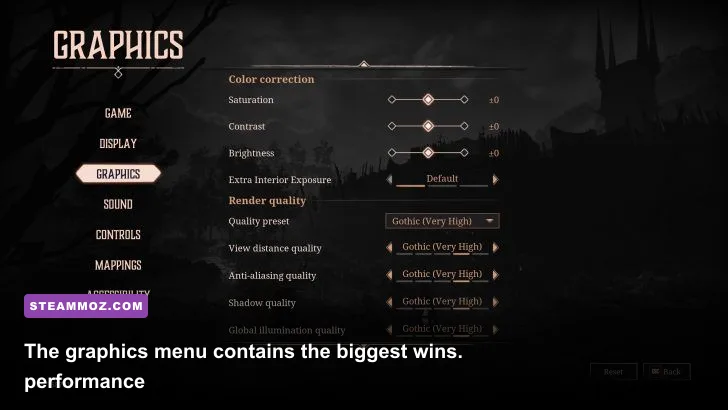
Start with the profile below. It is the sensible 1080p baseline for a mid-range PC with a GTX 1060, GTX 1660, RX 580, RX 6600, or similar hardware. The important distinction is that texture quality mostly affects VRAM, while shadows, ambient occlusion, and post-processing tend to cost more in active scenes. Lowering every option equally wastes image quality.
| Setting | Recommended value | FPS impact | Visual trade-off |
|---|---|---|---|
| Resolution | Native display resolution | Very high if reduced | Native is sharpest; use resolution scaling only as a last resort |
| Window mode | Fullscreen | Low to medium | Usually gives cleaner frame pacing and fewer desktop interruptions |
| VSync | Off, or on for a locked target | Low GPU cost | Off reduces latency; on removes tearing |
| Frame-rate limit | 60, 90, or 120 fps | Reduces wasted GPU load | Cap 2-3 fps below refresh when using VRR |
| Texture quality | High | Low on a 6GB-plus GPU | Preserves terrain, character, and UI detail |
| Shadow quality | Medium | Medium to high | Lower settings soften cast shadows but rarely hurt readability |
| Anti-aliasing | Medium or High | Low to medium | Reduces jagged map edges and character outlines |
| Post-processing | Medium | Medium | Protects effects clarity without paying for heavy blur or glow |
| Ambient Occlusion | Off or Low | Medium | Less contact shading around buildings and props |
If your PC already holds your target frame rate, raise textures before shadows. The game’s stylized art benefits from clean surface detail, while the difference between High and Ultra shadows is far less obvious during normal play. This is also why the recommended profile looks better than a blanket Low preset at roughly the same performance.
🎮 For The King II
Looking to experience this game? Grab your digital key directly on our store for $8.49.
View on Steammoz Store →Which settings hit performance hardest?

There are two kinds of slowdowns to separate. A GPU-limited slowdown appears when your graphics card is near 99 percent usage; a CPU or frame-time slowdown appears when the GPU has spare capacity but the game still hitches. For The King II can show both, especially when a settlement, combat encounter, weather effect, and several animated units appear together.
Lower shadows before textures
Shadows are the first serious cut. Medium keeps the world grounded, but Low or Off is a strong move on older cards and integrated graphics. Shadow quality affects the number and clarity of shadow maps being rendered, not the tactical rules, enemy visibility, or attack timing. You are giving up atmosphere, not information.
Keep textures high when VRAM allows
High textures are usually a cheap visual upgrade if your graphics card has 6GB or more of VRAM. On a 4GB card, High can still work at 1080p, but watch for hitching when entering a new region. If the game pauses briefly as assets stream in, drop textures to Medium rather than immediately lowering resolution. Ultra textures are difficult to justify unless the option is effectively free on your hardware.
Ambient occlusion is attractive but expendable
Ambient Occlusion adds the dark contact shading beneath characters, buildings, rocks, and props. It gives scenes more depth, but it is one of the easiest settings to sacrifice because the tactical view remains perfectly readable without it. Turn it off first on a laptop or Steam Deck. If the result looks too flat, Low is a better compromise than restoring expensive shadows.
Post-processing can cause the sneakiest dips
Post-processing covers effects applied after the main scene is rendered. Depending on the current PC build, that can include bloom, depth-of-field-style effects, color treatment, and other screen-space work. Medium keeps the game’s spells and environmental mood intact. Low is useful if combat animations cause sudden drops, while Off is the cleanest troubleshooting step when you are chasing inconsistent frame pacing.
| Priority | Change this first | Expected benefit | What to watch for |
|---|---|---|---|
| 1 | Shadows Ultra to Medium | Large GPU relief | Flatter lighting around towns and props |
| 2 | Ambient Occlusion to Off | Medium GPU relief | Less depth at object contact points |
| 3 | Post-processing High to Medium | Medium frame-time improvement | Reduced glow and screen effects |
| 4 | Resolution scale or resolution | Largest possible FPS gain | Noticeable softness and shimmering |
| 5 | Textures High to Medium | VRAM and streaming relief | Less detailed surfaces, not always more FPS |
Best profiles for 1080p, 1440p, and low-end PCs
Resolution changes the equation more than any individual quality slider. At 1440p, the GPU renders 78 percent more pixels than 1080p, so a setting combination that feels effortless at Full HD can become GPU-bound on a mid-range card. Start with a fixed target, then tune upward rather than chasing the highest possible peak.
| Hardware target | Resolution and cap | Graphics profile | Best use case |
|---|---|---|---|
| Integrated graphics or older laptop GPU | 1080p, 30-60 fps | Low preset, Medium textures, shadows Low, AO Off | Playable campaign with stable frame pacing |
| GTX 1060, RX 580, GTX 1660 | 1080p, 60 fps | High textures, Medium shadows, Medium post-processing | Best mainstream balance |
| RTX 3060, RX 6600 or better | 1080p, 90-120 fps | High or Ultra textures, Medium-High shadows, AO Low | High-refresh monitors and smooth map scrolling |
| RTX 3060 Ti, RX 6700 XT or better | 1440p, 60-90 fps | High textures, Medium shadows, Medium post-processing | Sharper large-monitor presentation |
| Steam Deck-class hardware | 800p, 30 or 40 fps | Low-Medium mix, AO Off, shadows Low | Quiet handheld play with consistent battery use |
For 1080p, keep native resolution and begin with High textures. For 1440p, lower shadows and AO before touching resolution. If you still cannot hold 60 fps, a 90 percent render scale or 1080p output usually looks better than turning every quality option to Low. On a laptop, also test while plugged in: battery power profiles can throttle the CPU and GPU enough to look like a graphics problem.
Steam Deck players should favor a firm 30 fps lock or a carefully tested 40 fps lock. A fluctuating 40-60 fps wastes power and feels less consistent than a stable 30. Use the device’s performance overlay while entering towns and starting battles, not only while standing in an empty field.
Frame pacing, VSync, and stutter fixes
A high average FPS number does not guarantee smooth play. If the camera moves in uneven steps, check frame time. At 60 fps, each frame has about 16.7 milliseconds to render; at 30 fps, the budget is 33.3 milliseconds. Spikes above that budget create the hitch you feel, even if an on-screen counter reports a respectable average.
Choose one frame-rate target
Set the in-game cap to 60 fps for a 60Hz display, 90 for a 90Hz display, or 120 for a 120Hz display if your hardware can sustain it. With G-SYNC or FreeSync, cap a few frames below refresh rate through your driver or a reliable limiter. A stable 58-60 fps window generally feels better than repeatedly bouncing between 45 and 90.
Use VSync based on what you see
VSync Off gives the lowest input latency, although the game’s turn-based structure makes tearing less disruptive than in a competitive shooter. Turn it on if horizontal tearing bothers you or if your monitor lacks adaptive sync. Do not stack several limiters without testing; an in-game cap, driver cap, and display sync mode can interact in ways that create uneven pacing.
Diagnose streaming stutter separately
If the game hitches when the camera enters a town or a new region, lowering anti-aliasing may do nothing. Close browsers and overlays, keep the game on an SSD, and leave enough free system memory for asset streaming. The Steam system requirements list 8GB of RAM as a minimum and 16GB as the recommended target; 16GB is the safer choice for a campaign running beside voice chat and a browser.
Also test Steam Overlay, Discord Overlay, Radeon recording, GeForce Instant Replay, and third-party frame counters one at a time. These tools are convenient, but they can add intermittent spikes. If you are fixing repeated crashes rather than low FPS, our guide to PC crash troubleshooting has a useful general checklist for overlays, files, and drivers.
Settings for laptops and Steam Deck
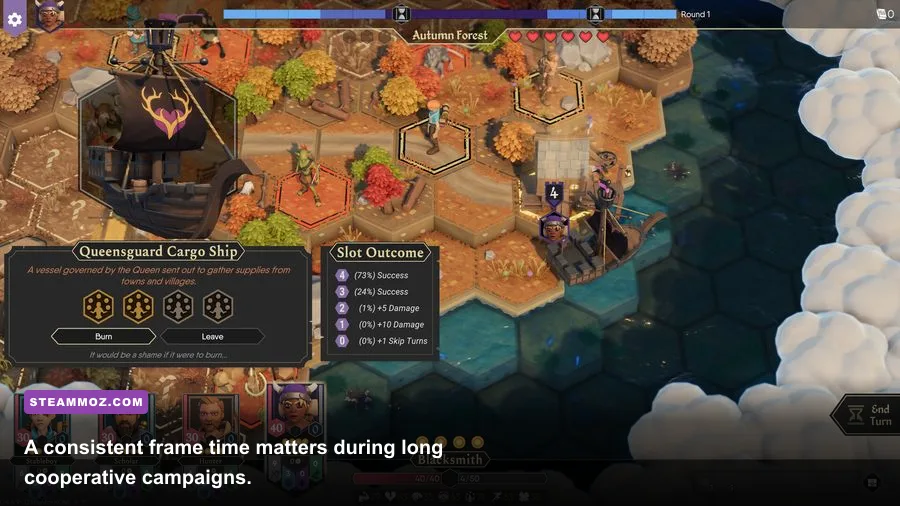
Portable hardware needs a different goal. The CPU and GPU share a tight thermal and power budget, so an uncapped frame rate can make the device hotter without improving a turn-based battle. Cap the game first, then reduce the expensive effects that keep the GPU active between turns.
Laptop profile
Use 1080p, a 60 fps cap, High textures if the laptop has at least 6GB of VRAM, Medium shadows, Low ambient occlusion, and Medium post-processing. Set the operating system to a performance mode only when plugged in. If fans become loud during long sessions, a 45 or 50 fps cap can reduce heat with barely any gameplay downside.
Steam Deck profile
Use the native 1280x800 output, a 30 fps cap for maximum battery life, or 40 fps at 40Hz when the game holds it consistently. Set textures to Medium, shadows to Low, post-processing to Low or Medium, anti-aliasing to Medium, and AO Off. The locked target matters more than a brief 60 fps reading during a quiet menu.
For comparison, our Stardew Valley performance settings guide covers a lighter game where resolution and frame caps behave differently. Do not copy those expectations directly: For The King II uses a more demanding 3D presentation with animated environments and combat effects.
A clean testing method that finds the right profile
Do not change eight settings at once and then guess which one helped. Use a repeatable route so every adjustment tells you something useful. The goal is a profile that survives the worst-looking moments, not one that posts a great number in an empty menu.
- Set the target first. Choose 60 fps at 1080p, 60 fps at 1440p, or 30/40 fps on Steam Deck. Enable your monitor’s refresh mode before testing.
- Start with native resolution and High textures. This gives you a clear visual baseline and prevents texture quality from hiding the real GPU limit.
- Test a crowded settlement. Move the camera across buildings, NPCs, props, and lighting transitions. Record the lowest sustained frame rate, not the maximum.
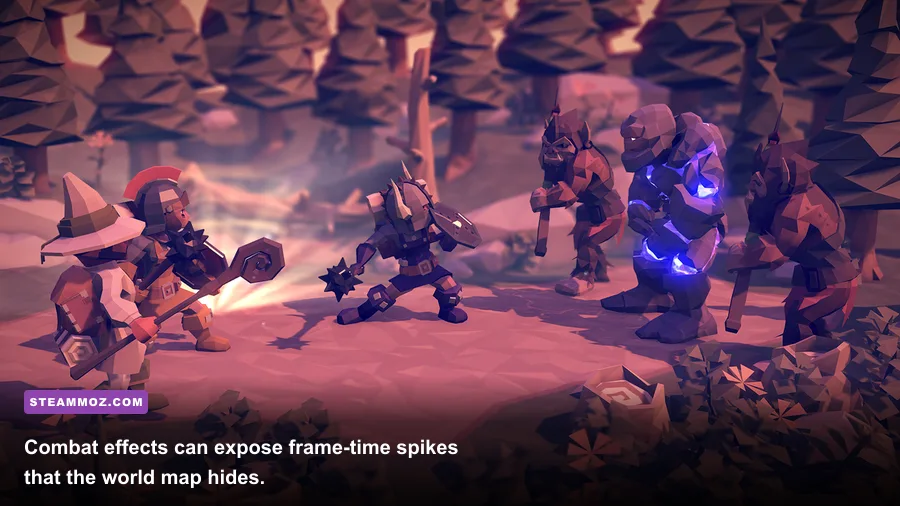
- Test a combat encounter. Trigger several turns with ability effects active. This reveals post-processing and frame-time spikes that the overworld may not show.
- Lower shadows, then AO, then post-processing. Restart the same route after each change. Keep the first setting that reaches your target without making the image unpleasant.
- Only then touch resolution. If the GPU remains saturated, reduce render scale modestly or step from 1440p to 1080p. Preserve native output whenever possible.
- Play for 15 minutes. Heat soak matters on laptops and handhelds. A profile that holds for two minutes may throttle later.
For an official reference on patches and technical notes, check IronOak Games and the game’s Steam news feed. If you want to compare how other PC games balance sharp visuals against stable performance, our Zenless Zone Zero graphics settings guide and Dishonored PC requirements breakdown offer useful contrasts.
The short version is simple: keep resolution and textures high, cut shadows and ambient occlusion first, cap the frame rate, and judge the result in a busy town and a real fight. That profile preserves what makes For The King II attractive while eliminating the performance costs you are least likely to notice. Smooth turns, clean map movement, and stable co-op sessions are worth far more than a flashy Ultra preset that collapses whenever the party reaches a crowded battlefield.