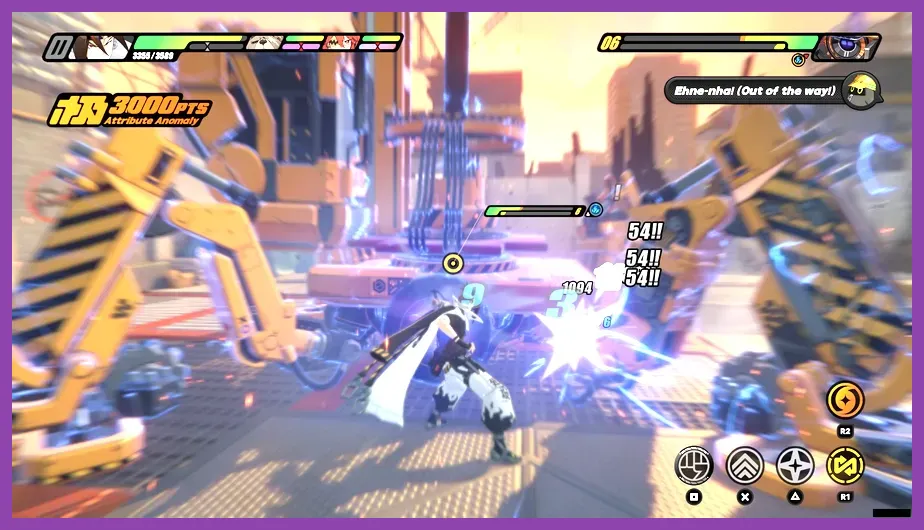
The best Zenless Zone Zero graphics settings for performance are 60 FPS, Rendering at 1.0, Shadows on Low, FX Quality on Medium, and Mirror Reflections, Volumetric Fog, Bloom, and Distortion disabled. Keep Character Quality and Shading Quality on High if your graphics card has at least 6GB of VRAM, because these options preserve the sharp look of agents such as Anby, Nicole, and Ellen without costing as many frames as shadows or reflections.
This guide targets the Windows PC version and prioritizes stable frame times over maximum screenshot quality. Zenless Zone Zero is an action game: a consistent 60 FPS makes Perfect Assists, Chain Attacks, and dodge counters easier to read than a fluctuating 90 FPS. On a 120Hz or 144Hz monitor, you can raise the frame-rate cap only after confirming that your system holds the target during combat in Hollow Zero and Shiyu Defense.
Best Balanced Settings for 60 FPS
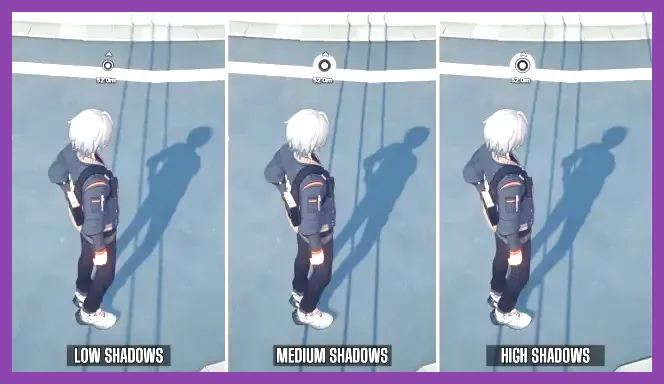
Start with this profile if your PC uses a modern mid-range GPU such as an RTX 3060, RTX 4060, RX 6600 XT, or better. It also works well on gaming laptops when plugged into wall power. Apply the settings from the Graphics section, restart the game if prompted, and then test a real combat encounter rather than judging performance inside the title screen.
- Display Mode: Fullscreen or Borderless Fullscreen.
- Resolution: Your monitor's native resolution, usually 1920x1080 or 2560x1440.
- Frame Rate: 60 FPS.
- V-Sync: Off if you use G-SYNC or FreeSync; On if you see visible tearing without adaptive sync.
- Rendering: 1.0.
- Anti-Aliasing: SMAA or the highest available temporal option that does not introduce distracting ghosting.
- Shadows: Low.
- FX Quality: Medium.
- Shading Quality: High.
- Character Quality: High.
- Environment Quality: Medium.
- Mirror Reflections: Off.
- Volumetric Fog: Off.
- Bloom: Off or Low.
- Distortion: Off.
- Color Grading: On, unless you prefer a flatter image.
This setup keeps agent models and combat readability intact while removing expensive effects that are difficult to notice during a dodge-heavy fight. If your PC still struggles, the most useful general advice in our low-end PC optimization guide applies here as well: close browser tabs, disable unnecessary overlays, and avoid running the game from a nearly full drive.
Best High-FPS Settings for 120Hz and 144Hz
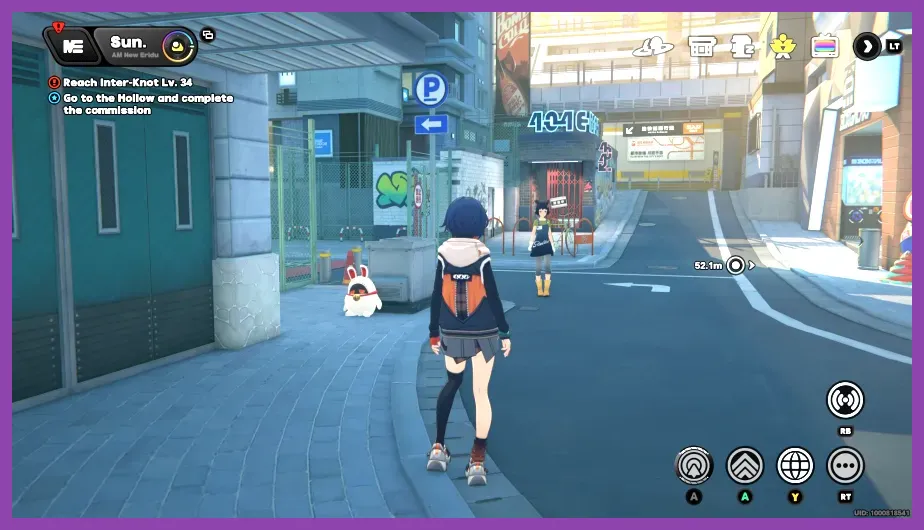
Zenless Zone Zero's default PC frame-rate options may not provide a true high-refresh experience on every installation, so first check which caps your current client exposes. If 120 FPS is available and your system can sustain it, use a competitive profile focused on input consistency. High refresh is most valuable in fast encounters against bosses such as Nineveh, where rapid visual transitions and repeated assists can expose uneven frame pacing.
- Frame Rate: 120 FPS, or the highest stable option available.
- Rendering: 1.0 at 1080p; use 0.8 only when GPU usage remains near 99% and frames drop below target.
- Shadows: Low.
- FX Quality: Low or Medium.
- Shading Quality: Medium.
- Character Quality: High.
- Environment Quality: Low or Medium.
- Mirror Reflections: Off.
- Volumetric Fog: Off.
- Bloom and Distortion: Off.
Do not lower Character Quality first. The game places agents in the center of the screen, and reducing their detail produces a larger visual downgrade than lowering environment effects. Likewise, leave Rendering at 1.0 whenever possible. Dropping internal resolution can improve FPS, but it makes small combat cues, enemy outlines, and interface text noticeably softer.
For a monitor with adaptive sync, set the in-game cap a few frames below the panel's maximum when the game allows it. A 117 FPS cap on a 120Hz display or 141 FPS on a 144Hz display can reduce synchronization spikes. If Zenless Zone Zero offers only a 60 FPS cap on your system, use 60 rather than relying on unstable driver-level frame generation or unofficial unlockers.
Best Settings for Low-End PCs and Laptops
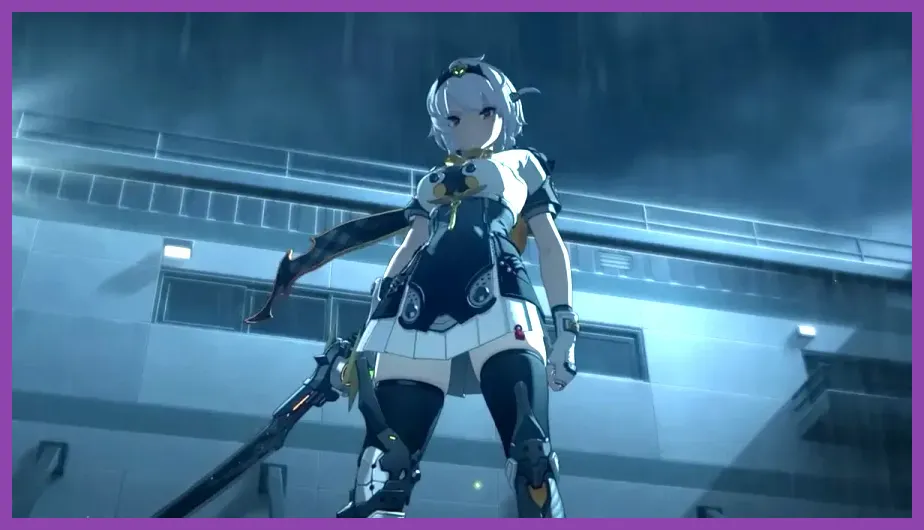
For integrated graphics, older GTX cards, or laptops with 8GB of system memory, begin at 1920x1080 and lower resolution only if the GPU remains overloaded. A stable 30 FPS is preferable to a 60 FPS target that repeatedly collapses during Chain Attacks. Use the following low-end profile for a clean baseline.
- Display Mode: Fullscreen.
- Resolution: 1280x720 or 1600x900 if 1080p cannot hold 30 FPS.
- Frame Rate: 30 FPS for weak hardware; 60 FPS for a GTX 1650-class system after testing.
- V-Sync: On at 30 FPS if tearing is visible.
- Rendering: 0.8 at 1080p, or 1.0 at 720p.
- Anti-Aliasing: Low or SMAA.
- Shadows: Low.
- FX Quality: Low.
- Shading Quality: Low.
- Character Quality: Medium.
- Environment Quality: Low.
- Mirror Reflections: Off.
- Volumetric Fog: Off.
- Bloom and Distortion: Off.
Change one setting at a time and record the result. If lowering Rendering produces a major improvement, you are GPU-limited. If FPS barely changes but the game pauses when entering Sixth Street, you are more likely CPU-, memory-, or storage-limited. In that case, lowering Character Quality will not solve the hitching. Shut down launchers, use the Windows High Performance power plan while plugged in, and install the game on an SSD.
Players on a handheld PC should also review our guide to optimizing open-world games on Steam Deck. Although Zenless Zone Zero is not an open-world game, the same battery, thermal, and frame-limit principles apply to portable hardware.
Which Graphics Settings Cost the Most FPS?
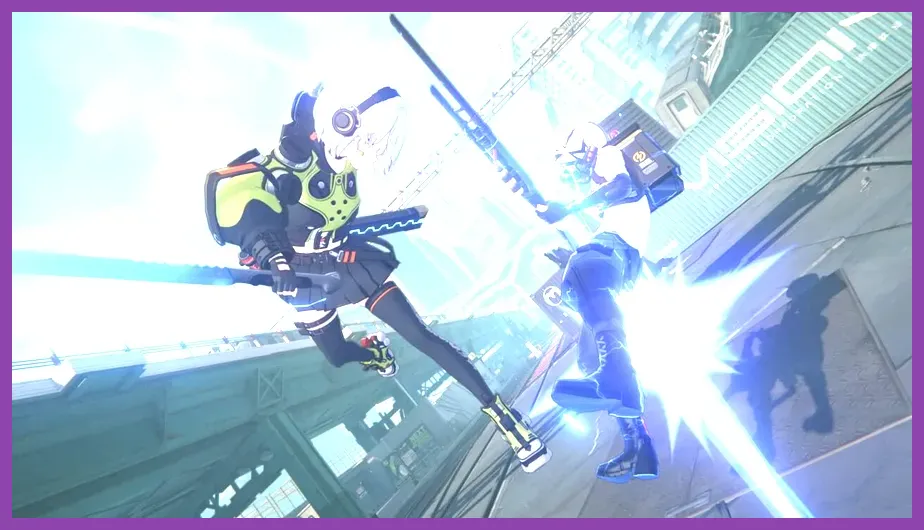
Shadows are usually the first major performance target. They affect lighting calculations across characters, props, and streets, so moving from High to Low often delivers a better improvement than lowering textures or character models. Their visual impact is modest during combat, particularly when bright skill effects cover the arena.
Volumetric Fog and Mirror Reflections are the next settings to disable. Fog adds layered atmospheric rendering in areas such as Lumina Square, while reflections repeatedly render nearby geometry. Reflections can look attractive in urban scenes but contribute little to reading enemy attacks. Disable both before reducing resolution.
FX Quality controls the density and quality of ability effects. Low FX Quality can make Anby's electric strikes, Soldier 11's fire attacks, and Nicole's Ether effects less impressive, but Medium is a strong compromise. If your frame rate collapses only when several agents trigger ultimates, lower FX Quality before touching Character Quality.
Environment Quality affects background objects, props, and scene detail. It is a useful setting for CPU-limited systems and crowded city areas. Shading Quality changes the overall appearance of materials and lighting, so it is more noticeable than shadows. Keep it on Medium or High unless you need every available frame.
Anti-aliasing generally costs less than shadows and reflections, but it can affect clarity. If distant signs or thin railings shimmer, use SMAA rather than disabling anti-aliasing completely. If the image looks blurry while moving, test the available anti-aliasing modes and compare character outlines during a combat trial.
How to Test Zenless Zone Zero Performance
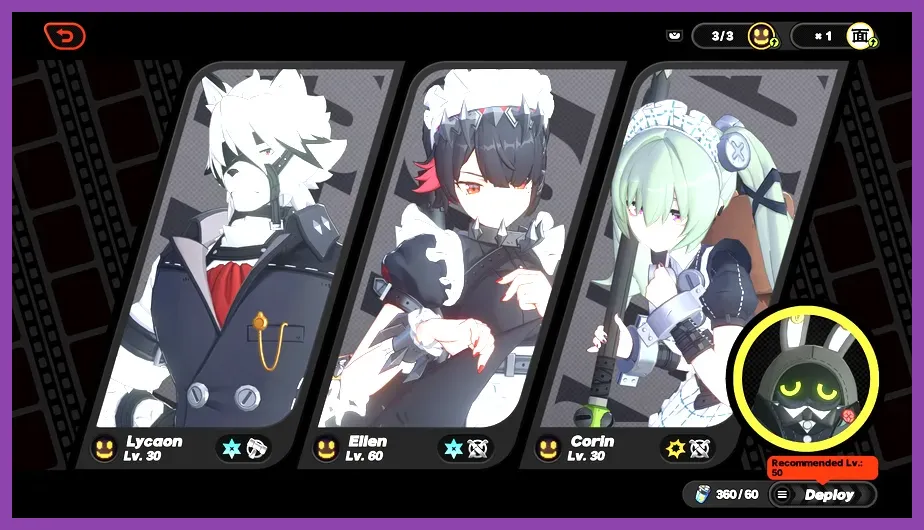
Use a repeatable test instead of changing settings based on a single room. Start in Random Play on Sixth Street, walk through the busiest part of the hub, then enter a combat stage containing multiple enemies. Follow that with one run in Hollow Zero or Shiyu Defense. These locations stress different parts of the PC: the city tests streaming and CPU behavior, while combat tests GPU effects and frame pacing.
- Restart Zenless Zone Zero after major graphics changes.
- Stand still for 30 seconds in Sixth Street and note average FPS and visible stutter.
- Perform several dodge counters and Chain Attacks against a group of enemies.
- Watch the one-percent-low result if your overlay supports it, not only the average FPS.
- Repeat the test after changing one option.
A good 60 FPS profile should remain close to 60 during ordinary movement and avoid severe drops during assists. A brief shader-compilation hitch after a driver update may disappear after revisiting areas, but repeated pauses when turning the camera usually indicate streaming, storage, or memory pressure. Update your GPU driver from the NVIDIA driver page or AMD support page, then retest before lowering every option.
Final Performance Profile and Troubleshooting
For most players, the recommended final profile is 1080p, 60 FPS, Rendering 1.0, SMAA, Shadows Low, FX Medium, Shading High, Character High, Environment Medium, Mirror Reflections Off, Volumetric Fog Off, and Bloom and Distortion Off. It keeps Zenless Zone Zero's distinctive character presentation while targeting the settings that produce the largest frame-time gains.
If the game is blurry, restore Rendering to 1.0 before increasing any other option. If FPS falls during skill effects, lower FX Quality. If Sixth Street stutters while combat remains smooth, check SSD space, background applications, and system memory. If the entire game feels uneven despite a high average FPS, enable adaptive sync, test V-Sync, and use a stable cap instead of chasing the highest number.
Do not use unofficial executable modifications to unlock unsupported frame rates or bypass the game's normal configuration. HoYoverse can change rendering behavior between updates, and third-party tweaks may create crashes or account risks. Check the official Zenless Zone Zero website and the official HoYoLAB community for patch-specific reports before assuming a sudden performance problem is caused by your hardware.
For broader mobile optimization advice, see Steamoz's guide to optimizing gacha games on Android. On PC, however, the priority remains simple: stabilize frame time first, disable reflections and volumetric effects second, and preserve Rendering, Character Quality, and Shading Quality whenever your hardware allows it.