To optimize gacha games on a low-end PC, target a locked 30 or 45 FPS first, reduce resolution and shadow effects before textures, close overlays, and prevent thermal throttling. For games such as Genshin Impact, Honkai: Star Rail, Wuthering Waves, and Zenless Zone Zero, the best results come from matching each game’s rendering workload to your CPU, GPU, RAM, and storage rather than blindly selecting the lowest preset.
This guide uses repeatable settings, measurable frame-rate targets, and game-specific examples. It is designed for integrated graphics, older GTX-class cards, entry-level Radeon GPUs, and laptops with 8GB to 16GB of memory. The goal is not merely a higher average FPS: stable frame-times, fast asset streaming, and fewer stutters make daily commissions, story battles, and limited-time events feel considerably better.
Identify Your Low-End PC’s Real Limitation
Before changing a slider, record your hardware. Press Ctrl + Shift + Esc to open Task Manager, then check the CPU model, installed memory, GPU, and whether the game is running from an SSD or hard drive. A Core i5-8250U with Intel UHD 620, for example, needs a different profile from a desktop Ryzen 5 3600 paired with a GTX 1650.
Use MSI Afterburner with RivaTuner Statistics Server, or Xbox Game Bar’s performance widget, to watch GPU usage, CPU usage, RAM, VRAM, temperature, and frame-time. If the GPU stays near 99 percent while one or two CPU cores are lightly loaded, lower resolution, render scale, shadows, and effects. If the GPU sits below 80 percent while the CPU is pinned, reduce crowd density, foliage, reflections, simulation-heavy effects, and background applications.
- 8GB RAM: close browsers, launchers, Discord streams, and RGB utilities before starting the game.
- Integrated graphics: use 720p or 900p, a 30 FPS cap, and the lowest shadow and reflection settings.
- GTX 1050 Ti, GTX 1650, RX 570, or similar: 900p to 1080p is realistic, but open-world games may still require low effects.
- Mechanical hard drive: expect traversal stutter when new areas load. An SSD upgrade is usually more valuable than a small GPU overclock.
Do not judge performance in a quiet menu. Test in a demanding location: Mondstadt’s main plaza in Genshin Impact, Jinzhou in Wuthering Waves, or a crowded combat encounter in Zenless Zone Zero. Run the same route for five minutes so every change has a comparable result.
Use the Best Baseline Graphics Profile
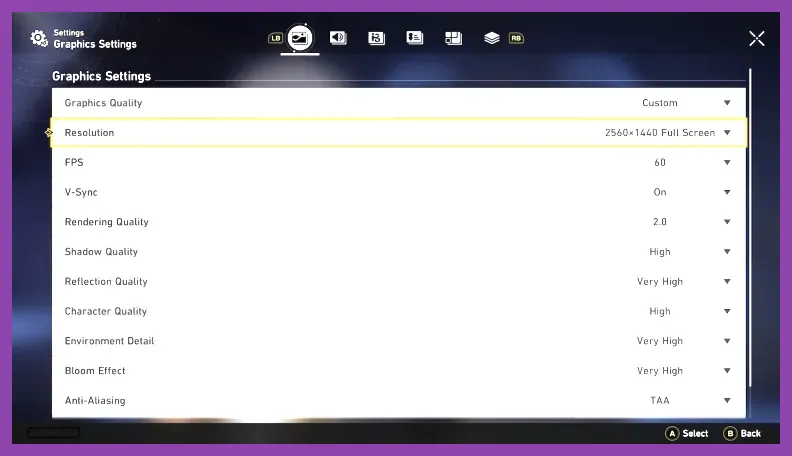
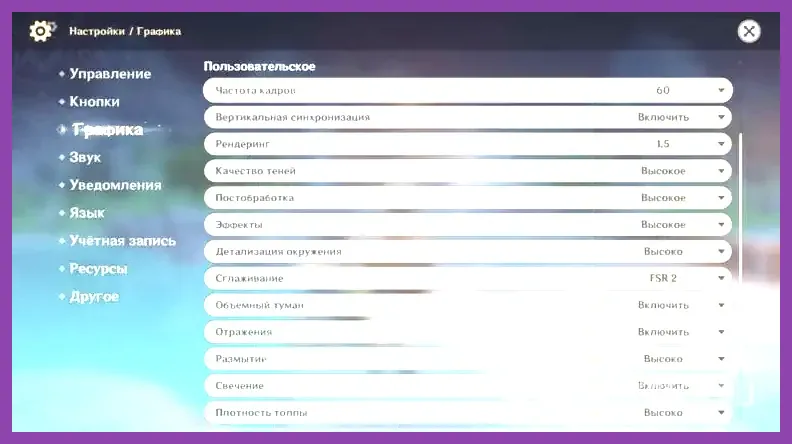
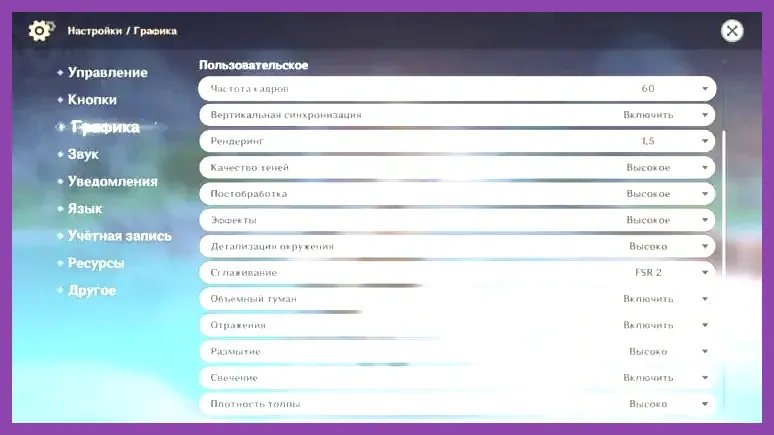
Start with a controlled profile instead of adjusting every option at once. For a very low-end PC with integrated graphics, use 1280x720 resolution, 30 FPS, low render quality, low shadows, low visual effects, low crowd density, and motion blur off. Set anti-aliasing to the least expensive available option, turn off volumetric fog, and disable reflections if the game provides that control.
For an entry-level dedicated GPU, begin at 1600x900 or 1920x1080, 30 FPS, medium textures, low shadows, low volumetric effects, low reflections, and medium effects. Textures can remain medium when the card has 4GB of VRAM; lowering them often produces an uglier image without fixing a CPU bottleneck. If VRAM usage approaches the card’s limit, move textures to low and restart the game.
Use this priority order when performance drops:
- Resolution and render scale: the fastest way to reduce GPU load, although image clarity falls.
- Shadows: lower them before textures. Dynamic shadows are expensive in open-world hubs.
- Volumetric fog, clouds, reflections, and ambient occlusion: these can cause large GPU spikes during weather and combat effects.
- Effects and shader quality: reduce them if elemental reactions, ultimates, or particle-heavy attacks cause stutters.
- Textures: lower only when VRAM is full or texture streaming produces hitching.
Keep motion blur off for clearer camera movement, but treat depth of field as optional. It rarely determines average FPS, while volumetric lighting and reflections often do. If a game offers AMD FSR or another upscaler, select Balanced at 1080p or Quality at 900p. Avoid aggressive sharpening; it can make foliage and UI text shimmer.
Game-Specific Settings for Popular Gacha RPGs
Genshin Impact
On an integrated GPU, use 1280x720, 30 FPS, render resolution 0.6 to 0.8, shadow quality lowest, visual effects lowest, SFX quality lowest, overall settings lowest, motion blur off, and crowd density lowest. On a GTX 1650-class card, try 1600x900 or 1080p, 30 FPS, render resolution 0.8, low shadows, medium textures, low visual effects, and low volumetric fog.
The largest practical gains usually come from shadows, reflections, and render resolution rather than texture quality. Test the Knights of Favonius headquarters area, Liyue Harbor, and a Ley Line Overflow fight with several elemental reactions. Genshin Impact can feel smooth in a domain but stutter in a busy city because streaming and NPC rendering stress the CPU and storage.
For broader troubleshooting, follow Steamoz’s guide to fixing Genshin Impact crashes on PC. Keep the official Genshin Impact news hub bookmarked for client updates and maintenance notices.
Honkai: Star Rail
Honkai: Star Rail is generally easier to run than an open-world title because battles and maps are more contained, but hubs such as Central Starskiff Haven can still expose CPU limits. Use 1280x720 or 1600x900, 30 FPS, low shadows, low reflections, low lighting quality, low effects, and medium textures if VRAM allows. Keep character quality at medium when possible; lowering it can make faces and combat readability noticeably worse.
If ultimate animations cause temporary hitching, reduce effects and lighting first. If the game pauses while entering a new area on an HDD, lowering the resolution will not solve the root problem. Shut down other disk-heavy applications and move the installation to an SSD. A stable 30 FPS is sufficient for turn-based combat and avoids unnecessary heat on thin laptops.
Wuthering Waves and Zenless Zone Zero
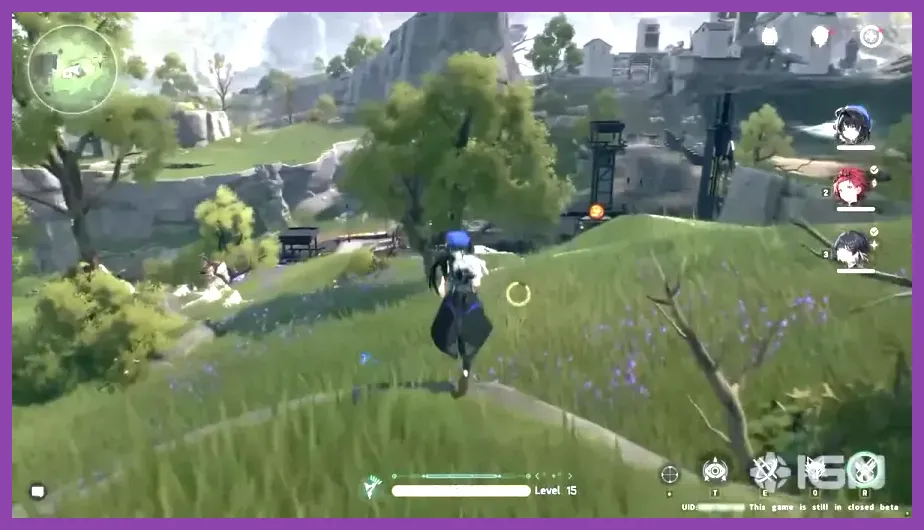
Wuthering Waves is the toughest of these examples for many low-end systems because Jinzhou, outdoor traversal, foliage, and combat particles combine GPU and CPU workloads. Start at 1280x720, 30 FPS, low shadows, low effects, low LOD, low volumetric fog, and disabled motion blur. If traversal still stutters, lower draw distance and close every overlay before reducing textures.
For Zenless Zone Zero, use 900p or 1080p at 30 FPS, low shadows, low reflections, low effects, and medium textures on a 4GB GPU. The Sixth Street hub is a useful test scene. If combat feels smooth but the hub stutters, the problem is likely CPU scheduling, asset streaming, or background memory pressure rather than the graphics preset alone.
Choose 30, 45, or 60 FPS Intentionally
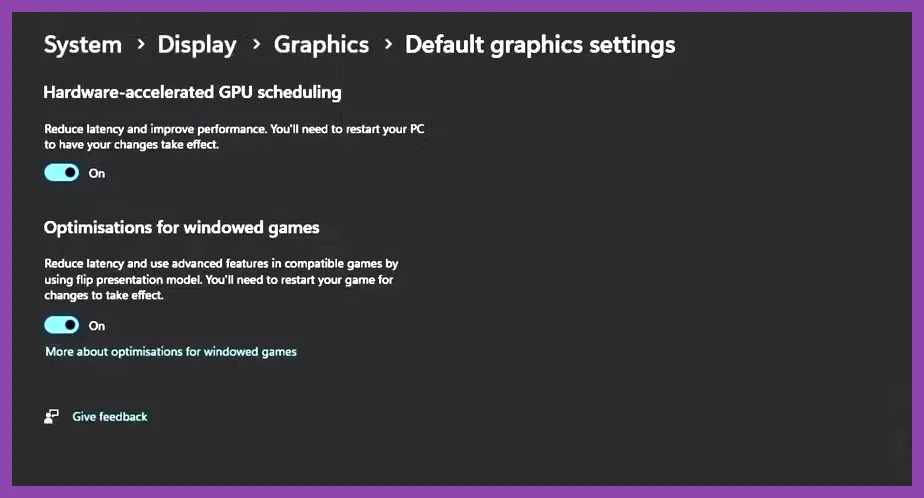
A locked frame rate is often better than an unstable high number. Select 30 FPS when the PC cannot maintain 45 FPS during combat and exploration. Select 45 FPS if the game supports it and your system normally sits between 50 and 60 FPS. Use 60 FPS only when the one-percent lows remain close to 60; a counter that swings from 60 to 28 feels worse than a consistent 30.
Cap FPS inside the game whenever possible. If the title lacks a reliable limiter, use NVIDIA Control Panel’s Max Frame Rate, AMD Adrenalin’s Frame Rate Target Control, or RTSS. A 30 FPS cap with V-Sync can reduce power use and fan noise, but V-Sync may add latency. If tearing is distracting, test V-Sync on; if input feels delayed during action combat, try V-Sync off with a frame cap.
For a 60Hz display, 30 FPS presents cleanly when frame pacing is consistent. On a 120Hz laptop screen, 40 or 60 FPS can be attractive, but only if temperatures and frame-time remain stable. Do not force 60 FPS in Wuthering Waves on an Intel UHD laptop simply because the menu offers the option. The game’s official Wuthering Waves site lists its supported platforms, but real performance depends heavily on your specific configuration.
Fix Windows, Driver, and Launcher Bottlenecks
Plug a laptop into AC power and select Windows Best performance mode while gaming. In Settings, open System > Display > Graphics, add the game executable, and choose High performance so Windows uses the dedicated GPU. This matters on laptops that otherwise launch a game on integrated graphics.
Update the GPU driver from the official NVIDIA driver page or AMD support page. Intel integrated graphics users should use Intel’s current graphics package for their processor. If a new driver introduces crashes, perform a clean installation rather than stacking multiple vendor utilities.
Disable the Steam overlay, Xbox Game Bar recording, Discord overlay, GeForce Experience highlights, AMD overlay, and browser hardware acceleration one at a time. You do not need every overlay disabled permanently, but each can consume RAM or hook into the renderer. Verify game files after an interrupted update, and leave at least 15 percent free space on the installation drive so shader caches and patches have room to work.
Use the official Steam client or the publisher’s launcher for file verification and updates. Avoid unofficial “FPS booster” programs, registry cleaners, and DLL downloads. They rarely improve a gacha game and can introduce crashes, malware, or anti-cheat conflicts.
Reduce Stutter, Heat, and Memory Pressure
Stutter is not always an FPS problem. Gacha games frequently compile shaders, stream character assets, and load new zones while you move. The first run after a patch may therefore be worse than later sessions. Let the game sit in its title screen for a few minutes after a major update, then revisit the same route. Do not repeatedly reinstall the game unless file verification shows corruption.
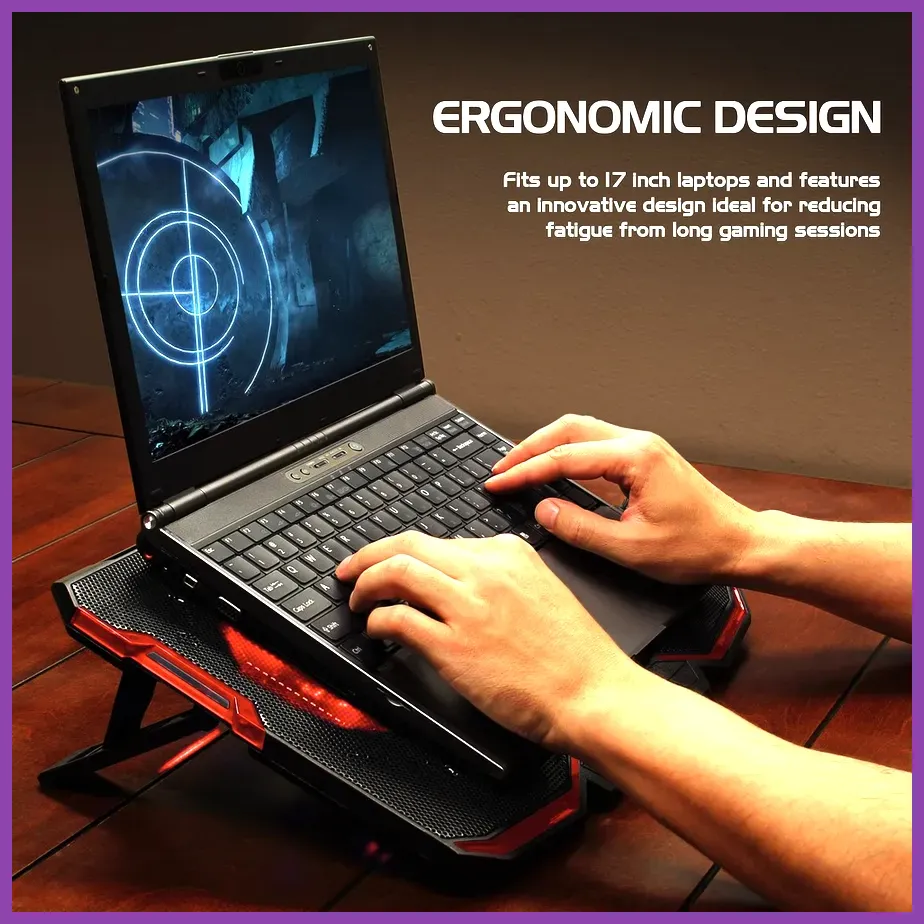
Keep the laptop’s vents clear and raise its rear edge by a few centimeters. Monitor temperatures during a 20-minute session. If CPU or GPU clocks fall sharply as temperatures rise, thermal throttling is reducing performance. Clean dust from the vents, replace old thermal paste only if you understand the procedure, and use a cooling pad with an unobstructed intake. Lowering the FPS cap from 60 to 30 can reduce heat dramatically.
With 8GB RAM, close Chrome tabs, Adobe applications, launchers, and cloud-sync tools. Windows may use the page file when memory fills, causing severe hitching on an HDD. Do not disable the page file; instead, leave it system-managed on an SSD with sufficient free capacity. If the system regularly reaches 90 percent memory usage, moving from 8GB to 16GB is one of the most noticeable upgrades for modern gacha games.
For additional diagnosis, compare these focused Steamoz resources: AFK Journey lag and low FPS fixes, PC crash troubleshooting, and gacha optimization on Android. The same principles—heat control, background-process management, and sensible frame caps—apply across platforms.
Build a Repeatable Testing Routine
Change one setting, restart the game if requested, and repeat the same five-minute test. Record average FPS and one-percent lows rather than trusting how a single fight feels. In Genshin Impact, test a city route followed by a fight against three enemies using large elemental bursts. In Wuthering Waves, sprint from a Jinzhou fast-travel point into the city and then fight a group of Tacet Discords. In Honkai: Star Rail, test both a populated hub and a multi-target battle with several ultimate animations.
Use these results to create three profiles:
- Battery profile: 720p, 30 FPS, low shadows, low effects, low brightness, and a balanced Windows power mode.
- Stable profile: 900p or 1080p, 30 or 45 FPS, medium textures, low shadows, and reduced volumetric effects.
- Quality profile: 1080p, 60 FPS only where the one-percent lows support it, medium textures, medium effects, and higher anti-aliasing.
Save screenshots of every setting page or write the values in a text file. Patches can reset options, especially after a renderer change. Recheck performance after major version updates, new regions, and large character releases because new assets can increase memory and shader compilation demands.
The Best Upgrade Path for Gacha Gaming
If software tuning is not enough, upgrade in this order: move the game from an HDD to an SSD, increase RAM from 8GB to 16GB, improve cooling, then consider a GPU upgrade. An SSD will not raise average FPS much, but it can reduce loading pauses and traversal hitching. More RAM prevents Windows from aggressively paging when a launcher, browser, and game are open together.
Do not buy more VRAM alone without considering the GPU core, CPU, and power supply. A used GTX 1650 or RX 570 can be a sensible step above basic integrated graphics, while newer low-power cards are safer for compact systems. Check your case dimensions, laptop upgrade limits, PSU wattage, and driver support before spending money.
The most reliable low-end PC formula is simple: 30 FPS, 720p or 900p, low shadows, low volumetric effects, medium textures when VRAM permits, overlays disabled, game installed on an SSD, and temperatures monitored. Once that profile is stable, raise only one option at a time. That approach keeps daily farming, story quests, banners, and endgame combat responsive without turning every patch into a troubleshooting session.