If Apex Legends keeps crashing on PC, start by repairing the game files, updating or clean-installing your GPU driver, disabling overlays, and launching with a conservative graphics profile. The most reliable order is: verify files, repair Easy Anti-Cheat, clear shader caches, remove overclocks, then test DirectX 12 with Texture Streaming Budget set to None or 2GB. These steps address crashes at startup, during the loading screen, and randomly in a match without immediately reinstalling Windows or the whole game.
Before changing anything, note when the crash happens. A crash before the EA or Respawn logo usually points to Easy Anti-Cheat, corrupted files, permissions, or a driver. A crash while entering the Firing Range often indicates shader compilation or an unstable GPU overclock. Crashes after several matches are more commonly linked to heat, VRAM, RAM, overlays, or a memory leak. Record the error message, map, legend, and whether the screen freezes, turns black, or closes to desktop.
Verify Apex Legends Files and Repair Anti-Cheat
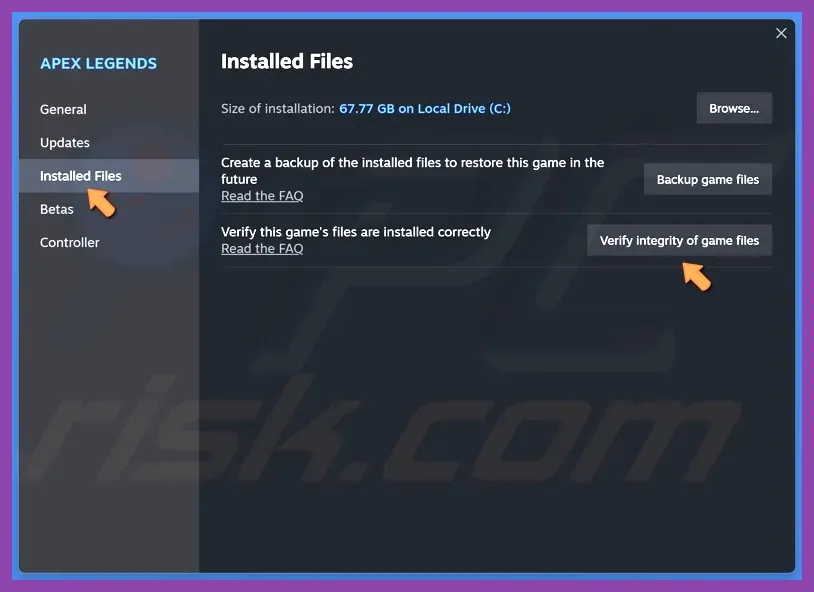
Begin with the files most likely to be damaged by an update. On Steam, open Library, right-click Apex Legends, choose Properties, select Installed Files, and click Verify integrity of game files. Steam may redownload a small group of files; let the process finish before launching. Do not use a third-party “DLL fixer” or download replacement files from an unofficial site. You can also compare this procedure with our PC crashing repair guide for the same safe file-checking principles.
EA app players should open Library, select Apex Legends, click the three-dot menu, and choose Repair. If the Play button briefly changes and returns to idle, close the EA app completely from the system tray, then start it as administrator once. Steam users should still allow the EA background service to run because Apex Legends uses EA account authentication even when the game is installed through Steam.
Repair Easy Anti-Cheat manually
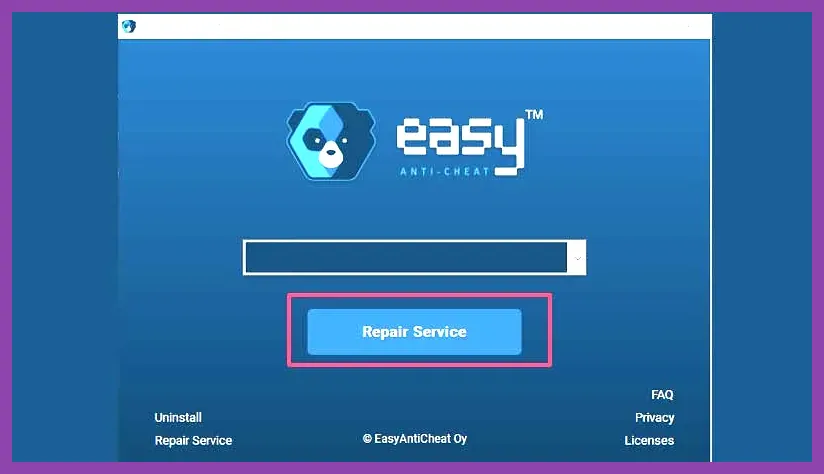
Open the Apex Legends installation folder, usually C:\Program Files (x86)\Steam\steamapps\common\Apex Legends, then open the EasyAntiCheat folder. Run EasyAntiCheat_EOS_Setup.exe, select Apex Legends if it appears in the list, and choose Repair Service. Restart Windows afterward. If Windows Security quarantined an Apex executable, check Protection History and restore it only if the file is the genuine installation file. Add the official Apex folder as an exclusion only after verifying the game installation and keeping real-time protection enabled everywhere else.
Update the GPU Driver and Clear Shader Caches
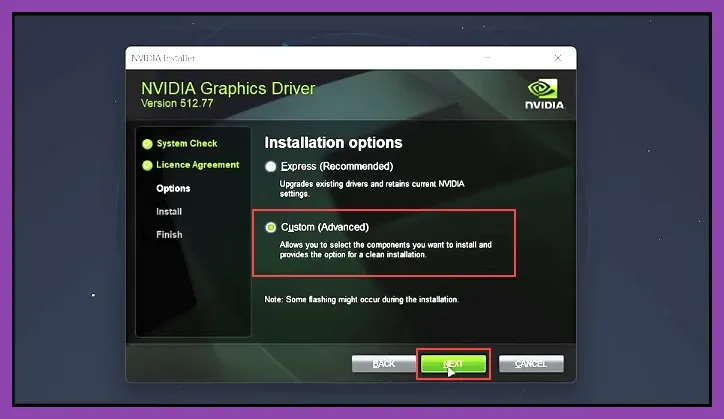
Apex Legends relies heavily on shader compilation, particularly when switching between DirectX 11 and DirectX 12 or installing a major NVIDIA or AMD driver. Download the current driver directly from the official NVIDIA driver page or the official AMD support page. Choose a clean installation in NVIDIA Custom setup, or use AMD Adrenalin’s Factory Reset option if the installer offers it. A clean install is especially worthwhile when the crash began immediately after a driver update.
Clear old shader data after the driver installation. In Windows, search for Disk Cleanup, choose the system drive, and select DirectX Shader Cache. You can also clear the NVIDIA DXCache and GLCache folders or AMD’s corresponding shader cache through the driver software; do not delete random folders inside the Apex installation. The first launch after clearing the cache may stutter while shaders rebuild, but it should not repeatedly close to desktop. Let the game sit in the lobby for several minutes, then test the Firing Range with the R-301 Carbine and a few ability effects before entering Ranked.
Use one graphics API while testing
Do not switch APIs repeatedly during troubleshooting. In Apex’s launch options, remove old commands such as -dx11, -dx12, +cl_showfps 1, and third-party performance commands, then test the game normally. Current PC builds commonly default to DirectX 12, but hardware and driver behavior differ. If DX12 crashes, try -dx11 as a temporary diagnostic option where supported; if DX11 crashes, remove it and test the default renderer. Keep only one change per test so you know which setting solved the problem.
Use a Stable Apex Graphics Profile
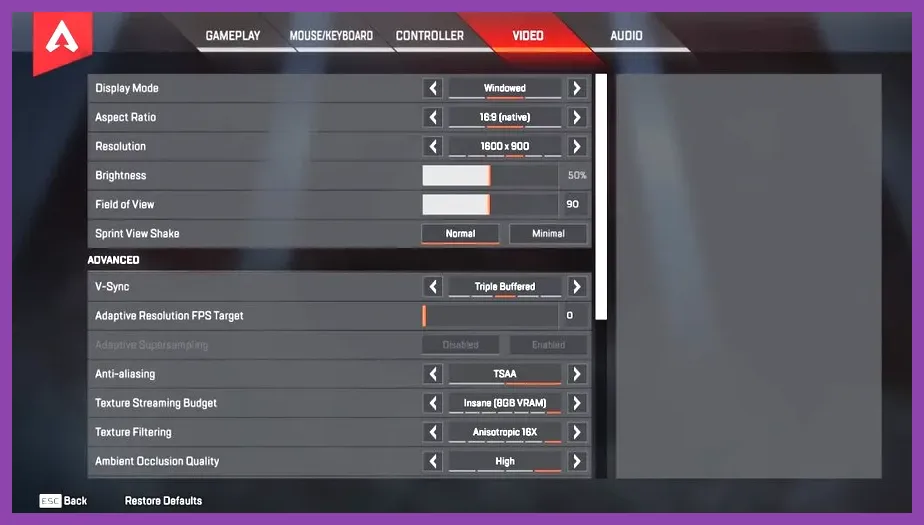
Open Settings, select Video, and apply this baseline profile before testing a full match: Display Mode Fullscreen, Aspect Ratio Native, Resolution Native, V-Sync Disabled, NVIDIA Reflex Enabled or Enabled + Boost, Adaptive Resolution FPS Target 0, Anti-aliasing None, Texture Streaming Budget None or 2GB VRAM, Texture Filtering Bilinear, Ambient Occlusion Quality Disabled, Sun Shadow Coverage Low, Sun Shadow Detail Low, Spot Shadow Detail Disabled, Volumetric Lighting Disabled, Dynamic Spot Shadows Disabled, Model Detail Medium, Effects Detail Low, Impact Marks Low, and Ragdolls Low.
This is not the prettiest profile, but it reduces VRAM spikes and makes the result easier to diagnose. If it stops crashing, raise only one setting at a time. Texture Streaming Budget is the most important control: High or Insane can exceed the usable VRAM on cards with 4GB, 6GB, or 8GB once Windows, Discord, a browser, and the driver reserve memory. Keep 16GB of system RAM as a practical minimum, close Chrome tabs while testing, and avoid running OBS with multiple browser sources until Apex is stable. For broader frame-time tuning, see our PC settings guide for maximum FPS.
Remove unstable launch and tuning settings
Delete custom autoexec files from the cfg folder and remove undocumented launch commands copied from old competitive guides. Return GPU core, memory, CPU, and RAM settings to stock values. Apex can appear stable in the lobby while a memory overclock fails when effects from Bangalore’s Rolling Thunder, Gibraltar’s Defensive Bombardment, or Catalyst’s Dark Veil load together. Disable MSI Afterburner’s overlay and any overclock temporarily, then test the Firing Range, a Mixtape match, and Battle Royale separately.
Disable Overlays and Conflicting Background Apps
Overlays hook into the renderer and anti-cheat layer, so disable them for one complete test session. In Discord, open User Settings, Game Overlay, and turn off Enable in-game overlay. In the EA app, open Settings, Application, and disable the in-game overlay. In Steam, right-click Apex Legends, open Properties, and turn off Enable the Steam Overlay while in-game. Also disable NVIDIA’s or AMD’s recording overlay, Xbox Game Bar, MSI Afterburner/RivaTuner Statistics Server, Overwolf, Medal, and motherboard monitoring utilities.
Do not run multiple frame limiters at the same time. Remove RTSS’s Apex profile, set NVIDIA Control Panel’s Max Frame Rate to Off while testing, and use Apex’s own +fps_max 144 only after the game is stable. A 144 FPS cap is sensible for a 144Hz monitor; use 60, 120, or 165 to match your display if necessary. If the crash disappears after disabling overlays, re-enable applications one by one. That identifies the conflict without permanently losing your preferred recording or chat tool.
Check permissions and Windows security
Install Windows updates, restart, and confirm that Apex, the EA app, and Easy Anti-Cheat are not running in Compatibility Mode. Avoid forcing “Run this program as administrator” on only one executable, because mismatched permissions can interfere with overlays and anti-cheat. If Controlled Folder Access blocks a file, review the notification in Windows Security and permit the verified game executable rather than turning off ransomware protection globally.
Diagnose Hardware, Memory, and Windows Errors
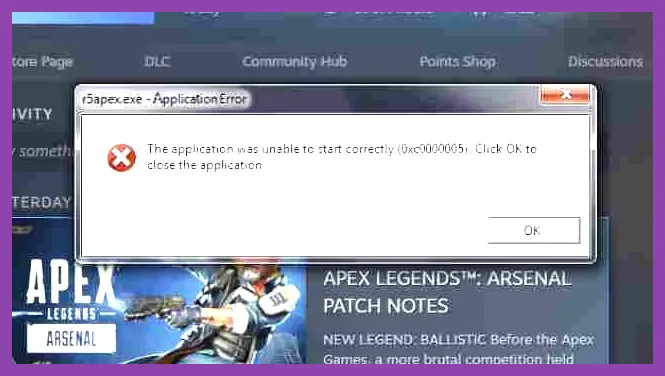
Watch temperatures with a trusted monitor while playing. A GPU approaching its thermal limit, a CPU throttling under sustained load, or a laptop switching between integrated and discrete graphics can cause a black-screen crash. Set Windows to the High performance power mode for a test, plug in a gaming laptop, and select the dedicated GPU for r5apex.exe in Settings, System, Display, Graphics. Clean dust from the intake and make sure the fans are not blocked.
Test RAM if crashes occur in other games as well. Press Windows key, type Windows Memory Diagnostic, and choose Restart now and check for problems. For a deeper test, use a reputable bootable memory diagnostic and test each DIMM separately if errors appear. Also make sure the Windows page file is enabled on the system drive; set it to System managed size rather than disabling virtual memory. A 16GB system with a disabled page file can crash when Apex, Discord, OBS, and a browser compete for committed memory.
Read the crash evidence
Open Event Viewer, choose Windows Logs, Application, and inspect the error at the crash time. r5apex.exe with a graphics-driver module such as nvlddmkm or amdwddmg points toward the driver, GPU stability, or shader cache. EasyAntiCheat errors point toward service repair or security software. Kernel-Power 41 after a reboot suggests power, temperature, or hardware instability rather than an ordinary Apex file error. The official Apex Legends help hub also lists current service and account troubleshooting steps; check it before making deeper system changes.
For Windows file corruption, open Terminal or Command Prompt as administrator and run sfc /scannow. If it reports problems it cannot repair, run DISM /Online /Cleanup-Image /RestoreHealth, restart, and run SFC again. Do not use registry cleaners. They rarely fix Apex crashes and can damage unrelated Windows components.
When Reinstalling Apex Legends Is Worthwhile
Reinstall only after file verification, driver cleanup, anti-cheat repair, and overlay testing fail. Uninstall Apex through Steam or the EA app, restart Windows, then remove only leftover Apex configuration files after backing up your settings. Reinstall to an SSD with at least 75GB of free space, keep the Windows page file active, and launch with default settings before restoring custom binds or video options. The official Steam listing for Apex Legends provides the current platform requirements.
If Apex still crashes after a clean installation, stock hardware settings, a current driver, and disabled overlays, submit a support ticket with your DxDiag, crash time, hardware specifications, and the exact Event Viewer faulting module. Include whether the crash happens in the Firing Range, Mixtape, or Battle Royale and whether it follows a particular legend ability. This is far more useful than reporting only “Apex keeps closing.” For comparison, our low-FPS troubleshooting checklist covers similar temperature, background-process, and driver checks.
In most cases, the winning combination is verified files, repaired Easy Anti-Cheat, a clean GPU driver, cleared shader cache, no overlays, stock clocks, and a 2GB-or-lower Texture Streaming Budget. Test one complete match after each change, rather than applying ten fixes at once. That method identifies the real cause and leaves Apex Legends stable without sacrificing more performance than necessary.