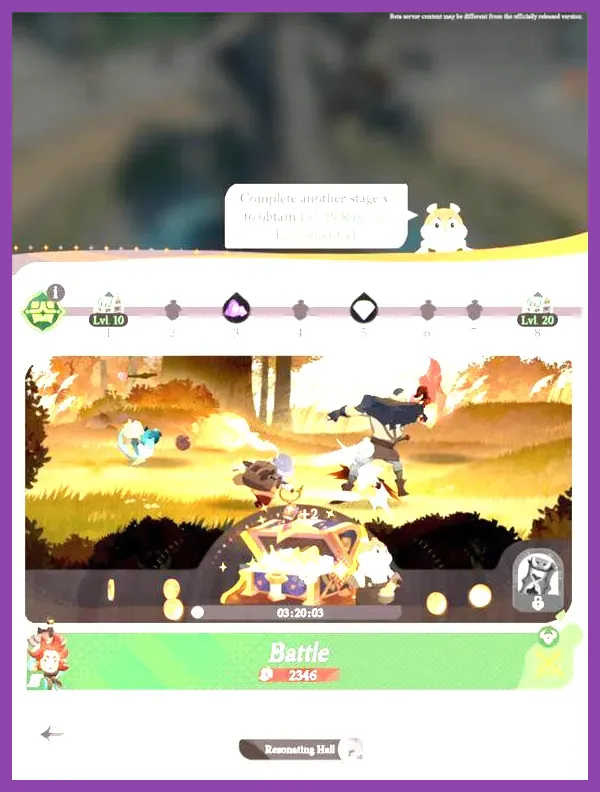
If AFK Journey is lagging or running below 30 FPS, set Frame Rate to 30 first, lower Effects Quality and Shadow Quality, disable Bloom and Reflections, close every background app, and restart the game after the device cools down. On a capable phone or PC, use the 60 FPS option only after testing a lower-effects profile. This combination fixes most combat stutter, overheating-related slowdowns, and sudden drops during ultimate-heavy battles without making the entire game look blurry.
AFK Journey is especially sensitive to sustained heat and particle-heavy encounters. A quiet exploration scene in Holistone may run smoothly while a battle involving Cecia’s Graveborn summons, Smokey & Meerky’s healing field, and multiple enemy ultimates suddenly drops frames. The correct fix depends on whether the problem is network latency, rendering performance, thermal throttling, or damaged game resources. Use the steps below in order rather than changing every option at random.
Identify Whether It Is Lag or Low FPS
First, separate connection lag from frame-rate slowdown. Low FPS looks like choppy animation, delayed camera movement, and uneven transitions even when your character remains in the correct position. Network lag produces delayed skill activation, enemies teleporting, or a battle state that catches up several seconds after you tap an ability. AFK Journey can suffer from both at once, but only graphics and device fixes improve low FPS.
Run a simple test in three places: the main AFK stage, a quiet area such as Holistone, and a full combat encounter in Dream Realm or a difficult AFK Stage. If the game is smooth in menus but slows during combat, reduce Effects Quality and Shadows first. If every screen stutters, check storage, heat, background applications, and the game installation. If characters rubber-band while the animation remains smooth, switch from mobile data to a stable Wi-Fi connection and restart your router.
Do not judge performance from the first few seconds after loading. AFK Journey may briefly compile or stream assets when entering a new region. Test for at least two minutes, then repeat the same battle. A repeatable drop during Cecia’s ultimate or a boss phase indicates a rendering limit; random delays while moving through menus point more strongly to connection or storage issues.
Use the Best AFK Journey Graphics Profile
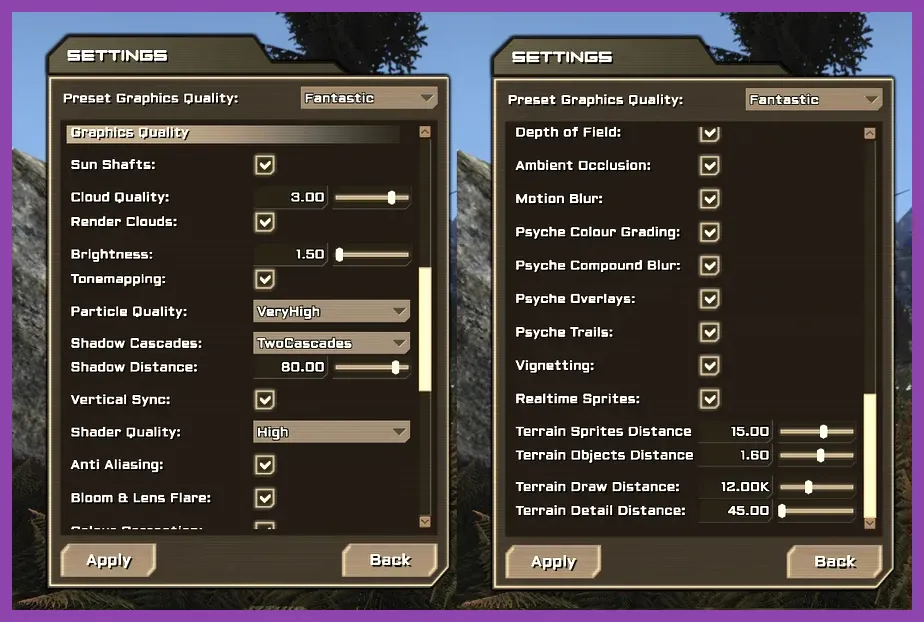
Open the game’s Settings menu, enter Graphics, and begin with this performance profile:
- Frame Rate: 30 FPS on older or hot phones; 60 FPS on newer devices that remain cool.
- Graphics Quality: Low or Medium while troubleshooting.
- Effects Quality: Low. This is the most important setting for combat drops.
- Shadow Quality: Low or Off if the option is available.
- Anti-Aliasing: Low or Off when the image remains readable.
- Bloom: Off.
- Reflections: Off or Low.
- Resolution: Medium or Low if frame pacing is still unstable.
- Character and texture quality: Medium or High after the frame rate becomes stable.
Effects, shadows, bloom, and reflections are more expensive than character textures because they affect many objects at once. Keeping textures at Medium while lowering combat effects usually preserves AFK Journey’s attractive character art better than selecting the lowest global preset. If your phone has 4 GB of RAM or less, start at Low and keep the game at 30 FPS.
Use a fixed 30 FPS profile when the device cannot hold 60 FPS consistently. A stable 30 feels better than a fluctuating 45-60 FPS presentation that repeatedly falls into the 20s. If you choose 60 FPS, play a difficult battle for ten minutes and watch for a gradual decline. That decline means the phone is thermal throttling, so lowering the cap is more effective than turning down one visual option.
Stop Overheating and Thermal Throttling
Heat is one of the most common reasons AFK Journey starts smoothly and becomes sluggish later. Remove the phone case, avoid direct sunlight, and do not play while the device is fast-charging. Charging creates additional heat while the game is already using the CPU, GPU, screen, and network radio. If the frame rate drops after 10 to 20 minutes, close AFK Journey, let the phone cool for several minutes, and relaunch it with Frame Rate set to 30.
Turn off battery-saving modes while testing performance. Android Battery Saver and iOS Low Power Mode can reduce processor speed or background activity, which may create uneven frame pacing. However, do not use a manufacturer’s aggressive game booster blindly: some boosters improve performance, while others record the screen, show overlays, or limit thermal power. Disable floating chat heads, screen recorders, RGB lighting controllers, VPN overlays, and notification bubbles.
On Android, open Recent Apps and close demanding applications such as YouTube, Chrome with many tabs, TikTok, Discord, and camera software. On iPhone, close only genuinely active or problematic applications; repeatedly force-closing every app is not a guaranteed performance improvement. Restarting the device is more useful when memory pressure or a background process has persisted for hours.
Keep at least 10 GB of free storage when possible. AFK Journey needs room for patches, temporary files, and resource unpacking. A phone with nearly full storage can become slow even when its chipset is powerful. For broader mobile heat advice, see Steamoz’s guide to stopping mobile overheating; the same charging and ventilation principles apply here.
Fix AFK Journey on Android and iPhone
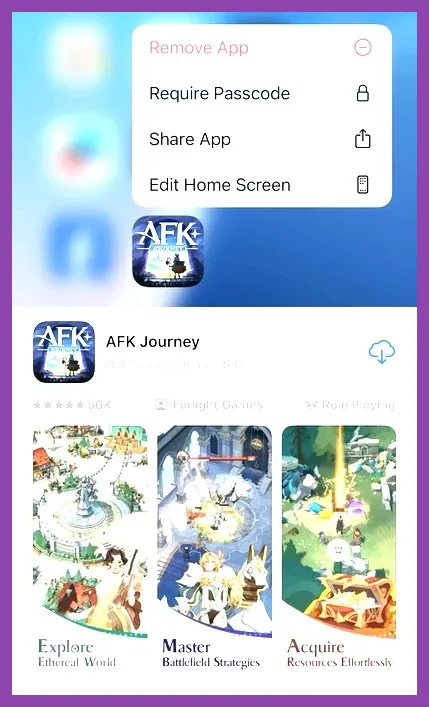
Update AFK Journey through the official store before changing advanced settings. On Android, check Google Play for an update, then open the app’s system settings and clear its cache. Clear cache only, not storage, unless your account is securely linked. Clearing storage can remove local files and force a large redownload. On iPhone, update through the App Store and use Offload App if you need to refresh the installation while preserving documents; a full reinstall should be the final step.
Before reinstalling, confirm that the account is linked through the game’s available account service. Guest progress can be at risk after deleting local data. The safest sequence is to open the profile or account panel, verify the linked login, record your server and UID, then reinstall if ordinary repairs fail. Download the game only from the official AFK Journey website or your platform’s verified store listing.
Disable overlays that sit above the game. Android’s game dashboard, Discord bubbles, screen capture tools, accessibility filters, and third-party FPS counters can all add small but visible frame-time spikes. On iOS, turn off screen recording and remove unnecessary widgets or active picture-in-picture playback. Also set the display refresh rate to a standard mode while troubleshooting; a 120 Hz screen does not make AFK Journey faster if the game is rendering at 30 FPS.
If only one location causes trouble, return to the main menu and reload the area rather than repeatedly retrying the same battle. If the issue began immediately after a patch, check the game’s notices and the official AFK Journey social channel for maintenance or known performance problems.
Reduce Combat Stutter in Heavy Battles
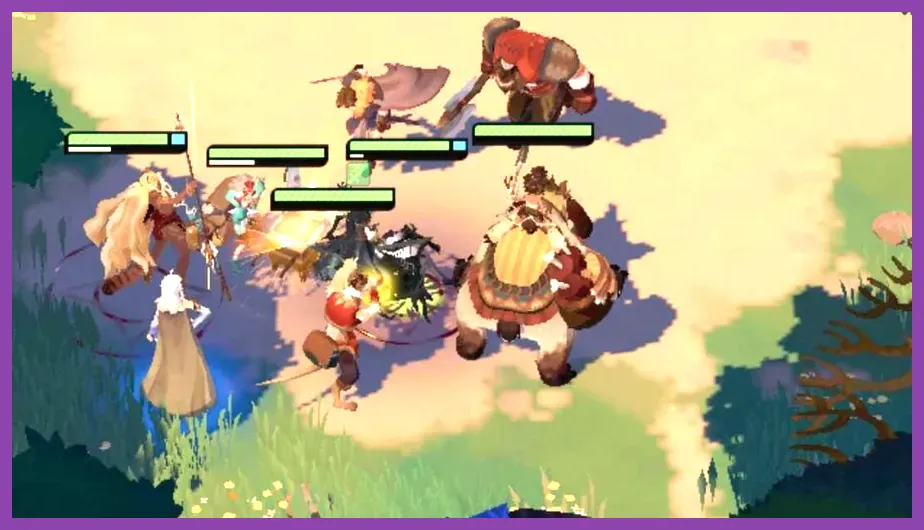
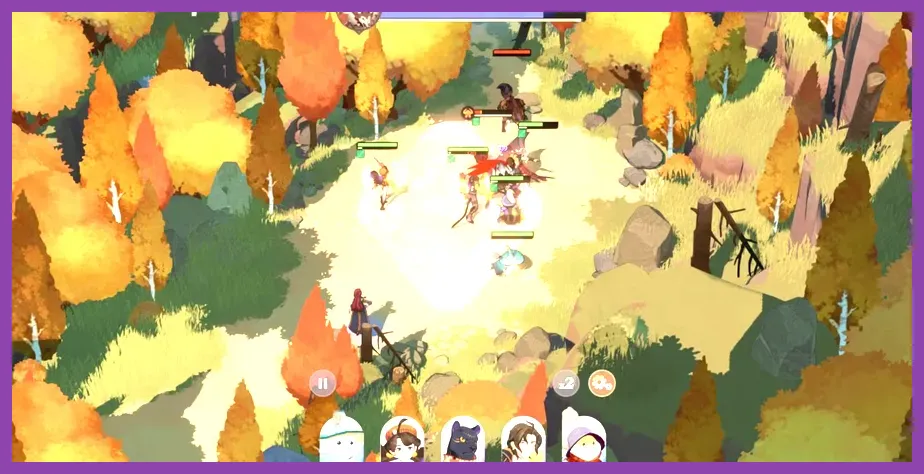
Combat scenes become expensive when several ultimates, summoned units, healing fields, and enemy effects appear together. Cecia is a useful example: her ultimate creates a large battlefield presence, while characters such as Rowan and Smokey & Meerky add repeated effects and animation events. If the game drops frames only when your team casts ultimates, keep Effects Quality and Bloom low before reducing textures or resolution.
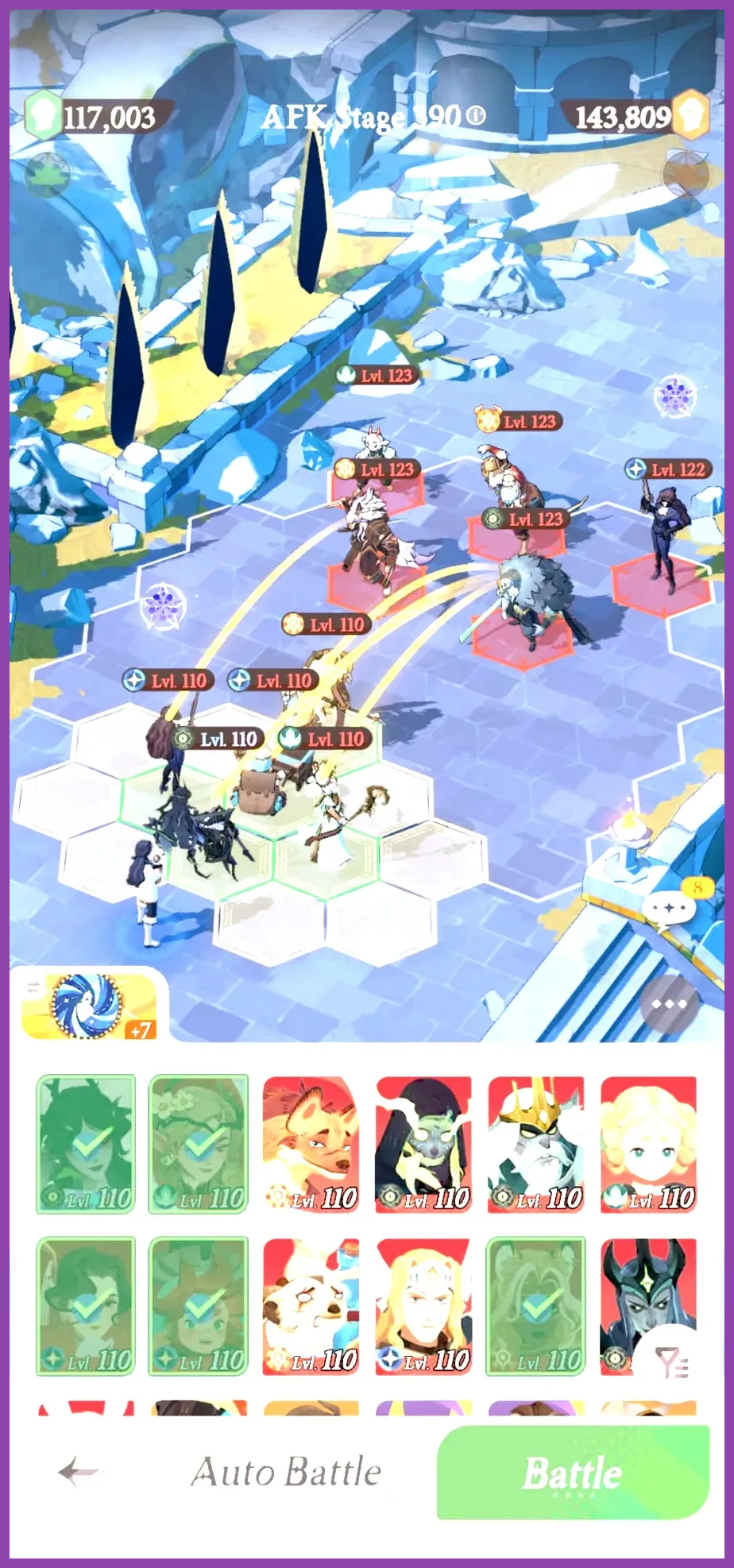
For a controlled test, use the same formation in an AFK Stage and watch the first complete ultimate cycle. Turn on auto-battle only after the opening animation finishes, because manual opening inputs can make timing harder to compare. Test one change at a time: first Effects Quality, then Shadows, then Resolution. If lowering Effects fixes the drop, restore Resolution to Medium and leave Effects Low. This gives you a sharper image without bringing back the particle load.
Do not mistake an animation pause for a weak hero or a failed formation. When a unit such as Cecia summons an ally, the game may briefly load effects or models, especially after a fresh installation. Run the battle again after the resources have been cached. If the same pause happens in every battle, lower the frame cap and repair the installation instead of replacing your team.
For PC players, close browser tabs and launchers, disable recording software, and use a fixed 60 FPS cap only if your monitor and hardware can sustain it. At 1080p, start with Medium quality, Low Effects, Low Shadows, Off Bloom, and Off Reflections. If the GPU remains heavily loaded, lower render resolution before turning textures below Medium. Players tuning other demanding games can also compare Steamoz’s performance-settings guide for the same priority order.
Repair Files, Connection, and PC Performance
On the PC client, restart the launcher and allow every resource download to finish before entering a battle. Interrupting an update can leave missing or damaged assets that appear as stutter, invisible effects, or repeated loading. If the launcher provides a repair or resource-check option, run it once, then restart Windows. Avoid playing while another launcher downloads a game or Windows installs a large update.
Use the official Farlight Games support channels if repair does not help. Include your platform, device model, operating system, server, graphics preset, and the exact location where the drop occurs. A useful report says that AFK Stage 20-1 falls from 60 to 24 FPS when Cecia’s ultimate begins, rather than simply saying the game is laggy.
For connection problems, use a 5 GHz Wi-Fi network near the router, pause downloads, and disable a VPN during testing. Mobile data can work, but unstable signal handoffs may cause delayed skill responses even when your FPS is normal. Restart AFK Journey after changing networks so the session establishes a clean connection. If other games and streaming services also show delay, the problem is probably your network rather than the client.
On Windows, update the graphics driver from NVIDIA, AMD, or Intel, select the dedicated GPU for the game, and set Windows to Best Performance while plugged in. Do not use an unlimited frame rate if the client becomes hot; a stable 60 FPS cap reduces unnecessary GPU load. Steam players can also review Steamoz’s Steam Deck settings guide for practical advice on frame caps, resolution, and battery-conscious performance.
Recommended Profiles for Every Device
Older Android phones and budget iPhones
Use 30 FPS, Low graphics, Low Effects, Low Shadows, Off Bloom, Off Reflections, and Low or Medium Resolution. Keep the phone cool, remove the case, and avoid charging during play. This profile prioritizes consistent combat animation over visual sharpness and is the best starting point for devices with 4 GB RAM or older mid-range chipsets.
Modern mid-range phones
Try 60 FPS with Medium graphics, Low Effects, Low Shadows, Off Bloom, Off Reflections, and Medium Resolution. If the game drops after several battles, return to 30 FPS rather than raising the temperature. Medium textures can remain enabled because they are generally less damaging to frame rate than shadows and particles.
Flagship phones and gaming PCs
Use 60 FPS, High character and texture quality, Medium Effects, Low or Medium Shadows, and Off Reflections if frame pacing is inconsistent. Keep resolution at the device’s native setting only when the GPU stays below its thermal limit. A flagship can still throttle inside a case or while fast-charging, so hardware alone does not guarantee stable performance.
After applying a profile, restart AFK Journey and test the same battle for ten minutes. The winning setup is not the one with the highest first-minute frame rate; it is the one that remains stable through exploration, story scenes, and ultimate-heavy fights. If lag remains after these steps, record a short clip, note your device temperature and network type, and send those details through the official support route instead of repeatedly reinstalling the game.