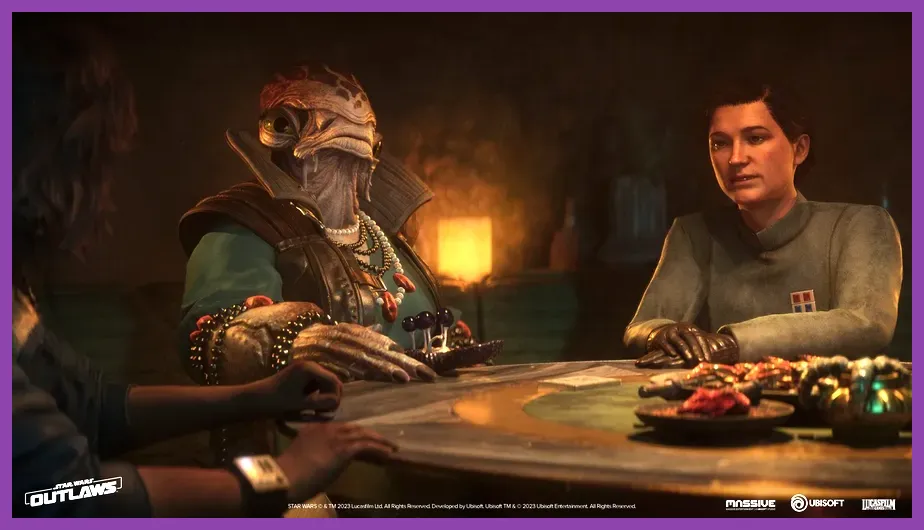
To achieve a smooth 60 FPS or higher in Star Wars Outlaws, you should immediately lower Volumetric Clouds to Medium, set Shadow Quality to Medium, and enable either NVIDIA DLSS, AMD FSR, or Intel XeSS set to the "Quality" preset with Frame Generation activated if you are using an RTX 40-series card. Massive Entertainment's Snowdrop engine delivers incredible open-world fidelity across Toshara, Kijimi, and Akiva, but its default ultra presets will easily choke mid-range hardware. By fine-tuning specific heavy hitters like ray-traced reflections and object detail, you can reclaim dozens of frames without sacrificing Kay Vess and Nix's cinematic visual experience.
Understanding the Snowdrop Engine Performance Profile
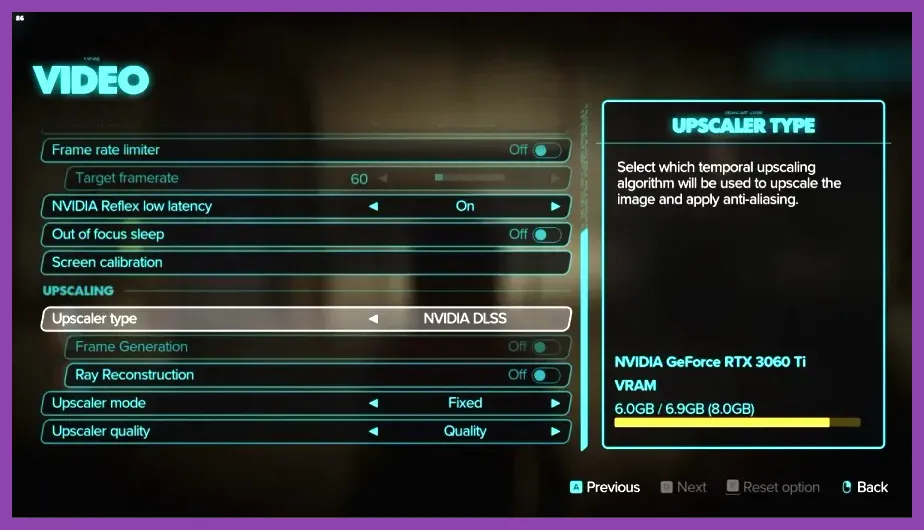
Before diving into individual options, it is essential to understand how Star Wars Outlaws taxes your system. The Snowdrop engine relies heavily on advanced lighting models, dense foliage placement, and continuous streaming of open-world assets. Unlike linear shooters, this game tests both your GPU's raw compute power and your CPU/SSD combination when Kay speeds across landscapes on her speeder bike. If you are experiencing stuttering while traversing, you may also want to check out optimization strategies similar to those used for demanding open-world survival titles. Target a baseline resolution of 1080p or 1440p for high-refresh-rate monitors, and utilize hardware-accelerated upscaling to offload heavy rendering tasks.
The Ultimate Performance Graphics Preset
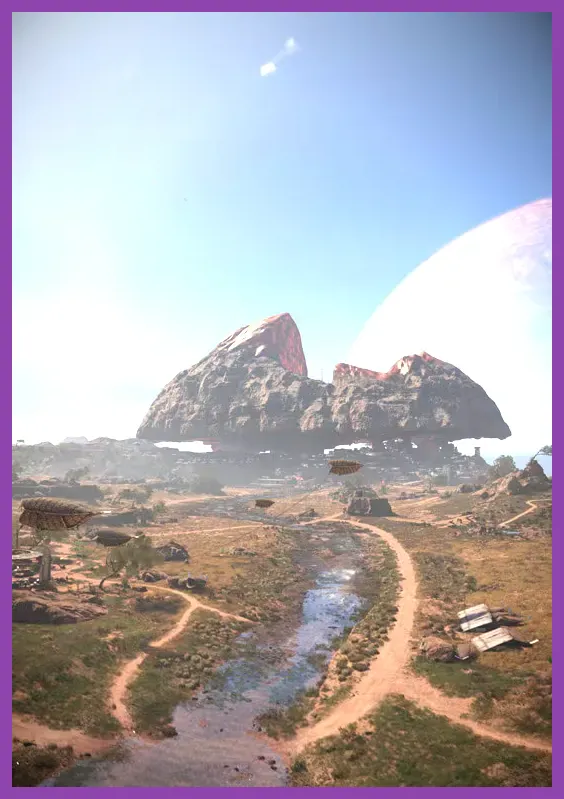
To strike the ideal balance between stunning visual immersion and high frame rates, apply this optimized settings profile. These values represent the sweet spot where performance gains are maximized while visual degradation remains virtually unnoticeable during active gameplay:
- Display Mode: Borderless Fullscreen (or Exclusive Fullscreen if experiencing input latency)
- Vsync: Off (unless experiencing severe screen tearing; enable G-Sync/FreeSync instead)
- Resolution Scale: 100% (Native, rely on upscalers for scaling)
- Upscaling: DLSS (NVIDIA), FSR 3 (AMD), or XeSS (Intel)
- Upscaling Preset: Quality (or Balanced if targeting 4K displays)
- Frame Generation: Enabled (Requires compatible RTX 40-series, RX 7000-series, or newer hardware)
- Motion Blur: Off (or set to Low based on personal preference)
- Chromatic Aberration: Off (Improves overall image clarity and sharpness)
Applying this core framework sets the foundation for more granular adjustments in the advanced video sub-menus. For players transitioning from competitive shooters or lighter titles, keeping these upscaling tools active is mandatory to bypass the steep hardware requirements typical of modern AAA releases, much like managing system loads in high-end fighting game setups.
Advanced Video Settings: What to Lower First
When manual tuning is required to squeeze out extra frames in dense settlements like Mirogana or Toshara's orbit, certain settings inflict massive performance penalties with minimal visual payoff. Adjusting these parameters should be your absolute first step:
- Volumetric Clouds: Medium. Ultra volumetric clouds look breathtaking, but they consume up to 15% of your GPU frame time. Medium provides fluffy, dynamic weather clouds without the massive performance tax.
- Shadow Quality: Medium. High and Ultra shadow resolutions introduce harsh GPU overhead for subtle improvements in contact hardening. Medium shadows look clean during exploration and combat.
- Spot Shadows: Low or Medium. These dictate the fidelity of interior lighting shadows. Lowering this drastically improves performance in tight cantina spaces and Imperial outposts.
- Environment Detail: 85%. Reducing this slightly decreases the render distance of minor clutter rocks and grass tufts, preventing CPU bottlenecks when moving fast on your speeder.
- Extra Streaming Distance: 0 or Low. High settings force your VRAM and system memory to load distant geometry prematurely. Setting this to low or default eliminates annoying traversal hitches.
By dropping Volumetric Clouds and Shadow Quality alone, most mid-range graphics cards will see an immediate 20% to 25% boost in average frame rates. This mirrors the meticulous configuration required in other demanding sandbox environments, akin to tweaking graphical settings in complex building games or optimizing intense multiplayer cooperative titles where stable frames mean life or death.
Ray Tracing and Global Illumination Optimization
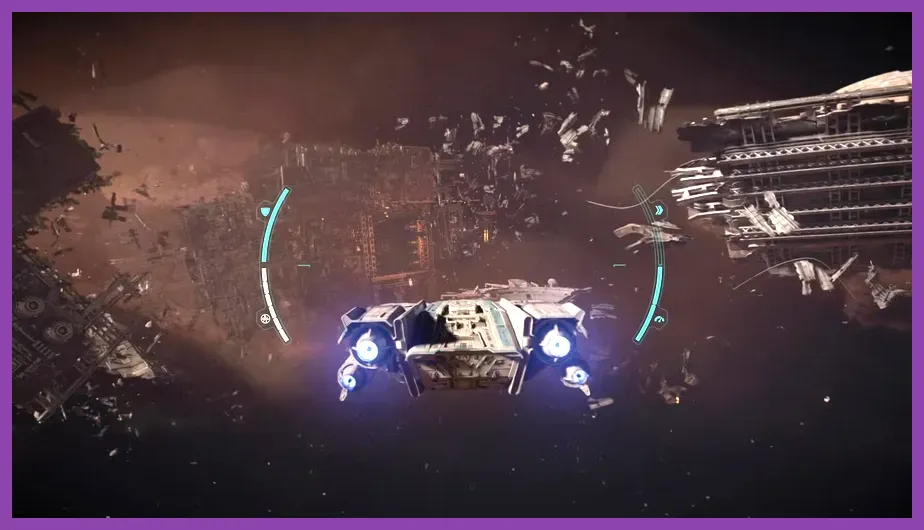
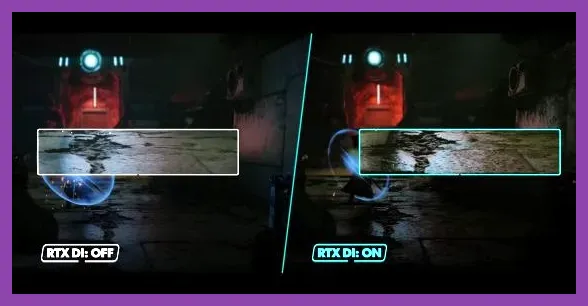
Star Wars Outlaws utilizes advanced ray-traced global illumination and ray-traced reflections to construct its gritty, lived-in sci-fi atmosphere. While these features make wet streets on Kijimi and reflective starship hulls look photorealistic, they are catastrophic for frame rates on mainstream hardware. If you are running an NVIDIA GeForce RTX 30-series card or an AMD equivalent, you should turn Ray-Tracing completely off. The game's baked-in screen-space reflections and ambient occlusion approximations are exceptionally well-designed and preserve the cinematic aesthetic without destroying your frame rate. For RTX 40-series users wanting to keep ray tracing active, restrict RTX Indirect Lighting to Medium and keep Ray-Traced Reflections toggled off unless combined with aggressive DLSS performance scaling. Players looking for streamlined, optimized experiences often favor cleaner single-player adventures with straightforward mechanics, similar to the minimalist optimization found when exploring immersive underwater survival sandboxes.
VRAM Management and Texture Settings
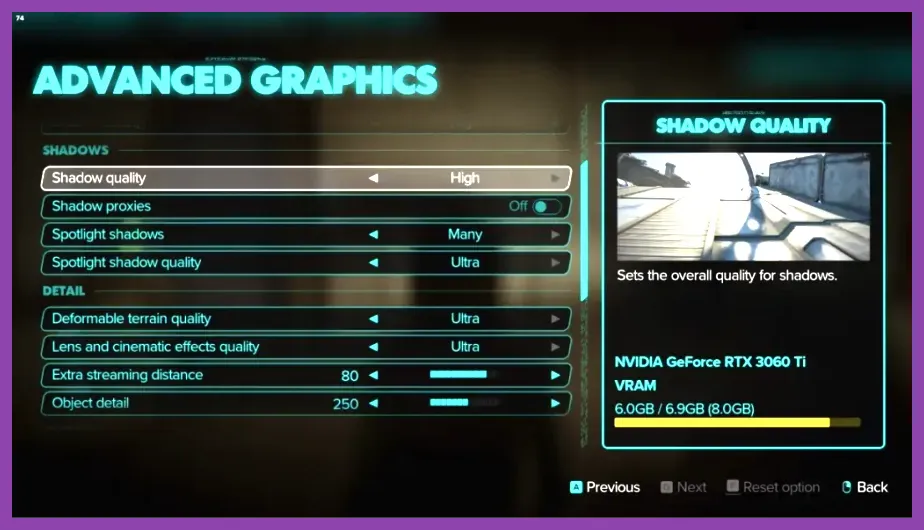
Texture resolution is heavily tied to your graphics card's Video RAM (VRAM) capacity. Running out of VRAM leads directly to severe stuttering, texture pop-in, and sudden game freezes during combat. Check your hardware specifications before locking in these parameters:
- 8GB VRAM Cards (e.g., RTX 3060, RTX 4060): Set Texture Resolution to Medium. High textures will overflow your buffer and cause aggressive stuttering when spinning the camera quickly.
- 12GB to 16GB VRAM Cards (e.g., RTX 4070, RX 7800 XT): Set Texture Resolution to High. You have enough bandwidth to handle detailed character models and clothing fabrics without running into frame pacing issues.
- 16GB+ VRAM Cards (e.g., RTX 4080, RTX 4090, RX 7900 XTX): Set Texture Resolution to Ultra. Enjoy maximum fidelity without compromise, pairing it with DLSS Quality at 4K resolution.
Managing your VRAM allocation correctly ensures that Kay Vess's underworld heists remain fluid, whether you are slicing security terminals or engaging in frantic speeder bike getaways. For more insights on mastering complex game mechanics and optimization tricks across various platforms, explore our comprehensive catalog including expert character progression guides and foundational gameplay breakdowns.
Cinematic Display Settings and Aspect Ratios
One unique aspect of Star Wars Outlaws is its deliberate cinematic presentation. By default, the game runs in a 21:9 aspect ratio with black letterbox bars at the top and bottom of the screen to mimic classic theatrical films. While this looks incredible for immersion, rendering extra letterbox space or forcing widescreen resolutions can impact your GPU. If you want to reclaim performance, navigate to the Display settings and switch the aspect ratio to 16:9 if you play on a standard monitor, or keep the cinematic letterboxing enabled if your hardware can comfortably handle the pixel count. Additionally, ensure that Chromatic Aberration, Lens Flare, and Film Grain are turned off. Film grain, in particular, introduces artificial noise that interacts poorly with temporal upscalers like DLSS and FSR, resulting in a shimmering, blurry image during motion. Disabling these post-processing filters not only sharpens the overall visual presentation but also gives your GPU a micro-boost in rendering efficiency, ensuring your journey across the galaxy is as smooth, responsive, and visually crisp as possible.