If the F.E.A.R. Collection keeps crashing, stuttering, or crawling below 60 FPS on a modern PC, start with a clean configuration reset, disable overlays, run the game with administrator permission, and cap the frame rate to 60 FPS. Then apply the correct widescreen and DirectX fix for your entry in the collection. The original F.E.A.R. and its expansions are old enough to dislike modern Windows features, ultrawide resolutions, forced overlays, and uncapped frame rates, even when your gaming PC is vastly more powerful than the recommended hardware.
This guide covers F.E.A.R. Platinum, Extraction Point, Perseus Mandate, F.E.A.R. 2: Project Origin, and F.E.A.R. 2: Reborn. The games do not all fail for the same reason. F.E.A.R. 1’s most common problems involve legacy DirectX behavior, bad configuration files, and high-refresh displays. F.E.A.R. 2 is more likely to show overlay conflicts, display-mode crashes, or uneven frame pacing. Work through the fixes in order rather than installing five different wrappers at once.

Start With a Clean F.E.A.R. Configuration
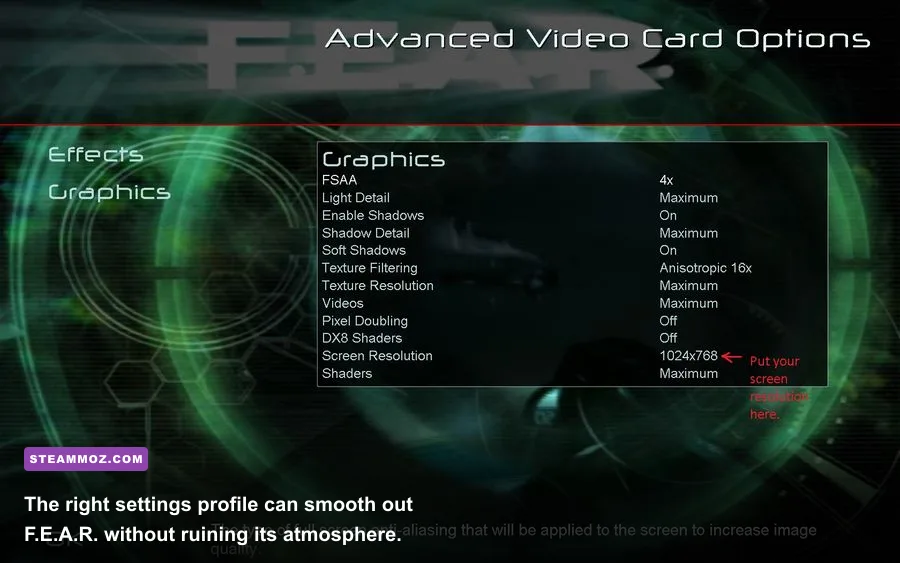
Before changing drivers or downloading compatibility files, force the game to rebuild its settings. A damaged display configuration is one of the most common reasons F.E.A.R. crashes immediately after launch or freezes when you select Options. Steam’s cloud synchronization can restore the same broken file, so temporarily disable Steam Cloud for the affected game before testing.
- Close the game and Steam completely.
- Open the game’s local files from Steam by selecting Manage, then Browse local files.
- Look for the configuration folder inside the game directory or in your Documents and Saved Games folders. The exact location differs between the original F.E.A.R. releases and F.E.A.R. 2.
- Back up the folder, then rename it to something obvious such as
FEAR_config_backup. - Launch the game, choose a conservative 1920x1080 resolution, disable antialiasing, and test a level before restoring any old files.
Do not delete your save files unless you have confirmed they are stored in the same folder. Renaming the configuration directory is safer because it lets you recover saves and key bindings if the game uses a shared location. If the crash disappears, reapply settings one at a time. Resolution, shadow quality, and antialiasing should be tested separately so you know which option caused the failure.
Verify the installation through the official F.E.A.R. Steam page and Steam’s Verify integrity command. This replaces missing executable or archive files, but it does not repair a broken user configuration. That distinction matters: verification fixes installation damage, while a configuration reset fixes bad local settings.
🎮 F.E.A.R. Collection
Looking to experience this game? Grab your digital key directly on our store for $8.24.
View on Steammoz Store →Use a Stable Graphics Profile Before Chasing Maximum FPS
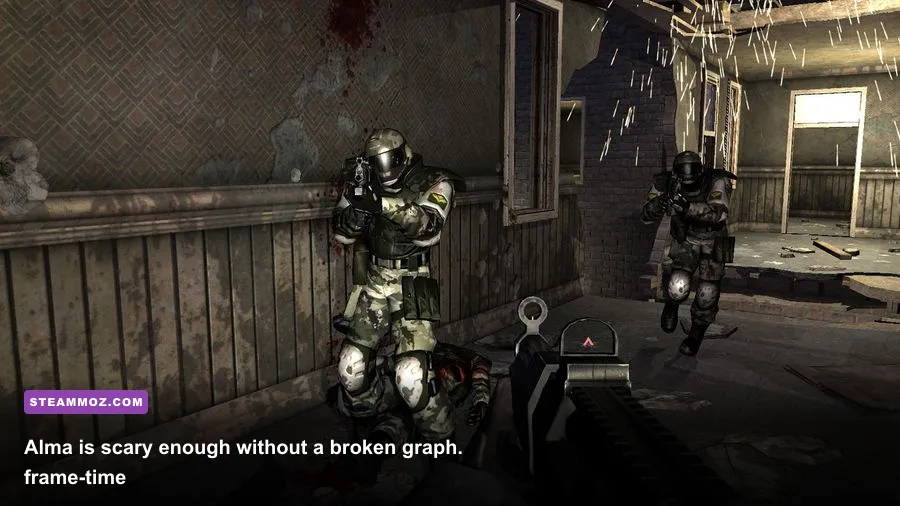
F.E.A.R. was designed around hardware from the mid-2000s, so modern GPUs often deliver plenty of average FPS while still producing ugly frame-time spikes. The goal is not a ridiculous 500 FPS counter. The goal is consistent frame delivery during particle-heavy firefights, soft-shadow scenes, and slow-motion combat.
| Setting | Recommended Value | FPS Impact | Visual Note |
|---|---|---|---|
| Resolution | Native monitor resolution | High at 1440p or 4K | Use 1920x1080 first while troubleshooting. |
| Soft Shadows | Off or Medium | High in the original F.E.A.R. | This is often the first setting to reduce. |
| Dynamic Lighting | High | Medium | Important for muzzle flashes and atmosphere. |
| Volumetric Lights | Medium or High | Medium | Lower it if smoke causes hitching. |
| Antialiasing | Off, 2x, or in-game default | Medium to High | Forced driver AA can cause instability. |
| Anisotropic Filtering | 8x or 16x | Low | Improves floor and wall texture clarity cheaply. |
| V-Sync | On while testing | Small | Prevents runaway frame rates and tearing. |
| Frame Rate Cap | 60 FPS | None when properly applied | Use RTSS or a driver limiter if needed. |
Soft Shadows deserve special attention. In the original F.E.A.R., they can hammer performance far harder than their menu description suggests, particularly when multiple lights overlap in a smoky room. On a modern system, lowering Soft Shadows from High to Medium can remove stutter without making the game look flat. Keep Dynamic Lighting enabled: it is responsible for much of the series’ signature visual punch.
Start with a 60 FPS cap even if your monitor runs at 144Hz or 240Hz. F.E.A.R. generally plays well above 60 FPS, but old engine timing and cutscene behavior can become inconsistent when the frame rate is uncapped. If 60 FPS is stable, try 90 or 120 FPS later. Do not raise the cap until you have completed a full firefight with grenades, smoke, multiple Replica soldiers, and slow-motion active.
Fix Resolution, Widescreen, and High-Refresh Problems
The original F.E.A.R. was built for 4:3 and early widescreen displays. Forcing a modern 2560x1440 or 3440x1440 mode through the game’s launcher can produce a black screen, stretched menus, a crash after the intro, or a mouse cursor that does not line up with buttons. Test at 1920x1080 first. Once that works, add a trusted widescreen fix designed for the exact game version.
F.E.A.R. Platinum, Extraction Point, and Perseus Mandate are separate executables and should not automatically share the same fix files. A patch made for the original retail executable may not work with the Steam build. Read the version notes carefully, keep an untouched backup of the executable, and change one file at a time. Never download a random replacement executable from an unknown mirror; that is both a security risk and an easy way to create a new crash.
For F.E.A.R. 2, choose the resolution from the launcher or in-game menu before enabling any external injector. If the screen goes black, press Alt+Enter once to switch between windowed and fullscreen modes. Disable HDR, forced sharpening, and driver-level scaling during the first test. A borderless-window utility can be useful after the game is stable, but it should not be your first troubleshooting step.
Players with 120Hz or higher displays should also test at 60Hz temporarily. This sounds extreme on a modern monitor, but it quickly separates a game-engine timing problem from a GPU problem. If the game becomes smooth at 60Hz, use a frame limiter and adaptive sync rather than immediately changing every graphics option.
Stop Crashes From Overlays, Drivers, and Permissions
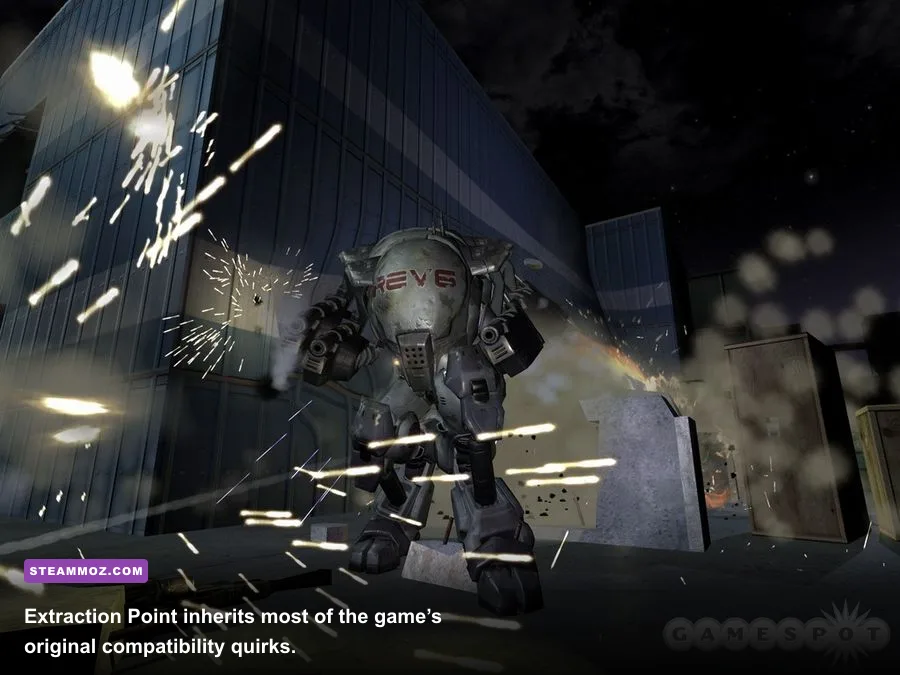
Old DirectX games can crash when several modern overlays hook into the same process. Turn off Steam Overlay, Discord Overlay, Xbox Game Bar, GeForce Experience or AMD Adrenalin recording, MSI Afterburner’s on-screen display, and ReShade for the first clean launch. You can restore them one by one once you know the game starts reliably.
Right-click the game executable, open Properties, select Compatibility, and test Windows 7 compatibility mode only if a normal launch fails. Also try Disable fullscreen optimizations and Run this program as an administrator. These options are not universal cures: compatibility mode can break input or video playback on some systems. Treat them as controlled experiments, not permanent magic switches.
Update your graphics driver if you are several releases behind, but do not assume the newest driver is automatically best for every 2005-era game. If the crashing began immediately after a driver update, use the previous stable driver or perform a clean installation. Laptop players should explicitly assign the game to the dedicated NVIDIA or AMD GPU in Windows Graphics Settings. Integrated graphics can run the original game, but power-saving profiles may create dramatic clock-speed drops during combat.
Windows Security can also interfere with old executables when Controlled Folder Access blocks save creation. Check Windows Security’s protection history after a crash. If it lists the F.E.A.R. executable, allow that specific application rather than disabling antivirus protection globally. The same caution applies to third-party security suites and aggressive anti-ransomware tools.
The official F.E.A.R. 2 Steam listing is useful for confirming which executable you own, while the Monolith Productions website provides the developer history behind the series. Neither page supplies a modern universal patch, so compatibility downloads should always be checked against the precise Steam release.
Reduce Stutter With DirectX and Frame-Pacing Fixes
If the game launches but hitches every few seconds, the problem may be shader compilation, a legacy DirectX call, or a frame-rate limiter fighting V-Sync. First, run the game without ReShade, texture injectors, or forced driver enhancements. Then choose one frame-pacing method: in-game V-Sync, your GPU driver’s limiter, or RivaTuner Statistics Server. Stacking all three often creates latency and uneven frame delivery.
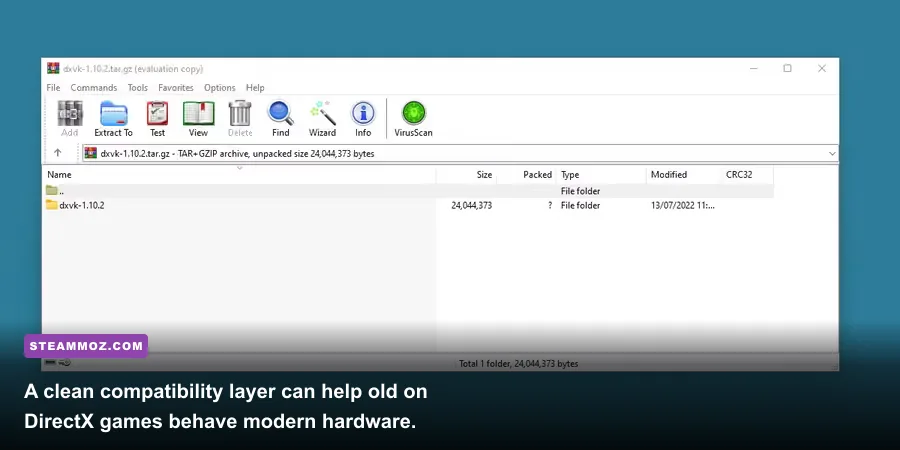
For the original F.E.A.R., DXVK can sometimes smooth presentation by translating DirectX 9 calls to Vulkan. It is not guaranteed to help every GPU, and the wrong DLL placement can prevent the game from launching. Download DXVK only from its official GitHub repository, use the 32-bit files for a 32-bit game, and copy only the required DirectX 9 DLL into the game’s executable directory. Back up the folder first. If you see a black screen, missing menus, or worse crashes, remove the DLL and return to the native renderer.
dgVoodoo2 is another compatibility option for older DirectX titles, especially when fullscreen behavior or old render paths fail on modern Windows. Like DXVK, it should be installed as a targeted test, not piled on top of another wrapper. Pick one solution, record the result, and revert it if the game becomes less stable.
Shader cache behavior can also matter. Clear your GPU driver shader cache only when troubleshooting persistent hitching after a driver change; the first launch afterward may stutter while the cache rebuilds. Give the game several minutes of normal play before judging the result. A brief hitch during the first appearance of a weapon effect is different from a hitch every time a Replica soldier enters the room.
F.E.A.R. 2 Needs Its Own Performance Rules
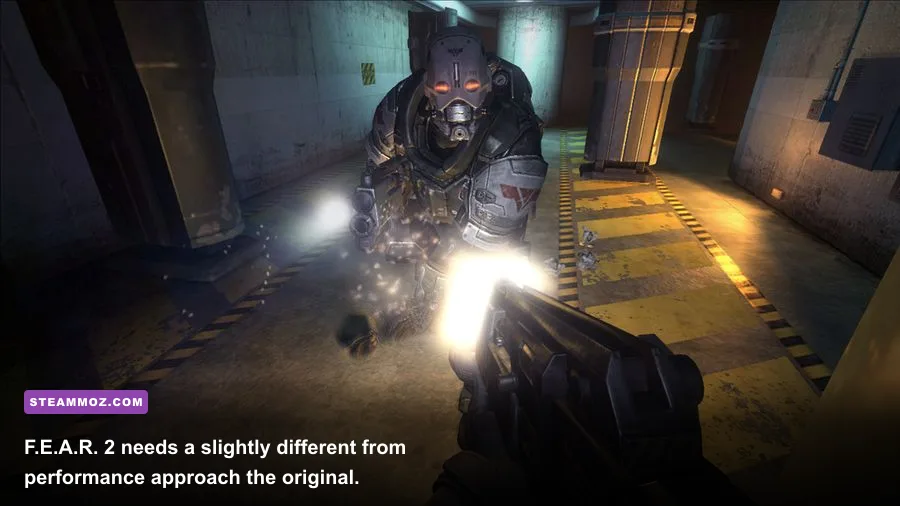
F.E.A.R. 2: Project Origin is newer and generally easier to run, but it can still suffer from sudden drops during explosions, mech sequences, and heavily scripted hallway transitions. Start with 1080p, High textures, Medium shadows, and a 60 FPS cap. If the frame rate collapses during combat, lower shadows and ambient effects before textures. Texture quality usually affects video memory more than raw CPU performance.
| Symptom | Most Likely Cause | First Test | Next Step |
|---|---|---|---|
| Crash before menu | Broken config or overlay hook | Rename config folder and disable overlays | Test administrator permission. |
| Black screen after launch | Invalid resolution or fullscreen mode | Use Alt+Enter and reset resolution | Test windowed mode. |
| Low FPS in smoke | Soft shadows or volumetric effects | Lower shadows and volumetric lighting | Cap at 60 FPS. |
| Regular micro-stutter | Frame limiter conflict or shader cache | Use one limiter and disable overlays | Test DXVK or dgVoodoo2 separately. |
| Save-related crash | Folder permission or security block | Check Windows Security history | Allow the executable specifically. |
F.E.A.R. 2’s motion blur can be reduced or disabled if camera movement feels smeared, but do not confuse visual blur with performance stutter. Test by standing still and watching frame times during a scripted event. If the counter says 60 FPS but the image visibly judders, the limiter or synchronization path is the issue. If the counter plunges to the 20s during explosions, reduce effects and shadows.
F.E.A.R. 2: Reborn is a short standalone campaign using the same broad technology, but its launch behavior can differ from Project Origin. Apply changes to its own executable and configuration files. Do not copy a working Project Origin config blindly into Reborn’s folder.
A Reliable Order of Operations
You do not need to reinstall Windows or buy a new graphics card to fix this collection. Use this sequence and stop when the problem disappears:
- Verify the game files in Steam.
- Back up and rename the configuration folder.
- Launch at 1920x1080 with default graphics.
- Disable every overlay, recording tool, injector, and frame counter.
- Set V-Sync on and cap the game at 60 FPS.
- Test a complete firefight in the original F.E.A.R. or a demanding F.E.A.R. 2 section.
- Lower Soft Shadows, volumetric lighting, and antialiasing if FPS still drops.
- Try fullscreen, borderless, and windowed modes separately.
- Only then test Windows compatibility settings, DXVK, or dgVoodoo2.
- Restore overlays and enhancements individually after stability is confirmed.
Keep notes as you go. “It crashed less” is not enough information when you are changing a driver, wrapper, refresh rate, and graphics preset simultaneously. A clean baseline gives you a dependable answer. If a compatibility layer helps the original F.E.A.R. but damages Extraction Point, keep it installed only for the game that needs it.
For more practical PC troubleshooting, Steamoz’s guide to PC fixes that stop crashes and rescue FPS covers broader Windows checks. Our Barotrauma performance settings guide also explains why frame pacing matters more than headline average FPS. If you want another tense survival shooter after F.E.A.R., see our recommendations for Amnesia: The Dark Descent and games like Hunt: Showdown 1896.
The winning setup is deliberately boring: native files, a clean config, no overlay pile-up, sensible shadows, and a stable cap. Once the original F.E.A.R. runs smoothly through a full Replica firefight, you can safely increase resolution, add widescreen support, or experiment with DXVK. Get the foundation right first, and Alma Wade can go back to being the only thing ruining your night.