For the best Barotrauma performance, use fullscreen at your monitor’s native resolution, disable VSync if you’re chasing maximum FPS, lower lighting quality and particle density first, then turn off post-processing effects such as bloom and chromatic aberration. Keep textures at High unless you’re short on VRAM. Barotrauma is often CPU-limited by submarine simulation, physics, AI, and multiplayer activity, so a sensible frame cap and stable frame times can feel better than a wildly fluctuating 200 FPS.
That last point is easy to miss. Barotrauma isn’t a twitch shooter where every setting scales neatly with resolution. A crowded outpost, a flooding submarine, several fires, and a swarm of creatures can hammer the CPU even when your GPU is barely working. The profile below targets smooth play on mid-range gaming PCs while preserving the visual detail that makes Europa’s depths worth fearing.
If you’re also tuning other demanding PC games, our guides to Genesis Noir performance settings and Glorkian Warrior frame-rate tweaks cover the same frame-time-first approach.

The best Barotrauma graphics profile for maximum FPS
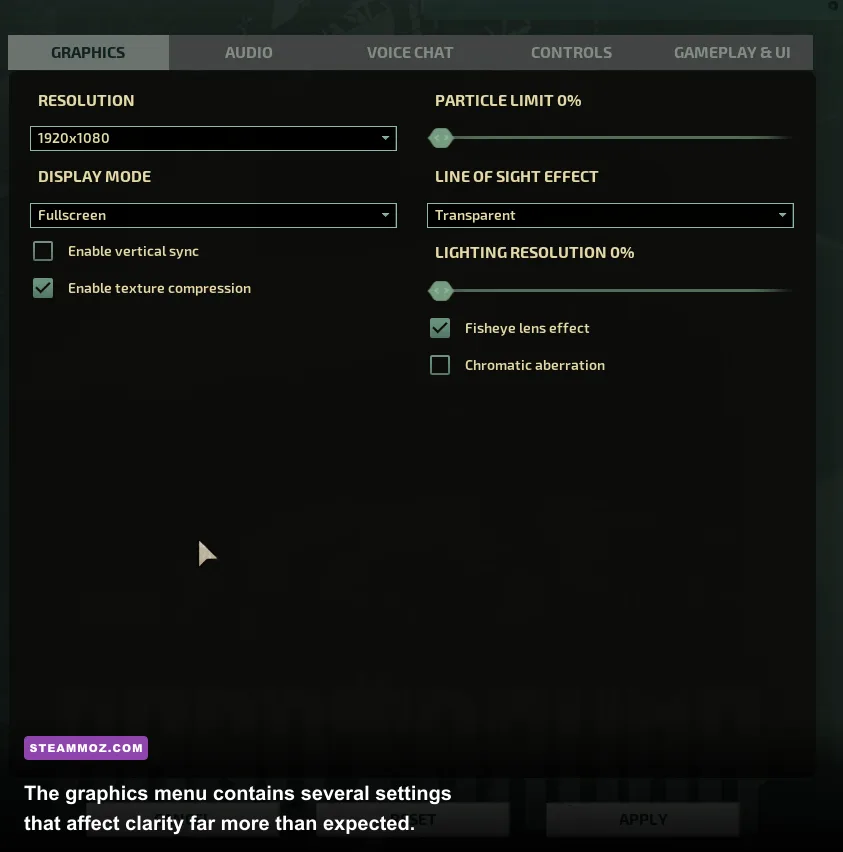
Start by changing the options below from the in-game Settings menu. Exact FPS gains depend on your CPU, GPU, resolution, submarine size, mod list, and whether you’re hosting. The impact ratings describe typical GPU pressure rather than guaranteed numbers. Your biggest win usually comes from reducing lighting and effects, not from making the entire game blurry.
| Setting | Recommended value | FPS impact | Visual trade-off |
|---|---|---|---|
| Display mode | Fullscreen | Low to medium | Can reduce desktop compositor overhead and improve frame pacing |
| Resolution | Native; lower to 1920×1080 only if needed | Medium to very high | Lower resolution softens UI and submarine details |
| VSync | Off for maximum FPS; on for tearing-free play | Low | Off may introduce tearing during camera movement |
| Texture quality | High, or Medium below 4 GB VRAM | Low | Lower values make walls, suits, and creatures look softer |
| Lighting quality | Low or Medium | High | Less dramatic shadows and lighting gradients |
| Particle quality | Low to Medium | Medium to high | Fewer sparks, smoke effects, bubbles, and debris |
| Post-processing | Off for maximum FPS | Medium | Removes some screen-space effects and atmosphere |
| Bloom | Off | Low to medium | Bright lights lose their soft glow |
| Chromatic aberration | Off | Low | Cleaner image with less color fringing |
| Texture filtering | 8x or 16x | Very low | Keeps surfaces sharper at an angle |
| Frame limit | Refresh rate minus 2 or 3 FPS | Improves consistency | Caps peak FPS to reduce heat and spikes |
Keep texture filtering high because it’s one of the rare settings that improves image quality without usually costing meaningful performance. Texture quality is also a poor first target unless your graphics card is running out of VRAM. Lowering it won’t solve a CPU bottleneck caused by dozens of characters, fluid updates, fires, and physics objects.
Three profiles worth saving
For a 1080p gaming PC with a modern four- or six-core processor, use native resolution, High textures, Medium lighting, Medium particles, and disabled post-processing. That’s the balanced profile. It keeps the submarine readable without turning every cave into a flat black box.
For an older laptop or integrated graphics, use 1280×720 or 1600×900, Low lighting, Low particles, Low textures, and disabled post-processing. Keep the interface at a comfortable resolution if possible; Barotrauma’s small medical readouts and wiring labels become frustrating when the image is scaled too far down.
For a high-end desktop, native 1440p or 4K is viable, but don’t assume the GPU guarantees smoothness. Use High textures, High lighting, and Medium particles first. If the game dips during a large breach, lower particles and lighting before destroying image quality with a low resolution.
🎮 Barotrauma
Looking to experience this game? Grab your digital key directly on our store for $17.49.
View on Steammoz Store →Which settings actually cost the most FPS?
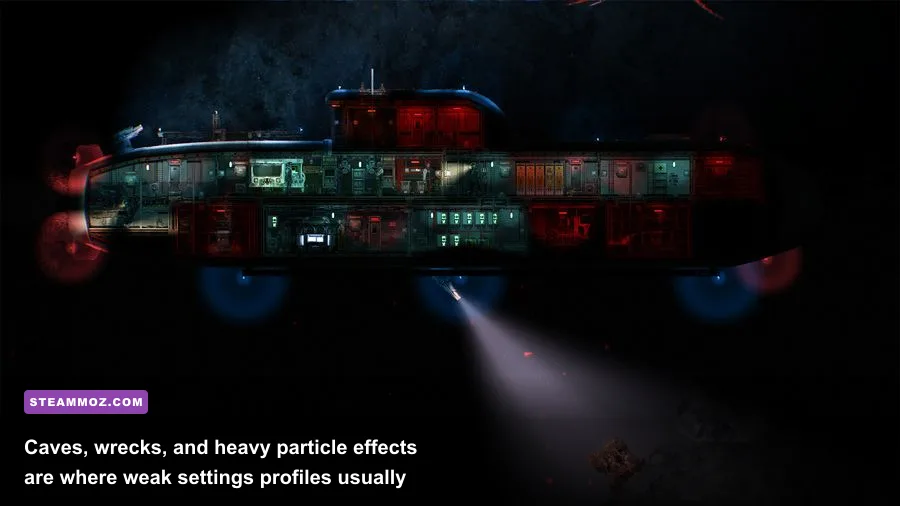
Lighting is normally the first serious GPU expense. Barotrauma layers illumination across submarine rooms, water-filled compartments, emergency lights, doors, machinery, and hostile creatures. During a normal patrol, the difference between Medium and High can look subtle. During a hull breach with alarms, electrical sparks, water simulation, and creatures on screen, it becomes much more noticeable in the frame-time graph.
Particle quality is the next practical target. It affects the visual clutter produced by smoke, fire, sparks, bubbles, blood, debris, and other effects. The setting won’t make the game look pretty at Low, but it can prevent the sudden stutter that happens when a reactor room catches fire while a mudraptor is chewing through the airlock.
Post-processing is worth disabling even if the raw FPS gain seems modest. Bloom can make lamps and warning lights look excellent, but it adds another layer over a game that already has plenty of screen activity. Chromatic aberration is mostly a style effect; turning it off gives you a cleaner view of creatures and damage indicators.
| Performance problem | First setting to change | Second change | Why it helps |
|---|---|---|---|
| GPU usage near 100% | Lighting quality | Resolution or post-processing | Reduces lighting passes and screen effects |
| Stutters during fires and breaches | Particle quality | Lighting quality | Reduces effects spawned during emergencies |
| Low FPS in crowded outposts | Resolution only if GPU-bound | Close overlays and background apps | Outposts stress simulation and character processing |
| Low FPS while hosting multiplayer | Use a dedicated or stronger host | Reduce mod and submarine complexity | Host-side simulation can become the real bottleneck |
| Screen tearing | Enable VSync | Use a frame cap instead | Synchronizes presentation or limits inconsistent output |
| Blurry image at native resolution | Raise textures | Raise texture filtering | Improves surface detail without a major effect cost |
Don’t blindly drop every option to Low. The game’s readability matters. Low lighting can hide flooded rooms, disconnected wires, and creatures swimming outside the hull. Medium lighting with Low particles is often a better competitive survival profile than Low lighting with flashy effects still enabled.
Why Barotrauma can lag even at low resolution
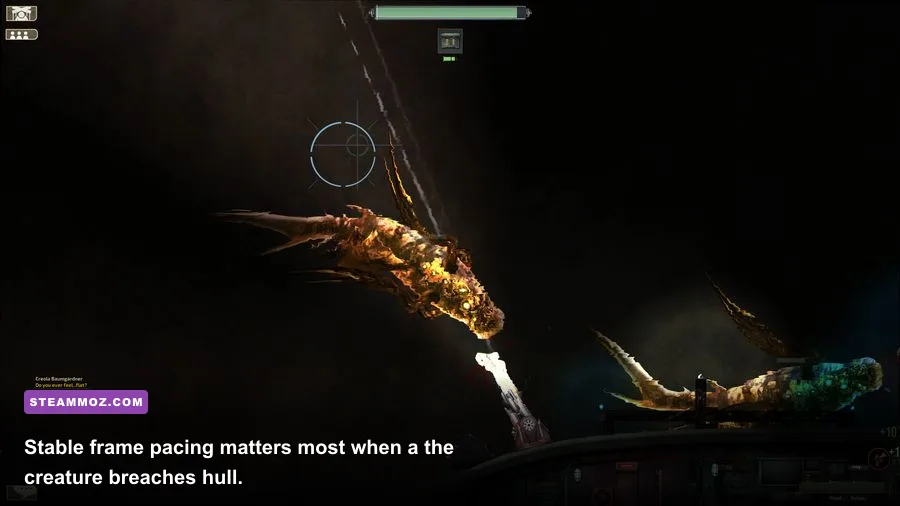
If lowering resolution barely changes your FPS, your GPU probably isn’t the problem. Barotrauma simulates a remarkable amount of submarine activity: water pressure, room flooding, fires, electrical systems, doors, items, characters, AI navigation, weapons, and creature behavior. Large custom submarines and heavily modded campaigns add even more entities for the game to track.
Hosting makes this more obvious. The host handles the server simulation while also rendering the game, so a powerful graphics card won’t rescue a weak or overloaded processor. In multiplayer, a dip that feels like graphics lag may actually be simulation delay or network synchronization. Watch whether the frame rate falls only when the crew creates chaos, or whether the entire image remains smooth while actions and creatures update late.
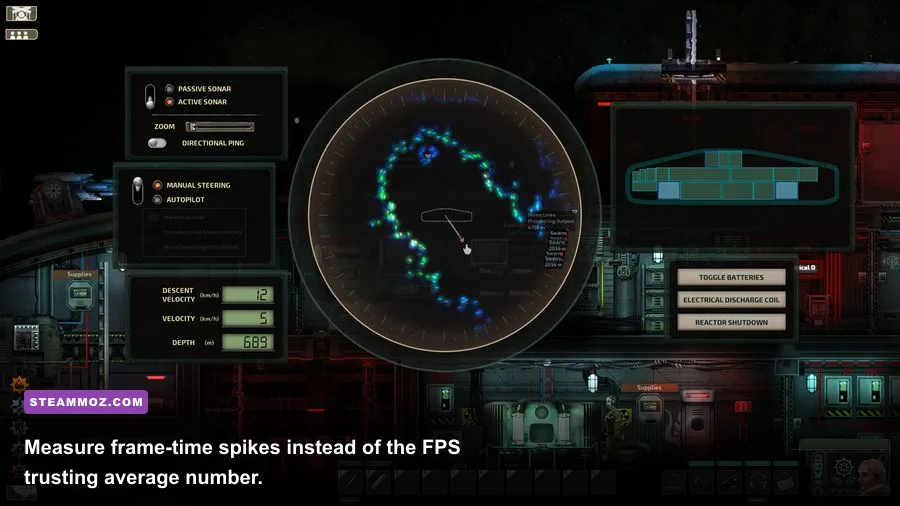
Use the in-game performance readout if available, plus Steam’s overlay or a tool such as MSI Afterburner. Check GPU utilization, CPU utilization per core, RAM, VRAM, and frame time. A flat 16.6 ms frame time means roughly 60 FPS; sudden jumps to 50 or 100 ms are the stutters you feel as hitching, even if the displayed average says 90 FPS.
Host-side fixes that graphics settings can’t solve
- Close browser tabs, recording software, launchers, and RGB utilities before hosting.
- Use a wired connection where possible; this won’t increase local FPS, but it reduces multiplayer confusion caused by packet loss.
- Test the campaign with fewer large submarines and fewer creature-heavy mods.
- Keep background Windows power modes from forcing the CPU into an aggressive low-power state.
- Install Barotrauma on an SSD if you experience long pauses while loading levels or campaign areas.
- Ask another player to host the same session. If the problem follows the host, the bottleneck is probably simulation or connection quality.
Barotrauma’s official Steam page lists the developer’s current system requirements, but treat them as a starting point rather than a guarantee for a heavily modded campaign. The minimum target can run the game; it doesn’t promise smooth performance during a reactor disaster with a full crew.
Best resolution, VSync, and frame cap choices
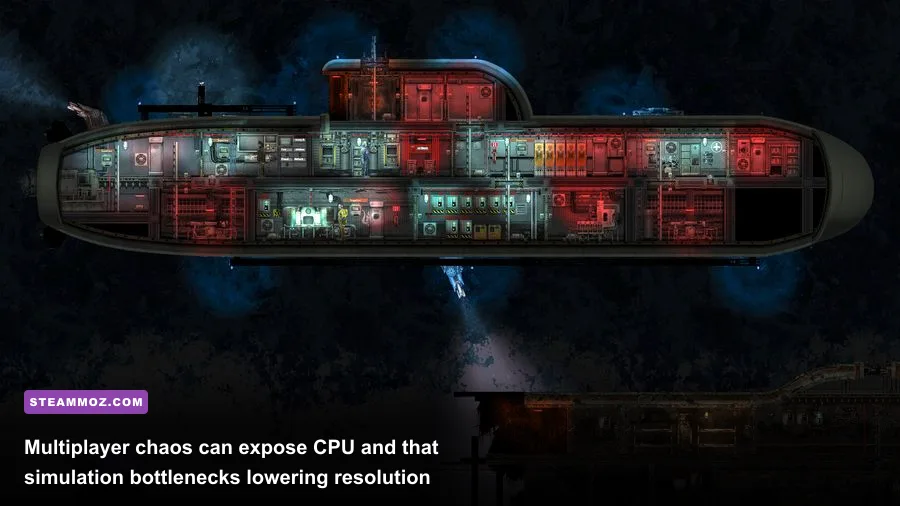
Native resolution is the right default because Barotrauma relies on compact text, wiring diagrams, inventory icons, and small status effects. If you need more performance, step down one resolution tier rather than jumping straight to a blurry 720p image. At 1440p, try 1920×1080. At 4K, try 2560×1440. Those changes preserve a much cleaner interface than extreme scaling.
VSync is a personal trade-off. Turn it off if your priority is the lowest possible input latency and you can tolerate tearing. Turn it on if horizontal tearing across the submarine walls distracts you. If your monitor supports FreeSync or G-SYNC, enable adaptive sync and cap the game a few frames below the refresh rate. A 144 Hz display, for example, usually feels excellent around 141 FPS if your system can hold it.
Barotrauma doesn’t benefit much from rendering frames your monitor can’t display. A stable 60 FPS cap is perfectly sensible on a 60 Hz screen, especially when it keeps the CPU cooler and leaves headroom for unexpected flooding, AI activity, and particle bursts. Competitive reaction speed matters less here than seeing a door, pump, or creature update consistently.
| Monitor | Recommended target | VSync/adaptive sync | Best use case |
|---|---|---|---|
| 60 Hz | 60 FPS | VSync on or adaptive sync | Stable campaign and co-op play |
| 75 Hz | 72–75 FPS | Adaptive sync preferred | Smooth budget monitor setup |
| 120 Hz | 117–120 FPS | Adaptive sync with a cap | Low-latency controls on a strong PC |
| 144 Hz | 141 FPS | Adaptive sync recommended | High-refresh desktop gaming |
| 165 Hz | 162 FPS | Adaptive sync recommended | Maximum smoothness if CPU limits allow it |
When testing, use the same route and repeat the same stress event. Walk through the engine room, trigger a pump, open and close ballast tanks, and fight a creature near the airlock. Random campaign events make casual comparisons unreliable.
Windows, driver, and mod tweaks for smoother campaigns
Update your GPU driver, but don’t treat driver updates as magic FPS potions. The biggest practical improvements come from removing conflicts and keeping the game’s workload predictable. Disable unnecessary overlays from Discord, GeForce Experience, Xbox Game Bar, and recording tools while testing. They can introduce hooks, background capture, or frame-time spikes.
Use the Windows power mode that keeps your processor and graphics card responsive. On laptops, plug in the charger and confirm Barotrauma is using the dedicated GPU rather than integrated graphics. Windows graphics settings can assign the executable to the high-performance GPU, which is useful when the laptop silently chooses the low-power chip.
Mods deserve special attention. A massive submarine with dozens of interactive devices, custom wiring systems, extra NPCs, and visual effects can perform worse than the vanilla campaign at the same resolution. Test a clean profile with mods disabled, then re-enable them in groups. If performance collapses after one workshop collection returns, you’ve found a better lead than endlessly lowering texture quality.
Keep an eye on the game’s official Barotrauma website and official wiki for updates, feature documentation, and campaign information. Multiplayer patches can change how a specific problem behaves, so old optimization advice isn’t always reliable after a major update.
A clean testing routine
- Restart the game after changing several graphics options.
- Test vanilla single-player first, using the same submarine and route.
- Record average FPS and the worst frame-time spikes, not just the peak number.
- Change one expensive setting at a time, beginning with lighting and particles.
- Test multiplayer hosting separately from joining another player’s server.
- Re-enable mods one collection at a time and note which submarine or creature pack causes trouble.
This process also helps separate three problems that players often lump together: low FPS, stutter, and network delay. They feel similar in a flooded corridor, but they need different solutions.
The final max-FPS setup for Barotrauma
For the strongest all-purpose result, set fullscreen, native resolution, VSync off, High textures, 8x or 16x filtering, Low or Medium lighting, Low or Medium particles, and all optional post-processing effects off. Cap FPS to your display if you want clean frame pacing. Use Medium lighting instead of Low when dark rooms become hard to read; survival information is more valuable than a small benchmark gain.
If you still see drops, check GPU usage before touching resolution. Near-100% GPU usage points toward lighting, post-processing, particles, or resolution. Low GPU usage alongside a collapsing frame rate points toward CPU simulation, hosting, a large submarine, mods, or background software. That diagnosis saves you from making the game look worse while the real bottleneck remains untouched.
Barotrauma rewards a stable machine more than a flashy one. A locked 60 or 120 FPS, clear lighting, restrained particles, and a clean mod setup will make floods, fires, coilgun fights, and creature attacks easier to read. For additional PC troubleshooting ideas, see our guide to fixing crashes and stutters and our breakdown of which PC settings actually matter.
Start with the balanced profile, measure a stressful breach, and only then chase more frames. In Barotrauma, the best performance setting is the one that keeps every pump, warning light, and monster movement readable when the submarine starts coming apart.