If Hunt: Showdown 1896 crashes during Biatatá’s Still Waters Run Deep or sinks below a playable frame rate, start with a clean DX12 setup, verify the game files, clear shader caches, and lower GPU-heavy options rather than blindly dropping every setting to Low. The biggest wins usually come from disabling hardware-accelerated overlays, using a sensible FSR mode, reducing shadow and fog quality, and checking whether your CPU is holding back the CryEngine simulation.
The timing matters. Hunt’s 1896 upgrade moved the game to a more demanding CryEngine presentation, and event content such as Biatatá can make long sessions, dense compounds, water, foliage, and weather effects expose problems that were less obvious before. A crash after an update is often a damaged shader or configuration file; a steady 45–65 FPS is more likely a CPU, GPU, VRAM, or settings problem. Treat those symptoms differently.

First, separate crashes from ordinary low FPS
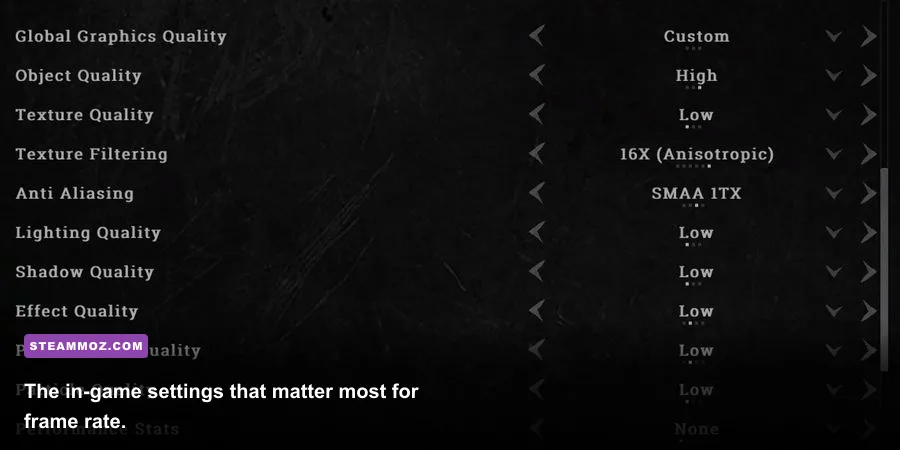
Before changing ten options at once, reproduce the problem in a controlled way. Note whether Hunt closes to desktop, freezes the entire PC, returns a driver timeout, or simply stutters when entering a compound. Capture your average FPS and 1% lows with Steam’s performance overlay, MSI Afterburner, or AMD Adrenalin. A high average with awful 1% lows feels worse than a stable lower cap, especially when a gunfight starts around Lawson Delta or a crowded boss lair.
| Symptom | Most likely cause | First fix to try |
|---|---|---|
| Crash during startup | Corrupt config, driver, or Easy Anti-Cheat issue | Verify files, reset config, then repair the driver |
| Crash after entering a match | Shader compilation, VRAM pressure, or overlay conflict | Clear shader caches and disable overlays |
| Brief freezes when turning quickly | Asset streaming or shader stutter | Use an SSD and rebuild shader caches |
| Low GPU usage with low FPS | CPU limit, background process, or power plan | Check per-core CPU load and close background apps |
| GPU pinned at 95–100 percent | Resolution, upscaling, shadows, or volumetrics | Reduce render scale, FSR, shadows, and fog quality |
Also check the obvious hardware basics. Hunt: Showdown 1896 should be installed on an SSD, not a nearly full hard drive. Keep at least 15–20 percent free space on the Windows and game drives, update Windows, and make sure your GPU is not running in a quiet or battery-saving profile. Laptop owners should test while plugged in with the dedicated GPU selected. For broader PC troubleshooting habits, our Imperiums crashing and stutter guide covers the same diagnostic workflow.
🎮 Hunt: Showdown 1896 - Biatatá - Still Waters Run Deep
Looking to experience this game? Grab your digital key directly on our store for $4.99.
View on Steammoz Store →Use this stable Hunt 1896 graphics profile
Reset Hunt’s graphics settings first, then apply the profile below. The exact FPS gain depends on your GPU and resolution, but this prioritizes frame-time consistency over flashy foliage. Start with exclusive fullscreen if it behaves correctly on your system; borderless is convenient, yet Windows’ compositor and overlays can add another variable while troubleshooting.
| Setting | Recommended value | FPS impact | Visual trade-off |
|---|---|---|---|
| Resolution | Native monitor resolution | Very high | Lower only if GPU-limited |
| Upscaling | FSR 2 Quality or Balanced | High | Balanced softens distant detail |
| Object quality | Medium | Medium | Reduces distant geometry detail |
| Texture quality | High if VRAM allows | Low to medium | Keep higher for sharper surfaces |
| Texture filtering | 16x | Very low | Improves ground and wall clarity |
| Shadow quality | Low or Medium | High | Shadows lose definition |
| Lighting quality | Medium | Medium | Less bounce and scene richness |
| Global illumination | Low or Medium | Medium to high | Dark areas look flatter |
| Fog quality | Low | Medium to high | Less atmospheric depth |
| Water quality | Low or Medium | Medium | Reflections become simpler |
| Anti-aliasing | SMAA 1X or the lowest stable option | Low | More shimmer at distance |
| Motion blur | Off | Small | Cleaner target tracking |
FSR 2 Quality is the best first test at 1080p and 1440p. Balanced can rescue a GPU that is permanently maxed out, but it may make hunters, crows, and wires look soft. Don’t lower textures first unless your VRAM is full; texture quality mostly affects memory capacity, while shadows, fog, lighting, and resolution do the heavy lifting on GPU time.
For competitive visibility, turn off motion blur and keep depth-of-field effects minimal or disabled if the menu permits it. Cap the frame rate slightly below your monitor’s refresh rate if frame pacing is erratic. A locked 90 FPS is preferable to jumping between 75 and 120 FPS, because consistent input response matters more than a high number that collapses in a firefight.
Repair crashes after Biatatá or a game update
Start with Steam’s file check: Library, right-click Hunt: Showdown 1896, Properties, Installed Files, then Verify integrity of game files. Let the process finish completely. If it replaces files, reboot before launching again. You can also consult the official Steam page for current patch notes and system requirements.
Reset the local configuration
A bad resolution, renderer setting, or leftover profile can crash before the menu appears. Close Hunt and Steam, then back up and remove the game’s local user configuration folder under your Windows user profile. The exact folder can vary by installation and account, so search for the Hunt configuration files rather than deleting unrelated Crytek folders. Re-launching will recreate defaults. You’ll lose custom graphics and keybind settings, which is why backing them up first matters.
Next, clear the DirectX shader cache through Windows Settings, System, Storage, Temporary files, or Disk Cleanup. NVIDIA users can also clear the shader cache from the NVIDIA App or Control Panel; AMD users should use Adrenalin’s reset shader cache option. The first match afterward may stutter while shaders rebuild. That is normal. Repeated crashes every time a new area loads are not.
Disable overlays for the test session: Steam Overlay, Discord, Xbox Game Bar, NVIDIA ShadowPlay, AMD recording, and MSI Afterburner’s OSD. Do the same with RGB utilities and aggressive motherboard monitoring tools. If the crash disappears, re-enable features one at a time. Hunt uses Easy Anti-Cheat, so repair it from the game’s installation folder if the launcher reports an anti-cheat failure. The official Hunt website and Crytek support portal are the right places to check for known service or patch issues.
Find the real bottleneck instead of guessing
Open a monitoring overlay and watch GPU utilization, VRAM, system RAM, CPU usage per core, temperatures, clocks, and frametime. Total CPU usage can mislead you: Hunt may show 45 percent overall while one or two game threads are saturated. That points to a CPU limit, where lowering resolution barely changes FPS. If GPU usage sits at 98 percent and VRAM is near its limit, you’re GPU- or memory-bound instead.
| Telemetry result | What it means | Adjustment | Target |
|---|---|---|---|
| GPU 98–100%, VRAM comfortable | Rendering limit | Use FSR, lower resolution, fog, and shadows | Stable frametime |
| GPU below 85%, one CPU core near 100% | CPU limit | Lower object quality, cap FPS, close background tasks | Fewer spikes |
| VRAM nearly full | Texture or resolution pressure | Lower textures one step and close GPU apps | Headroom under the limit |
| RAM above 90% | System memory contention | Close browsers and launchers; use 16 GB minimum, 32 GB preferred | Lower paging |
| Temperature or clock drops | Thermal throttling | Clean airflow and use a performance power profile | Stable clocks |
For a CPU-bound machine, lowering every visual option can make the game uglier without fixing the dip. Object quality and view distance are better tests because they reduce the amount of scene data the CPU must prepare. For a GPU-bound machine, FSR and resolution scaling are the fastest levers. If your system has only 8 GB of RAM, close Chrome, recording software, and launchers before entering a match; 16 GB is a practical floor, while 32 GB gives Hunt more breathing room during long sessions.
Driver, Windows, and launch fixes worth testing
Perform a clean GPU driver installation if the crashing began immediately after a driver update. Use the latest stable NVIDIA or AMD driver, but if the newest release coincides with the problem, roll back to the previous WHQL version. Avoid installing optional capture, broadcast, or overlay components during the test. A driver update should never be the only change you make, so record your old version before experimenting.
Set Windows power mode to Best performance while plugged in. In NVIDIA Control Panel, test Prefer maximum performance for Hunt’s profile; on AMD, use the game profile without forcing a stack of sharpening, anti-lag, or frame-generation features. Don’t combine multiple upscalers, third-party frame generation, and overlays while diagnosing crashes. Hunt’s gunplay rewards low latency, and artificial frames can make the counter look healthier without improving the feel of mouse input.
Run Steam and Hunt normally first. Administrator mode is not a universal performance fix and can create permission mismatches with overlays or anti-cheat. Remove compatibility-mode flags, custom launch commands, and old config tweaks. If you use overclocking, return the CPU, GPU, and RAM to stock settings temporarily. Hunt can expose an unstable XMP/EXPO profile that other games never touch.
Our smooth PC settings guide explains why frame pacing deserves as much attention as average FPS, while the Indoorlands stutter guide has useful shader-cache checks. If Hunt still crashes after file verification, a clean driver install, cache reset, and configuration reset, save the crash logs and submit them through the official Steam community discussions with your GPU, CPU, RAM, driver version, map, and exact crash timing.
Build a repeatable test before returning to the bayou
Don’t judge the fix from the lobby. Load the same map conditions where the issue appeared, move through a dense compound, sprint through foliage, fire several shots, and rotate the camera quickly. Record a two-minute run with the same cap and settings. Compare 1% lows and frametime, not just the headline average. If the game is stable, add visual quality back one setting at a time, starting with textures and filtering, then lighting and water.
For most players, the winning Biatatá setup is simple: install Hunt on an SSD, verify files after the event update, clear shader caches, disable overlays, use FSR 2 Quality, set shadows and fog to Low or Medium, keep textures at High when VRAM permits, and cap FPS to a number your PC can actually sustain. That won’t turn a mid-range system into a 240Hz monster, but it can stop a sudden Still Waters Run Deep crash from ruining a hunter and make every close-range fight feel dramatically more controlled.