If Hunt: Showdown 1896 - Cold Blooded is crashing or dipping into ugly low-FPS territory, start with a clean DX12 launch, verify the game files, rebuild your shader cache, and use a capped performance profile instead of maxing every setting. The biggest wins usually come from lowering GPU-heavy lighting, shadow, fog, and view-distance options while keeping textures and object quality high enough to preserve enemy visibility.
Cold Blooded-era builds can expose problems that never appeared in older Hunt installations. Hunt runs on CryEngine, and its performance swings sharply between quiet woodland, weather effects, and packed compounds such as Lawson Delta’s Blanc Brinery or Stillwater Bayou’s Healing Waters Church. A PC that feels smooth in the menu can still hitch when multiple hunters, AI, fire, water, and destructible cover enter the same fight.

Fix crashes before chasing more FPS
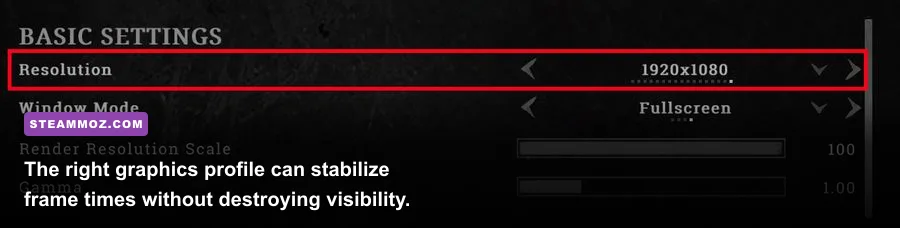
Do these steps in order. Restart the PC after step four, then test one complete match rather than judging the result from the firing range alone.
1. Verify the installation in Steam
Open Steam, right-click Hunt: Showdown 1896, choose Properties, select Installed Files, and click Verify integrity of game files. This replaces missing or corrupted files left behind by a Cold Blooded update. If Steam reports that files were reacquired, launch Hunt once before changing any graphics options.
2. Reset broken configuration files
Close Hunt and Steam completely. Back up, then remove the Hunt configuration folder from your Windows user profile under Saved Games\Crytek\Hunt if it is present. The exact folder name can vary by installation and Windows account, so copy the folder somewhere safe rather than permanently deleting it. The game will generate fresh settings on the next launch. This fixes crashes caused by an invalid resolution, old renderer flag, or graphics value carried over from a previous build.
3. Rebuild the GPU shader cache
Shader compilation stutter is common after a major renderer or driver change. In NVIDIA Control Panel, open Manage 3D settings, set Shader Cache Size to Driver Default or Unlimited, and avoid forcing an aggressive global profile. AMD users should use Adrenalin’s Reset Shader Cache option. Windows can also clear DirectX Shader Cache through Settings > System > Storage > Temporary files. Expect the first few matches to feel less consistent while shaders are rebuilt.
4. Update drivers, but avoid unnecessary overlays
Install a current WHQL NVIDIA or AMD driver, preferably with a clean installation if crashes started immediately after a driver update. Temporarily disable Discord overlay, GeForce Experience or AMD recording overlays, MSI Afterburner’s on-screen display, ReShade, and RGB monitoring tools. These aren't automatically bad, but each hooks into the renderer and can turn a minor game error into a desktop crash.
5. Remove unstable overclocks
Return the GPU, CPU, and RAM to stock settings while testing. Hunt can expose marginal undervolts that survive synthetic benchmarks but fail during shader compilation or heavy compound scenes. If you use XMP or EXPO, keep it only if the system is stable in other games; otherwise test with the memory profile disabled.
For official troubleshooting and current notices, check the Crytek support portal and the Hunt: Showdown 1896 Steam page. If the crash is accompanied by a driver timeout, black screen, or full system reboot, treat it as a stability problem rather than a normal Hunt bug.

🎮 Hunt: Showdown 1896 - Cold Blooded
Looking to experience this game? Grab your digital key directly on our store for $5.99.
View on Steammoz Store →Use this Cold Blooded graphics profile first
Don't begin by lowering everything to Low. Textures and object quality affect how clearly you read a hunter against foliage, fences, and dark interiors, while several lighting settings cost far more frames than they add visual detail. The profile below targets a stable 60-100 FPS range on a modern mid-range PC. Your exact result depends on resolution, CPU, and GPU.
| Setting | Recommended Value | FPS Impact | Visual Note |
|---|---|---|---|
| Resolution | Native 1080p or 1440p | Very High | Use native output first; reduce render scale only as a last resort. |
| Upscaling | DLSS Quality or FSR 2 Quality | High gain | Quality mode improves GPU headroom with limited blur. |
| Object Quality | Medium-High | Medium | Preserves useful geometry and distant compound detail. |
| Texture Quality | High, matching VRAM | Low FPS cost | Lower only if VRAM is full or texture streaming stutters. |
| Texture Filtering | 8x or 16x | Very Low | Keeps ground and roof textures readable at angles. |
| Shadow Quality | Low-Medium | High | Large performance win; shadows remain useful for movement clues. |
| Lighting Quality | Low | High | Reduces expensive dynamic lighting in interiors and compounds. |
| Global Illumination | Low | High | One of the first options to cut when GPU usage is pinned. |
| Fog Quality | Low-Medium | Medium-High | Helps during weather-heavy scenes without making the world flat. |
| Anti-Aliasing | SMAA 1TX or low preset | Medium | Avoid stacking expensive AA with high render scale. |
| Motion Blur | Off | Negligible | Sharper target tracking during quick turns. |
| V-Sync | Off for testing | Variable | Use a frame cap or VRR after confirming stability. |
DLSS is generally the cleaner option on supported NVIDIA RTX cards. Set it to Quality at 1440p or Balanced only if the GPU still sits near 99 percent usage. FSR 2 Quality is a useful alternative on AMD and older NVIDIA cards, but inspect foliage and distant windows for shimmering. Don't combine an aggressive upscaler with a very low internal resolution; enemies can become soft silhouettes, which is a terrible trade in Hunt.
Find out whether your CPU or GPU is the problem
Enable an on-screen monitor such as MSI Afterburner and watch GPU usage, VRAM, system RAM, CPU threads, temperatures, and frame time. Average FPS hides the real problem. A steady 60 FPS with 16-millisecond frame times feels far better than 100 FPS that repeatedly spikes to 40 milliseconds.
| Symptom | Likely Bottleneck | First Change | What Not to Do |
|---|---|---|---|
| GPU stays at 95-99% | Graphics card or resolution | Use DLSS/FSR Quality; lower lighting and fog. | Lower textures first unless VRAM is saturated. |
| GPU is below 80%, one CPU thread is maxed | CPU or game-thread limit | Lower object quality, view distance, and background load. | Expect lower resolution to fix the dip. |
| VRAM reaches the limit | Texture streaming pressure | Drop textures one step and close browser tabs. | Keep raising texture quality because average FPS looks fine. |
| RAM usage exceeds 14-16GB | Memory pressure or background apps | Close launchers, browsers, and capture software. | Use a huge page file as a performance fix. |
| Frame time spikes during new areas | Shader or asset streaming | Rebuild shader cache and allow a few warm-up matches. | Keep reinstalling the entire game. |
On a six-core processor such as the Intel Core i5-10400 or Ryzen 5 3600, a locked 60 FPS target is often more satisfying than chasing 120 FPS in every compound. Faster CPUs help minimums, but Hunt's heavy scenes can still produce short spikes. Cap the game slightly below your monitor's refresh rate—58 FPS for a 60Hz display, શ્ર? no, use 117 FPS for 120Hz—to give the frame queue breathing room. Keep the cap consistent rather than changing it every match.
Stop stutters caused by Windows and background software
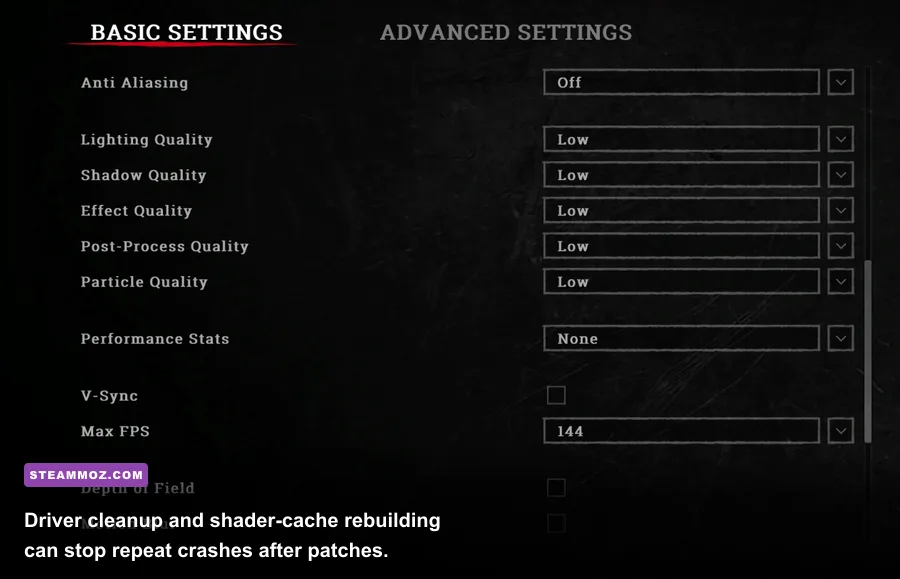
Set Hunt's Windows executable to High performance under Settings > System > Display > Graphics. On Windows 11, test Optimizations for windowed games and disable it only if borderless mode produces unusual hitching. Fullscreen can reduce interference, but borderless is convenient for streaming and alt-tabbing; choose the mode that produces the lower frame-time variance on your machine.
Install Hunt on an SSD with at least 20-30GB of free space. A nearly full SATA SSD can stream assets more slowly, while a hard drive is especially prone to traversal hitching. Pause cloud-sync utilities and large downloads during testing. Also check that Windows Defender isn't repeatedly scanning the game directory during every update; don't permanently disable protection, but use a trusted, targeted exclusion only if you understand the security trade-off.
If the game crashes after changing the display mode, launch it with Steam's Verify integrity process and reset the local configuration rather than repeatedly forcing Alt+Enter. For broader troubleshooting habits, our guides to fixing crashes and low FPS and isolating PC stutters cover the same driver, cache, and background-process checks in more detail.
Build a stable test routine after every patch
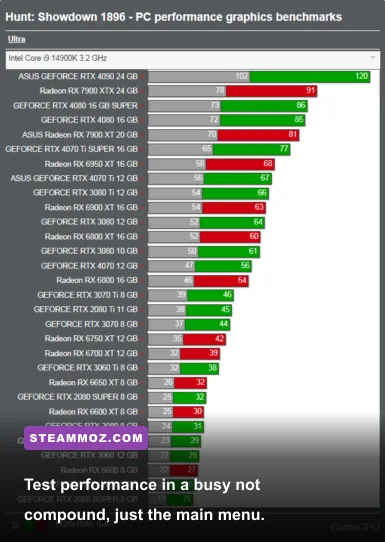
After applying changes, don't judge Hunt from the menu or a quiet corner of the training area. Load into a real match and deliberately test three scenarios: a dense compound, a long sightline across open terrain, and an interior with fire, lanterns, or heavy weather. Record the minimum FPS and frame-time behavior for each. If only one scene collapses, lower the setting that affects that scene instead of sacrificing the whole image.
A reliable order of operations
- Set native resolution, Quality upscaling, textures on High, and the remaining profile above.
- Play one full match with overlays disabled and stock hardware settings.
- If GPU-bound, lower Global Illumination, Lighting, Fog, then Shadow Quality.
- If CPU-bound, lower Object Quality and view-distance options, then cap FPS.
- If hitching remains, clear the shader cache and test again after several minutes of play.
- If crashes continue, reset configuration, verify files, perform a clean driver install, and test without overclocks.
Keep a note of every change. Hunt's visibility is part of its competitive balance, so the lowest possible preset isn't automatically the best preset. High textures, sensible object detail, low dynamic lighting, and a stable frame cap usually produce a clearer and more dependable Cold Blooded experience than a flashy Ultra profile with unpredictable dips.
For more graphics-focused tuning, see Steamoz's PC settings breakdown, frame-time optimization guide, and smooth-performance checklist. Finally, monitor Crytek's official Hunt news and Steam announcements after Cold Blooded patches; a sudden crash affecting many players may need a developer hotfix rather than another graphics tweak.