Glorkian Warrior: The Trials of Glork is light enough to run at high frame rates on almost any modern PC, but the best performance setup is not about lowering every slider. The smart profile is native resolution, fullscreen or borderless fullscreen, VSync enabled when tearing appears, and every available visual option left at its highest value. If you encounter stutter, the real fixes are usually disabling overlays, checking the display mode, limiting background applications, and making sure the game is using the correct monitor refresh rate.
That sounds simple, but it matters because Glorkian Warrior is a deliberately compact PC game. This is a colorful 2D platform shooter built around quick movement, jump timing, projectile placement, and the strange comic-book energy of the Glorkian universe. It does not offer the sprawling graphics menu found in a modern 3D release. You should not expect separate texture, shadow, ambient occlusion, volumetric lighting, or ray-tracing controls. Most of the performance gains come from configuring the game and Windows correctly rather than sacrificing image quality.
This guide focuses on Glorkian Warrior: The Trials of Glork best graphics settings for max FPS and performance, including a sensible high-FPS preset, a low-end-PC profile, troubleshooting for stutter and input delay, and the display settings that preserve the game's sharp 2D art. For reference, check the game's official Steam page before troubleshooting installation or controller issues.
Best Glorkian Warrior graphics settings for maximum FPS
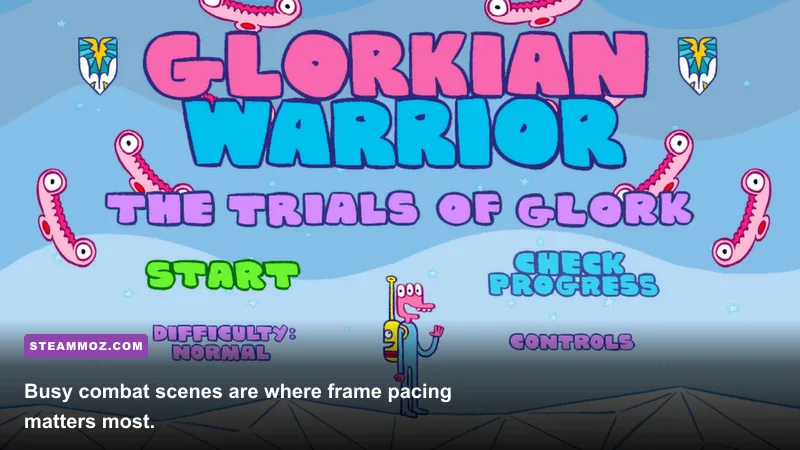
The first thing to understand is that there is no dramatic “potato mode” hiding inside Glorkian Warrior. Its visual load is tiny compared with a current 3D shooter. The game’s hand-drawn characters, flat backgrounds, sprites, and projectile effects are not likely to stress a recent desktop GPU. On older laptops, integrated graphics, or handheld PCs, however, the wrong fullscreen mode, an aggressive frame limiter, or a conflicting overlay can still create uneven frame pacing.
Start with the highest-quality profile below. It keeps the art intact and gives the game the best chance of presenting consistent motion. Native resolution means the display resolution currently selected for your monitor, such as 1920×1080 on a typical desktop screen or 1280×800 on a Steam Deck. If the game exposes a smaller resolution list, choose the closest 16:9 or native option rather than forcing a stretched image.
| Setting | Recommended Value | FPS Impact | Visual Note |
|---|---|---|---|
| Display Mode | Fullscreen | Low | Usually gives the cleanest presentation and fewer desktop-compositor variables. |
| Resolution | Native display resolution | Low | Preserves crisp sprites and avoids blurry scaling. |
| VSync | On if tearing appears | Low to moderate | Removes tearing, but may add a small amount of input latency. |
| Frame Limit | 60 FPS or display refresh target | None | A stable cap is preferable to a constantly fluctuating maximum. |
| Anti-Aliasing | Highest available or default | Minimal | Little reason to disable it in this 2D presentation. |
| Effects | High or default | Minimal | Preserves projectile flashes and combat readability. |
| Post-Processing | High or default | Minimal | Disable only if a specific system exhibits stutter. |
| Texture Quality | Highest available | Negligible | Sprite textures are not a serious VRAM burden. |
Why a 60 FPS target is the sensible baseline
Glorkian Warrior does not need a 144 FPS target to feel responsive. A locked 60 FPS gives jump arcs, enemy movement, and weapon timing a predictable rhythm. That consistency is more valuable than seeing an unstable counter bounce between 90 and 200 FPS. If your monitor runs at 120Hz or 144Hz and the game behaves correctly at that refresh rate, you can test a higher cap, but do not assume a bigger number automatically improves the game.
There is also a practical reason to avoid chasing extreme frame rates: older 2D games can behave oddly when forced far beyond their intended timing. Menus may run too quickly, animation can look uneven, or input can feel inconsistent even though the FPS counter looks impressive. If you notice strange speed or timing after uncapping the game, return to a 60 FPS limit and enable VSync.
Fullscreen versus borderless fullscreen
Exclusive fullscreen is the first option to test when you want maximum performance. It gives the game direct control over the display surface and can reduce interference from desktop notifications, browser video, and capture tools. Borderless fullscreen is more convenient for switching applications, but Windows may handle it through a presentation path that adds latency or inconsistent frame delivery on some machines.
That is not a universal rule. On newer versions of Windows, fullscreen optimizations can make borderless performance effectively identical. If fullscreen causes black screens, incorrect scaling, or a monitor switch every time you launch, borderless is perfectly acceptable. The important point is to compare frame pacing, not just the peak FPS number.

🎮 FORM
Looking to experience this game? Grab your digital key directly on our store for $14.99.
View on Steammoz Store →Best low-end PC and Steam Deck performance profile
Glorkian Warrior is friendly to low-end hardware, so your first move should not be dropping resolution. Reducing a 2D game below native resolution often makes the art soft without producing a meaningful performance gain. Instead, close background processes, remove overlay conflicts, and use a stable frame cap. On a weak laptop, those changes can matter more than lowering a setting that barely uses the GPU.
For a low-end PC, begin with fullscreen, native resolution, VSync off, and a 60 FPS cap if the game or your driver provides one. Use this combination when tearing is not distracting and input response is your priority. If tearing becomes obvious during horizontal movement, turn VSync on. Since the game is not rendering a huge 3D scene, the latency difference should be modest on most systems.
| Hardware Situation | Resolution | Sync Profile | Expected Goal |
|---|---|---|---|
| Modern desktop GPU | Native | VSync off with a stable external cap | High headroom and low latency. |
| Older integrated graphics | Native first; reduce one step only if needed | VSync on if tearing is severe | Consistent 60 FPS presentation. |
| Older laptop with background load | Native or 1600×900 equivalent | 60 FPS cap | Stable frame pacing over peak FPS. |
| Steam Deck handheld mode | 1280×800 native | 60 FPS or 40 FPS cap | Lower power use without damaging image quality. |
| Very old office PC | One step below native | VSync on, conservative cap | Playable motion with reduced scaling cost. |
Steam Deck recommendations
On Steam Deck, native 1280×800 is the obvious starting point. Glorkian Warrior’s 2D artwork looks clean at the panel’s native resolution, and there is little reason to sacrifice sharpness. A 60 FPS cap should be easy for the hardware. If you are trying to extend battery life, a 40 FPS limit paired with a 40Hz display mode is a better compromise than allowing the game to render hundreds of unnecessary frames.
Do not stack several limiters without a reason. The SteamOS frame limiter, an in-game cap, and a driver-level limiter can fight over frame delivery and make controls feel less direct. Test one method at a time. If you use the Steam Deck’s Performance overlay, watch frame time and power draw rather than obsessing over an oversized FPS number. A flat 60 or 40 is what you want.
Older integrated graphics and memory pressure
Integrated GPUs borrow system memory, so a browser with many tabs, video playback, or a launcher downloading files can cause sudden hitching. Close those applications before blaming the game. Windows power mode also matters: “Best performance” can prevent the CPU from dropping clocks during quick bursts of gameplay, while battery-saver modes may produce inconsistent frame times.
If native resolution still stutters, lower the resolution by one step and keep the rest of the profile unchanged. Do not immediately disable every effect. The game’s effects are part of its visual language, and removing them can make shots and impact feedback less readable while delivering no measurable improvement on hardware that is actually CPU- or overlay-limited.
How to fix stutter, tearing, input delay, and crashes
Performance problems in Glorkian Warrior are more likely to come from compatibility than raw rendering power. The symptoms can look similar, though. Tearing appears as a horizontal split during movement. Stutter feels like uneven jumps even when the FPS counter remains high. Input delay makes Glork respond late, especially when VSync and multiple frame limiters are active. Crashes often point toward overlays, corrupted files, display-mode problems, or old compatibility assumptions.
Use this troubleshooting order
1. Verify the installation. Open Steam, right-click the game, choose Properties, then Installed Files and “Verify integrity of game files.” This is the cleanest first step after a crash, missing asset, or failed update. It does not erase save data, and it can replace a damaged executable or resource file.
2. Disable overlays temporarily. Turn off Steam Overlay, Discord Overlay, Xbox Game Bar, AMD Radeon overlay, NVIDIA overlay, and third-party monitoring tools one at a time. Overlay hooks are useful for modern games, but older titles can react badly to capture layers or injected performance counters. If the problem disappears, re-enable tools individually to identify the offender.
3. Test display modes. Switch from fullscreen to borderless, or the other way around. A black screen or instant crash at launch can be tied to a stored resolution that your monitor no longer supports. If the game has a configuration file, back it up before editing it. Never delete random files from the installation folder without knowing whether they contain saves or settings.
4. Check the refresh-rate path. Set Windows to the monitor’s intended refresh rate before launching. A 60Hz desktop combined with a 144Hz game profile can produce confusing results, especially if VSync is active. For a simple setup, use 60Hz and a 60 FPS target first. Once the game is stable, experiment with higher refresh rates.
5. Use compatibility tools carefully. Run the game directly from Steam, update Windows and your graphics driver, and test compatibility options only if the normal path fails. Disabling fullscreen optimizations or forcing a legacy compatibility mode can fix one machine and break another. Treat these as diagnostic steps, not mandatory performance tweaks.
| Symptom | Most Likely Cause | First Fix | What to Avoid |
|---|---|---|---|
| Horizontal tearing | VSync disabled | Enable VSync or use a synchronized cap. | Running an uncapped game on a mismatched refresh rate. |
| Short recurring hitches | Overlay, background task, or frame-limit conflict | Disable overlays and use one limiter. | Stacking three separate FPS caps. |
| Delayed controls | VSync queueing frames | Test VSync off with a stable 60 FPS cap. | Judging responsiveness from peak FPS alone. |
| Black screen | Invalid display mode or fullscreen conflict | Switch to borderless and restore native resolution. | Forcing unsupported refresh rates. |
| Crash on launch | Corrupt files or overlay injection | Verify files and disable overlays. | Deleting configuration files before making a backup. |
For more general PC stutter advice, Steamoz’s guide to crashes, stutters, and low FPS covers the same diagnostic principles in a more demanding game. The key lesson applies here too: identify whether the issue is rendering, frame pacing, or an external program before changing graphics quality.
Performance settings that preserve Glorkian Warrior’s art
The temptation with an older game is to make it look “cleaner” through forced driver settings. That can backfire. Glorkian Warrior’s visual appeal comes from its bold outlines, saturated colors, comic timing, and readable character silhouettes. Driver-level sharpening, forced anti-aliasing, or unusual scaling filters may make edges shimmer or soften the deliberately illustrated look.
Keep scaling sharp
Use integer scaling if your graphics driver or display supports it and the game is rendering at a lower internal resolution. Integer scaling enlarges pixels by whole-number steps, preserving hard edges. If integer scaling creates large borders, use the display’s aspect-ratio-preserving mode rather than stretching the image across an ultrawide screen. Stretching can make movement look wider and sprites appear distorted.
On a 1080p monitor, native 1920×1080 is preferable when available. On a 1440p display, a clean 1280×720 or 1920×1080 presentation may look better than an awkward custom resolution, depending on how the game scales its artwork. Try each option for a minute in a busy combat scene. The best choice is the one that keeps outlines stable while maintaining consistent frame delivery.
Do not chase invisible gains
Disabling texture filtering, reducing color quality, or forcing low driver settings is unlikely to improve performance meaningfully in this title. Those options can introduce banding, blurry sprites, or unexpected color changes. Likewise, setting the game to “High performance” in a GPU control panel is harmless in most cases, but it will not turn a 30 FPS machine into a 144 FPS one. If the game is already GPU-light, the bottleneck is elsewhere.
Use the same disciplined approach you would use for another older PC release. Steamoz’s Dungeon Tycoon settings guide and Fly Corp PC settings breakdown both make the important distinction between visual quality and frame pacing. Lowering settings only helps when the hardware is actually limited by that setting.
Recommended final profiles
| Profile | Core Settings | Best For | Trade-Off |
|---|---|---|---|
| Quality 60 | Native resolution, fullscreen, VSync on, high/default effects | Most PCs and tear-free play. | Slightly higher input latency than VSync off. |
| Low-Latency 60 | Native resolution, fullscreen, VSync off, single 60 FPS cap | Players who prioritize immediate controls. | Possible tearing on unsynchronized displays. |
| Low-End Stable | One-step-lower resolution, fullscreen, VSync on, 60 FPS cap | Older integrated graphics and busy laptops. | Softer image with little loss of gameplay clarity. |
| Steam Deck Battery | 1280×800, 40 FPS cap, 40Hz display mode | Longer handheld sessions. | Less fluid than a locked 60 FPS presentation. |
My recommended starting point is the Quality 60 profile. It respects the art, avoids needless compromises, and should be comfortable for almost every system capable of running the game through Steam. Move to Low-Latency 60 only if you can clearly feel VSync delay, and use Low-End Stable only after confirming that background processes and overlays are not the real cause of your drops.
Finally, remember that performance is only part of the experience. The game’s frantic rooms, platforming routes, enemy waves, and weapon-focused combat are much easier to read when the frame rate is consistent. You can find more retro-PC recommendations in Steamoz’s forgotten FPS coverage and weapon-focused guide archive. For Glorkian Warrior, the winning performance setup is refreshingly uncomplicated: keep the resolution sharp, cap the frame rate sensibly, remove software conflicts, and let the colorful 2D design do the heavy lifting.