Back Then should run comfortably on a modern mid-range gaming PC, but its cinematic presentation makes the official recommended specification the safer target. The listed minimum is an Intel Core i5-8400 or AMD Ryzen 5 2600, 8 GB of RAM, and a GTX 1060 6 GB or Radeon RX 580. For the best experience, aim for an Intel Core i7-9700 or Ryzen 7 3700X, 16 GB of memory, and an RTX 2070 or Radeon RX 5700 XT, with 20 GB of free storage and DirectX 12 support.
That hardware guidance matters because Back Then is not a twitch shooter where a brief dip from 60 fps is merely annoying. It is a slow, atmospheric narrative adventure built around dense rooms, cinematic camera work, volumetric lighting, and detailed memory sequences. Stutters can interrupt a dramatic reveal just as effectively as a bad audio mix. Here’s what each specification really means, which parts are non-negotiable, and where you can trim visual quality without wrecking the mood.
Back Then minimum and recommended specs
The table below reflects the PC requirements published for Back Then on its official Steam page. The minimum tier is best understood as a 1080p entry point with compromises, not a guarantee of locked performance in every scene.
| Component | Minimum | Recommended | What it affects |
|---|---|---|---|
| Operating system | Windows 10 64-bit | Windows 10 64-bit | Driver compatibility and DirectX support |
| Processor | Intel Core i5-8400 / AMD Ryzen 5 2600 | Intel Core i7-9700 / AMD Ryzen 7 3700X | World streaming, frame pacing, background simulation |
| Memory | 8 GB RAM | 16 GB RAM | Loading headroom and reduced hitching |
| Graphics card | GeForce GTX 1060 6 GB / Radeon RX 580 | GeForce RTX 2070 / Radeon RX 5700 XT | Resolution, shadows, effects, and lighting quality |
| DirectX | Version 12 | Version 12 | Rendering API and modern GPU features |
| Storage | 20 GB available | 20 GB available | Installation space and patch headroom |
The processor recommendations are fairly revealing. Back Then’s minimum CPU is not ancient, and that tells you the game expects a reasonably modern desktop even before the graphics card enters the conversation. An i5-8400 and Ryzen 5 2600 both offer six physical cores, which is a much better baseline than older four-core chips such as the i5-4590.
Do not treat 8 GB of RAM as a comfortable target. Windows, Steam, browser tabs, and graphics drivers can consume a sizeable chunk before the game launches. If your system has only 8 GB, close background applications and expect more pronounced loading hitches. The recommended 16 GB is the specification that gives Back Then room to breathe.

🎮 Back Then
Looking to experience this game? Grab your digital key directly on our store for $3.24.
View on Steammoz Store →What performance to expect from your hardware
Back Then’s listed requirements don’t promise a specific frame rate, so any performance estimate depends on resolution, driver version, scene complexity, and whether the game receives later patches. Still, the hardware tiers provide a useful practical forecast. A GTX 1060 or RX 580 should be treated as a 1080p low-to-medium setup, while an RTX 2070 or RX 5700 XT is a much more sensible choice for high settings.
| PC tier | Suggested target | Likely profile | Practical advice |
|---|---|---|---|
| Below minimum | GTX 1050 Ti, RX 570, older quad-core CPU | Unstable or heavily compromised | Lower resolution and test carefully before buying |
| Minimum tier | GTX 1060 6 GB or RX 580 with i5-8400/Ryzen 5 2600 | 1080p low-to-medium | Prioritize shadows, effects, and frame pacing |
| Comfortable 1080p | GTX 1660 Super, RTX 2060, RX 5600 XT | 1080p medium-to-high | Use a sensible frame cap for smoother delivery |
| Recommended tier | RTX 2070 or RX 5700 XT with 16 GB RAM | 1080p high, higher-resolution potential | Best balance for cinematic image quality |
| Modern high-end | RTX 3060 Ti or better, RX 6700 XT or better | High settings with extra resolution headroom | Raise resolution only after stabilizing frame time |
The biggest trap is confusing average fps with smooth performance. A machine can report a respectable average while still hitching whenever you enter a new memory space or trigger a heavily lit interior. That’s why an SSD is strongly preferable, even though the published storage requirement only specifies capacity. Installing the game on a hard drive may not prevent launch, but it can make streaming and loading feel noticeably rougher.
CPU limitations usually show up as uneven frame delivery rather than a dramatic drop in the average. If lowering resolution barely changes performance, your processor or memory configuration may be the bottleneck. If fps rises immediately after reducing resolution, the GPU is carrying the load. That simple test is more useful than blindly switching every option to Low.
The graphics settings worth changing first
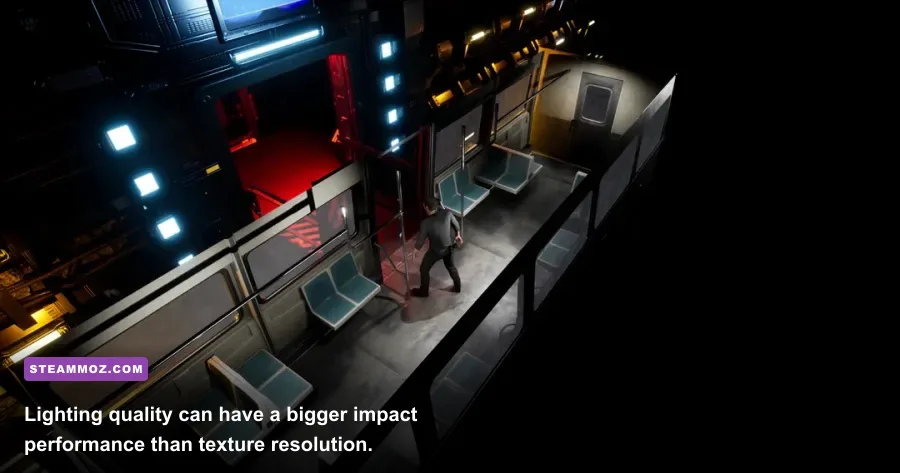
Back Then benefits from its atmosphere, so turning everything down is the wrong approach. The smart move is to protect texture detail and material quality while reducing the settings that produce expensive lighting calculations. Start with the game’s built-in presets, then adjust individual options while watching frame-time consistency rather than chasing a single peak number.
| Setting | Recommended value | FPS impact | Visual trade-off |
|---|---|---|---|
| Resolution | Native 1080p | Very high | Lowering it softens the entire image |
| Shadow quality | Medium | High | Less contact depth, but interiors remain attractive |
| Effects quality | Medium | Medium to high | Reduces costly atmospheric effects |
| Post-processing | Medium | Medium | Less bloom and cinematic softness |
| Texture quality | High if VRAM allows | Low to medium | Preserves surfaces, furniture, and environmental detail |
| View distance | High | Medium | Maintains detail during exploration |
| Anti-aliasing | High or default | Medium | Lower values produce distracting edges |
Shadows are the first serious performance lever. They affect every lamp, doorway, object edge, and character silhouette, so the GPU pays for them across the scene. Dropping shadows from High to Medium often delivers a better gain than lowering textures, and the visual loss is surprisingly manageable in a narrative game viewed at 1080p.
Textures work differently. They mostly consume video memory rather than raw shader power. If your graphics card has 6 GB or more of VRAM, keeping textures at High is usually the right call. If you see texture pop-in, severe hitching, or delayed surface detail, reduce textures one step and restart the game. A setting change cannot compensate for a card that is running out of VRAM.
Post-processing and effects should be adjusted after shadows. They influence bloom, haze, screen-space effects, and other cinematic touches. Medium usually preserves the intended look while removing some of the worst frame-time spikes. If you are sensitive to motion blur, disable it separately for a clearer image during camera movement.
Is 8 GB RAM enough for Back Then?
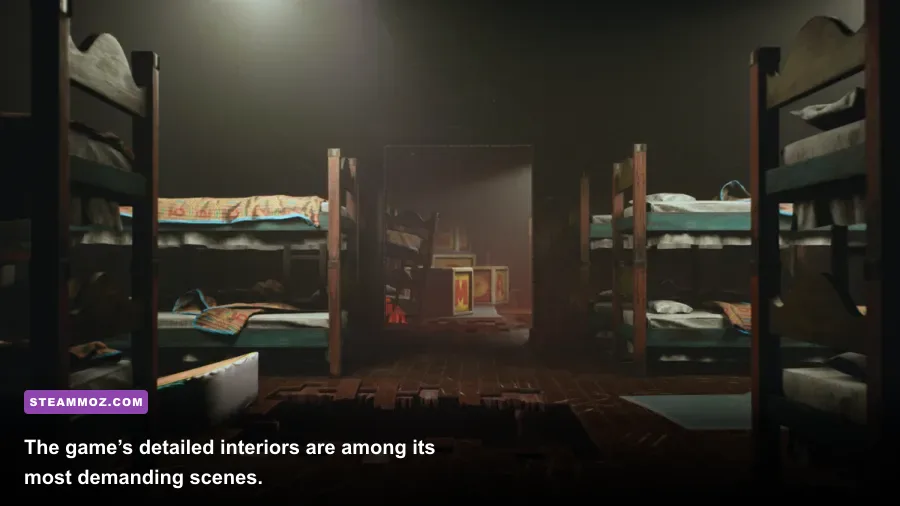
Yes, 8 GB is enough to satisfy the listed minimum, but it is not the configuration I’d choose for a clean playthrough. Back Then’s environments are designed to pull you between exploration, dialogue, and memory-driven sequences. When the operating system is already using several gigabytes, the game has less room for cached assets. That can turn a fast transition into a pause or create small hitches as you move through a detailed location.
Dual-channel memory also matters. Two 8 GB sticks are generally preferable to one 16 GB stick because the CPU receives more memory bandwidth. This won’t magically transform a weak GPU, but it can improve consistency and reduce the worst dips on minimum-tier systems. Keep your motherboard’s memory profile enabled in BIOS so the RAM runs at its advertised speed rather than a conservative default.
For storage, leave more than the stated 20 GB if possible. Game updates need temporary working space, and a nearly full SSD can perform worse than one with comfortable free capacity. If you are upgrading one component before playing, moving from a hard drive to an SSD is often more noticeable than a small GPU jump: loading is quicker, streaming is cleaner, and the whole experience feels less interrupted.
If your PC is already struggling with stutters in other Unreal Engine games, check our guide to fixing crashes, stutters, and low fps before blaming Back Then. The same basics still apply: update the GPU driver, verify the installation, disable unnecessary overlays, and give shader compilation time after a driver or game update.
Best upgrade path before you buy
If your system falls below the minimum, don’t upgrade blindly. The priority order is simple: first make sure you have a six-core processor near the i5-8400 or Ryzen 5 2600 level, then move to a graphics card with at least 6 GB of VRAM, and finally reach 16 GB of system memory. A fast GPU paired with an old quad-core CPU can still produce ugly frame-time spikes, while extra RAM cannot rescue a graphics card that is too slow for the lighting workload.
| Current problem | Best upgrade | Why it helps | What not to expect |
|---|---|---|---|
| Game fails to launch or lacks DX12 support | Modern GPU and Windows 10 64-bit | Meets the basic API requirement | It won’t fix insufficient RAM alone |
| Low fps at 1080p | Upgrade the graphics card | Improves lighting, effects, and resolution performance | CPU stutters may remain |
| Frequent loading hitches | 16 GB RAM and an SSD | Improves asset streaming headroom | It won’t raise GPU-limited averages much |
| Uneven frame pacing | Six-core CPU, dual-channel RAM, frame cap | Reduces CPU stalls and sudden spikes | Maximum fps may barely change |
Before purchasing, compare your exact hardware with the PC specification breakdown for Dungeons 3 and our broader graphics-settings guide. They cover different games, but the troubleshooting logic is the same: identify whether the GPU, CPU, memory, or storage is actually limiting you.
For the safest Back Then setup, use 16 GB RAM, install the game on an SSD, and target the recommended RTX 2070 or RX 5700 XT class of hardware. Minimum-spec PCs can play it with sensible settings, but the recommended tier is where the game’s lighting, interiors, and cinematic presentation stop feeling like compromises. Check the official Back Then website and Steam listing for the latest requirements before buying, especially if your system sits close to the minimum line.
And if you’re weighing another story-heavy PC game, Steamoz’s Dustborn review is worth a look. Back Then is a very different experience, but both games reward hardware that can maintain steady frame delivery rather than simply posting a high average fps.