If Imperiums: Greek Wars keeps crashing, freezing between turns, or dropping below a smooth frame rate, start with three fixes: verify the Steam installation, update or clean-install your GPU driver, and reduce shadows, anti-aliasing, and resolution scaling. The game’s late-campaign slowdowns are often CPU and simulation related rather than purely graphical, so lowering every setting won’t solve a turn-processing stall. The reliable approach is to separate crashes from low FPS, then tune each cause without damaging map readability.
Imperiums: Greek Wars is a demanding 4X strategy game because it constantly tracks cities, armies, diplomacy, resources, technology, and AI decisions across a living campaign. A quiet opening as Athens can feel perfectly smooth, while a crowded war involving Sparta, Macedon, Persia, and several minor factions may produce heavier turn transitions. Before changing anything, note when the problem happens: at launch, while loading a save, during camera movement, after ending a turn, or during a long AI calculation. That detail points toward a different fix.
First, identify whether it’s a crash or an FPS problem
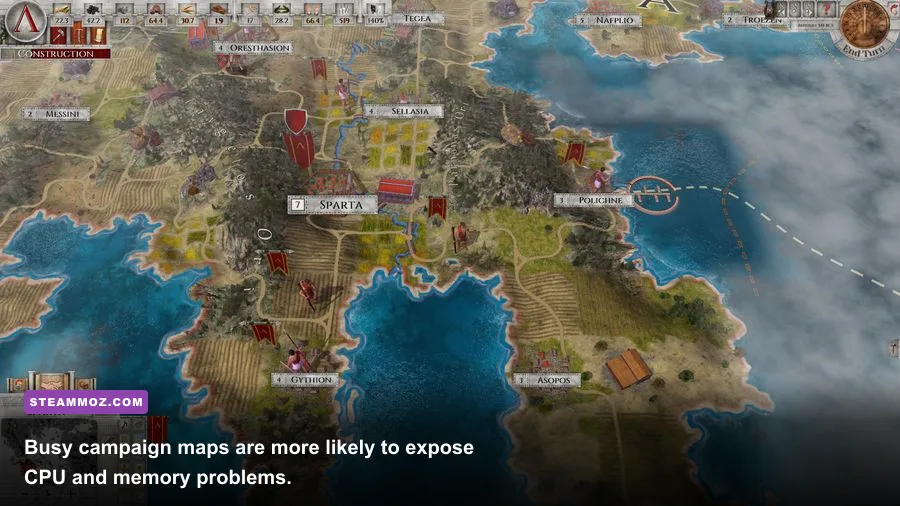
A crash to desktop usually comes from damaged files, an overlay conflict, an outdated driver, corrupted settings, or a save that became unstable after a patch. Low FPS is more commonly tied to resolution, shadows, GPU load, background applications, or a huge late-game simulation. A temporary pause during End Turn is not the same thing as a low frame rate: watch whether the cursor and camera remain responsive while the AI works.
| Symptom | Most Likely Cause | First Test | Best Starting Fix |
|---|---|---|---|
| Crash before the main menu | Driver, overlay, or damaged install | Launch with overlays disabled | Verify files and clean-install the GPU driver |
| Crash while loading one save | Save-state or mod conflict | Load an older manual save | Remove mods and test a fresh campaign |
| Low FPS while moving the camera | GPU settings or resolution | Use the low-impact profile below | Reduce shadows, AA, and resolution |
| Long End Turn pauses | CPU simulation and campaign size | Compare early and late saves | Close background tasks and use a smaller map |

🎮 Imperiums: Greek Wars
Looking to experience this game? Grab your digital key directly on our store for $8.39.
View on Steammoz Store →Stop Imperiums: Greek Wars crashing on startup
Verify the Steam installation
In Steam, right-click Imperiums: Greek Wars, open Properties, choose Installed Files, and select Verify integrity of game files. Let the process finish completely, then restart Steam. This replaces missing or altered files without deleting your campaign saves. If Steam reports that one or more files were reacquired, test the game before adding any launch options.
Do not run the executable from an old desktop shortcut if you recently changed installation folders. Start it from Steam once, because the client handles the correct runtime and cloud-save connection. If you use custom mods, reshade tools, or community overlays, temporarily move them out of the game directory. Test a new campaign rather than repeatedly loading the same crashing save; that tells you whether the installation or the save is responsible.
Disable the usual overlay troublemakers
Turn off Steam Overlay for this game, then close Discord Overlay, Xbox Game Bar, NVIDIA App or GeForce Experience overlay, AMD recording tools, MSI Afterburner’s on-screen display, and RivaTuner Statistics Server. These hooks can collide with older DirectX presentation behavior, especially when switching between fullscreen and desktop windows. Also disable HDR temporarily and use a single monitor at its native refresh rate while testing.
Next, update your graphics driver from the official NVIDIA driver page or AMD support page. Choose a clean installation when the installer offers it. Intel Arc users should likewise use the latest driver from Intel rather than Windows Update. Restart after installation; a driver update that has not been followed by a reboot can leave old components active.
Reset broken configuration files carefully
If the game crashes after changing resolution, display mode, or graphics quality, undo those changes first. Steam’s cloud synchronization can restore a bad configuration, so disable Steam Cloud temporarily, launch the game, and create fresh settings. Back up your saves before deleting or renaming any Imperiums configuration folder. Search Windows Documents, AppData\Local, and AppData\Roaming for folders named after Imperiums or Imperiums Games, but rename files rather than deleting them. This gives you a rollback if the folder contains saves as well as settings.
For Windows protection issues, add the game’s installation folder to Microsoft Defender’s exclusions only as a short diagnostic test, not as a permanent security shortcut. Also make sure Controlled Folder Access is not blocking save creation. If a fresh campaign works but an old campaign crashes, restore an earlier save and avoid loading a turn created immediately before a forced shutdown.
Best graphics settings for stable FPS
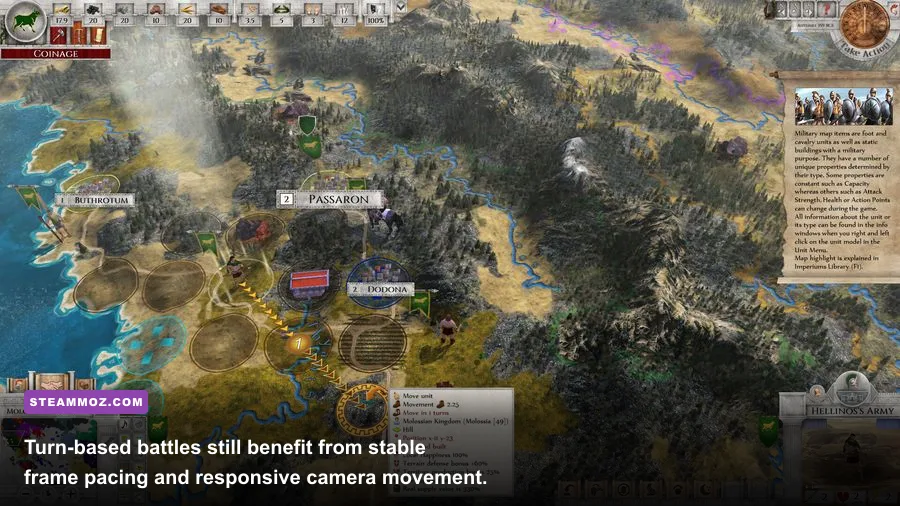
Start at your monitor’s native resolution with a frame cap that your PC can actually sustain. A locked 60 FPS feels better than bouncing between 90 and 45 FPS during camera movement. If the game offers a frame-rate limiter, use it; otherwise cap the application through your GPU control panel. VSync can remove tearing but may add latency or create a 30 FPS fallback when the system misses a refresh interval, so test it both on and off.
| Setting | Recommended Value | FPS Impact | Visual Trade-Off |
|---|---|---|---|
| Resolution | Native; drop one step only if needed | High | Lower resolution softens text and map icons |
| Shadows | Low or Medium | Medium to High | Terrain and city shading become flatter |
| Anti-aliasing | Low or Medium | Medium | Unit edges may look slightly jagged |
| Texture Quality | High if VRAM allows | Low to Medium | Lower values make terrain and buildings blurrier |
| Effects or Post Processing | Medium | Medium | Less visual polish around highlights and transitions |
| VSync | Off for testing; On if tearing bothers you | Variable | On may add input delay or cause refresh-rate drops |
| Display Mode | Borderless for stability; fullscreen for testing | Low | Borderless makes alt-tabbing easier |
Shadows and anti-aliasing are the first settings to lower because they reduce GPU work without destroying the legibility of the strategic map. Keep textures higher if your graphics card has enough VRAM; texture quality usually affects memory usage more than raw frame rate. If you play at 1440p or 4K, try 1080p as a diagnostic setting. A major improvement confirms GPU pressure, while no change suggests the bottleneck is CPU simulation or a background process.
For a sensible baseline, use native 1080p or 1440p, Medium shadows, Low or Medium anti-aliasing, High textures, Medium effects, and a 60 FPS cap. Players on integrated graphics should start at 1080p or 900p, Low shadows, Low anti-aliasing, Medium textures, and 30 or 45 FPS. The goal is consistent camera movement across the whole map, not a huge number in an empty corner of the campaign.
Fix late-game stutter and slow End Turn processing
Late-game performance is different from ordinary rendering. Every additional city, army, diplomatic relationship, trade route, and active faction gives the simulation more work. If the camera runs smoothly but End Turn takes longer after each conquest, your CPU is likely the limit. Lowering texture quality will not make AI calculations faster. Close browsers, launchers, recording software, and hardware monitoring tools, then set Windows to Best performance or use your laptop manufacturer’s performance mode while plugged in.
Check Task Manager during a slowdown. If one or more CPU cores are busy while GPU usage remains low, stop chasing graphics settings and reduce simulation pressure. Avoid leaving multiple giant campaigns running in the background, and use manual saves with clear names such as Athens_Turn_42 or Sparta_Before_War. Keeping several rotating saves protects you from both corrupted files and a campaign state that has become unusually expensive to process.
On laptops, force the game to use the dedicated NVIDIA or AMD GPU in Windows Graphics Settings. Set the power profile to maximum performance for testing, but switch back to a balanced profile if heat or battery life becomes a problem. Monitor temperatures: thermal throttling can look like random low FPS after 20 minutes, particularly on thin laptops. Dust, blocked vents, and silent fan modes are common culprits.
Use campaign testing to isolate the bottleneck
Load an early save or begin a quick new campaign, then pan across the map and end one turn. Compare that result with your problem save. Smooth early gameplay and poor late gameplay points toward simulation scale. Poor performance everywhere points toward drivers, graphics settings, thermal limits, or insufficient hardware. A brand-new campaign that crashes immediately after an update points back to files, overlays, or configuration rather than campaign complexity.
If you’re comparing older strategy games, our Airline Tycoon 2 FPS settings guide explains the same useful principle: measure camera movement separately from simulation-heavy moments. Our Dungeons 3 PC settings guide is also helpful for balancing visual quality against stable frame pacing.
Last-resort fixes that protect your saves
Before reinstalling, back up your save folder and any custom scenarios. Then uninstall through Steam, restart Windows, and reinstall to the same or a different library. Verify the fresh installation before restoring saves. If the game still crashes, publish your system details in the official Steam discussions, including GPU model, driver version, Windows version, crash location, and whether a new campaign works.
The official Imperiums: Greek Wars Steam page is the right place to check updates and current system requirements. You can also review announcements from Imperiums Games before assuming your hardware is at fault. Patch notes matter here because a change affecting AI turns, map rendering, or save compatibility can create a problem that settings alone cannot fix.
For most PCs, the winning order is simple: verify files, remove overlays, clean-install the GPU driver, reset a broken configuration, then apply the Medium-shadows and Low-to-Medium-AA profile. If only huge campaigns slow down, accept that the game is processing a larger world and focus on stable frame pacing, cooling, and rotating saves. That approach fixes genuine crashes without sacrificing the sharp city and territory detail that makes Imperiums: Greek Wars worth playing.