
If you want the highest, steadiest frame rate in Genesis Noir: The Cosmic Collection, start at your monitor’s native resolution, use exclusive fullscreen when available, disable VSync only if you have a stable 60 FPS, and lower quality before resolution. This is a lightweight narrative adventure, not a modern open-world stress test, so most PCs can target 60 FPS; the real problems are usually frame pacing, driver settings, overlays, and badly behaved borderless-window modes.
The collection’s visual identity makes optimization slightly different from tuning a realistic shooter. You’re looking at silhouette-heavy scenes, animated star fields, bloom-like highlights, particles, fog, and dramatic transitions rather than dense texture maps. That means a lower quality preset can remove atmosphere faster than expected, while dropping one resolution step often costs less than you’d think. The goal is clean motion without washing out the gorgeous black-and-white contrast.
Before changing anything, check the official Steam listing for Genesis Noir and update the game through Steam. If you’re troubleshooting a newer collection build, also compare notes with the developer’s Genesis Noir page. PC configurations can expose different Unity display behavior, especially between fullscreen, borderless, and windowed modes.
Best Genesis Noir graphics settings for maximum FPS
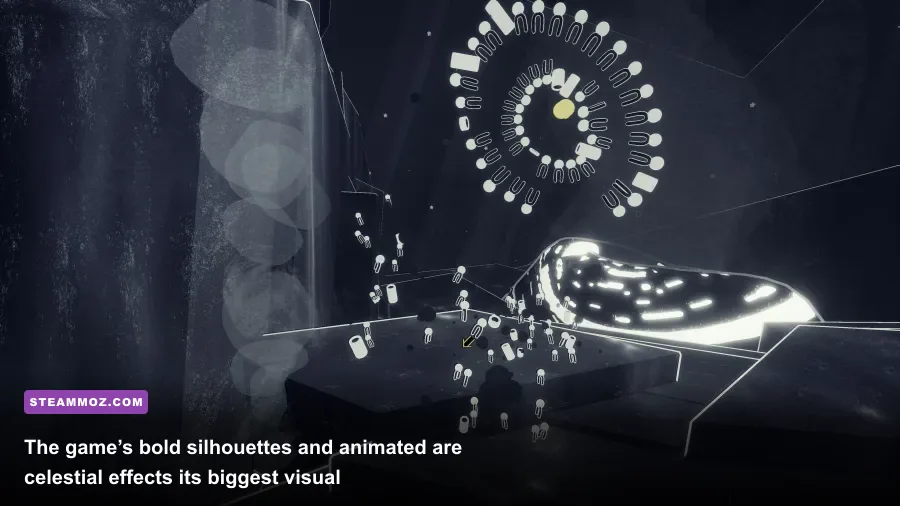
Use the profile below as your starting point. It prioritizes stable frame delivery over tiny improvements in post-processing. Genesis Noir’s scenes are composed like moving illustrations, so keeping native resolution and a clean presentation usually looks better than maxing every effect at a lower internal resolution.
| Setting | Recommended value | FPS impact | Visual note |
|---|---|---|---|
| Display mode | Exclusive fullscreen | Low to medium benefit | Usually gives steadier frame pacing and lower latency. |
| Resolution | Native monitor resolution | High if reduced | Keep native for crisp silhouettes and text; lower one step only when needed. |
| Quality preset | High, then Medium for weak GPUs | Medium | High preserves particles, lighting, and the intended cinematic contrast. |
| VSync | On for unstable systems; Off for locked 60 FPS | None directly | On removes tearing; Off reduces latency but can reveal tearing. |
| Anti-aliasing | Highest available without stutter | Low to medium | Helps diagonal silhouettes, cables, buildings, and spacecraft edges. |
| Shadows or lighting quality | Medium | Medium to high | The best first cut if cosmic effects cause dips. |
| Effects, particles, or post-processing | Medium | Medium to high | Lower this during heavy star fields and destruction sequences. |
| Texture quality | High | Low on most GPUs | Keep high unless you’re running out of VRAM. |
| Frame limit | 60 FPS | Improves consistency | A stable cap is preferable to a bouncing 90-144 FPS reading. |
Not every PC version exposes every label in exactly the same way. If your menu combines lighting, shadows, and effects into a single quality slider, set that slider to High first, then move to Medium. Don’t blindly choose Ultra if the build offers it: the gain is usually subtle, while particle-heavy scenes can become less consistent.
The best low-end profile
For integrated graphics, older laptops, or a PC that struggles during major transitions, choose 1280×720 or 1600×900 only if native resolution is too demanding, select Medium quality, turn down effects, and cap the game at 30 or 60 FPS. A locked 30 is perfectly playable for a slow investigative adventure, but 60 makes camera movement and interactive animations feel much cleaner.
🎮 FORM
Looking to experience this game? Grab your digital key directly on our store for $14.99.
View on Steammoz Store →Why resolution, VSync, and frame caps matter most
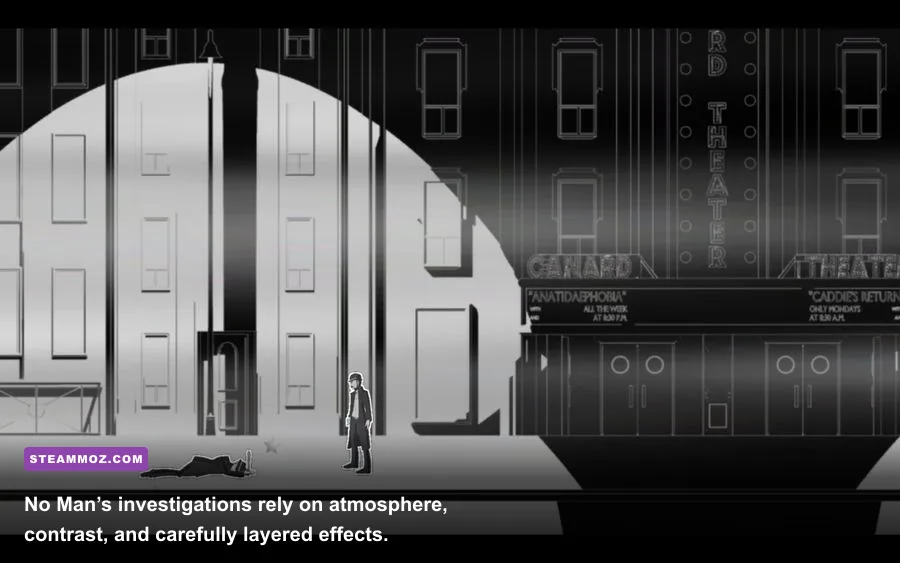
Resolution is the biggest predictable GPU lever. Moving from 2560×1440 to 1920×1080 reduces the pixel workload by roughly 44 percent, while moving from 1920×1080 to 1280×720 reduces it by roughly 56 percent. That doesn’t mean FPS rises by those exact amounts—Genesis Noir can be CPU- or effect-limited—but it explains why a single resolution step often rescues a struggling laptop.
Use your monitor’s refresh rate as the target. On a 60 Hz display, cap at 60 FPS. On a 120 Hz or 144 Hz display, you can test 120 FPS, but don’t assume the higher number improves the experience. The game’s pacing and animation design are built around deliberate cinematic movement, not competitive reactions. A perfectly even 60 FPS looks better than a fluctuating 70-110 FPS with occasional hitching.
VSync is a presentation choice, not a magic performance boost. Enable it when you see horizontal tearing or when your frame rate jumps above the monitor refresh rate. Disable it if input feels sluggish and your system can hold the target frame rate. If you have FreeSync or G-Sync, enable adaptive sync in the monitor and driver panel, cap a few frames below refresh—58 FPS for 60 Hz is a useful starting point—and test again.
| Target | Recommended cap | VSync choice | Best for |
|---|---|---|---|
| 30 FPS | 30 | On | Older integrated graphics and battery-limited laptops. |
| 60 FPS | 60 | On unless latency bothers you | Most desktop and laptop players. |
| 120 FPS | 120 | Adaptive sync preferred | High-refresh monitors with plenty of GPU headroom. |
| Uncapped | None | Off | Testing only; not recommended for consistent play. |
For more general PC troubleshooting habits, our crash-fixing checklist is useful here too: shut down overlays, verify files, and test a clean launch before blaming the game’s graphics options.
Best settings for integrated graphics and Steam Deck
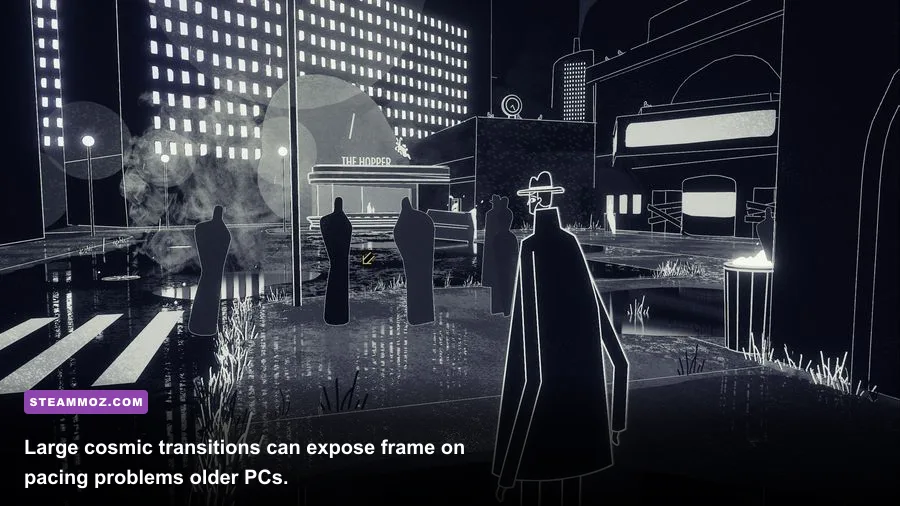
Genesis Noir is unusually friendly to modest hardware because its art direction avoids huge open environments and photorealistic materials. The Steam requirements list a Windows 7-era minimum configuration with a dual-core 2 GHz processor, 2 GB of memory, DirectX 9-compatible graphics, and around 3 GB of storage. Treat those figures as a floor for launching the game, not a guarantee of flawless 60 FPS in every modern compatibility layer.
On integrated graphics, begin at 1280×720, Medium quality, reduced effects, and a 60 FPS cap. If the frame rate is stable, raise resolution before raising effects. Resolution improves the readability of No Man’s outline and small interactive details; effects mostly add atmospheric motion. If the GPU memory meter is tight, lower textures only after effects and lighting, because texture quality typically has a smaller frame-rate impact in this game.
On Steam Deck, 1280×800 is the native panel resolution. Start with Medium quality, a 60 FPS cap, and VSync enabled. If battery life matters more than perfectly fluid animation, a 40 FPS cap at 40 Hz is a strong compromise: it feels considerably smoother than 30 while using less power than 60. Avoid stacking the game’s VSync with an aggressive external limiter until you test frame pacing; two caps can create uneven delivery.
The same rule applies to a handheld PC at 1080p. Don’t chase Ultra simply because the game appears visually simple. Its moving fog, particle bursts, and celestial transitions can be more expensive than a quiet dialogue scene. Test the busiest chapter or transition you’ve reached, not the opening menu.
How to diagnose stutter, tearing, and sudden FPS drops
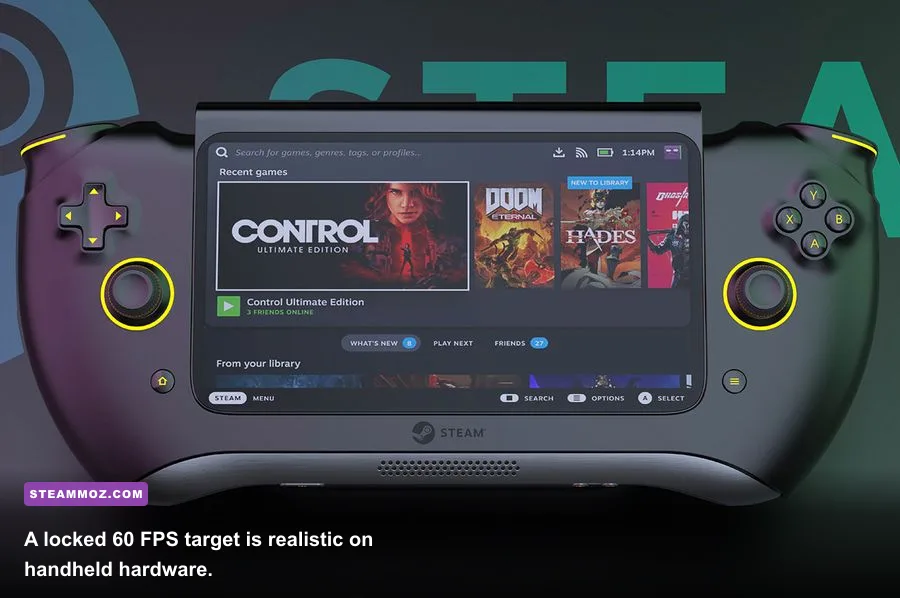
First, separate a low average frame rate from a hitch. A low average means the GPU or CPU cannot render quickly enough; a hitch means something interrupts rendering for a moment. Steam shader processing, background recording, cloud synchronization, antivirus scans, and overlays can all produce a single-frame or multi-frame pause that a graphics preset won’t fix.
Use this five-minute troubleshooting order
- Restart the game after changing display mode. Some Unity-based games apply fullscreen changes imperfectly until the next launch.
- Verify the installation. Open Steam’s Properties menu, choose Installed Files, and run Verify integrity of game files.
- Disable overlays. Test Steam Overlay, Discord, Xbox Game Bar, AMD recording, Nvidia Instant Replay, and MSI Afterburner’s overlay one at a time.
- Watch GPU usage and frame time. GPU usage near 95-100 percent points to resolution, lighting, or effects. Low GPU usage with stutters points more toward CPU scheduling, background tasks, or frame pacing.
- Cap the frame rate. Try 60, then 30 if the system cannot hold 60. Consistency is the fix, not an uncapped counter.
If tearing remains with VSync off, enable it temporarily to confirm the diagnosis. If VSync introduces noticeable delay, use adaptive sync or a driver-level limiter. Also check that the game is using the dedicated GPU on a laptop. Windows Graphics settings can assign an application to High performance, while Nvidia and AMD control panels offer their own per-game GPU selection.
Don’t use third-party “optimization” launch commands unless you know what they change. For comparison, our articles on PC hardware headroom and graphics bottlenecks explain why a larger-looking game can behave differently from a stylized Unity title.
The final max-performance profile to use
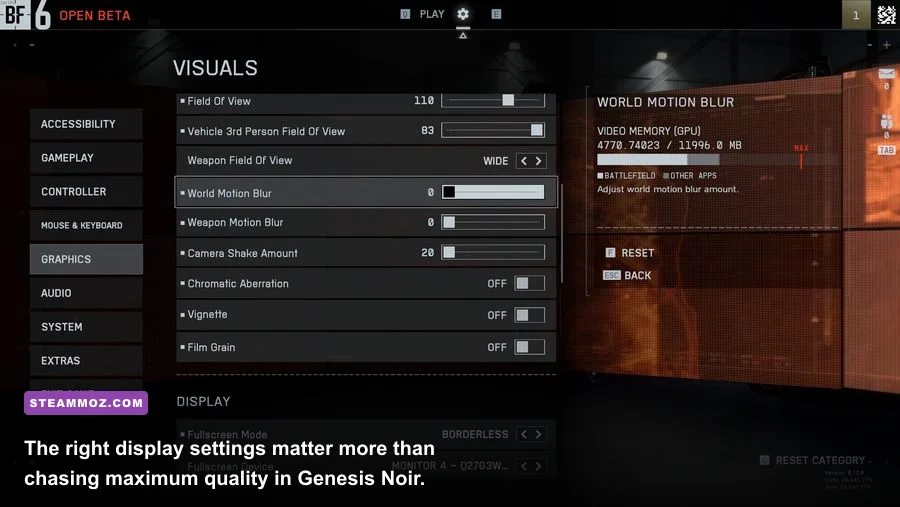
For most desktop PCs, the sweet spot is native resolution, exclusive fullscreen, High quality, High textures, Medium lighting or effects if available, VSync On, and a locked 60 FPS. That profile keeps Genesis Noir’s sharp monochrome composition intact while avoiding needless rendering overhead. If you’re below 60, lower effects first, then lighting, then resolution. Leave textures alone unless VRAM usage is the problem.
| Hardware tier | Resolution | Quality profile | Target |
|---|---|---|---|
| Modern discrete GPU | Native | High; effects High if stable | 60-120 FPS |
| Mainstream laptop GPU | Native or 1080p | High textures, Medium effects | 60 FPS |
| Integrated graphics | 720p to 900p | Medium, reduced effects | 30-60 FPS |
| Steam Deck | 1280×800 | Medium, VSync On | 40 or 60 FPS |
Genesis Noir isn’t a game where higher numbers automatically mean a better image. Its best moments depend on clean silhouettes, deliberate camera movement, and the contrast between empty space and sudden cosmic motion. Lock the frame rate, protect native resolution when possible, and cut effects only when performance demands it. That gives you the smoothest version of No Man’s strange journey without sanding away the visual language that makes The Cosmic Collection worth playing.
For more stylized PC recommendations, browse Steamoz’s guides to exploration-heavy adventures and indie-friendly alternatives. You can also check the publisher’s official Genesis Noir page for current platform and release information.