
If Hop Step Sing! VR Live HopSummer 2nd crashes on startup or runs at an uncomfortable frame rate, the fastest fix is to treat it as a PC VR compatibility problem: verify the Steam files, launch SteamVR before the game, lower headset render resolution to 80%, disable overlays, and test a clean OpenXR runtime. Most players don't need to rebuild their PC; they need to remove one bad layer from the VR software stack.
That stack matters because this isn't a normal flat-screen game. The application renders a stereoscopic image twice, SteamVR may upscale or supersample it, and the headset compositor has to deliver frames at your selected refresh rate. A desktop game can dip briefly to 45 FPS and recover. In VR, that same hitch can become judder, double images, or a hard crash when the compositor loses synchronization.
Start with the fixes that stop most crashes
Before changing advanced settings, close the game, unplug unnecessary USB devices, and reboot Windows. Then open Steam and work through these checks in order. The order is deliberate: it fixes corrupted files and launch conflicts before you start changing headset resolution.
- Verify the installation. In Steam, right-click Hop Step Sing! VR Live HopSummer 2nd, choose Properties, open Installed Files, and select Verify integrity of game files. Wait for Steam to finish rather than launching while it repairs anything.
- Start the runtime first. Open SteamVR, wait until the headset and controllers show as ready, and only then launch the game. Starting the title from a desktop shortcut can occasionally leave the VR runtime half-initialized.
- Use the game's intended VR mode. If Steam offers a launch choice, select the VR option rather than a non-VR or desktop mode. If you use Virtual Desktop, Air Link, or Steam Link, establish the wireless PC connection before opening SteamVR.
- Remove overlay hooks. Temporarily disable Discord overlay, Xbox Game Bar, GeForce Experience or AMD recording overlays, MSI Afterburner/RivaTuner, and RGB utilities with on-screen displays. These tools inject into the render process and are common crash triggers in small VR releases.
- Run one clean test. Disconnect a second monitor if the game crashes while creating its window, close browsers playing video, and launch with no recording software. If that works, restore your utilities one at a time to identify the offender.
Don't immediately delete every configuration file. Save any local data first, and use the developer's official Steam listing and support links for game-specific updates. A missing or incorrect Steam application URL is better than inventing a direct link that could point to the wrong edition.
| Symptom | Most likely cause | First action | What success looks like |
|---|---|---|---|
| Crash before the title screen | Broken file, overlay, or VR runtime | Verify files and launch SteamVR first | Game reaches the headset menu |
| Black screen with audio | OpenXR or display-mode conflict | Set the active runtime and remove overlays | Video appears in both eyes |
| Stutter every few seconds | Wireless streaming, USB, or shader load | Test wired or lower render scale | Frame-time graph becomes steady |
| Crash after changing settings | Bad saved resolution or refresh value | Reset the game's settings file after backing it up | Game starts at its default profile |

🎮 Hop Step Sing! VR Live HopSummer 2nd
Looking to experience this game? Grab your digital key directly on our store for $14.99.
View on Steammoz Store →Lower VR load without making the concert blurry

Low FPS in Hop Step Sing! VR Live HopSummer 2nd is usually caused by render resolution, not the game's visible window resolution. SteamVR's per-application video setting can quietly multiply the workload. For example, 120% resolution is not 20% more pixels in practice; because the scale applies across two dimensions, it can approach 44% more pixels than 100%. That is a brutal trade for a rhythm-focused VR experience.
Open SteamVR's Settings > Video, switch to a manual global resolution, then set the game's per-application resolution to 80% for your first test. Keep the headset refresh rate at 90Hz if your hardware can hold it. If the graph still spikes, use 72Hz or 80Hz temporarily. A locked, comfortable 72 FPS is better than a fluctuating 90 FPS with repeated reprojection.
| Setting | Starting value | FPS impact | Visual trade-off |
|---|---|---|---|
| SteamVR per-app resolution | 80% | Very high | Slightly softer distant details; usually acceptable in a music performance |
| Headset refresh rate | 72Hz or 80Hz | High | Less motion smoothness, but more consistent delivery |
| In-game quality | Medium, if available | Medium | Reduces effects and scene detail without cutting headset clarity |
| Mirror window resolution | 1280×720 | Low to medium | Only the desktop preview becomes softer |
| Motion smoothing | Off for testing | Variable | Removes synthetic frames while diagnosing real performance |
| SteamVR supersampling | 100% global maximum | Very high if raised | Leave sharpening to the headset or driver instead |
Make one change at a time. If GPU frame time falls but the game still feels uneven, the bottleneck may be the CPU or wireless connection. NVIDIA users can inspect SteamVR's performance graph from the desktop overlay; AMD users can use Adrenalin's metrics overlay, but turn the overlay off after testing. For broader PC tuning ideas, our guide to graphics settings for maximum FPS covers the same principle: remove expensive settings before sacrificing image quality everywhere.
Find the real bottleneck with frame-time testing
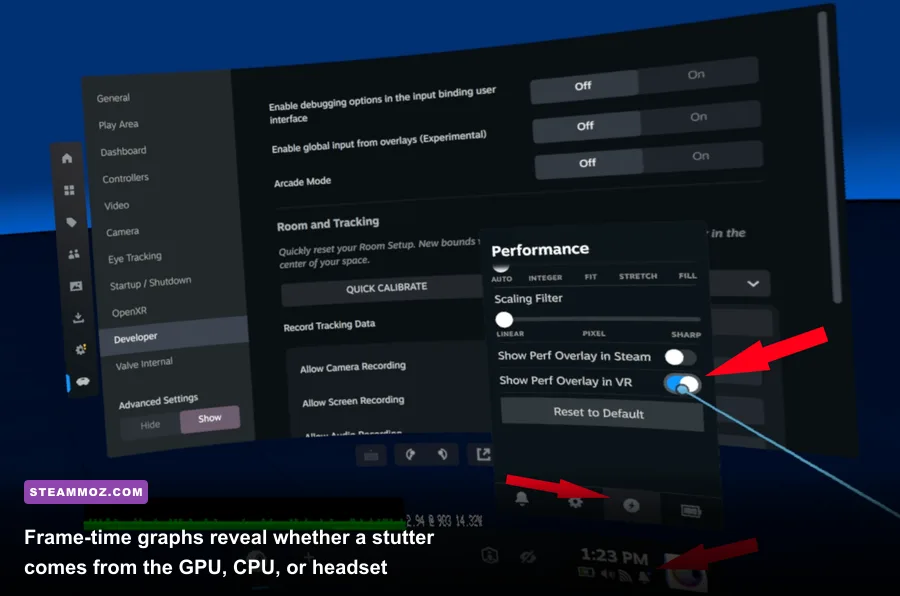
Don't diagnose VR performance by staring at the desktop FPS counter. VR needs a consistent frame budget. At 90Hz, the application has roughly 11.1 milliseconds to produce each frame. At 80Hz, that rises to 12.5ms; at 72Hz, it becomes about 13.9ms. Repeatedly missing that budget forces reprojection or creates visible judder.
GPU-bound behavior
GPU-bound stutter appears when lowering SteamVR resolution immediately improves the graph. Bright lighting, transparent effects, and a high-resolution headset can push a midrange card over its limit. Keep textures or image quality higher if possible, but reduce supersampling first. That preserves the stage's visual character better than aggressively lowering every setting.
CPU-bound behavior
If resolution changes barely help, close browser tabs, game launchers, and background scans. Check Task Manager for a single CPU core approaching 100%. Disable unnecessary startup applications and select Windows' Best performance power mode while testing. Don't use process-priority tweaks or registry cleaners; they rarely solve a VR frame-time problem and can create new instability.
Wireless-bound behavior
With Air Link, Virtual Desktop, or Steam Link, test the same scene through a wired headset connection if your hardware supports it. Use a 5GHz or Wi-Fi 6 router in the same room, connect the PC to the router by Ethernet, and avoid a congested mesh node. Wireless latency spikes can feel exactly like low FPS even when the GPU graph looks healthy.
For a quick diagnostic profile, set 80% render resolution, 72Hz, no motion smoothing, and no overlays. Play the same section for five minutes. If it is stable, raise refresh rate first, then resolution in 5% steps. This controlled approach is far more useful than changing five sliders and guessing which one helped.
Fix SteamVR, OpenXR, drivers, and USB conflicts
When file verification passes but the title still crashes, focus on the runtime. SteamVR can be installed and healthy while another application has claimed the OpenXR runtime. Open SteamVR, go to Settings > OpenXR, and choose the option that makes SteamVR the active OpenXR runtime if that option is available. If you use a headset manufacturer's runtime, test that runtime instead; the goal is one active runtime, not several competing ones.
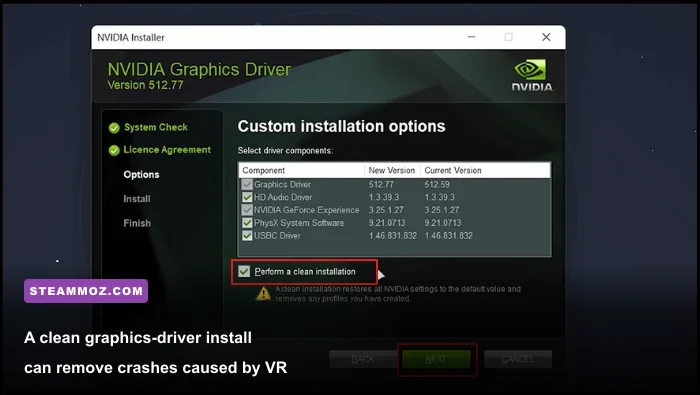
Update SteamVR through its Steam client properties and install the latest stable GPU driver from NVIDIA or AMD. If crashes began immediately after a driver update, a clean installation or rollback is worth testing. Use the manufacturer's custom installation option and avoid installing recording or overlay components during the diagnostic pass.
USB headsets deserve their own check. Move the headset cable to a rear motherboard port, avoid an unpowered hub, and disconnect unused capture devices. Windows USB power management can also interrupt a headset mid-session, particularly on laptops. Set the PC to AC power, use the manufacturer's recommended USB ports, and update chipset drivers from the motherboard or laptop maker rather than a random driver site.
For a reliable reference, consult the official SteamVR troubleshooting guidance and the SteamVR store page. If you're still getting a crash, record the exact moment: startup, headset detection, first song, or scene transition. That detail is much more valuable in a support report than simply writing “VR doesn't work.”
Build a stable profile for HopSummer 2nd
Once the game launches, resist the temptation to chase maximum sharpness. A stable profile is the right finish line for a live VR performance. Start with the values below, then increase only one setting at a time. If a change causes a crash, return to the last known-good profile instead of stacking more tweaks on top.
| Component or setting | Minimum troubleshooting target | Recommended profile | Pro-tuned profile |
|---|---|---|---|
| Headset refresh | 72Hz | 80Hz or 90Hz if stable | Native headset maximum with no missed frames |
| Render resolution | 70–80% | 80–100% | Increase until GPU frame time approaches, but does not exceed, the budget |
| Connection | Wired or dedicated Wi-Fi 6 | Ethernet PC plus nearby router | Wired headset with no USB hub |
| Overlays | All disabled | Disabled during play | Enable only one after stability is proven |
| Driver state | Clean current or known-good version | Stable WHQL driver | Test a rollback only if crashes follow an update |
Keep Steam's cloud saves enabled where supported, but back up configuration files before deleting them. If a reset is necessary, close Steam and SteamVR first, rename the game's configuration folder rather than permanently deleting it, and let the game generate a fresh profile. This gives you an easy way back if the reset doesn't help.
Finally, report reproducible crashes through the game's official Steam community hub or developer support channel with your headset model, GPU, driver version, SteamVR version, Windows version, render resolution, and whether the game was launched before or after SteamVR. For extra PC troubleshooting context, Steamoz's guide to PC fixes that actually work follows the same evidence-first approach.
The short version: verify the files, launch SteamVR first, eliminate overlays, set SteamVR to 80% resolution, test 72Hz or 80Hz, and use the frame-time graph to identify the real limit. Those steps solve the majority of Hop Step Sing! VR Live HopSummer 2nd crashing and low-FPS problems without turning the game into a blurry, over-tuned mess.