If you want the best Iratus: Lord of the Dead graphics settings for maximum FPS, start with 1080p, Fullscreen, VSync Off, Anti-Aliasing Low or Off, Shadows Low, and Effects Medium. Iratus is not a demanding game by modern standards, but its Unity presentation can still produce uneven frame times on older laptops, integrated graphics, and Steam Deck. The biggest wins come from lowering shadows, anti-aliasing, and effects—not from destroying the game’s already modest texture detail.
That distinction matters. Iratus is a turn-based dungeon crawler, so a locked 60 FPS is already more than enough for responsive menus, target selection, and combat animations. Chasing 144 FPS rarely improves the experience, while a stable frame-rate cap can make the game feel considerably smoother than an uncapped result that jumps between 48 and 100 FPS. The profiles below are built around that reality.
The Best Iratus Settings for Most PCs
Use the following profile first, then adjust only if your system still struggles. It preserves the gloomy dungeon atmosphere, readable spell effects, and sharp character portraits while cutting the options most likely to cause unnecessary GPU work.
| Setting | Recommended Value | FPS Impact | Visual Trade-Off |
|---|---|---|---|
| Display Mode | Fullscreen | Low to medium gain | Usually improves presentation consistency and reduces desktop interference |
| Resolution | 1920×1080 | Baseline | Best balance of clarity and performance |
| VSync | Off | Removes synchronization overhead | May introduce tearing on fast camera movement |
| Anti-Aliasing | Low | Medium gain on older GPUs | More jagged edges around dungeon geometry |
| Shadow Quality | Low | Medium to high gain | Less definition in environmental shadows |
| Effects Quality | Medium | Medium gain during battles | Spell and hit effects look slightly less dense |
| Texture Quality | High | Usually negligible FPS cost | Keeps portraits, props, and minions crisp |
| Post-Processing | Low or Medium | Small to medium gain | Reduced glow, bloom, and atmospheric softness |
Keep Texture Quality on High unless your graphics card has very limited VRAM. Textures are not normally the first place to look in Iratus, especially at 1080p. Lowering them can make the battlefield and character models look muddy without delivering the same performance improvement as reducing shadows or effects.
Fullscreen is worth testing rather than assuming. On some modern Windows systems, borderless or windowed presentation can perform almost identically; on older laptops, exclusive fullscreen may avoid compositing overhead. If switching modes causes a black screen or the game forgets your resolution, close Iratus and relaunch it before changing several settings at once.

🎮 FORM
Looking to experience this game? Grab your digital key directly on our store for $14.99.
View on Steammoz Store →What Each Graphics Option Actually Changes
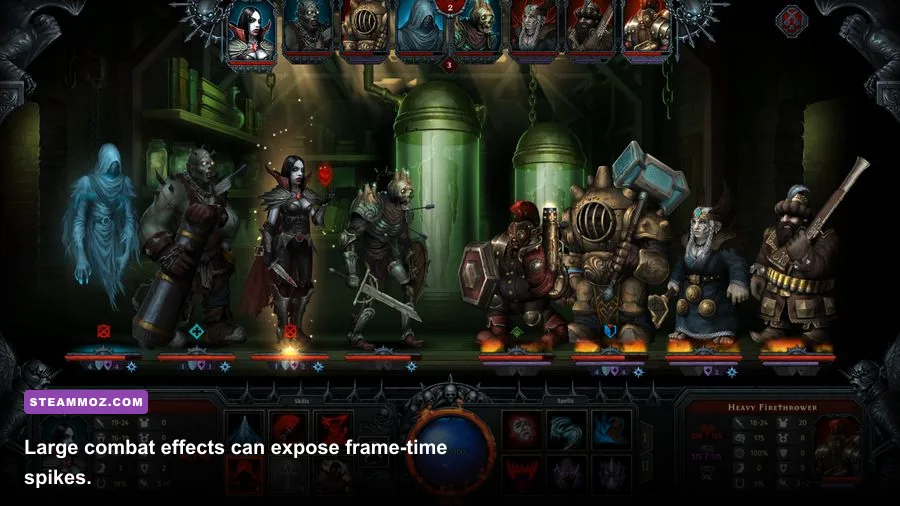
Iratus does not have the enormous graphics menu found in a current AAA release, so every setting carries more weight. The game’s visual identity comes from dark lighting, stylized undead models, dungeon scenery, and combat effects. You can lower the expensive layers without touching the features that make the game recognizable.
Resolution and display mode
Resolution is the bluntest performance lever. Moving from 1920×1080 to 1600×900 reduces the number of rendered pixels by roughly 30 percent, while 1280×720 cuts the workload by 56 percent compared with 1080p. That can rescue an integrated GPU, but it also makes Iratus’s interface and small combat details noticeably softer.
Try 1600×900 before 720p if your display supports it. The image remains reasonably clean, and the UI is easier to read. On a Steam Deck or another 1280×800 device, native resolution is the sensible starting point. Avoid forcing a 16:9 resolution that stretches the image across the Deck’s 16:10 panel.
Anti-aliasing
Anti-aliasing smooths hard edges around the dungeon, minions, and interface-adjacent 3D elements. It can be surprisingly expensive on integrated graphics because the game’s darker scenes make edge smoothing more visible. Set it to Low first. If you need every frame, Off is acceptable, particularly at 1080p where the game’s stylized art hides some jaggedness.
Shadows
Shadows are the easiest recommendation in this guide: lower them before textures. Iratus uses atmospheric lighting to sell its dungeon spaces, but shadow quality does not change combat information. Turning shadows from High to Low generally preserves the scene’s overall mood while reducing the resolution and filtering work used for environmental lighting.
Effects and post-processing
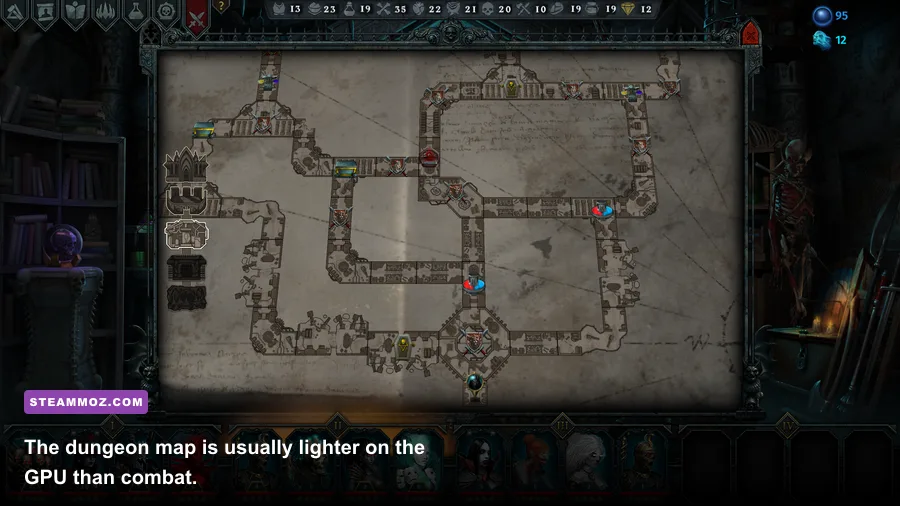
Effects quality matters most when several abilities trigger together. A battle involving minions such as the Skeleton, Lost Soul, or Dark Knight can place more animation and particle activity on screen than the dungeon map. Lower Effects to Medium if your frame-time graph spikes during attacks, critical hits, or large status-effect bursts.
Post-processing controls the finishing layer: glow, bloom, color treatment, and similar screen effects. Low makes Iratus look flatter, but it can improve clarity and reduce distracting haze. Medium is the sweet spot for most PCs. If the game feels sluggish only when spells land, lower Effects first; if the whole scene has a consistently high GPU load, lower both Effects and Post-Processing.
Textures and model detail
These settings affect image sharpness more than raw frame rate on a system with adequate VRAM. Keep them High on a discrete GPU with 2GB or more of VRAM. Drop textures to Medium only when you see hitching while loading dungeon rooms, visible texture swaps, or memory pressure in Windows. A low texture setting will not fix a CPU bottleneck.
Three Performance Profiles Worth Using
Different hardware needs different compromises. A gaming desktop should not be configured like an office laptop, and Steam Deck benefits from a locked target rather than an aggressive uncapped setup. These profiles give you a clean starting point.
| Profile | Resolution | Quality Settings | Target |
|---|---|---|---|
| Image Quality | Native, usually 1080p or higher | Textures High, Shadows High, Effects High, AA High, Post-Processing High | 60 FPS or above on a modern discrete GPU |
| Balanced | 1920×1080 | Textures High, Shadows Low, Effects Medium, AA Low, Post-Processing Medium | Locked 60 FPS on mainstream PCs |
| Low-End Rescue | 1600×900 or 1280×720 | Textures Medium, Shadows Low, Effects Low, AA Off, Post-Processing Low | Stable 30–60 FPS on integrated graphics |
| Steam Deck | 1280×800 native | Textures Medium or High, Shadows Low, Effects Medium, AA Low, VSync Off | Locked 40 or 60 FPS depending on battery preference |
For a desktop, use the Balanced profile and cap the game at 60 FPS if your driver offers a frame-rate limiter. Iratus does not need an exceptionally high refresh rate, and a cap reduces unnecessary GPU usage, fan noise, and power draw. If your monitor supports adaptive sync, you can leave VSync Off and let FreeSync or G-Sync handle presentation.
For a Steam Deck, 40 FPS at 40Hz is an excellent compromise. It feels smoother than 30 FPS, consumes less power than 60 FPS, and suits a turn-based game perfectly. Set the cap in SteamOS rather than relying on an inconsistent in-game limiter. If you prefer maximum fluidity while moving around the dungeon, use 60 FPS, but expect higher battery consumption.
On Intel UHD, Intel Iris Xe, older Radeon integrated graphics, or older GeForce laptop GPUs, start at 1600×900. If that still fails to hold your target, move to 1280×720 before lowering textures. The interface can remain readable at 900p, while 720p is best reserved for genuinely limited hardware.
How to Diagnose Stutter and Frame Drops
Average FPS does not tell the whole story. Iratus can feel smooth at 60 FPS and still hitch when entering a new room or triggering a complicated attack. Watch frame time if possible: 16.7ms equals a stable 60 FPS, 25ms equals 40 FPS, and 33.3ms equals 30 FPS. Sudden jumps are more important than a small change in the average.
Step 1: Establish a repeatable test
Use the same dungeon room, move through a few doors, and begin a fight with a full party of minions. The campaign’s combat scenes are more useful for testing than the main menu because they combine models, shadows, animations, and status effects. Repeat the test after changing one setting. Altering five options at once makes it impossible to identify the real culprit.
Step 2: Separate GPU limits from CPU limits
If lowering resolution produces a major FPS improvement, your GPU is the bottleneck. Lower Anti-Aliasing, Shadows, and Effects in that order. If lowering resolution barely changes performance, the limit may be CPU-side, caused by background processes, power-saving mode, or shader and asset loading. In that case, lowering every visual setting will not magically fix the hitch.
Step 3: Check Windows and driver behavior
Play while connected to AC power on a laptop and choose a performance-oriented Windows power mode. Close browser tabs, recording software, RGB utilities, and overlays if you are hunting for a stubborn stutter. Update the GPU driver, but avoid installing unrelated “optimizer” software that changes settings behind your back.
Steam’s file verification is useful after a crash or failed update. Open Iratus’s properties in the Steam client, find the installed-files option, and verify the game files. Also disable unnecessary overlays one at a time. The Steam overlay itself is usually harmless, but troubleshooting works best when you remove variables.
Step 4: Treat shader stutter differently
A brief hitch the first time a particular effect appears may be asset or shader compilation rather than a permanently bad graphics setting. If the same effect stutters every time, investigate drivers, background recording, and storage health. Installing the game on an SSD can shorten loading and reduce the irritation of room transitions, although it will not turn a weak GPU into a powerful one.
Settings That Won’t Improve Iratus Performance
Some popular PC tweaks are simply poor fits for this game. Lowering texture quality on a system with free VRAM is usually wasted image quality. Disabling every Windows visual feature will not compensate for running Iratus at an unnecessarily high resolution. Likewise, chasing 120 or 144 FPS can create more heat without making turn-based combat meaningfully better.
Do not use aggressive third-party launch options unless you have a specific problem to solve. Iratus is a Unity title, and random command-line flags copied from another Unity game can cause incorrect resolution behavior, broken fullscreen presentation, or unstable frame pacing. Make changes through the game’s menu first, then use your GPU control panel only for a sensible cap or adaptive-sync configuration.
For more troubleshooting ideas, our guide to BloodRayne: Terminal Cut crashing and low-FPS fixes covers the same useful basics: verify files, test overlays, update drivers, and isolate one change at a time. Our Borderlands 2 settings guide also explains why frame caps and resolution scaling are often better solutions than blindly selecting Low for everything.
The Final Max-FPS Configuration
For the broadest range of PCs, use Fullscreen at 1920×1080, VSync Off, Anti-Aliasing Low, Shadows Low, Effects Medium, Post-Processing Medium, and Textures High. Cap the output to 60 FPS. This setup protects Iratus’s grim visual style while targeting the options that actually matter during dungeon exploration and combat.
If you still drop below 60, lower Effects to Low and test 1600×900. If that is not enough, use 1280×720 and keep textures at Medium. On Steam Deck, native 1280×800 with Low shadows and a 40 FPS cap is the strongest balance between clarity, battery life, and consistent input.
Iratus is ultimately forgiving because its tactical design does not demand esports-level latency. A stable 30 FPS is playable, a stable 40 FPS feels excellent on handheld, and a locked 60 FPS is the ideal desktop target. Once those frame times are consistent, you can safely raise textures and post-processing until the dungeon looks as rich as your hardware allows.
Before changing anything else, check the official Iratus: Lord of the Dead Steam page for the current system requirements and patch information. The Unfrozen developer site is another useful reference for updates, while the publisher’s official 1C Entertainment site can help confirm release and support details. If you enjoy tuning older or lighter PC games, you may also like Steamoz’s guide to Cricket Through the Ages PC specs and settings and our analysis of Anger Foot performance requirements.