Anger Foot is surprisingly easy to run by modern PC standards, but its official requirements still leave a big gap between simply launching the game and playing it at a clean, responsive frame rate. For 1080p, the safe target is a Core i5-7500 or Ryzen 5 1600, 8GB of RAM, and a GTX 1060 3GB or Radeon RX 580 4GB. If you want 1440p, higher refresh rates, and fewer dips during chaotic room clears, aim for a Core i7-9700K or Ryzen 7 3700X, 16GB of memory, and an RTX 2070-class graphics card.
That distinction matters more here than it does in a slower shooter. Anger Foot is built around split-second kicks, instant weapon swaps, explosive barrels, and chaining kills before enemies can react. A game that feels fine at 45 frames per second in a turn-based strategy title can feel noticeably mushy in a speed-focused first-person shooter. Below, you'll find the official minimum and recommended PC specifications, realistic performance expectations, and the settings that deliver the best balance between visual clarity and speed.

Anger Foot minimum and recommended system requirements
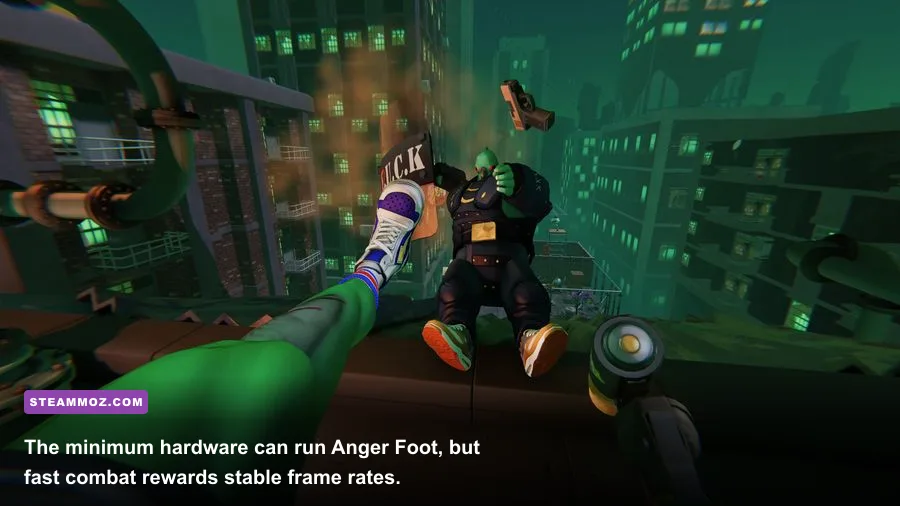
The table below separates the published baseline from the hardware profile I would actually recommend. Anger Foot's minimum specification is enough for 1080p play, but it should be treated as a starting point rather than a promise of locked performance at maximum settings.
| Component | Minimum | Recommended | What it means in practice |
|---|---|---|---|
| Operating system | Windows 10 64-bit | Windows 10 64-bit or newer | A 64-bit Windows installation is required; updated GPU drivers are strongly advised. |
| Processor | Intel Core i5-7500 or AMD Ryzen 5 1600 | Intel Core i7-9700K or AMD Ryzen 7 3700X | The minimum CPUs can handle the game, while the recommended chips offer more room for high-refresh play. |
| Memory | 8GB RAM | 16GB RAM | 8GB is sufficient for the game alone; 16GB helps when browsers, launchers, or recording tools are open. |
| Graphics card | Nvidia GeForce GTX 1060 3GB or AMD Radeon RX 580 4GB | Nvidia GeForce RTX 2070 or AMD Radeon RX 5700 XT | The minimum GPUs target 1080p; the recommended tier is better suited to 1440p and higher settings. |
| DirectX | Version 11 | Version 11 | You don't need a modern ray-tracing card or DirectX 12 feature set. |
| Storage | 20GB available space | 20GB available space | An SSD is not mandatory, but it makes restarts and level reloads much snappier. |
There is no integrated-graphics option in the official specification, and that is the first major warning for laptop players. Intel UHD graphics and older Vega iGPUs may technically display the game, but they aren't sensible targets for a fast, consistent experience. A discrete GTX 1060, RX 580, or newer equivalent is the practical floor.
The storage requirement is modest, so Anger Foot won't consume the kind of space demanded by a current open-world blockbuster. Still, installing it on an SSD is worthwhile. The game encourages experimentation: you will retry rooms, chase better times, and restart after a missed kick. Shorter reloads keep that loop aggressive instead of irritating.
For the official listing, check the Anger Foot Steam page. It is also worth checking Free Lives' official site for developer information and the official Anger Foot website for the game's latest details.
🎮 Anger Foot
Looking to experience this game? Grab your digital key directly on our store for $7.99.
View on Steammoz Store →What performance should you expect from your PC?

The official requirements don't list frame-rate targets, so the hardware tiers need a little interpretation. Anger Foot uses a stylized visual design rather than a photorealistic one, which keeps the GPU load reasonable. However, dense rooms can combine multiple enemies, physics objects, muzzle flashes, breakable doors, particles, and screen effects at once. The average frame rate may look healthy while brief dips appear during the exact moments when you are trying to chain a kick into a shotgun blast.
| Hardware profile | Resolution | Likely target | Best settings approach |
|---|---|---|---|
| GTX 1060 3GB / RX 580 4GB, 8GB RAM | 1080p | 60 FPS with sensible settings | Use medium effects, moderate shadows, and disable expensive post-processing first if dips appear. |
| GTX 1660 Super / RX 5600 XT, 16GB RAM | 1080p | High-refresh 75-144 FPS depending on CPU | High visual settings are realistic; prioritize frame pacing over maximum effects. |
| RTX 2060 / RX 6600, 16GB RAM | 1080p | Well above 100 FPS in most rooms | High or ultra-style settings should be comfortable, with room for recording software. |
| RTX 2070 / RX 5700 XT, 16GB RAM | 1440p | 60 FPS or higher | Start at high settings and reduce shadows or effects only if crowded encounters dip. |
| RTX 3060 Ti / RX 6700 XT and above | 1440p | High-refresh 100 FPS-plus potential | Use your monitor's native refresh target and keep frame pacing consistent. |
CPU performance matters more than many players expect. Anger Foot's levels are compact, but the game constantly tracks enemies, projectiles, impacts, doors, explosive props, and physics-driven bodies. An older quad-core processor paired with a decent graphics card can therefore produce an uneven result. If your GPU usage is low while the frame rate falls during busy fights, the processor or background software is probably the bottleneck.
Eight gigabytes of RAM is enough for a clean installation with little else running. That doesn't mean 8GB is ideal for every PC. Windows, Discord, a browser with several tabs, OBS, and a launcher can quickly consume the remaining headroom. If the game stutters when you restart rooms or switch applications, moving to 16GB may help more than lowering texture quality.
Anger Foot also benefits from a high and stable minimum frame rate rather than a flashy peak number. A locked 60 FPS is preferable to a counter that jumps between 45 and 110. For competitive-style movement and time-focused challenges, a stable 120 FPS feels excellent, but don't sacrifice clear enemy visibility just to reach it.
Best Anger Foot graphics settings for 1080p
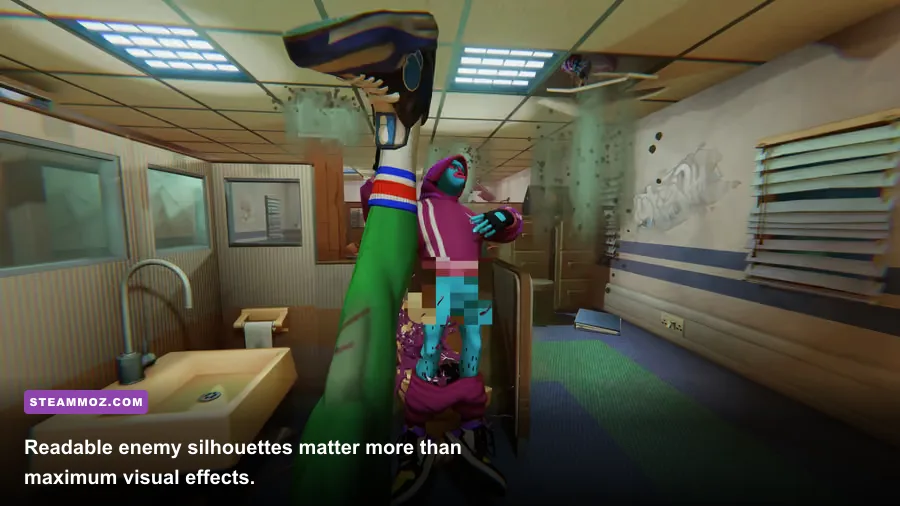
Start by selecting your monitor's native resolution and refresh rate. On a 1080p display, lowering resolution is usually the last resort because Anger Foot's colorful environments and enemy silhouettes are part of the combat language. You need to recognize a target, spot a weapon, and read a doorway instantly. A blurry image can cost more runs than a modest frame-rate drop.
| Setting | Recommended value | FPS impact | Visual and gameplay note |
|---|---|---|---|
| Resolution | Native 1920x1080 | High if reduced | Keep native resolution for sharper enemy silhouettes and cleaner door edges. |
| Display mode | Fullscreen or borderless fullscreen | Low | Fullscreen can reduce interference from desktop notifications and background apps. |
| Texture quality | High if VRAM allows | Low to moderate | 3GB cards may prefer medium textures to avoid memory pressure. |
| Shadow quality | Medium | Moderate to high | Shadows add atmosphere but are one of the first settings to reduce on a minimum-spec PC. |
| Effects and particles | Medium or High | Moderate during firefights | Lower this when explosions and muzzle flashes cause momentary hitching. |
| Post-processing | Low or Medium | Moderate | Reducing blur and screen effects can improve clarity during rapid kicks. |
| V-Sync | Off with VRR; On if tearing appears | Potential latency | Variable refresh-rate monitors offer the cleanest compromise. |
| Frame-rate limit | Monitor refresh rate or a stable lower cap | Improves consistency | A stable cap prevents unnecessary GPU heat and uneven frame pacing. |
On a GTX 1060 3GB or RX 580, medium shadows and effects are the smart first move. Keep textures as high as your video memory allows, because texture quality generally affects image detail more gently than heavy effects. If you see hitching rather than consistently low FPS, reduce effects, close overlays, and verify that the game is installed on a healthy drive before dropping resolution.
On a newer mid-range GPU, high settings at 1080p should be straightforward. The better upgrade is a high-refresh monitor and a frame cap that your CPU can maintain. A 144Hz display is useful only if the game stays near that target through hectic room transitions. Otherwise, cap at 90 or 100 FPS and enjoy a smoother experience than an unstable 144.
Motion blur is a personal preference, but fast players will usually want it off. Anger Foot's action is already visually loud, and blur can make a quick turn through a doorway harder to read. The same logic applies to excessive bloom or other post-processing: the neon style looks great, but readability wins when you're hunting clean times.
How to fix stutter, low FPS, and input delay
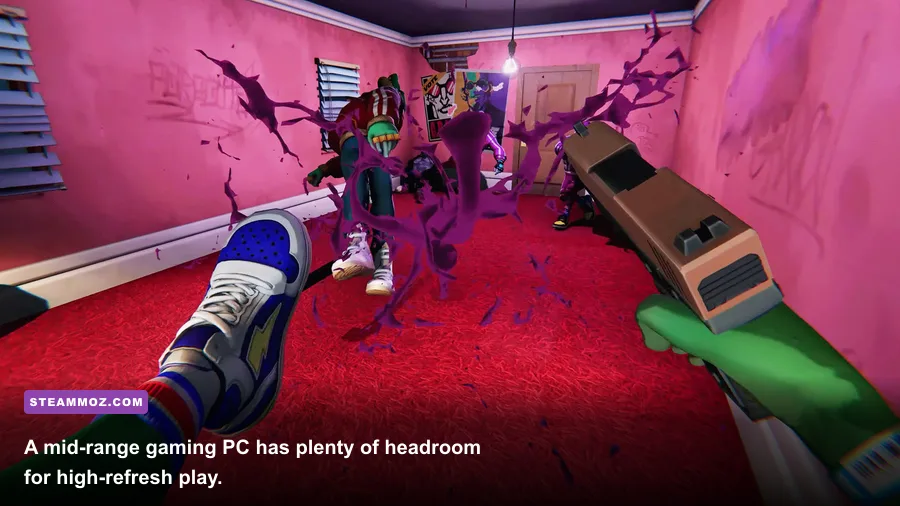
Before changing advanced settings, update your Nvidia or AMD driver and install the latest Windows updates. Then restart the PC rather than simply relaunching the game. Background capture tools, RGB utilities, hardware monitors, and browser video playback can all create small interruptions that are obvious in a kinetic shooter.
Check the real bottleneck first
Use a monitoring overlay to compare GPU usage, CPU usage, temperatures, and frame-time behavior. If the GPU sits around 95-99 percent, lower shadows, effects, or resolution. If GPU usage is low but one or two CPU threads are heavily loaded, lower the frame-rate target and close background processes. Adding graphical reductions won't solve a processor bottleneck.
Watch temperatures as well. A laptop may meet the recommended GPU specification on paper but throttle after several minutes. Use a hard surface, clean the vents, and select a balanced or performance power mode. Desktop players should check that the monitor cable is connected to the dedicated graphics card rather than the motherboard output.
Reduce frame-time spikes
Install Anger Foot on an SSD when possible, leave more than the bare 20GB requirement free, and avoid recording at an unnecessarily high bitrate. If you use OBS, test hardware encoding and cap the game below the absolute maximum your PC can produce. A consistent 90 FPS capture is better than a fluctuating 140 FPS stream with distracting hitching.
Disable overlays one at a time. Steam, Discord, Xbox Game Bar, GeForce Experience, Radeon Software, and motherboard utilities can each add a hook to the game. You don't need to uninstall anything; simply test with them disabled. If the stutter disappears, re-enable services individually to identify the offender.
For tearing, use V-Sync if your monitor doesn't support variable refresh rate. If you have FreeSync or G-SYNC-compatible hardware, enable VRR and cap the frame rate a few frames below the panel's maximum refresh. That approach normally produces lower latency than traditional V-Sync while keeping the image intact during rapid camera movement.
Is Anger Foot demanding on laptops and older PCs?
Anger Foot is a friendly game for older gaming desktops, but laptop owners need to compare the exact GPU model rather than relying on a product name. A mobile RTX 3050, for example, can perform very differently depending on its power limit and cooling. Plug the laptop into the wall, select its performance profile, and check whether the dedicated GPU is being used.
A machine close to the minimum specification should target 1080p and 60 FPS, with medium effects and shadows. Don't expect every room to behave identically: the game can feel smooth in a quiet corridor and dip when several enemies, explosions, and physics objects fill the screen. That is normal workload variation, not necessarily a fault.
If your PC is below the GTX 1060 or RX 580 tier, start with 720p only if native 1080p is unplayable, then lower shadows and effects. Keep the interface and image as sharp as possible. Anger Foot's appeal comes from reading spaces quickly, kicking through doors, grabbing weapons, and improvising when a room goes wrong; a smeared picture undermines all of those systems.
| PC situation | Suggested profile | Priority | Expected experience |
|---|---|---|---|
| Below minimum GPU | 720p, low effects, low shadows | Stability over appearance | Playable only if frame pacing remains consistent; upgrades may be more effective. |
| Minimum-spec desktop | 1080p, medium settings, 60 FPS cap | Stable frame rate | A solid entry point for the campaign and room challenges. |
| Mainstream gaming laptop | 1080p, high settings, 60-120 FPS cap | Cooling and power mode | Strong performance when plugged in and running on the dedicated GPU. |
| Recommended desktop | 1440p, high settings, 60 FPS or higher | Frame pacing | Comfortable headroom for demanding encounters and high-resolution play. |
The good news is that there is no need to build an expensive enthusiast PC for this game. A sensible six-core processor, 16GB of RAM, and a modern mid-range graphics card are already more than enough for a premium experience. If you're comparing hardware for other fast games, our guides to Borderlands 2 performance settings and BloodRayne: Terminal Cut fixes cover similar troubleshooting priorities.
Anger Foot's design makes performance tuning unusually rewarding. Every improvement to frame pacing makes kicks easier to place, weapons feel more immediate, and retries less frustrating. For more fast-action recommendations, Steamoz's Ace Combat 7 equipment guide and Inertial Drift starter build offer the same kind of practical, performance-minded advice.
So, can your PC handle Anger Foot? If it meets the GTX 1060 or RX 580 minimum and has 8GB of RAM, yes, at 1080p with sensible compromises. For the ideal version, use 16GB of memory, a Ryzen 5-class or better modern CPU, and an RTX 2070 or RX 5700 XT-level GPU. Lock in a stable frame rate, keep the image readable, and you'll have the responsive platform this gloriously chaotic shooter deserves.