If Kumitantei: Old-School Slaughter keeps crashing or crawling at low FPS on PC, start with three fixes: verify the Steam installation, disable overlays, and run the game with a conservative resolution and capped frame rate. If that does not solve it, clean-install your GPU driver, reset the game’s configuration files, and test whether your system is running the game on the dedicated GPU rather than integrated graphics. The steps below separate genuine game-file problems from Windows, driver, overlay, and thermal issues.
There is an important wrinkle with a smaller PC release like this one: public documentation may not list every graphics option, launch parameter, or supported hardware combination. Don’t blindly copy fixes made for a different engine or invent a configuration file that the game doesn’t use. Change one thing at a time, record the result, and keep a backup before deleting anything.
Do These Crash Fixes Before Changing Graphics
Before lowering settings, establish whether the crash happens at launch, during loading, or after several minutes of play. Each pattern points to a different cause. A crash before the main menu usually suggests missing files, a blocked runtime, an overlay conflict, or a GPU-driver issue. A crash while loading a scene often points to corrupted data or a permissions problem. A crash after 10 to 30 minutes can be caused by overheating, unstable overclocks, or a memory leak.
1. Verify the installation through Steam
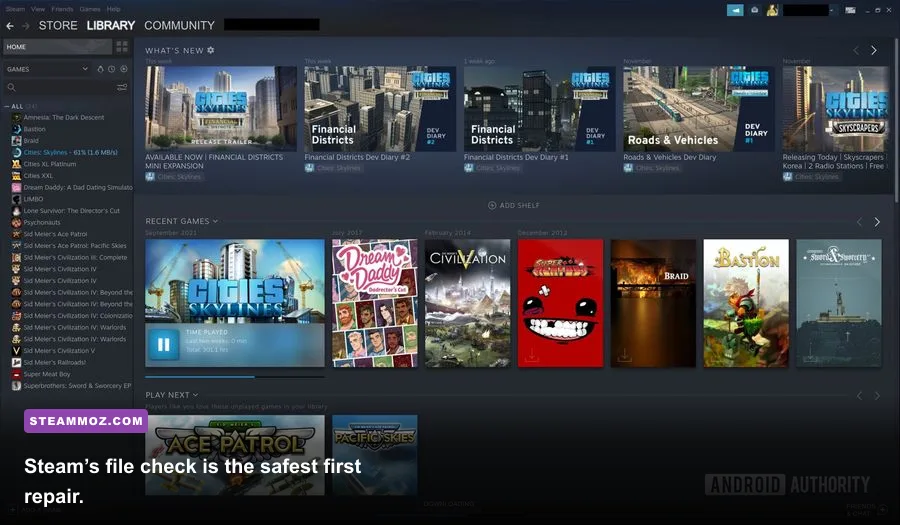
Open Steam, right-click the game in your Library, choose Properties, select Installed Files, then click Verify integrity of game files. Let the process finish completely. If Steam reacquires files, restart Steam and test the game before adding mods, launch options, or third-party fixes. This is also the correct first move after an interrupted update.
For more Steam-side troubleshooting, the official Steam file-verification guidance is worth keeping open while you work. Verification repairs installation data; it does not reset a damaged user configuration, so continue to the next step if the crash remains.
2. Turn off every overlay for one test
Disable Steam Overlay under Steam’s game properties, then temporarily switch off Discord Overlay, Xbox Game Bar, AMD Software overlay, NVIDIA overlay, MSI Afterburner’s on-screen display, and recording tools such as OBS Game Capture. Overlay hooks can collide with older render paths, fullscreen transitions, or anti-cheat-style protection even when the game itself is perfectly installed.
Don’t leave all of these disabled forever if you need them. This is a diagnostic test. If Kumitantei launches normally with overlays off, re-enable them one at a time until you find the offender. The culprit is often the last overlay added rather than the most obvious one.
3. Run the executable with sensible permissions
Find the installation folder through Steam’s Browse local files command. Right-click the game executable, open Properties, go to Compatibility, and test Disable fullscreen optimizations. If Windows is scaling the game badly or the title refuses to launch, try Run this program as an administrator for a single test, not as a permanent default.
Administrator mode won’t magically increase FPS. It only helps when Windows permissions, protected folders, or a blocked config write are involved. If it changes nothing, turn it back off and avoid running a game with elevated privileges unnecessarily.

🎮 Kumitantei: Old-School Slaughter
Looking to experience this game? Grab your digital key directly on our store for $10.49.
View on Steammoz Store →Reset Kumitantei’s Settings Without Losing Saves
A broken resolution or display-mode setting can crash a game before you see its menu. The safe approach is to rename configuration data rather than delete it. Close the game and Steam first. Then check these locations:
%USERPROFILE%\Documents\My Games%LOCALAPPDATA%%APPDATA%%USERPROFILE%\AppData\LocalLow
Look for a folder named after Kumitantei, the developer, or a folder created at the exact time you first launched the game. Rename it to something like Kumitantei_backup, then launch again. Renaming lets you restore the old files if the reset does not help. Don’t remove your save folder until you know which files contain progress.
If the game starts after the reset, recreate your settings gradually. Begin at 1280×720 or 1920×1080, choose windowed or borderless mode, and leave advanced effects at their defaults. Once you confirm stability, raise one setting at a time. A failed launch after changing resolution is a strong sign that the previous configuration contained an invalid display value.
Use launch options only as controlled tests
Steam’s Properties > General > Launch Options box can be useful, but random command strings copied from unrelated games are more likely to do nothing than fix a crash. Test one option at a time and remove it if it has no measurable effect. A windowed launch option may help a title that crashes during fullscreen initialization, but the exact command depends on the engine and executable.
Do not stack a dozen flags such as forced DirectX versions, arbitrary memory limits, and compatibility switches. If you don’t know which engine Kumitantei is using, you can’t reliably predict whether a flag is supported. Keep a short test log with the launch option, resolution, driver version, and result.
Best Low-FPS Settings for a Stable Baseline
For low FPS, don’t immediately set everything to its lowest value. The goal is consistent frame pacing, not a high number that collapses whenever an effect appears. Start with a 60 FPS cap if your monitor is 60 or 75Hz. On a 120Hz or 144Hz display, test 60 first, then 90 or 120 only after the game remains stable.
| Setting or Test | Recommended Starting Value | Likely FPS Impact | Visual or Stability Note |
|---|---|---|---|
| Display mode | Borderless windowed | Low to medium | Usually safer for alt-tabbing; exclusive fullscreen can be faster on some systems. |
| Resolution | 1920×1080, then 1600×900 | High | The fastest way to reduce GPU load; keep aspect ratio correct. |
| Frame-rate cap | 60 FPS | Reduces spikes | A cap improves frame pacing and prevents unnecessary GPU power draw. |
| Shadow quality | Low or medium | Medium to high | Often expensive without improving readability much. |
| Post-processing | Low | Medium | Can reduce bloom, blur, and other effects that muddy combat visuals. |
| Anti-aliasing | Low or default | Low to medium | Lower it before reducing texture quality on a GPU with enough VRAM. |
| Textures | Medium | Low on GPU-bound systems | Lower only if VRAM usage is near its limit or stutter occurs during loading. |
| V-Sync | Off for testing | Variable | Useful for tearing, but can add latency or lock performance to a refresh divisor. |
Texture quality and resolution are not interchangeable. Resolution changes the number of pixels rendered every frame. Textures mainly affect VRAM and asset streaming. If your GPU is weak, lower resolution first. If FPS looks acceptable but the game pauses when entering new areas, lower textures and close background applications that are consuming video memory.
For a useful comparison, our PC settings guide for Cricket Through the Ages demonstrates the same principle: isolate resolution, frame cap, and effects instead of changing every option at once. The older Darklands performance guide is also a good reminder that compatibility fixes matter more than visual presets for classic-style releases.
Find Out Whether the Problem Is GPU, CPU, or RAM
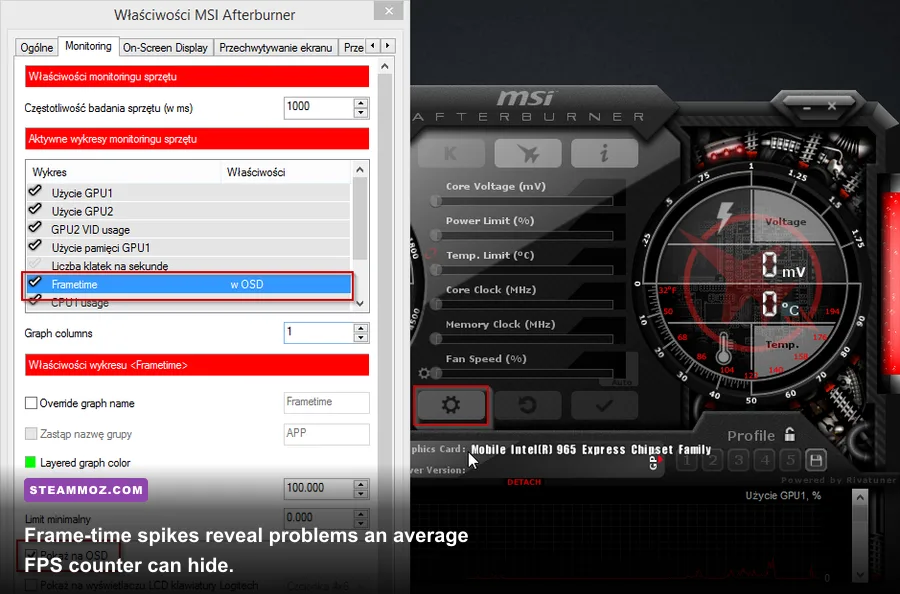
Use an overlay such as Windows Task Manager’s Performance tab or a trusted monitoring utility. Watch GPU usage, CPU usage, RAM, VRAM, temperatures, and frame time while reproducing the slowdown. Average FPS alone can hide the real problem.
| What You Observe | Most Likely Bottleneck | What to Try | Expected Result |
|---|---|---|---|
| GPU at 95–100%, CPU below maximum | GPU rendering load | Lower resolution, shadows, post-processing, and anti-aliasing. | Higher average FPS and lower GPU power draw. |
| One CPU core near 100%, GPU usage low | CPU or game-thread limit | Close background apps, use a frame cap, and avoid heavy recording tools. | Fewer frame-time spikes rather than a huge FPS jump. |
| RAM nearly full, disk active during stutter | Memory pressure or paging | Close browsers and launchers; keep the game on an SSD if possible. | Shorter pauses during loading and area transitions. |
| VRAM full with texture hitching | Video-memory limit | Lower textures and resolution; disable high-resolution scaling. | Less asset-streaming stutter. |
| Performance declines over time | Heat or unstable clock | Check temperatures, remove overclocks, clean vents, and test again. | Stable clocks instead of a gradual FPS collapse. |
Cap FPS below the rate your PC can sustain, not at the highest number it briefly reaches. If Kumitantei jumps between 45 and 90 FPS, a locked 45 or 60 can feel smoother than an uncapped average of 65. Use the lowest consistent frame time as your target. Stutter is a pacing problem; it isn’t always solved by more rendering power.
Force the dedicated GPU on a laptop
On Windows, open Settings > System > Display > Graphics, add the game executable, select Options, and choose High performance. Plug in the laptop, select a performance power plan, and test again. Some laptops quietly run smaller games on integrated graphics, especially when Windows is set to battery-saving mode.
Do not use a third-party “FPS booster.” These tools commonly kill useful background processes, change power settings without explaining them, or inject another overlay. Windows’ GPU preference and your graphics driver’s per-application profile are safer and reversible.
Driver, Runtime, and Windows Fixes for Crashes
Update your graphics driver from the official NVIDIA, AMD, or Intel support page, then restart Windows. If the crashing began immediately after a driver update, perform a clean installation or roll back to the previous stable driver. A clean install matters when old shader caches or profiles are conflicting with the new package.
Install pending Windows updates, but avoid installing several unrelated system utilities at the same time. If the game reports a missing DLL, don’t download that DLL from a random website. Repair the official Microsoft Visual C++ Redistributable packages and DirectX components through Microsoft’s official Visual C++ download page and Microsoft’s DirectX End-User Runtime page.
Windows Security can also block a game from writing saves or configuration files. Check Windows Security > Virus & threat protection > Protection history for a blocked executable. If Controlled Folder Access is enabled, allow the game through it rather than disabling antivirus protection globally.
Remove unstable hardware settings
Temporarily return GPU undervolts, CPU overclocks, XMP or EXPO memory profiles, and aggressive laptop tuning to default values. A system can pass a desktop benchmark and still crash in a smaller game because the failure occurs during shader compilation, loading, or a particular rendering effect.
If the game crashes with an error mentioning a graphics device, test a different driver branch and remove any overclock first. If it simply disappears to desktop, check Windows Event Viewer > Windows Logs > Application for the faulting module. A module tied to the GPU driver suggests a rendering problem; a module tied to an overlay or capture utility points to an injection conflict.
A Clean Testing Order That Saves Time
Use this order so you don’t create five new variables while chasing one problem:
- Restart the PC and close browsers, launchers, recording software, and hardware-monitoring overlays.
- Verify Kumitantei’s files through Steam.
- Disable every overlay and launch at a conservative resolution.
- Reset the game’s configuration folder by renaming it, while keeping saves backed up.
- Force the dedicated GPU and connect the laptop to AC power if applicable.
- Update or clean-install the graphics driver.
- Test the low-FPS profile in the table, then change one setting per launch.
- Check temperatures, GPU usage, CPU usage, VRAM, RAM, and frame time.
After each test, write down whether the game crashed, launched, or merely stuttered. That sounds excessive, but it prevents the classic troubleshooting trap where you forget which change helped. If the game crashes only in fullscreen, stay borderless. If it crashes only with an overlay active, leave that overlay disabled for Kumitantei. A practical fix beats a theoretically perfect one.
For broader examples of diagnosing stutter in less demanding games, compare Steamoz’s Drizzlepath: Glass settings guide and Exogate Initiative stutter guide. The common thread is simple: identify the bottleneck first, then tune the setting that actually controls it.
When to Contact the Developer
If verification, a config reset, overlay removal, driver testing, and a dedicated-GPU check fail, collect useful evidence instead of sending “it crashes.” Include your Windows version, CPU, GPU, RAM amount, driver version, display resolution, whether the crash occurs at launch or during play, and the exact error text. Add a crash log, DxDiag report, and a short video if the issue is reproducible.
Use the game’s official Steam discussion hub or the developer’s listed support channel rather than unofficial download sites. The official Steam search page for Kumitantei: Old-School Slaughter is the safest starting point for locating the current store listing, announcements, and developer contact details. Check the latest patch notes before applying old fixes; a launch command that helped an earlier build can break a newer one.
The winning setup is usually not mysterious: clean game files, no conflicting overlays, a current stable driver, the correct GPU, and a capped frame rate. Once Kumitantei runs without crashing, raise visual settings one at a time and stop when frame times become uneven. That gets you back into the slaughter quickly without sacrificing stability for a benchmark number.