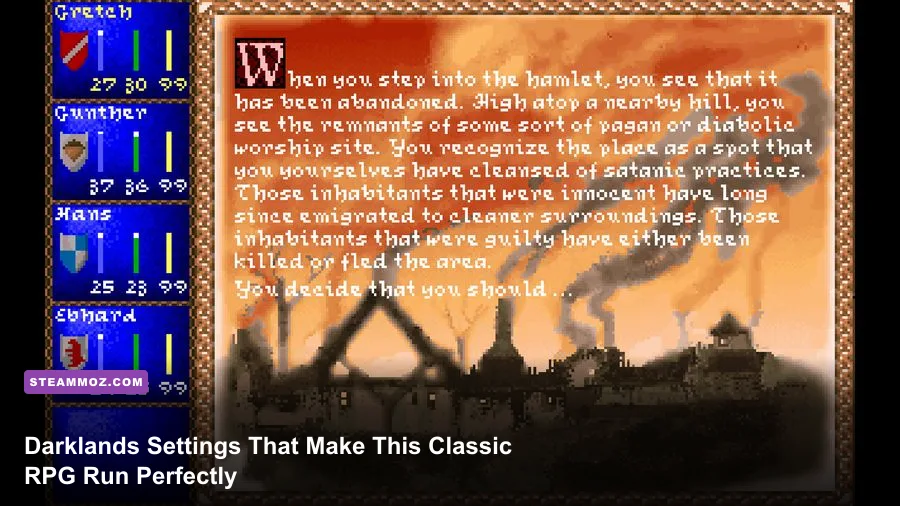
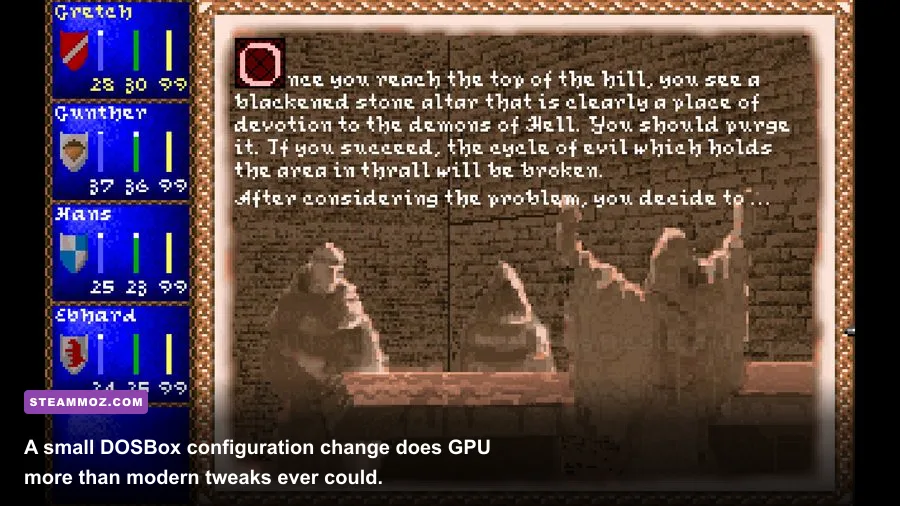
The best Darklands graphics settings are simple: use DOSBox's normal2x or normal3x scaler, keep frameskip=0, enable the correct 4:3 aspect ratio, and avoid aggressive filters. Darklands is a 1992 DOS RPG, so modern GPU settings barely matter; smooth performance comes from configuring its DOSBox wrapper correctly and preventing Windows from stretching the game into a blurry widescreen image.
That distinction matters. Darklands doesn't have a modern options menu with texture quality, shadows, ambient occlusion, or DLSS. Its visual output is controlled by the DOS environment underneath the Steam release. If the game looks soft, flickers, runs too quickly, or feels oddly delayed in combat, the culprit is usually scaling, synchronization, or an unsuitable DOSBox output mode—not your graphics card.
Best Darklands Settings for Max FPS and Clarity
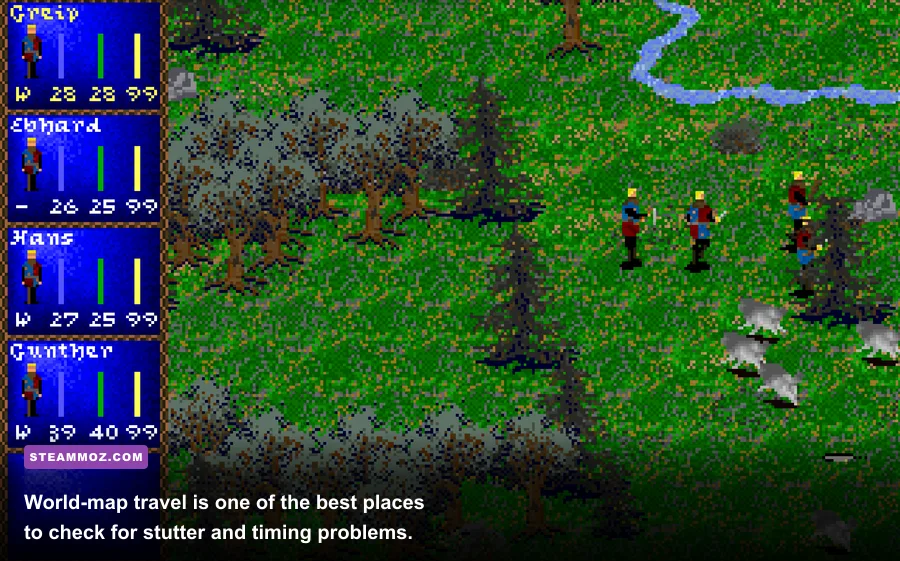
Start with the profile below. It prioritizes clean pixel edges, reliable timing, and a stable presentation on current 1080p and 1440p monitors. These settings work particularly well for long sessions involving travel between cities such as Nürnberg, München, Lübeck, and Prague, where uneven emulation can make the map feel less responsive than combat.
| Setting | Recommended Value | Performance Impact | Visual or Gameplay Note |
|---|---|---|---|
| Output | Surface or OpenGL | Very low | Use Surface for maximum compatibility; OpenGL is fine if Surface tears. |
| Scaler | normal2x at 1080p; normal3x at 1440p | Low | Preserves hard pixel edges without blur. |
| Aspect ratio | Enabled | None | Maintains the original 4:3 shape instead of making characters look wide. |
| Frameskip | 0 | Best stability | Never skip frames unless an unusually slow system requires it. |
| Core | Auto or Dynamic | Best on modern CPUs | Use Normal only if Dynamic causes crashes or audio glitches. |
| Cycles | Auto | Best balance | Prevents the game from running absurdly fast on a modern processor. |
| Scanlines | Off | Negligible | Cleaner on LCD and OLED displays; enable only for a CRT-style look. |
| Integer scaling | On when available | Negligible | Sharper sprites, with small black borders on some displays. |
| VSync | On if tearing appears | Small latency increase | Turn it off if input feels sluggish during tactical combat. |

| Profile | Resolution and Scaler | Sync | Best Use |
|---|---|---|---|
| Pixel Perfect | 1080p, normal2x, aspect on | VSync off unless tearing occurs | Best overall image and responsiveness. |
| Large Monitor | 1440p, normal3x, integer scaling on | VSync on for a stable fullscreen image | Sharpest practical presentation on a 27-inch display. |
| Compatibility | Windowed, normal2x, Surface output | Host sync | Useful when fullscreen mode crashes or flickers. |
| Weak Laptop | 720p or 900p, normal2x | VSync off | Lowest overhead while keeping readable text. |
| CRT Recreation | Original or 2x, scanlines on | VSync matched to display | Softened retro appearance rather than maximum clarity. |
On a weak laptop, don't reduce the scaler below 2x unless the wrapper gives you no alternative. Darklands is already low resolution, and a tiny unscaled window is more tiring than a slightly less elegant fullscreen image. If the laptop has an aggressive battery mode, plug it in and disable the operating system's CPU-throttling profile before diagnosing stutter.
On a high-end desktop, the best “max FPS” setup is still normal2x or normal3x with zero frame skipping. Increasing the output resolution beyond that doesn't improve the source artwork; it only asks the wrapper to enlarge the same pixels. Your goal is consistent frame delivery and accurate timing, not GPU utilization.
Players troubleshooting older games may also find our guides to BloodRayne crashing and low-FPS fixes and Drizzlepath Glass performance settings useful, although Darklands needs DOSBox-specific adjustments rather than modern engine tweaks.
How to Fix Blur, Stretching, Flicker, and Speed Issues
Blurry text and muddy portraits
Turn off bilinear filtering and switch to normal2x or normal3x. If your monitor is running at a non-integer multiple of the game's output, enable integer scaling or accept narrow black borders. That trade-off is worth it: the letters in town menus and character sheets remain sharply separated instead of becoming a gray smear.
Stretched characters and oval portraits
Enable aspect=true. Darklands was designed for a 4:3 display, and forcing a 16:9 stretch makes portraits, map icons, and combat sprites visibly wider. A pillarboxed 4:3 image may look less modern, but it is the correct geometry and usually the more comfortable choice for a game packed with text.
Flickering or unstable fullscreen
Test windowed mode with output=surface, then use the Windows compatibility options only if the wrapper still misbehaves. Disable overlays from Discord, GeForce Experience, and Xbox Game Bar one at a time. Overlays can interfere with old fullscreen surfaces even when they don't affect newer DirectX games.
The game runs too fast
Set cycles=auto and keep frameskip=0. If the problem remains, use a fixed cycle count and retest. Do not solve speed problems by enabling frame skip: skipping visual frames can make travel and combat feel worse while leaving the underlying timing issue intact.
Input feels delayed
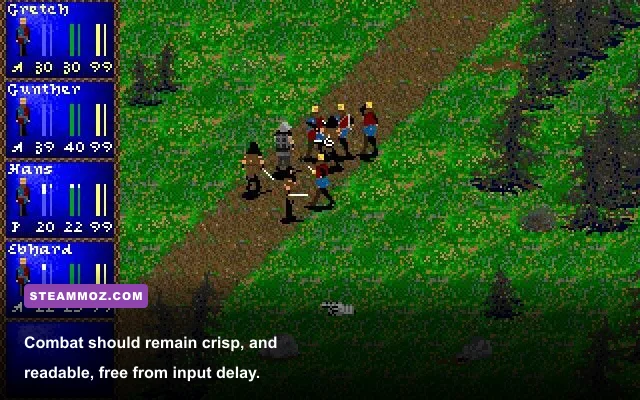
Disable VSync temporarily and compare a city menu with a tactical encounter. If the delay disappears, keep VSync off and use your display's low-latency mode instead. Darklands' combat is menu-driven, but quick command selection still benefits from immediate input when enemies close in or a character needs to switch from a longsword to a crossbow.
How to Test Your Darklands Performance Properly
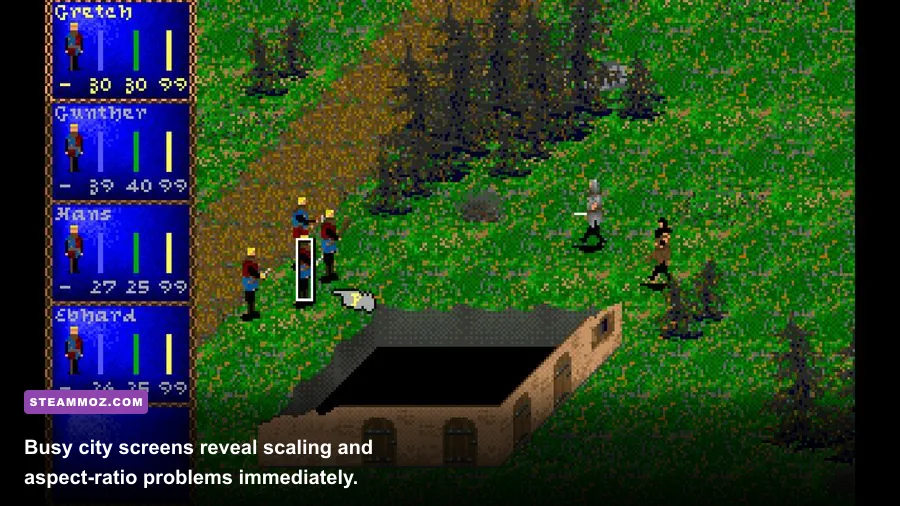
Don't judge the setup from the title screen. Load a save and perform a repeatable test in three places: the world map, a crowded medieval city, and a combat encounter. Travel between settlements, open the party and character screens, inspect equipment, then enter a battle where you can issue several movement and attack commands. This exposes scaling issues, sound stutter, and input latency far more reliably than staring at a static menu.
- Check the image shape. Confirm that portraits and sprites are not stretched and that text remains readable at your normal seating distance.
- Check travel timing. Move across the map for several seconds. The party should not surge forward, pause unpredictably, or accelerate after an overlay opens.
- Check city menus. Open shops, taverns, training, and character sheets. Flicker or delayed clicks usually points to the wrapper rather than the GPU.
- Check combat input. Issue movement, weapon, and attack commands rapidly. Watch for delayed selection, skipped animation, or sound falling out of step.
- Check long-session stability. Leave the game running for 20 to 30 minutes and make a manual save. A profile that is fast but unstable isn't a good performance profile.
Keep one untouched configuration backup. Darklands is an old game with an unusually broad mix of exploration, alchemy, theology, weapon skills, and real-time tactical pressure, so a setting that fixes one issue can introduce another. If a change makes things worse, revert instead of stacking five more tweaks on top.
For wider classic-PC troubleshooting, Steamoz's Borderlands 2 settings guide covers a very different engine but reinforces the same useful habit: change one variable, test a repeatable scene, and measure the result. Our Cricket Through the Ages PC settings guide offers another quick reference for balancing resolution, scaling, and responsiveness.
The Final Darklands Performance Preset
For the cleanest result, use fullscreen at your desktop resolution, keep the image at 4:3 with aspect=true, choose normal2x at 1080p or normal3x at 1440p, leave frameskip=0, and set both the DOSBox core and cycles to automatic. Use Surface output for compatibility, OpenGL only when it solves tearing, and VSync only when the display visibly tears.
That profile won't transform Darklands into a modern remaster—and it shouldn't. The goal is to preserve the chunky sprites, readable menus, atmospheric city screens, and deliberate combat timing that make a six-person party feel like a real medieval expedition. Once the wrapper stops fighting the original game, Darklands runs effortlessly, looks sharp enough for a modern monitor, and delivers all the performance it was ever designed to need.
For technical background, consult the official DOSBox website and the Darklands Steam listing before replacing files or installing a third-party wrapper. The safest upgrade is usually a careful configuration backup—not a pile of shaders and forced driver settings.