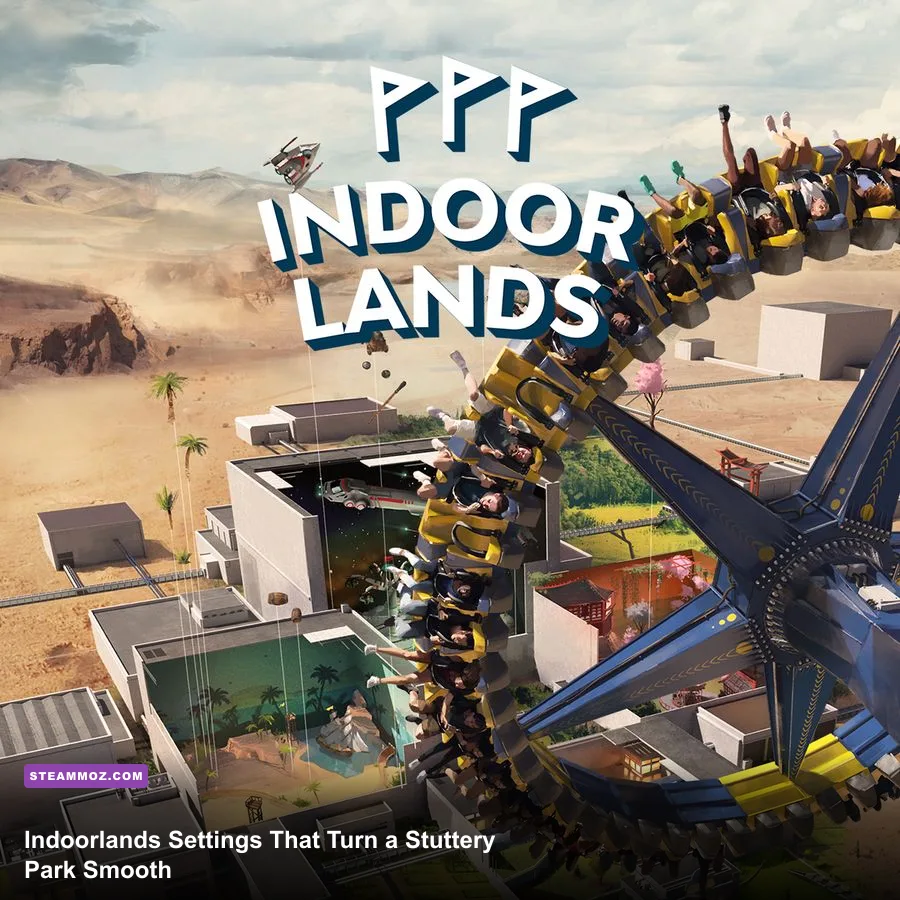
The best Indoorlands graphics settings for max FPS are 1080p resolution, medium overall quality, low shadows, reduced anti-aliasing, disabled motion blur, and a frame cap matched to your monitor. That profile keeps rides, guests, and construction menus sharp while cutting the effects that waste GPU time. If your park is already huge, though, the biggest gains come from controlling simulation load: lower the camera view distance if available, cap the frame rate, and test performance away from dense guest hubs.
Indoorlands is deceptively demanding because it is doing two jobs at once. Your graphics card draws a colorful indoor amusement park packed with lighting, rides, decorations, and moving visitors, while the processor updates guest behavior, attraction queues, staff activity, and the park economy. A 144Hz gaming PC can therefore sit below its target even when the GPU is not pinned at 99 percent. The right setup is less about blindly selecting Low and more about separating visual bottlenecks from simulation bottlenecks.
Before changing anything, check the current build and requirements on the official Indoorlands Steam page. Menu names and available quality presets can change between updates, so treat the profiles below as a practical starting point rather than a promise that every version exposes identical sliders.
Best Indoorlands settings for maximum FPS
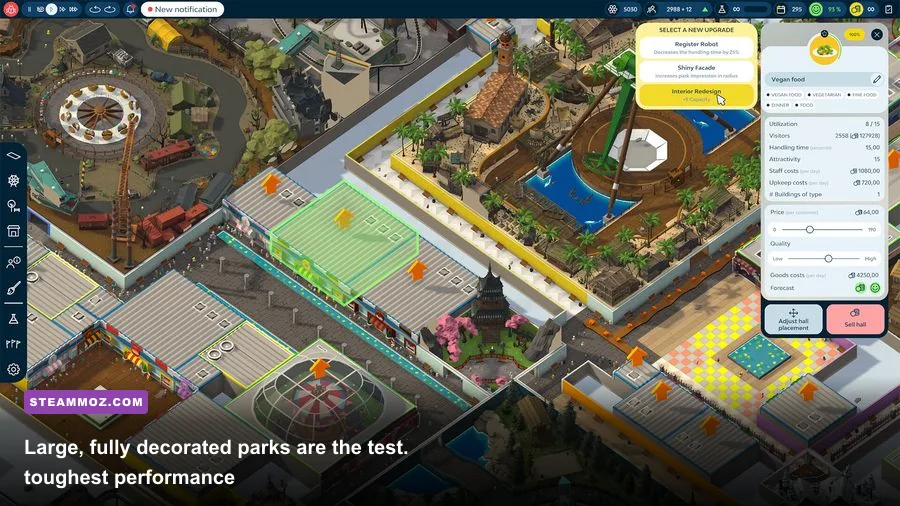
For most players, the best first pass is a locked 60 FPS profile at 1920x1080. Indoorlands is a management game, not a competitive shooter, and a stable frame time feels far better while laying paths or rotating attractions than an unstable 90 to 120 FPS. If you have a 120Hz or 144Hz display, try an 80 or 90 FPS cap only after the park remains stable during zoomed-out views with several attractions running.
Use exclusive fullscreen if the game offers it. Borderless mode is convenient for switching to a browser or spreadsheet, but Windows composition can add a little frame-time variance on some systems. VSync is useful when your frame rate regularly exceeds the display refresh rate; if you use G-SYNC or FreeSync, cap the game two or three frames below the panel's refresh rate and test with VSync enabled in-game or through the driver.
| Setting | Recommended value | FPS impact | Visual trade-off |
|---|---|---|---|
| Display mode | Exclusive fullscreen | Low to medium | Usually steadier frame pacing than borderless |
| Resolution | 1920x1080 | Very high | Best performance baseline; 1440p costs substantially more |
| Overall quality | Medium | High | Preserves readable rides and decorations |
| Shadows | Low or medium | High | Less contact depth around attractions and walls |
| Anti-aliasing | Low or medium | Medium | More jagged railings and thin props at low values |
| Reflections | Low or off | Medium to high | Floor and glass surfaces look less lively |
| Effects and lighting | Medium | Medium | Colored ride lights remain convincing |
| Motion blur | Off | Small | Cleaner camera movement and screenshots |
| Frame limit | 60 FPS | Improves consistency | Stops unnecessary GPU power draw |
Do not drop resolution first unless the GPU is genuinely overloaded. A lower internal image makes text, path edges, and small ride components harder to read, which is exactly where a builder spends time. Lower shadows and reflections before touching resolution. Those settings affect many pixels across the entire park, while their gameplay value is mostly cosmetic.

🎮 FORM
Looking to experience this game? Grab your digital key directly on our store for $14.99.
View on Steammoz Store →Balanced 60 FPS profile for everyday park building
The balanced profile is the sweet spot for a mainstream PC with a four-core or six-core processor, 8GB to 16GB of RAM, and a dedicated graphics card in the GTX 1650, GTX 1060, RX 570, or newer class. Select 1080p, medium quality, medium textures, low shadows, medium anti-aliasing, and low reflections. Keep effects at medium so attraction lights do not turn into flat, lifeless shapes.
Textures are usually the safest setting to leave at medium or high if your graphics card has enough VRAM. Texture quality mainly consumes video memory; it does not normally punish the GPU in the same way that shadows, reflections, and screen-space effects do. If you see hitching when rotating the camera across a decorated park, lower textures one step only if VRAM usage is close to the card's limit.
Shadows deserve special attention. Indoorlands' overhead rooms, walls, rides, and props create lots of overlapping shadow casters. Medium shadows can look attractive in a small starter park, but the cost grows as you fill the building. Low shadows often preserve enough depth to distinguish paths and attractions while removing a major rendering burden. Turning shadows off is an emergency setting for old integrated graphics, not the ideal everyday choice.
Why a 60 FPS cap often feels better
A frame cap prevents the GPU from racing through quiet menus and then collapsing when the camera reveals a crowded attraction wing. It also leaves CPU and GPU headroom for Windows, audio, input, and background services. Use the in-game limiter if it behaves consistently. Otherwise, NVIDIA Control Panel, AMD Adrenalin, or RTSS can provide a steadier cap.
For a 60Hz display, choose 60 FPS. For a 120Hz display, 60 FPS remains perfectly sensible if your park is large. For FreeSync or G-SYNC, try 58 FPS on a 60Hz panel, 117 FPS on 120Hz, or 141 FPS on 144Hz. The exact number is less important than avoiding constant swings between a ceiling and a much lower floor.
Best low-end profile for laptops and integrated graphics
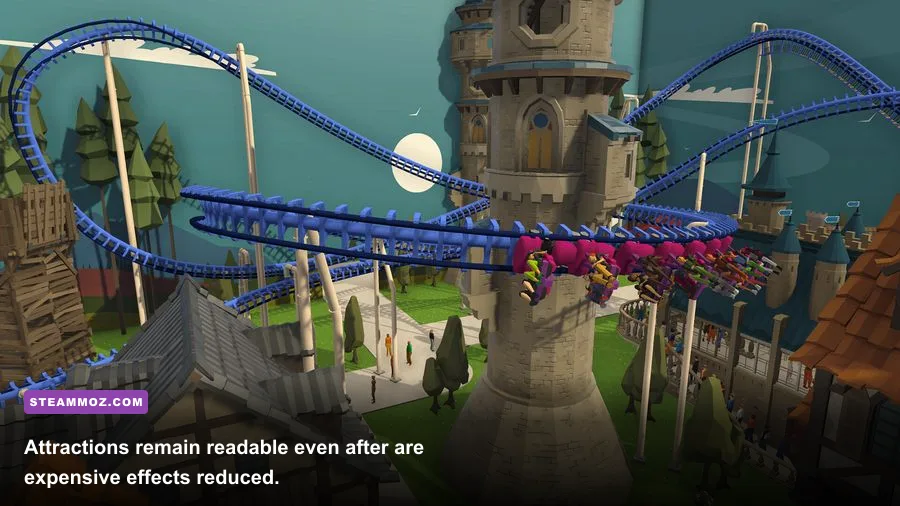
Low-end hardware needs a different goal: stable input and clean frame pacing while constructing, not an impressive screenshot. Start at 1600x900 or 1280x720 only if 1080p cannot hold 30 to 45 FPS. Set overall quality to low, shadows to low or off, anti-aliasing to low, reflections off, effects low, and motion blur off. Cap at 30 FPS on older integrated graphics or 45 FPS when the machine can sustain it.
Run the laptop while plugged in and use the manufacturer's performance mode. Windows power-saving modes can reduce CPU boost clocks, which hurts Indoorlands when the park simulation becomes busy. Close browser tabs with video, RGB utilities, recording software, and overlays before testing. These background programs rarely destroy average FPS, but they can create the short hitches that make camera movement feel rough.
Resolution scaling is the final lever. It gives the GPU fewer pixels to draw, but the UI and small construction details become soft. If the game provides a render scale slider, keep it around 80 to 90 percent at 1080p before dropping the display resolution. If it does not, use 1600x900 as the compromise. Avoid stretching 1280x720 across a large 1440p or 4K monitor unless performance is genuinely unplayable.
| Hardware target | Resolution | Graphics profile | Frame target |
|---|---|---|---|
| Integrated graphics | 1280x720 to 1600x900 | Low; reflections off; shadows off | 30 to 45 FPS |
| GTX 1650 or RX 570 class | 1920x1080 | Medium; low shadows and reflections | 60 FPS |
| GTX 1060 or RX 580 class | 1920x1080 | Medium-high textures; medium effects | 60 FPS |
| RTX 3060 or RX 6600 class | 1920x1080 or 2560x1440 | High textures; medium shadows; low reflections | 60 to 90 FPS |
| Modern high-end PC | 2560x1440 | High with shadows tuned down one step | 60 FPS in large parks |
Those targets are deliberately conservative. Indoorlands can behave differently in an empty construction sandbox and a mature park with dense queues, lighting, and decorations. Always judge the minimum, not the headline average.
How to tell whether the GPU or CPU is slowing Indoorlands
Open a performance overlay and watch GPU utilization, individual CPU cores, RAM, VRAM, and frame time. If the GPU is near 95 to 99 percent and lowering resolution immediately improves FPS, you have a graphics bottleneck. Lower shadows, reflections, resolution, and effects in that order. If GPU usage sits well below 90 percent while one or two CPU cores remain busy, you are hitting the simulation or draw-call limit. Lowering every visual option will not magically fix that.
The most revealing test is a repeatable camera route. Save your park, zoom out to show the busiest attraction district, rotate through the guest entrances, and pause for 20 seconds. Record the worst FPS and the frame-time graph. Then repeat after removing the cap or changing one setting. Do not compare a quiet empty corner with a packed hub; the results will send you toward the wrong fix.
CPU-side slowdowns often appear as brief pauses when the game updates a large number of guests or recalculates activity across the park. Keep background applications closed, use a high-performance power plan, and avoid running a browser video beside the game. More RAM can help if the system is paging, but it will not turn a four-core processor into a high-end simulation CPU. For a deeper look at diagnosing PC stutter, Steamoz's crashing and FPS troubleshooting guide has useful general steps.
Why park design affects frame rate
Performance is not only a menu problem. A huge open room filled with repeated decorations, glowing signs, animated attractions, and long sightlines can create more work than several separated wings. Keep decorative clusters intentional instead of covering every path tile with small props. Dense queues and guest chokepoints also make the simulation work harder, especially when visitors repeatedly search for routes or attractions.
When testing a new ride or expansion, save before placing it. Compare the park with the camera at the same zoom level after guests have had time to move. This reveals whether a new attraction is expensive because of its lights and effects or because it creates a busy guest-management area.
Settings that improve frame pacing without ruining visuals
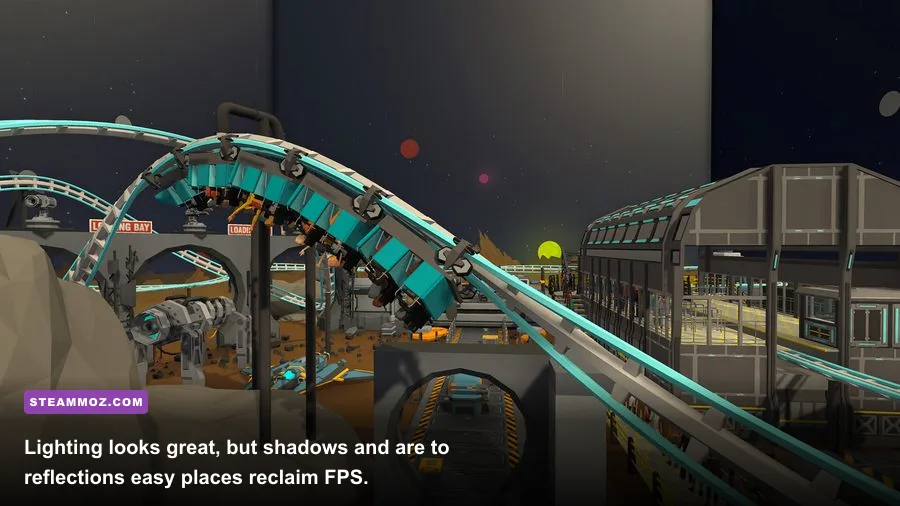
Frame rate and frame pacing are different. A counter showing 60 FPS can still feel uneven if frame times jump between 10ms and 30ms. VSync, a sensible cap, current GPU drivers, and fullscreen testing matter more than chasing a peak number. If camera movement feels like it catches every few seconds, check shader compilation or asset streaming first; repeatedly changing quality presets will not necessarily remove those hitches.
Keep motion blur off for two reasons. It has a small rendering cost, and it makes the camera less comfortable when you sweep across a large building. Ambient occlusion is worth keeping at low or medium if Indoorlands exposes it, because it helps walls, ride platforms, and paths separate visually. If the frame rate collapses in a crowded area, disable it before sacrificing texture quality.
Use the Steam community hub to check whether other players are reporting a version-specific issue before assuming your PC is at fault. A sudden performance change after a game update can come from shaders, drivers, or a new content system. Verify game files through Steam, restart after a driver update, and test without third-party overlays before making major hardware conclusions.
For perspective, our guides to Hunt: Showdown 1896 PC requirements and Just Cause 4 performance cover the same useful principle: advertised minimum specs target launchability, not a stable experience in the busiest scenes.
My recommended Indoorlands profiles
Here are three profiles worth saving as mental presets. The first is the one most players should use. The second is for older machines that need consistency. The third favors image quality but still avoids the settings that become expensive in a developed park.
| Profile | Core settings | Best for | Expected behavior |
|---|---|---|---|
| Stable builder | 1080p; medium quality; low shadows; low reflections; 60 FPS cap | Most mainstream PCs | Clear menus and reliable construction performance |
| Performance rescue | 900p or 720p; low quality; shadows off; effects low; 30 to 45 FPS cap | Integrated graphics and older laptops | Softter image, but fewer severe drops |
| Quality builder | 1440p; high textures; medium shadows; medium effects; 60 FPS cap | RTX 3060/RX 6600 class and above | Sharper park detail with controlled lighting costs |
Change one option at a time and spend at least a minute looking at the same busy district after each change. That sounds slow, but it prevents the classic mistake of lowering six settings, seeing an improvement, and never learning which slider actually mattered. Keep a note of your minimum FPS and frame-time feel rather than trusting a single average number.
Finally, keep expectations realistic. Indoorlands is a living management simulation, so a massive park may eventually become CPU-limited even when the visuals are set to Low. The best result is not necessarily the highest number on an empty plot. It is a stable frame rate while guests move, rides operate, and you build without the interface hitching. Start with 1080p, medium quality, low shadows, low reflections, and a 60 FPS cap; then tune from there.
If you enjoy performance-focused management games, Steamoz's IXION guide and Goodbye Deponia settings guide offer more practical PC tuning advice. For official developer information, visit Pixelsplit's official website.