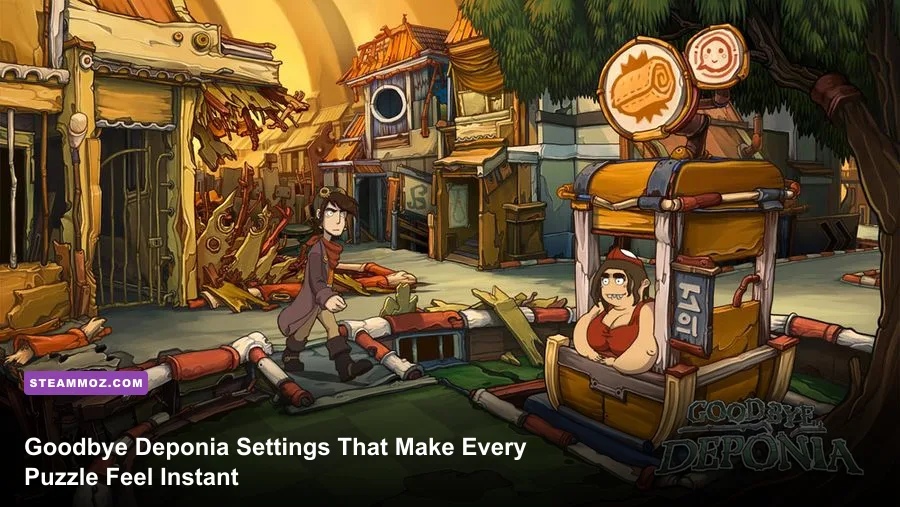
For the best Goodbye Deponia performance, use the game’s native 16:9 resolution, exclusive fullscreen where available, V-Sync enabled on a 60Hz display, and a 60 FPS cap through your GPU driver if the frame rate fluctuates. The key point is that Daedalic’s adventure game is extremely light by modern standards. You don’t need to chase an “Ultra” preset that barely exists; you need clean scaling, stable frame pacing, correct aspect ratio, and a few Windows compatibility tweaks that stop stutter, black screens, or sluggish mouse response.
Goodbye Deponia is built around hand-drawn 2D art, animated characters, pre-rendered backgrounds, and point-and-click interaction rather than a demanding 3D renderer. That changes the optimization game completely. A current gaming PC will usually run it far beyond its original requirements, but older laptops, integrated graphics, high-refresh monitors, and Windows 10 or Windows 11 display scaling can still create annoying problems. This profile is designed to make every click register instantly without damaging the visual style that makes Deponia so memorable.
The recommendations below apply to the Steam PC version. Before changing anything, check the official Goodbye Deponia Steam page for the current build, controller support notes, and operating-system information. If you’re playing the entire trilogy, our guide to Deponia Doomsday settings covers the same family of fixes for the later entry.
The best Goodbye Deponia settings for max FPS
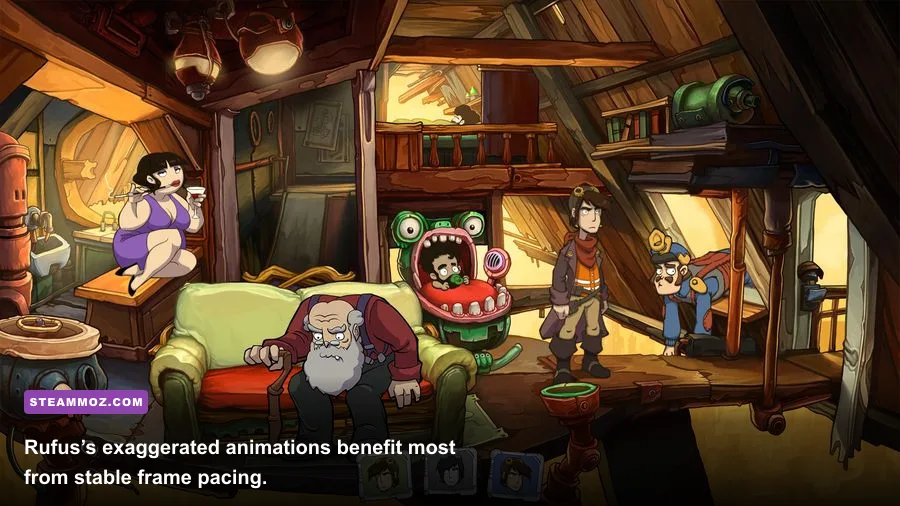
Start with your monitor’s native resolution, not a forced 4K output. On a 1080p screen, select 1920×1080 if the game offers it; on a 1440p or 4K panel, test the native mode first and drop to 1920×1080 if the image looks soft or the interface becomes awkwardly scaled. Goodbye Deponia’s artwork was designed for a much lower-resolution era, so a clean 1080p presentation is often the sweet spot rather than a visibly sharper but poorly scaled 4K image.
Use fullscreen for the most consistent behavior. Borderless windowed mode is convenient for alt-tabbing, but older Visionaire-based games can behave differently when Windows’ desktop compositor, HDR, or variable refresh is involved. If fullscreen produces a black screen or immediately returns you to the desktop, switch to windowed mode and use the compatibility steps later in this guide. Don’t keep hammering the executable with random launch options; this game responds better to a controlled display setup.
| Setting | Recommended value | FPS impact | Visual or input note |
|---|---|---|---|
| Resolution | Native 16:9, preferably 1920×1080 | Low to medium | Preserves sharp UI without unnecessary 4K scaling |
| Display mode | Fullscreen | Low | Usually gives steadier frame pacing than borderless |
| V-Sync | On for 60Hz; driver-controlled for high refresh | Negligible | Removes tearing during camera and scene transitions |
| Texture quality | Highest available | Negligible | Keep it high; 2D textures rarely exhaust modern VRAM |
| Anti-aliasing | Highest available, or application default | Low | Useful on diagonal edges, but not worth heavy supersampling |
| Shadow or effects quality | High, then Medium on integrated graphics | Low to medium | The first place to reduce settings if busy scenes hitch |
| Post-processing | On unless it causes blur | Low | Disable only when text or artwork looks smeared |
| Frame limit | 60 FPS | Improves consistency | Prevents pointless high-FPS spikes and uneven animation |
There’s an important distinction between maximum FPS and the best experience. If the game reports 200 FPS on a modern GPU, that number doesn’t make the puzzles more responsive. It can, however, expose timing quirks, produce tearing, or make transitions feel uneven on a 60Hz panel. A stable 60 FPS cap is the sensible target. If you own a 120Hz or 144Hz monitor, try a 60 FPS cap first; point-and-click animation was not designed around modern competitive-game refresh rates.
Why 1080p is usually better than 4K
Goodbye Deponia uses illustrated backgrounds rather than modern 3D geometry that scales beautifully at every resolution. At 4K, some assets may look no sharper than they do at 1080p while the game’s interface and subtitles occupy a smaller percentage of the screen. On a 4K monitor, Windows scaling can also interact badly with an old executable, making the cursor feel offset or causing a fuzzy presentation. Test 2560×1440 only if your display handles scaling cleanly; otherwise, 1920×1080 is the more reliable profile.

🎮 Deponia
Looking to experience this game? Grab your digital key directly on our store for $0.99.
View on Steammoz Store →Graphics profiles for low-end PCs and high-refresh monitors
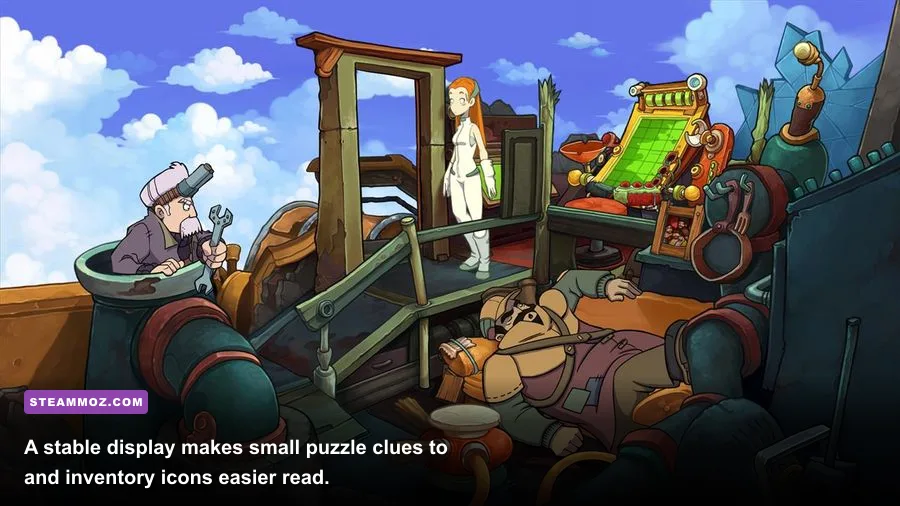
Because the original PC requirements were modest—roughly a 2 GHz processor, 2 GB of RAM, DirectX 9-class graphics, and around 3 GB of storage—most dedicated GPUs have enormous headroom. The exceptions are very old integrated graphics, laptops running in a power-saving mode, and systems where the game is being stretched across a modern ultrawide display. These profiles give you a practical starting point instead of pretending that every computer needs the same settings.
| Profile | Resolution and mode | Quality targets | Expected result |
|---|---|---|---|
| Max visual quality | Native 16:9 fullscreen | Textures and effects High; V-Sync On | Cleanest image with a locked 60 FPS target |
| Integrated graphics | 1280×720 or 1600×900 fullscreen | Effects Medium; post-processing Off if needed | Reduces scaling and scene-transition hitching |
| Older laptop | 1280×720 windowed or fullscreen | Textures High; shadows/effects Low or Medium | Prioritizes consistent input over visual polish |
| 144Hz or 165Hz display | 1920×1080 fullscreen | V-Sync On; external cap at 60 FPS | Avoids animation and timing oddities |
| 4K desktop | 1920×1080 or native 3840×2160 | Native scaling tested manually | 1080p often delivers the clearest interface |
| Ultrawide monitor | 16:9 resolution with centered image | Native game aspect ratio | Avoids stretched characters and cropped scenes |
On integrated graphics, lower effects before textures. The game’s character art and backgrounds carry most of its visual identity, while effects usually contribute less to readability. If you’re still seeing drops, reduce resolution one step and close browser tabs, recording tools, and overlays. A game this old can be more affected by background CPU activity and compatibility layers than by raw GPU load.
For high-refresh displays, don’t confuse refresh rate with game frame rate. Set the monitor to its normal refresh rate in Windows, but cap Goodbye Deponia at 60 FPS using NVIDIA Control Panel, AMD Software, or an external limiter such as RTSS. If your driver refuses to detect the executable, add the game’s actual .exe from the Steam installation folder rather than applying a global profile. Keep the cap conservative; an unstable 120 FPS is worse than a flat 60 FPS here.
Fix stutter, black screens, and slow mouse input
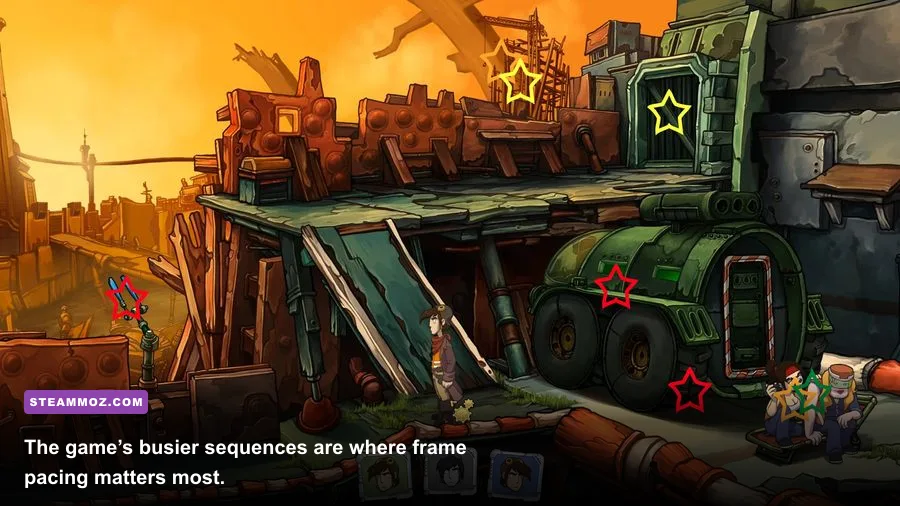
The most common “performance” complaints in Goodbye Deponia aren’t really GPU limitations. They’re old-game compatibility issues. The game can launch correctly yet feel sluggish because Windows is scaling the executable, a capture overlay is hooking into it, or fullscreen behavior is being handled differently by the operating system than it was on Windows XP or Windows 7.
1. Verify the installation before touching compatibility settings
In Steam, right-click Goodbye Deponia, choose Properties, open Installed Files, and select Verify integrity of game files. This is especially worthwhile after moving the game between drives or restoring an old save backup. A missing movie, damaged archive, or incomplete update can look like a frame-rate issue when the engine is simply waiting for a resource.
2. Disable overlays one at a time
Test with Steam Overlay, Discord Overlay, Xbox Game Bar, Radeon recording, GeForce Experience, and MSI Afterburner’s on-screen display disabled. You don’t need to shut down every background program permanently; you’re isolating the hook that causes the problem. Screen capture software can create stutter during scene changes, especially when it tries to record a 2D game at a refresh rate higher than the title expects.
3. Test Windows DPI compatibility
Find the game executable through Steam’s local files, open Properties, go to Compatibility, and test Override high DPI scaling behavior with the application option. This can correct a blurry image or misaligned cursor on a 125%, 150%, or 200% Windows desktop scale. Don’t enable every compatibility checkbox at once. If the cursor becomes worse, return to the default and test fullscreen optimization separately.
4. Turn off HDR and variable refresh for diagnosis
HDR can make older games appear washed out or unexpectedly dark, while G-Sync and FreeSync can introduce odd pacing when a title does not communicate its frame timing properly. Temporarily disable HDR and variable refresh, test a locked 60 FPS, and then re-enable them individually. If the game remains smooth with VRR off, leave it off for this title; there’s no competitive benefit to forcing modern display features onto a slow-paced adventure game.
For more general Windows troubleshooting, compare these steps with Steamoz’s PC fixes for crashes and low FPS and the troubleshooting checklist in our slow performance guide. The games are unrelated, but the overlay, driver, and display-scaling checks apply surprisingly often.
How to make the image sharp without adding latency
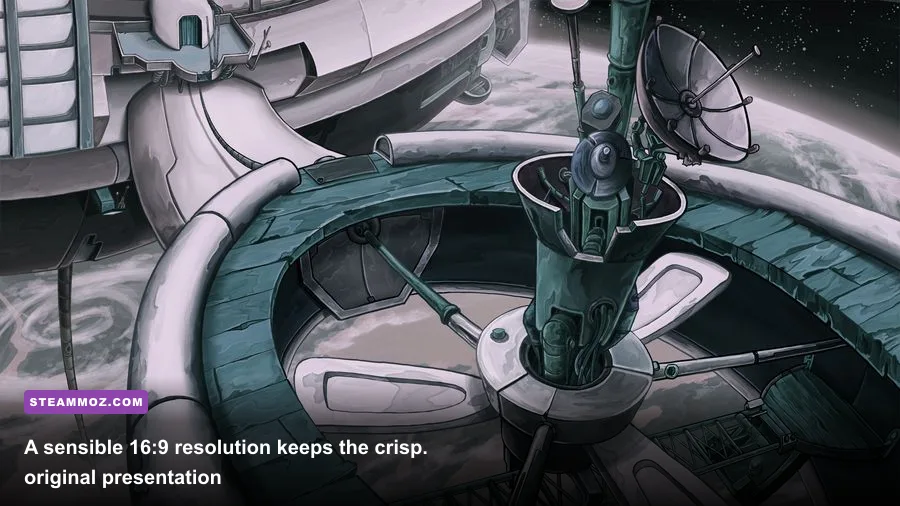
Sharpness matters more in Goodbye Deponia than a small theoretical FPS gain. Puzzle solutions often depend on noticing a tiny object, a visual change in a scene, or an inventory item that blends into the surrounding art. Use the monitor’s native aspect ratio and avoid stretching a 4:3 or non-native resolution across a widescreen panel. If the game offers a choice between maintaining aspect ratio and filling the screen, choose aspect ratio.
Keep your GPU image-sharpening filter disabled at first. NVIDIA Image Scaling, Radeon Super Resolution, and monitor sharpening can create halos around hand-drawn outlines and make text look harsh. If you must upscale from 1280×720 on an older laptop, use a mild sharpening value rather than stacking driver sharpening with the monitor’s own enhancement mode. The best result is usually a clean bilinear or driver-managed upscale, not an aggressively processed one.
V-Sync deserves a little nuance. On a fixed 60Hz screen, enabling it prevents horizontal tearing and gives the game a calmer, more consistent presentation. On a high-refresh display, driver-level V-Sync plus a 60 FPS cap can work better than the in-game option if the game’s own synchronization causes delayed clicks. If input feels heavy, test three combinations: in-game V-Sync on, in-game V-Sync off with driver V-Sync on, and both off with a 60 FPS cap. Keep whichever gives you clean scrolling and immediate cursor movement.
Recommended display checklist
- Use a 16:9 resolution that your monitor scales cleanly.
- Keep the game at 60 FPS instead of chasing triple-digit numbers.
- Disable HDR if colors look gray, crushed, or strangely bright.
- Turn off artificial sharpening if outlines look grainy or haloed.
- Use aspect-ratio preservation on ultrawide or 4:3 displays.
- Test V-Sync and the frame cap separately if clicks feel delayed.
Performance testing that actually tells you something
Don’t judge the setup from the opening screen alone. Walk Rufus through a quiet location, enter a room with several animated characters, open and close the inventory, trigger a dialogue-heavy sequence, and test one of the game’s busier comedic set pieces. The title’s average frame rate will be meaningless if a scene transition hitches for half a second every time a new background loads.
Use a frame-time graph if your overlay supports one. A steady 16.7 ms frame time equals 60 FPS; brief spikes to 50 or 100 ms are the stutters you’ll feel as a pause when clicking or moving between scenes. If GPU utilization is low but frame time spikes remain, lowering visual quality won’t solve the problem. Look at overlays, CPU power settings, storage activity, and compatibility options instead.
| Test area | What to watch | Likely cause of a hitch | Best fix |
|---|---|---|---|
| Main menu to save load | Black screen or delayed transition | Overlay, missing file, or fullscreen conflict | Verify files and test windowed mode |
| Busy animated room | Frame-time spikes during character motion | Effects, background recording, or CPU power saving | Disable capture and use the High Performance power plan |
| Inventory opening | Cursor delay or uneven menu animation | V-Sync mismatch or DPI scaling | Test a 60 FPS cap and DPI override |
| Dialogue sequence | Audio or subtitle timing irregularity | Compatibility layer or background load | Close overlays and avoid aggressive launch options |
| Scene transition | Short freeze while loading artwork | Drive latency or antivirus scanning | Install on an SSD and whitelist the game folder if safe |
For most players, the final profile should be simple: 1920×1080 fullscreen, highest available texture and effect quality, V-Sync enabled, and an external 60 FPS limit. Integrated-GPU users should drop to 1600×900 or 1280×720 and reduce effects before touching textures. If the game still behaves strangely, prioritize compatibility fixes over lower graphics settings.
Goodbye Deponia remains a wonderfully odd adventure because its scenes are packed with motion, color, and tiny visual jokes. You don’t need a powerful GPU to preserve that look. You need a sensible resolution, stable frame pacing, and a little patience with an engine from another PC era. Once those pieces are in place, the result is exactly what this game wants to be: smooth, readable, and quick enough that the interface never gets between you and Rufus’s next catastrophically bad idea.
For more demanding games where settings genuinely make or break playability, see our guides on Edge of Eternity PC requirements and the settings that matter in Don’t Be Afraid. For the official developer background and support information, visit Daedalic Entertainment and the publisher’s Deponia website.