
If Chef Life: TOKYO DELIGHT crashes on launch or crawls during a busy service, the fastest fix is a clean PC baseline: update the GPU driver, verify the Steam installation, disable overlays, reset the game’s settings, then run the game at 1080p with shadows and post-processing reduced. The Tokyo content itself usually exposes an existing driver, corrupted-file, thermal, or CPU frametime problem rather than requiring a special DLC patch.
Use the steps below in order. Test one change at a time, because randomly dropping every setting to Low makes it much harder to identify the real culprit. The official Chef Life Steam page is also worth checking for current patches, system requirements, and user reports before you start.
Start With the Crash-Proof Baseline
Before changing graphics, close Chef Life and reboot Windows. That sounds basic, but a long session can leave overlays, shader caches, and background launchers fighting for memory. Launch Steam as normal first; administrator mode should only be a troubleshooting test, not your permanent setup.
Repair the installation and install TOKYO DELIGHT correctly
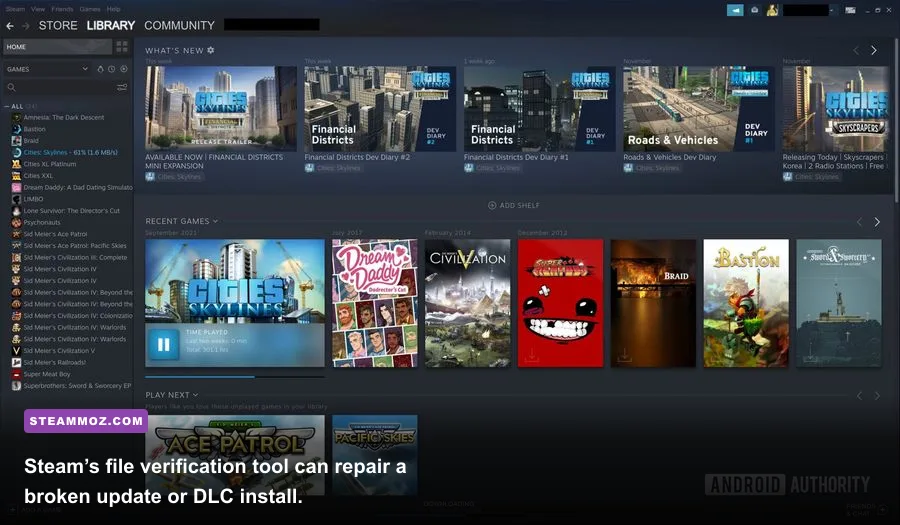
In Steam, right-click Chef Life, choose Properties, open Installed Files, and select Verify integrity of game files. Wait for the process to finish even if Steam reports only a single file needing replacement. Then open the DLC section and confirm TOKYO DELIGHT is ticked. Restart Steam afterward so the entitlement and downloaded files refresh together.
If the crash began immediately after installing the expansion, temporarily untick the DLC, launch the base game, exit, and enable it again. This does not remove your save; it simply forces Steam to rebuild the add-on’s installation state. Do not delete your save folder as a first step. Back it up instead, because restaurant progress is far more valuable than a speculative clean slate.
Remove common conflict sources
Disable Steam Overlay, Discord Overlay, Xbox Game Bar, NVIDIA App or GeForce Experience overlay, AMD Adrenalin overlay, and MSI Afterburner’s on-screen display for the first test. Recording hooks can crash a game while it changes scenes or loads a restaurant interior. Also close RGB utilities and aggressive hardware-monitoring tools if the crash occurs during loading rather than gameplay.
| Check | Where to change it | Why it matters | When to test |
|---|---|---|---|
| Game files | Steam > Properties > Installed Files | Repairs incomplete patches and DLC files | First |
| Overlays | Steam, Discord, GPU app settings | Removes injection and capture conflicts | Before graphics changes |
| GPU driver | NVIDIA, AMD, or Intel official installer | Fixes shader and DirectX compatibility issues | After reboot |
| Background apps | Task Manager | Returns CPU and RAM headroom to the game | During a service test |
For driver downloads, use the official NVIDIA driver page, AMD support page, or Intel’s driver tool. Choose a clean installation when the installer offers it, especially if other games also started crashing after a driver update.
🎮 Chef Life - TOKYO DELIGHT
Looking to experience this game? Grab your digital key directly on our store for $3.89.
View on Steammoz Store →Use This Low-FPS Settings Profile First
Chef Life is not a twitch shooter, so a stable 60 fps feels much better than a volatile 90 that collapses whenever customers, staff, effects, and kitchen equipment appear together. Start at 1920x1080, select exclusive fullscreen if the game offers it, and restart after applying major changes. Borderless mode is convenient, but fullscreen can reduce desktop compositor overhead on some systems.
Keep textures at High if your graphics card has enough VRAM. Texture quality usually affects memory more than raw frame rate, while shadows, ambient occlusion, reflections, volumetric effects, and post-processing can hit the GPU every frame. If your laptop has integrated graphics, begin with Medium textures and a 30 or 45 fps cap rather than chasing an unstable 60.
| Setting | Recommended starting value | Typical FPS impact | Visual trade-off |
|---|---|---|---|
| Resolution | 1920x1080 | Very high if reduced | Lower resolution softens the entire image |
| Texture quality | High, or Medium under 4 GB VRAM | Low to medium | Lower values blur ingredients and surfaces |
| Shadows | Medium | Medium to high | Less contact detail around counters and furniture |
| Ambient occlusion | Low or Medium | Medium | Corners and objects look flatter |
| Reflections | Low | Medium to high | Less accurate shine on floors and metal |
| Post-processing | Low or Medium | Medium | Reduced bloom, blur, and cinematic effects |
| Anti-aliasing | Medium | Low to medium | More jagged edges at lower values |
| VSync | Off for testing | Variable | May introduce tearing; use a cap later |
After applying the profile, cap the frame rate to a number your PC can actually hold. A locked 60 is ideal for a 60 Hz display; 30 or 45 is perfectly playable if the alternative is constant hitching. If you use NVIDIA, test a driver-level frame cap. On AMD, Radeon Chill can provide a similar ceiling, but avoid stacking multiple limiters because that can add uneven frame pacing.
Fix Stutter During Busy Restaurant Service
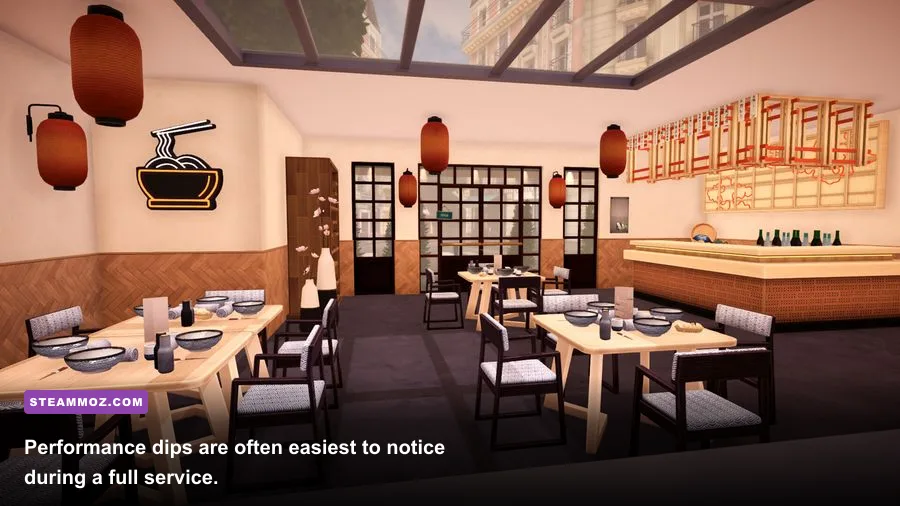
A smooth opening kitchen followed by stutter when the dining room fills usually points to a CPU or frame-time bottleneck, not a weak GPU. Chef Life has to simulate customers, staff routines, orders, animations, cooking stations, and the restaurant environment at the same time. Tokyo-themed furniture and a fully decorated dining room can make the busiest moment more demanding than the quiet preparation phase.
Find the bottleneck instead of guessing
Use Steam’s performance overlay or a trusted monitor and watch GPU usage, CPU usage, VRAM, system RAM, and frame time during the same service. A GPU pinned near 99 percent means reduce resolution, shadows, reflections, or post-processing. A GPU sitting around 50 to 70 percent while one or two CPU cores spike means graphics reductions will barely help; close browser tabs, disable recording, and lower simulation-heavy options such as crowd or object detail if available.
Watch temperatures too. If the game runs well for ten minutes and then degrades, a laptop may be hitting a power or thermal limit. Plug it in, set Windows to Best performance, clear dust from vents, and use a hard surface. Do not place a gaming laptop on bedding during a long restaurant service. Thermal throttling can look exactly like a bad DLC update.
Improve frame pacing
Turn off motion blur if the option exists; it does not raise performance dramatically, but it makes camera movement easier to read at 30 or 45 fps. Keep the camera sensitivity moderate and avoid rapidly spinning through the dining room while testing. If stutters happen only the first time you enter a location, let the game finish shader compilation and avoid alt-tabbing during that initial load.
For more PC tuning ideas, compare the approach in our Iratus graphics settings guide. The useful lesson applies here too: target consistent frame time first, then restore visual quality one setting at a time.
Stop Crashes After Loading or Alt-Tabbing
Crashes tied to a specific moment need different treatment from low FPS. If Chef Life crashes before the main menu, suspect drivers, overlays, missing files, permissions, or a damaged configuration file. If it crashes only when loading TOKYO DELIGHT content, verify the DLC and test with a backed-up save to separate an installation problem from a save-specific issue.
Reset configuration without deleting progress
Back up your save files, then use Steam’s Browse local files option and look for the game’s configuration folder in the installation or Windows user profile. The exact folder name can vary by build, so rename the configuration folder rather than deleting it. Launch the game and let it generate fresh settings. This fixes bad resolution, fullscreen, or graphics values that can crash before the menu appears.
Do not download random DLL files from third-party websites. If Windows reports a missing runtime, repair or install Microsoft’s official Visual C++ Redistributable packages and update Windows. The game’s Steam discussion page can reveal whether a crash is widespread, but treat unofficial “fix packs” with suspicion.
Test Windows compatibility options carefully
Right-click the game executable, open Properties, and use Compatibility only as a controlled test. Disable fullscreen optimizations if fullscreen transitions crash, or try Windows compatibility mode only if the game refuses to launch. Do not permanently force administrator privileges unless support specifically recommends it; doing so can create permission mismatches with Steam Cloud and save files.
If the crash happens after alt-tabbing, use borderless windowed mode and turn off overlays first. Laptop users should also force the dedicated GPU through Windows Graphics Settings. The official Cyanide Chef Life page is the right place to check developer announcements rather than relying on a speculative forum workaround.
| Crash pattern | Most likely cause | Best first fix | What not to do |
|---|---|---|---|
| Before the menu | Driver, overlay, or broken config | Clean driver test and rename config folder | Delete saves immediately |
| When loading Tokyo content | DLC file or entitlement issue | Verify files and re-toggle DLC | Install unofficial DLLs |
| After alt-tab | Fullscreen or overlay conflict | Use borderless and disable overlays | Stack multiple capture tools |
| After a long session | Thermal, RAM, or driver instability | Check temperatures and reboot | Overclock further while troubleshooting |
Apply a Stable Final Profile and Test It
Once the game launches reliably, build your final profile around a repeatable test: load the same restaurant, start a service, move between the kitchen and dining room, and play for at least ten minutes. Judge the worst one-percent moments, not the number shown while staring at an empty kitchen. That is where a Tokyo DELIGHT performance problem reveals itself.
For a mid-range desktop, use 1080p, High textures, Medium shadows, Low reflections, Medium ambient occlusion, Medium post-processing, VSync off, and a locked 60 fps. For an older laptop, use 1080p or 1600x900, Medium textures, Low shadows, Low reflections, Low post-processing, and a 30 or 45 fps cap. Integrated graphics should prioritize resolution and frame pacing over pretty reflections.
Keep Steam Cloud enabled after confirming the repaired installation, and retain the backup you made before resetting settings. If the game still crashes, record the exact trigger, attach a crash log if available, list your CPU, GPU, RAM, driver version, resolution, and whether overlays were disabled. That turns a vague “TOKYO DELIGHT crashes” report into useful information for Steam community troubleshooting and developer support.
For a broader example of methodical PC troubleshooting, our Kumitantei PC fixes guide follows the same rule: repair the install, remove conflicts, reset configuration, then tune performance. Chef Life rewards that patience. Once frame time is stable, the new Tokyo kitchen can finally be judged on its recipes and service pressure instead of whether the game survives the dinner rush.