If Deep Rock Galactic keeps crashing or your FPS collapses during swarms, start with three fixes: disable mods and overlays, verify the Steam installation, then switch between DirectX 11 and DirectX 12 while lowering volumetric effects and shadows. For stubborn crashes, update the GPU driver, clear shader caches, remove launch options, and test the game with a clean configuration. The biggest performance killer is usually not resolution; it is the combination of lighting, shadows, particles, and swarm-heavy CPU load.
That order matters. Randomly dropping every setting to Low can make Hoxxes look like a muddy tunnel without fixing the real problem. Deep Rock Galactic is a relatively scalable game, but its frame rate changes dramatically between an empty mining tunnel and a Salvage Operation with hundreds of Glyphids, Steve the friendly Glyphid, turrets, explosions, and four players firing at once. The guide below separates crashes from low FPS, then gives you a practical profile for stable play.
Before changing anything, check the official Steam page for the current system requirements and patch notes. Also remember that a mission-specific stutter is different from a game that freezes at launch. Treating both problems the same wastes time.

Start With the Fast Crash Fixes
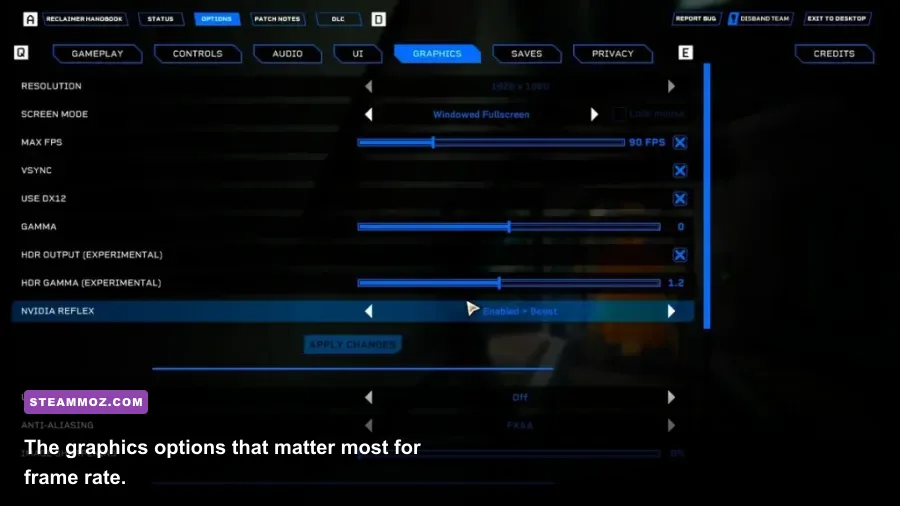
Most sudden crashes come from one of four sources: a damaged file, an outdated mod, a graphics API conflict, or an overlay hooking into the renderer. Fix those before touching Windows registry settings or reinstalling the whole game.
1. Disable mods before launching a mission
Open the in-game Modding menu and disable every gameplay, audio, framework, and cosmetic mod. If the game will not stay open long enough to reach that menu, use the mod.io account or mod manager connected to Deep Rock Galactic and unsubscribe from recently installed items. Framework and gameplay mods are the priority; a cosmetic pack can still become unstable after an update, but framework mods are more likely to crash the game during loading.
After disabling mods, restart Steam and launch an unmodded Solo mission. Do not judge stability from the title screen alone. Load a short Hazard 2 Mining Expedition and walk around for five minutes. If that works, re-enable mods in small groups. The moment the crash returns, you have found the group to isolate.
2. Verify the installation
In Steam, right-click Deep Rock Galactic, choose Properties, open Installed Files, and select Verify integrity of game files. Steam may report that some files failed verification and will reacquire them; that is normal. Close background download tools while the process runs, then reboot before testing again.
3. Remove launch options
Go to Properties > General > Launch Options and delete old commands such as forced DirectX flags, obsolete performance tweaks, or commands copied from a different Unreal Engine game. A clean launch is the best baseline. If you later need to test an API, use one command at a time rather than stacking several experimental switches.
4. Test DirectX 11 and DirectX 12 separately
On many PCs, DX12 delivers smoother frame pacing after shaders settle, while DX11 is the safer fallback for launch crashes, older GPUs, and certain driver combinations. Test each mode for the same five-minute Solo mission. Keep the mode that gives fewer hitches and no crash; the higher average FPS is not useful if the game freezes every other mission.
If you use an AMD Radeon RX 5000-series or newer card, or an NVIDIA RTX card, DX12 is worth testing first. Older GTX cards and systems with unstable drivers often behave better under DX11. This is not a universal rule, so measure instead of trusting a forum preset.
🎮 Deep Rock Galactic
Looking to experience this game? Grab your digital key directly on our store for $8.99.
View on Steammoz Store →Fix GPU Drivers, Windows, and Conflicting Software
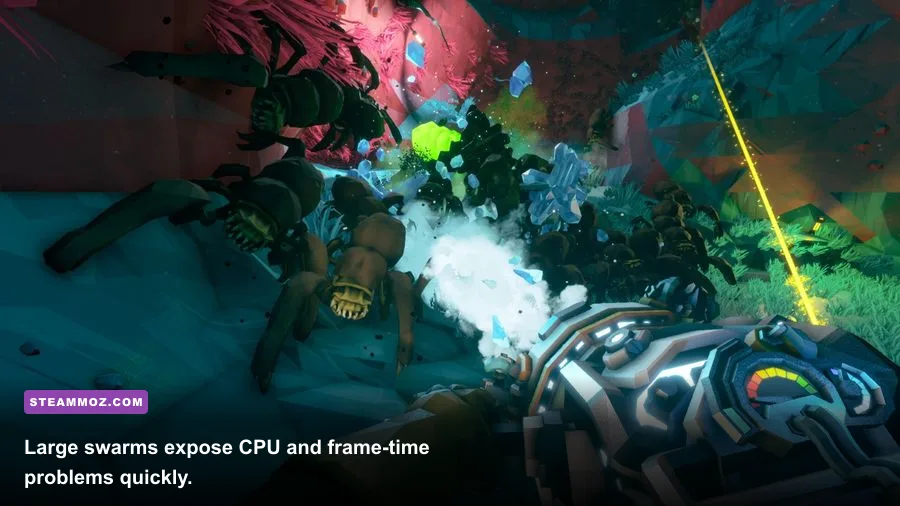
When the game crashes only after entering a mission, the driver or a third-party overlay is often the culprit. Deep Rock Galactic constantly streams geometry, particles, audio, and lighting as you carve through procedurally generated caves. A driver that handles the Space Rig perfectly can still fail under a full swarm.
Use a clean graphics-driver update
Download the current driver directly from NVIDIA or AMD. Choose the clean-install option where available. If crashes started immediately after a driver update, roll back to the previous stable driver instead; newest does not always mean best for every card.
Intel integrated graphics are below the game's practical target, even if a modern laptop reports a compatible DirectX version. The official PC requirements list a GTX 660 or Radeon 7870 as the minimum class, with a GTX 970 or Radeon R9 290 recommended. Those older cards can run the game, but laptop power limits, thermal throttling, and shared system memory may reduce performance sharply.
Turn off overlays one by one
Disable the Steam overlay, Discord overlay, Xbox Game Bar, NVIDIA ShadowPlay or AMD recording overlay, MSI Afterburner overlay, and any RGB or motherboard utility that injects into games. Do not disable everything permanently. Turn them off, test a mission, and then restore them individually so you know which program is responsible.
Recording software can also produce hitching when it writes to a nearly full SSD. Keep at least 15 percent free space on the drive containing the game and Windows. If your game is installed on a hard drive, moving it to an SSD usually improves asset streaming and reduces the ugly pauses that happen when a new cave section loads.
Check temperatures and power limits
Use a monitoring tool to watch CPU temperature, GPU temperature, clock speed, utilization, and frame time. A GPU sitting at 95 percent utilization with low CPU usage means graphics settings are limiting performance. A single CPU thread reaching its limit while the GPU drops below 80 percent points to a processor bottleneck, which is common during Glyphid swarms.
On laptops, connect the charger and select the manufacturer's performance mode. Windows Battery Saver can cap clocks and make the game look broken. Close browsers with hardware-accelerated video, especially if the game is stuttering rather than crashing.
Use This Deep Rock Galactic FPS Settings Profile
Start at your monitor's native resolution with a frame-rate cap just below its refresh rate. For a 60Hz display, cap at 60 or 58 FPS. For 144Hz, try 120 or 141 FPS rather than letting the GPU run uncapped. A stable cap reduces temperature spikes and makes mining, ziplining, and swarm combat feel more consistent.
| Setting | Recommended Value | FPS Impact | Visual Note |
|---|---|---|---|
| Resolution | Native; use 90% resolution scale if needed | High | Lowering this is the fastest GPU-side gain but softens distant details |
| Anti-Aliasing | TAA or the game's default temporal option | Low to medium | Turning it off creates crawling edges on minerals and cave silhouettes |
| Shadow Quality | Medium | High | Medium keeps cave depth while reducing expensive dynamic shadows |
| Texture Quality | High if VRAM allows; Medium under 4GB | Low to medium | Mostly affects VRAM and texture sharpness, not CPU load |
| Effects Quality | Medium | High during combat | Reduces smoke, fire, explosions, and particle overload |
| View Distance | High on desktop; Medium on older CPUs | Medium | Lowering it can hide distant cave geometry and enemies |
| Volumetric Fog | Low or Medium | High | One of the best settings to lower for dark, effect-heavy caves |
| Post Processing | Medium | Medium | Lower values reduce bloom and screen-space effects |
| Motion Blur | Off | Minimal | Improves visual clarity while turning quickly in tight tunnels |
| V-Sync | Off with a frame cap; On if tearing is severe | Variable | Use one synchronization method, not several stacked together |
Shadow Quality and Volumetric Fog deserve special attention. Shadows are calculated across irregular cave surfaces, while fog interacts with light sources, flares, weapons, and explosions. Dropping Texture Quality first is a common mistake: it may free VRAM, but it does little when the real problem is GPU shader work or CPU simulation.
Three useful performance profiles
For a GTX 660, GTX 1050, RX 570, or similar card: use 1080p if possible, 80-90 percent resolution scale, Medium shadows, Low effects, Low volumetric fog, Medium textures, and a 60 FPS cap. In a four-player swarm, expect dips. A locked 45 FPS can feel better than an unstable 60.
For a GTX 1660, RTX 2060, RX 5600 XT, or similar card: keep native 1080p, High textures, Medium shadows, Medium effects, Medium fog, High view distance, and a 90 or 120 FPS cap. This is the sweet spot for most gaming PCs.
For an RTX 3060, RX 6700 XT, or faster GPU: use native 1440p or 1080p high-refresh play, High textures, High view distance, Medium-to-High shadows, Medium effects, and Medium fog. If you want 144 FPS at all times, lower shadows and fog before sacrificing texture quality.
Stop Stutter During Glyphid Swarms
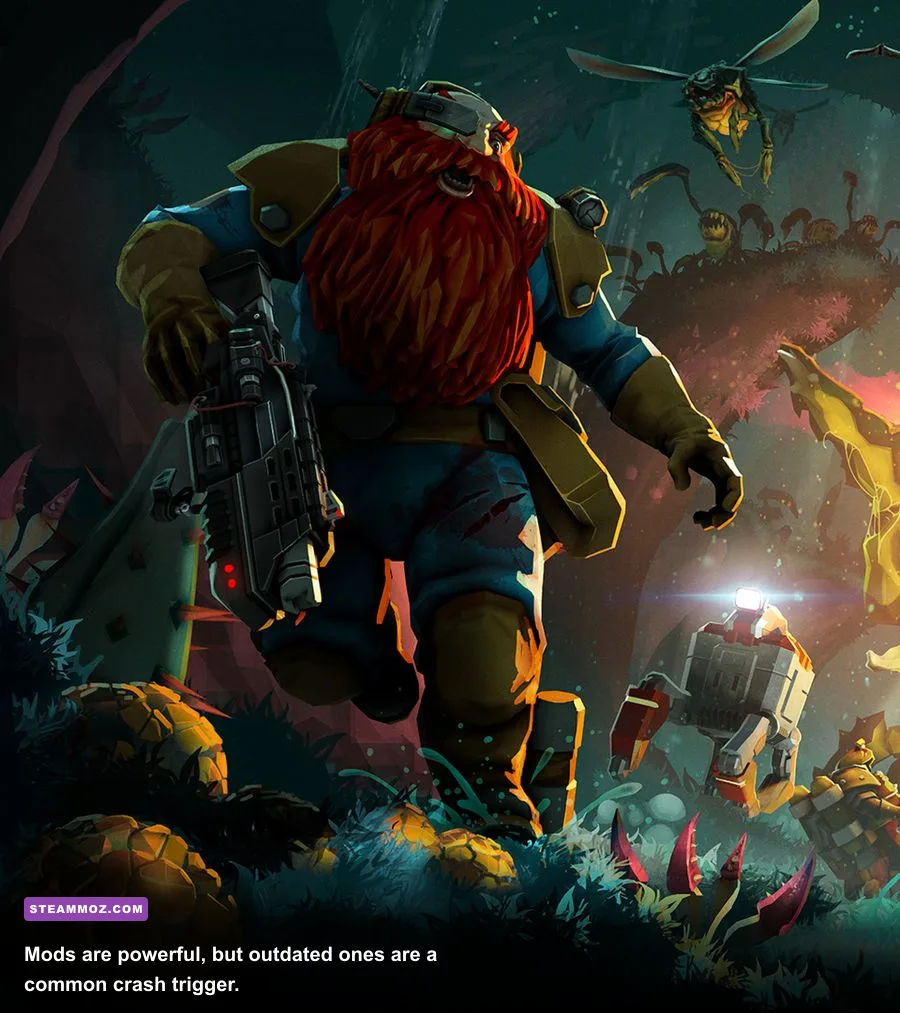
Low average FPS is only part of the problem. Many miners describe Deep Rock Galactic as “lagging” when the real issue is a sudden frame-time spike. Frame time is how long each frame takes to render: 16.7 milliseconds equals 60 FPS, while 33.3 milliseconds equals 30 FPS. A game can report 90 FPS and still feel awful if occasional frames take 100 milliseconds.
Find the bottleneck instead of guessing
Enable Steam's FPS counter or use a monitoring tool that displays frame time. Enter a dense region, call in a Resupply Pod, throw grenades, and trigger a swarm. If GPU usage stays near 99 percent, lower resolution scale, shadows, fog, and effects. If GPU usage falls while one CPU core is busy, lower view distance, close background applications, and cap the frame rate.
The CPU side includes enemy AI, destructible terrain, physics, network replication, and weapon effects. A Scout using the M1000 Classic, a Driller throwing Cryo Grenades, a Gunner firing the Lead Storm Powered Minigun, and an Engineer filling the room with L.U.R.E. effects can create a much heavier scene than an empty tunnel. Four-player Hazard 5 missions are a genuine worst-case test.
Reduce network confusion
Network lag will not lower your local FPS, but it can look similar. If your character rubber-bands, enemies teleport, or shots register late while the frame-time graph remains stable, the issue is connection quality or host load. Try hosting a Solo mission. If Solo is smooth and multiplayer is not, use Ethernet, stop downloads, and avoid playing through an overloaded Wi-Fi extender.
Do not blame Bosco or mission difficulty for every hitch. Bosco's AI and the cave simulation still run locally in Solo, so a Solo swarm is an excellent diagnostic. Test the same graphics profile in Point Extraction, where repeated swarm pressure and open cave geometry can expose CPU and streaming weaknesses faster than a quiet Egg Hunt.
Repair Configuration Files and Shader Problems
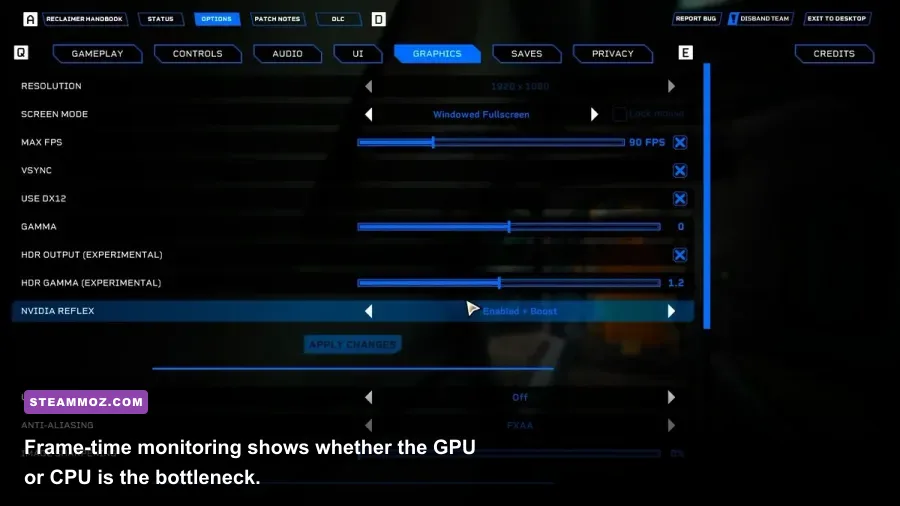
If verification and driver updates fail, reset the game's local configuration. Configuration corruption can preserve a bad resolution, an invalid display mode, or an incompatible graphics option even after a patch. Before deleting anything, back up your save through Steam Cloud and copy your keybinds if you have customized them.
Reset the local settings safely
Close the game and Steam. In Windows Explorer, paste %LOCALAPPDATA% into the address bar and look for the FSD folder associated with Deep Rock Galactic. Rename the relevant configuration folder rather than deleting it, using a name such as FSD_backup. Launch the game and let it create fresh settings. If the crash disappears, restore only your personal controls gradually instead of copying the entire old configuration back.
Folder names can vary by Steam installation and game version, so do not delete a directory just because it contains “FSD” without checking its modified date. If you are unsure, consult the official Steam community discussions or the developer's support channels.
Clear shader caches after driver changes
Shader compilation can cause temporary stutter after a driver update or major game patch. Let the game sit at the Space Rig for a few minutes, then play a short mission before judging performance. Repeatedly quitting during the first shader-heavy encounter can make the cache process start over.
You can also clear the DirectX shader cache with Windows' Disk Cleanup tool, then reboot. Expect the first mission afterward to hitch briefly while shaders rebuild. That initial hitch is normal; crashes or permanent stutter are not. Avoid deleting random Unreal Engine folders from multiple games unless you know exactly what they contain.
Try the official troubleshooting path
Ghost Ship Games publishes support information through its official Deep Rock Galactic site and community channels. Include your crash timing, GPU model, driver version, DirectX mode, active mods, and whether Solo also crashes when reporting the problem. “It crashes” is difficult to reproduce; “it crashes when a Bulk Detonator explodes in a four-player Hazard 5 mission under DX12” is useful evidence.
| Symptom | Most Likely Cause | First Test | Best Fix |
|---|---|---|---|
| Crash before the Space Rig loads | Bad configuration, driver, or launch option | Remove launch options and reset settings | Clean driver install, then test DX11 |
| Crash when entering a mission | Mod, shader, or damaged game file | Disable all mods and verify files | Re-enable mods individually after a clean mission |
| FPS drops only during swarms | CPU simulation or particle overload | Watch CPU threads and frame time | Lower Effects, View Distance, and cap FPS |
| GPU usage remains 99 percent | GPU-bound settings or resolution | Lower resolution scale by 10 percent | Reduce fog, shadows, effects, and resolution |
| Rubber-banding with stable FPS | Network or host connection | Run a Solo mission | Use Ethernet and stop background downloads |
| Stutter after a driver update | Shader cache rebuild | Play one short mission after rebooting | Clear DirectX cache only if stutter persists |
Use a Reliable Testing Order
The fastest way to find the cause is controlled testing. Change one variable, launch the same type of mission, and write down the result. A different biome, Hazard level, or player count can change the workload enough to make a bad fix look successful.
- Back up your controls and save data. Steam Cloud is useful, but a manual backup is smarter before resetting files.
- Disable all mods and overlays. Launch an unmodded Solo Mining Expedition.
- Verify game files. Restart Steam after verification completes.
- Update or roll back the GPU driver. Use a clean installation when possible.
- Test DX11 and DX12 separately. Keep the mode with the best stability and frame pacing.
- Apply the medium-performance profile. Start with Medium shadows, Low-to-Medium fog, Medium effects, and High textures.
- Cap the frame rate. Choose a target your PC can hold during a swarm, not just in the Space Rig.
- Test a four-player mission. If Solo is clean but multiplayer stutters, investigate network and host conditions.
Do not use DLSS, FSR, frame generation, or third-party injectors as a first-line fix if your particular build exposes them through drivers or external tools. Upscaling can raise GPU-limited FPS, but it cannot repair a broken mod, a CPU-bound swarm, or a corrupted configuration. It can also add ghosting around flying Mactera and moving Glyphids, making combat harder to read.
For more PC troubleshooting ideas, compare this process with Steamoz's guides to smooth FPS settings in Edge of Sanity, fixing choppy performance in Exogate Initiative, and Drizzlepath: Glass PC settings. The same rule applies across PC games: identify whether the limit is the GPU, CPU, storage, driver, or network before lowering everything blindly.
Once Deep Rock Galactic runs cleanly, restore quality in this order: textures first, then view distance, then effects, and finally shadows and volumetric fog. Keep a frame cap and retest during a real swarm. Rock and Stone is much more fun when the screen stays responsive, the cave loads without freezing, and a Bulk Detonator explosion does not turn your mission into a desktop crash.