Don't Be Afraid should run comfortably on a mid-range gaming PC, but the Steam-listed requirements are a little more demanding than the game's relatively compact download suggests. You'll want at least an Intel Core i5-4460 or AMD FX-8350, 8GB of RAM, and a GeForce GTX 960 or Radeon R9 280. For the better-looking 1080p experience, aim for a Core i7-3770 or Ryzen 5-class processor, 16GB of memory, and a GTX 1060 or RX 580. An SSD isn't mandatory, but it helps reduce the friction of loading and streaming through the game's mansion environments.
This is a first-person psychological horror game built around exploration, hiding, and carefully staged visual scares rather than combat-heavy action. That matters for PC tuning: a stable frame rate is more valuable than chasing ultra settings, because stutter can ruin the timing of audio cues and scripted encounters. Below, you'll find the exact minimum and recommended PC specs, realistic performance expectations, and a settings profile that makes the game feel smooth without flattening its atmosphere.
Don't Be Afraid system requirements at a glance
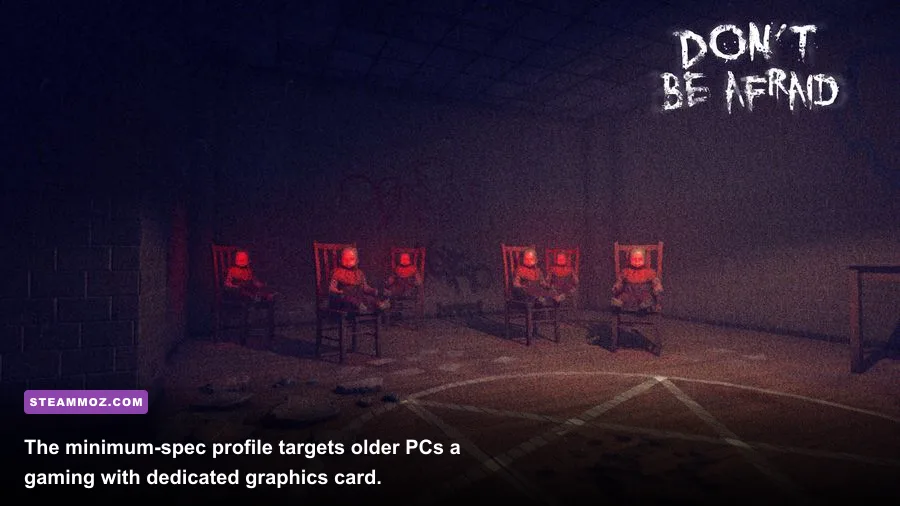
The requirements listed on the official Steam page are old by current standards, but they still provide a useful baseline. The minimum configuration is designed for 720p-class play with reduced visual settings, not necessarily a locked 60 frames per second at 1080p. The recommended tier is the safer target if you want the game's dark rooms, volumetric lighting, and shadow detail to look convincing.
| Component | Minimum | Recommended | What it means today |
|---|---|---|---|
| Operating system | Windows 7 64-bit | Windows 10 64-bit | Windows 10 or 11 is the practical choice |
| Processor | Intel Core i5-4460 / AMD FX-8350 | Intel Core i7-3770 / AMD Ryzen 5-class CPU | Four modern cores are enough; stronger CPUs help frame-time stability |
| Memory | 8GB RAM | 16GB RAM | 16GB leaves room for Windows and background applications |
| Graphics card | GeForce GTX 960 / Radeon R9 280 | GeForce GTX 1060 / Radeon RX 580 | Any newer GTX 1650, RX 570, or integrated Arc equivalent is viable |
| DirectX | Version 11 | Version 11 | Modern GPUs support this comfortably |
| Storage | 10GB available space | 10GB available space | An SSD is recommended for faster loading |
The important distinction is between having enough power to launch the game and having enough headroom to avoid hitching. A GTX 960-class card can handle the workload, but its 2GB variants are more vulnerable to texture and resolution pressure. If your card has only 2GB of VRAM, keep textures at medium and avoid supersampling. The CPU requirement is less intimidating: most recent Core i3, Ryzen 3, and six-core laptop processors will beat the listed chips in real-world frame-time consistency.
For more context on how older atmospheric games respond to tuning, our guide to Drizzlepath: Glass PC specs and settings is a useful comparison. The same principle applies here: don't mistake a low GPU average for a smooth experience if frame times are spiking.

🎮 Don't Be Afraid
Looking to experience this game? Grab your digital key directly on our store for $1.99.
View on Steammoz Store →What performance to expect from minimum and recommended hardware
On hardware close to the minimum, 720p or 900p is the sensible starting point. A GTX 960 or R9 280 should generally be capable of around 30 to 60 fps with medium settings, depending on the scene and whether shadows are enabled at a high quality. The mansion's enclosed rooms are usually easier to render than areas with multiple light sources, heavy fog, or several effects layered together.
A GTX 1060 6GB, RX 580, or a newer equivalent has enough room for 1080p high settings. A locked 60 fps target is realistic in most situations, though older CPUs can still produce brief dips when the game triggers an encounter or loads a new section. Those dips are usually frame-time spikes rather than a sustained lack of GPU performance, so lowering every setting won't always fix them. Close browsers, overlays, launchers, and recording tools first.
| Hardware profile | Resolution | Suggested preset | Realistic target |
|---|---|---|---|
| GTX 960 2GB / R9 280 | 1280×720 | Low to medium | 30–60 fps |
| GTX 1060 6GB / RX 580 | 1920×1080 | High, reduced shadows | 50–60 fps |
| GTX 1660 / RX 5600 XT | 1920×1080 | High or ultra-style profile | 60 fps with headroom |
| RTX 3060 / RX 6600 and above | 1920×1080 or 2560×1440 | High, native resolution | 60 fps, display-dependent |
Don't Be Afraid is not a competitive game, so you don't need 144 fps to play effectively. Still, 60 fps makes camera movement cleaner and helps you react when the game shifts from quiet exploration to a chase. If your system cannot hold 60, cap it at 30 rather than allowing an unstable 38–57 fps range. A consistent 30 feels far better than uneven delivery, especially on a 60Hz display.
The graphics settings worth changing first
Start with the native resolution, then adjust the settings that affect lighting and scene complexity. Horror games rely heavily on darkness, contrast, and shadow placement, so blindly selecting the lowest preset can make the experience look flat while offering only a modest performance gain.
| Setting | Recommended value | FPS impact | Visual trade-off |
|---|---|---|---|
| Resolution | Native; 1600×900 on weaker GPUs | Very high | Lowering it reduces clarity everywhere |
| Shadows | Medium | High | Preserves mood while reducing expensive shadow passes |
| Textures | High with 4GB+ VRAM; medium below 4GB | Low to medium | Mostly affects surface detail and VRAM usage |
| Effects | Medium or high | Medium | Controls fog, particles, and visual noise |
| Post-processing | Medium | Medium | Lower values can reduce blur and cinematic effects |
| Anti-aliasing | Medium | Low to medium | Reduces jagged edges without the cost of higher resolution |
| V-sync | On for 60Hz displays; off with VRR | Negligible | Prevents tearing but can add latency |
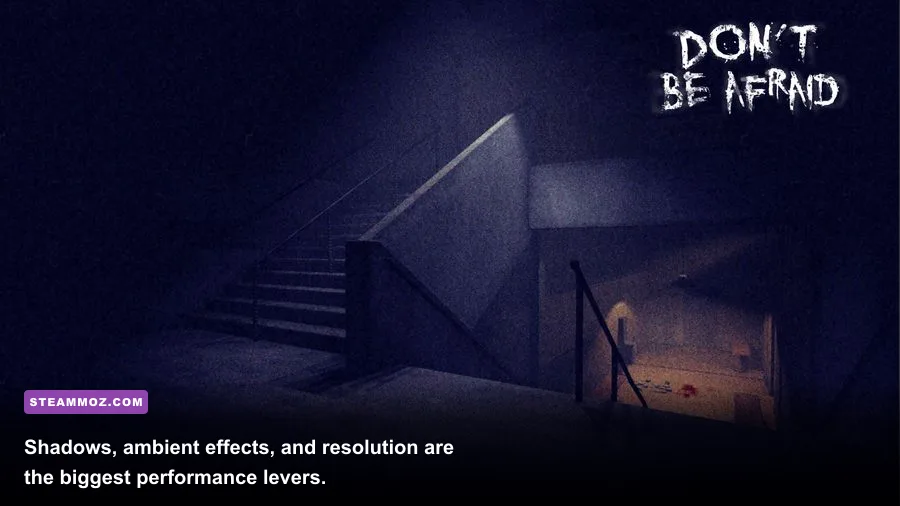
Shadows are the first major cut. Move them from high to medium before touching textures; you’ll usually gain more performance while keeping the mansion's surfaces sharp. If frame rate still drops, lower effects next. Resolution is the emergency lever because dropping from 1080p to 720p solves GPU load quickly, but it also makes small environmental details and distant silhouettes noticeably softer.
Textures deserve a little caution. They don't usually cost much frame rate, but they consume VRAM. If the game stutters while turning quickly or entering a new room, your card may be paging assets rather than simply running out of shader power. Lower textures one step, restart the game, and test the same area again. That is more useful than judging performance from a quiet hallway.
Best settings for gaming laptops and older PCs
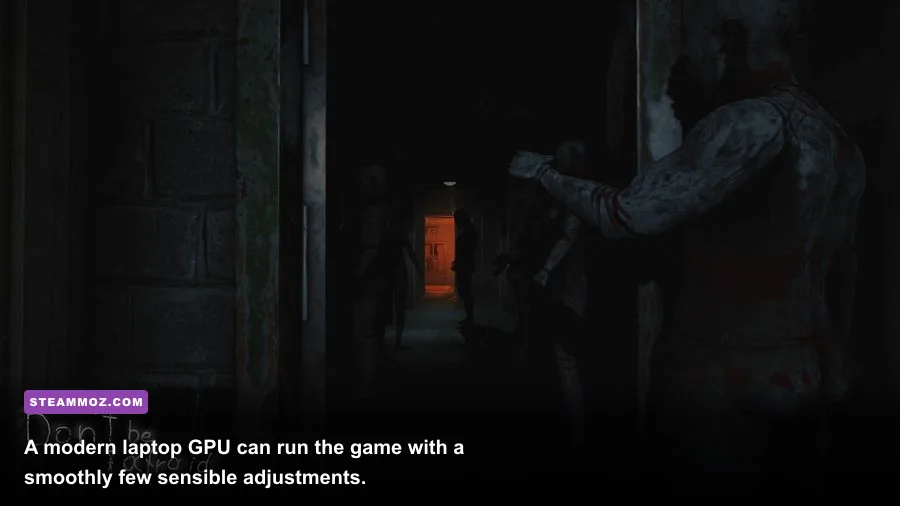
Laptop owners should treat the Steam minimum as a plugged-in requirement. Battery mode can aggressively reduce CPU and GPU clocks, turning a machine that should manage 60 fps into one that struggles below 30. Set Windows to Best Performance, connect the charger, and make sure the game uses the dedicated GPU rather than integrated graphics.
For a laptop with GTX 1650 graphics and 8GB RAM, use 1600×900, medium textures, medium shadows, low-to-medium effects, and a 60 fps cap. A GTX 1050 Ti can still play, but 720p medium is the safer profile. If you have only 8GB of system memory, close Chrome and any launcher you aren't using. Windows can consume enough RAM in the background to create hard stutters during loading.
Thermal throttling is another common culprit. If performance starts smoothly and collapses after 15 or 20 minutes, monitor temperatures rather than immediately dropping resolution. Clean the vents, raise the rear of the laptop, and use a more aggressive fan profile. The game isn't demanding enough to justify a hot, throttled system running below its potential.
For a broader checklist on eliminating hitching, Steamoz's Edge of Sanity smooth-FPS settings guide covers the same laptop basics, including power modes and background processes. You can also compare the approach with our Exogate Initiative stutter fixes.
How to get a stable 60 fps without ruining the horror
The best balanced profile for a recommended-spec PC is simple: native 1080p, high textures, medium shadows, medium-to-high effects, medium anti-aliasing, and V-sync or a frame cap at 60. That combination keeps the visual ingredients that matter—dark surfaces, readable silhouettes, and atmospheric lighting—while trimming the settings most likely to create sudden GPU spikes.
Use the game's opening mansion sections as your test route. Walk slowly through rooms with multiple lamps, turn quickly toward doorways, and let any scripted audio or visual event complete. A benchmark in an empty corridor tells you almost nothing. You’re looking for the worst-case frame time, not the prettiest average number.
If your average is high but the game feels jerky, cap the frame rate externally through your GPU control panel and disable unnecessary overlays. Nvidia users can use the game's profile in the Nvidia App or Control Panel; AMD users can do the same in Adrenalin. Avoid stacking multiple frame limiters, since competing caps can introduce uneven pacing.
Don't Be Afraid also benefits from being installed on an SSD, even though the official storage requirement is only 10GB. An SSD won't increase average fps, but it can shorten loading and reduce the wait when the game moves between interior spaces. Keep at least 15 to 20GB free on the drive so Windows and the game have breathing room for temporary files.
Before launching, check the publisher's official site for current support information and updates, and compare your setup against the Steam listing. If you’re still troubleshooting an older machine, our Don't Be Afraid survival tips can help you spend more time reading the mansion and less time repeating mistakes after a bad chase.
Bottom line: the minimum Don't Be Afraid PC requirements are approachable, but 16GB of RAM and a GTX 1060-class GPU remain the comfortable target. Prioritize shadows and effects over textures, use a sensible frame cap, and test performance in busy rooms rather than empty corridors. With that profile, even a mid-range PC can preserve the game's oppressive lighting without turning every scare into a stutter.