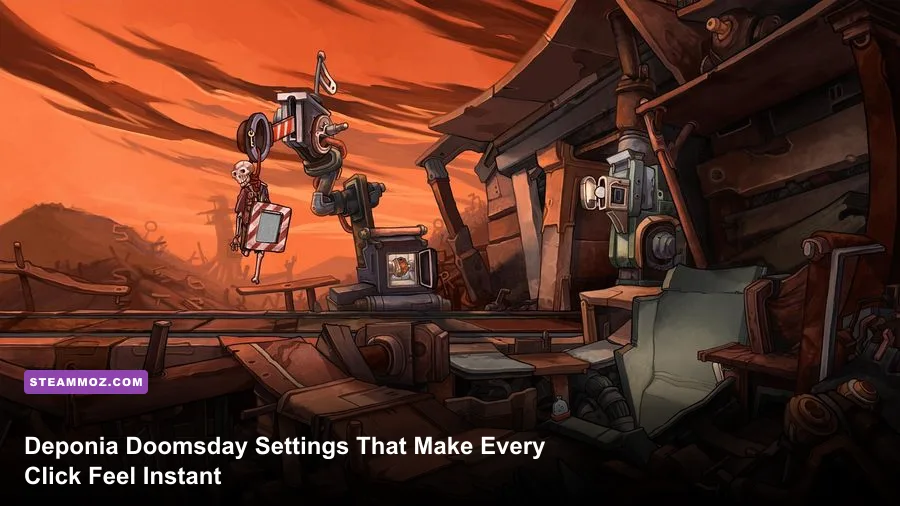
For the best Deponia Doomsday performance, run the game at your monitor's native resolution, use fullscreen or borderless fullscreen, enable VSync if you see tearing, and leave every extra effect at its default. This is a lightweight 2D adventure, so modern PCs usually have far more GPU power than the game needs. The real gains come from eliminating scaling blur, avoiding bad fullscreen behavior, and fixing the small stutters that make pixel hunting and inventory clicks feel unreliable.
That distinction matters. Deponia Doomsday does not behave like a modern 3D release with separate shadow, texture, foliage, and ambient-occlusion sliders. Its hand-drawn scenes, animated characters, dialogue portraits, and puzzle hotspots are largely delivered as pre-rendered or 2D assets. Turning down image quality won't magically create hundreds of extra frames. A stable display mode and sensible frame pacing are the winning settings here.
This guide targets the Steam PC version and also applies well to older Windows laptops and Steam Deck. For broader PC tuning advice, compare these recommendations with our guides to Drizzlepath: Glass settings and Edge of Sanity performance fixes.
Best Deponia Doomsday graphics settings for max FPS
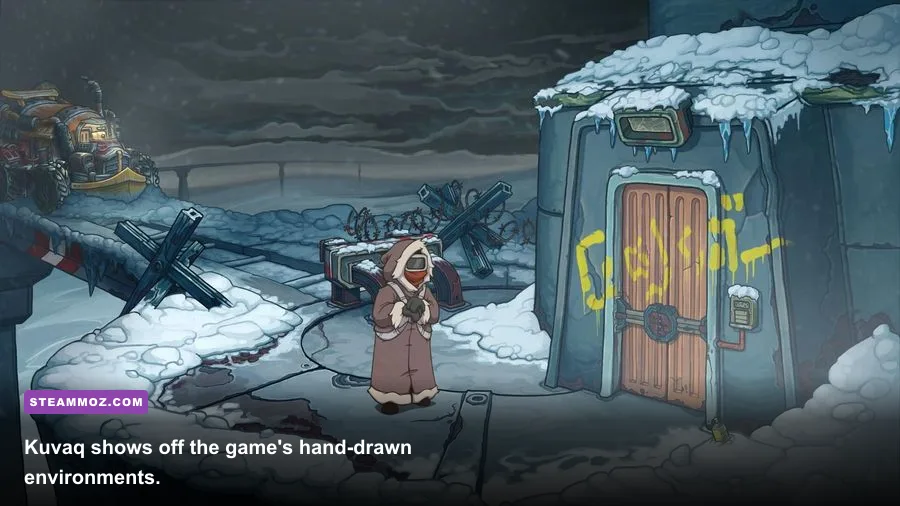
Start with the highest resolution your display supports. At 1920x1080, 2560x1440, or 3840x2160, the game should remain exceptionally easy to run on a dedicated GPU. Native resolution keeps Rufus's outlines, item icons, and tiny environmental clues crisp. If the game offers a resolution list rather than a fully automatic native option, choose the exact Windows desktop resolution instead of a nearby alternative.
Use fullscreen first. Exclusive fullscreen can reduce desktop-compositor interference, while borderless fullscreen is the better fallback if Alt-Tab causes black screens, incorrect scaling, or a frozen image. Windowed mode is useful for troubleshooting, but it can introduce inconsistent frame pacing on some older Windows configurations.
| Setting | Recommended value | FPS impact | Visual or latency note |
|---|---|---|---|
| Resolution | Native display resolution | Low on modern PCs | Best clarity for puzzle objects and hotspot details |
| Display mode | Fullscreen; borderless if needed | Low | Fullscreen usually delivers cleaner frame pacing |
| VSync | On if tearing appears; off for lowest latency | Negligible GPU cost | On can add a frame of input delay, especially at 60 Hz |
| Anti-aliasing | Highest available/default | Very low | Preserves smooth character outlines |
| Post-processing | Default or enabled | Very low | Disable only while diagnosing a hitch |
| Frame limiter | 60 FPS or monitor refresh target | Reduces wasted rendering | A cap often feels steadier than an uncapped spike |
If you want maximum responsiveness, disable VSync and cap the game through your GPU driver or an external limiter at a stable target such as 60 FPS. If your monitor is 144 Hz, a 120 FPS cap can work, but it won't transform the game: Deponia Doomsday's animations and logic are designed around a traditional adventure-game presentation, not twitch combat. A locked 60 is the sensible performance target.

🎮 Deponia Doomsday
Looking to experience this game? Grab your digital key directly on our store for $1.99.
View on Steammoz Store →Why lowering graphics quality rarely improves Deponia Doomsday FPS
In a 3D game, dropping shadows or volumetric effects can cut GPU work dramatically. Deponia Doomsday is different. The visual load comes mainly from compositing illustrated backgrounds, character animations, interface elements, and video or transition assets. There is no sprawling real-time world to render, no physics-heavy combat system, and no enemy simulation demanding CPU time. That is why a laptop with integrated Intel UHD graphics can often run it comfortably at 1080p.
The most useful performance test is not a crowded battle scene—there isn't one. Test several distinct areas: Kuvaq's busy village spaces, Elysium's cleaner architectural backgrounds, dialogue scenes involving Goal or Cletus, and the Chronocruiser's time-travel sequences. Move the cursor across interactive objects, open the inventory, trigger a transition, and Alt-Tab twice. If those actions remain smooth, your setup is already delivering the experience the game was built for.
Best profile for older laptops
Keep native 1080p if possible, choose windowed mode only when fullscreen scales badly, and close browser tabs that are using hardware acceleration. Avoid forcing a low resolution such as 1280x720 unless your display or integrated graphics genuinely struggles. A lower desktop resolution can make text and hotspot edges softer without solving the actual problem.
Best profile for modern gaming PCs
Use native 1440p or 4K, fullscreen, default visual options, and a 60 FPS cap. Uncapping the frame rate is harmless if you want to measure performance, but it makes your GPU render frames the game cannot meaningfully show. That can also increase fan noise and power consumption during menus.
| Hardware profile | Resolution | Display setup | Practical target |
|---|---|---|---|
| Older integrated graphics laptop | Native 720p or 1080p | Fullscreen, VSync on if tearing occurs | Stable 30-60 FPS |
| Mainstream modern laptop | Native 1080p | Fullscreen, 60 FPS cap | Locked 60 FPS |
| Desktop gaming PC | Native 1440p | Fullscreen, VSync optional | Locked 60 FPS or higher |
| 4K desktop or TV setup | 3840x2160 if offered | Borderless if fullscreen scaling breaks | Stable 60 FPS |
| Steam Deck | 1280x800 native | Fullscreen, 60 FPS cap | Low power draw and smooth menus |
Fix blurry visuals, tearing, and uneven frame pacing
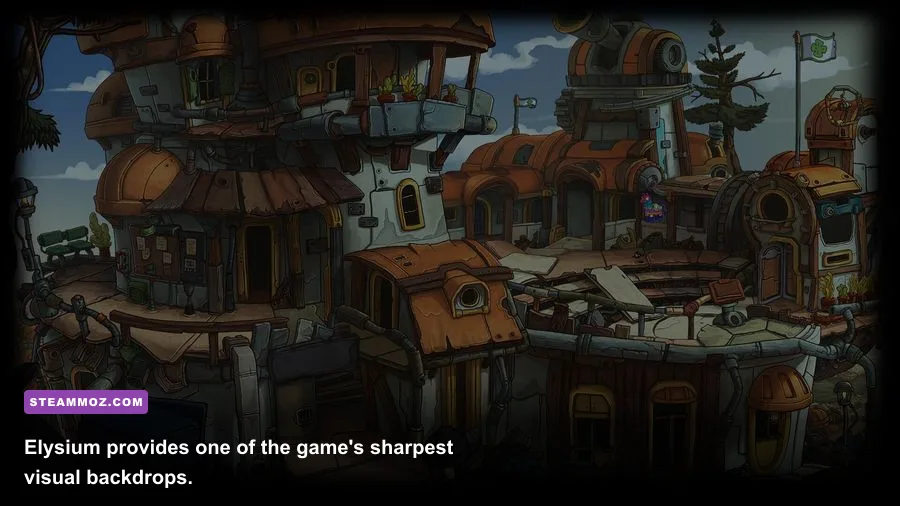
Blurry Deponia Doomsday footage usually points to scaling rather than weak performance. First, match the in-game resolution to the panel's native resolution. Next, check your GPU control panel's scaling mode. “Maintain aspect ratio” prevents stretched 16:9 scenes, while “No scaling” can preserve sharp pixels but may add borders on unusual displays. Do not use a monitor's aggressive sharpening filter; it can create halos around the game's illustrated outlines.
For tearing, enable VSync in the game if that option is available. If the in-game toggle does nothing, use the profile for the executable in Nvidia App or AMD Software. VSync is particularly noticeable when panning across a scene or moving between animated transitions. If you hate the extra latency, turn it off and use a stable external cap. The goal is not a giant FPS number; it is a consistent delivery of frames while you inspect every suspicious object in Rufus's surroundings.
Uneven pacing after Alt-Tab deserves a separate fix. Switch from borderless to exclusive fullscreen, or do the reverse. Then disable Windows fullscreen optimizations for the game's executable only: right-click the executable, open Properties, choose Compatibility, and test “Disable fullscreen optimizations.” Don't change five variables at once. Test a Kuvaq save, open the inventory, and trigger a scene transition after each adjustment.
For more troubleshooting habits, our Exogate Initiative stutter guide covers the same disciplined one-change-at-a-time approach. It works just as well here.
Windows and Steam tweaks that actually matter
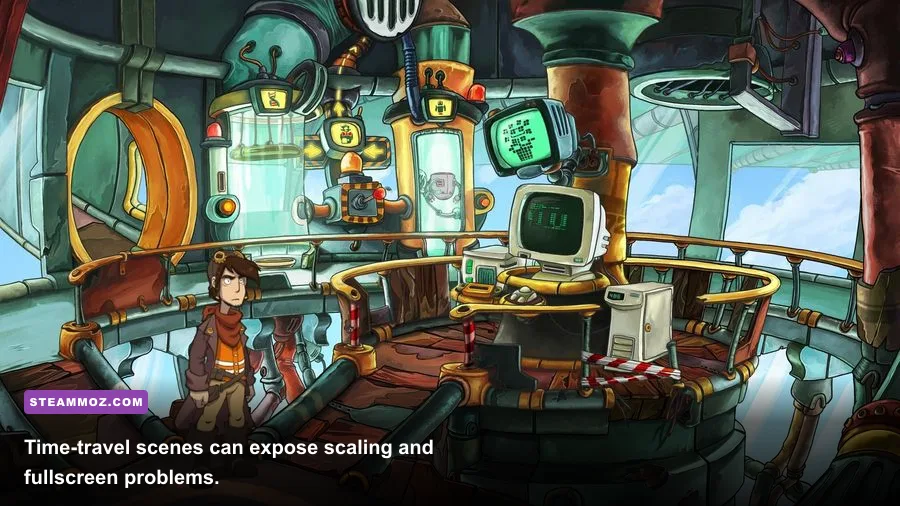
Before blaming the graphics settings, verify the basics through the official Deponia Doomsday Steam page. Install the latest game update, then use Steam's Properties menu and run “Verify integrity of game files.” Corrupted video, audio, or localization files can look like a graphics problem when the real issue is a broken transition.
Use your dedicated GPU on a hybrid laptop. In Windows, open Settings, System, Display, Graphics, add the game's executable, and select High performance. This is unnecessary for most systems but prevents some laptops from choosing an aggressively power-saving graphics mode. Plug in the charger while testing, and set Windows power mode to Best performance if you are chasing a repeatable benchmark.
Disable overlays one at a time if you see flashes or input delay. Steam Overlay, Discord, Xbox Game Bar, Radeon recording, and Nvidia's overlay can all hook into older games. You don't need to purge them pre-emptively; only test with them disabled if the cursor lags, screenshots fail, or the display flickers. Keep Steam Cloud enabled unless save synchronization itself is causing conflicts, and back up local saves before experimenting with compatibility settings.
The game's official publisher information is available through Daedalic Entertainment. For Steam controller and Linux compatibility checks, also consult the game's official Steam Community hub, where player reports can reveal version-specific quirks faster than a generic Windows tweak list.
My recommended max-performance preset
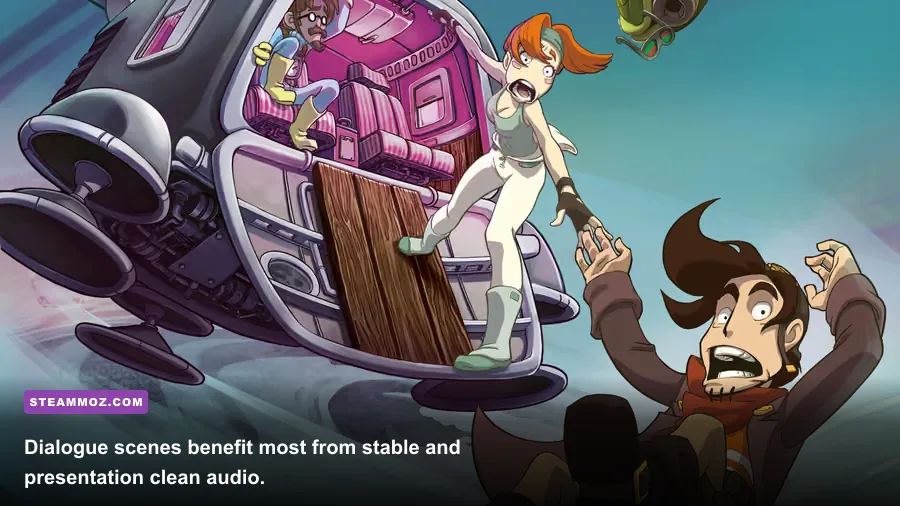
Here is the profile I'd use for a clean first playthrough of Rufus's time-bending disaster. Set the native resolution, choose fullscreen, enable VSync if your display tears, and cap the frame rate at 60. Leave visual quality at its highest available value. If you use a high-refresh display, keep the desktop at its normal refresh rate and don't chase 300 FPS just because an overlay reports it.
Then test the opening areas, Kuvaq, Elysium, and a Chronocruiser transition. Check text readability, cursor movement, animation smoothness, and Alt-Tab recovery. Those four checks matter more than a synthetic benchmark because Deponia Doomsday's actual workload changes by scene and interface state, not by combat intensity.
| Priority | Action | Reason | When to change it |
|---|---|---|---|
| 1 | Match native resolution | Keeps illustrated clues and UI sharp | Only lower it for genuine GPU limitations |
| 2 | Choose fullscreen | Usually gives steadier presentation | Use borderless if Alt-Tab misbehaves |
| 3 | Cap at 60 FPS | Prevents needless rendering and pacing spikes | Raise the cap only for testing |
| 4 | Toggle VSync based on tearing | Balances clean motion against latency | Disable it when input delay is obvious |
| 5 | Verify files and disable overlays | Removes common legacy-PC conflicts | Use after flicker, crashes, or broken transitions |
One final warning: don't confuse a deliberate puzzle pause with a performance hitch. Deponia Doomsday frequently holds on dialogue, animation beats, and transitions to sell its comic timing. A real problem repeats when you open the same inventory, enter the same room, or trigger the same transition. Once the native-resolution, fullscreen, VSync, and 60 FPS combination stays smooth through those tests, you've already reached the practical maximum this game can offer—and you can get back to figuring out what Rufus broke this time.
If you're tuning a wider backlog of adventure games, Steamoz's Glitchhikers secrets guide is a good next stop. For Deponia Doomsday specifically, though, restraint wins: preserve the art, stabilize the frame delivery, and spend your time solving puzzles instead of wrestling with sliders that barely affect performance.