If Baby Steps keeps crashing or crawling at low FPS on your PC, start with a clean GPU-driver install, verify the Steam files, disable overlays, and use a capped 30 or 60 FPS profile with shadows, foliage, and effects reduced first. The game’s walking physics make stutter feel worse than it would in a normal action game, so stable frame pacing matters more than chasing a high average FPS.
That distinction is important. Baby Steps is built around deliberately awkward movement, physical footing, and reactive outdoor environments. A sudden hitch can turn a careful step into a tumble, while a driver crash during terrain streaming can throw you back to the desktop. The fixes below are ordered from the safest, fastest checks to the deeper Windows and hardware troubleshooting that should only be necessary if the basics fail.
Before changing anything, check the official Steam page for Baby Steps for updated requirements, patch notes, and community reports. Requirements can shift after launch updates, and a setting that worked on day one may not be the best profile after a renderer or shader change.
Fix Baby Steps crashes before touching graphics settings
First, close Baby Steps, restart Steam, and reboot Windows. That sounds basic, but it clears a surprising number of GPU-driver hangs and memory leaks after repeated launches. If the game crashes on startup, don’t immediately delete every configuration file. Work through the checks in this order so you know which change actually helped.
- Verify the installation. In Steam, right-click Baby Steps, choose Properties, open Installed Files, and select Verify integrity of game files. Wait for Steam to finish, then restart the client before launching again.
- Update the graphics driver. Install the latest stable driver for your Nvidia, AMD, or Intel GPU. If the crash began immediately after a driver update, use the manufacturer’s rollback option or perform a clean installation rather than stacking another driver over the broken one.
- Disable overlays. Turn off the Steam Overlay, Discord overlay, Xbox Game Bar, Nvidia App overlay, AMD overlay, MSI Afterburner’s OSD, and Razer or Overwolf capture tools. Several overlays hook into the same render pipeline, and the combination can be less stable than any one overlay alone.
- Run the game without third-party launch parameters. Remove experimental commands from Steam’s Launch Options box. Forced DirectX flags, frame injectors, reshade loaders, and unofficial upscaling plugins are useful for testing, but they’re poor starting points for diagnosing a crash.
- Repair Windows components. Install current Microsoft Visual C++ 2015-2022 Redistributables in both x64 and x86 versions, then run Windows Update. Also install the latest DirectX runtime package if other games report missing DLL errors.
If Baby Steps crashes only after you load a save, test a new game. A corrupted save or a bad checkpoint can produce a repeatable crash that no graphics slider will solve. Back up your saves before removing anything, then check the game’s Steam Cloud status so you don’t accidentally overwrite a working copy.

🎮 Baby Steps
Looking to experience this game? Grab your digital key directly on our store for $9.99.
View on Steammoz Store →Use a stable Baby Steps graphics profile for low FPS
Don’t begin by dropping everything to Low. That often makes the game look worse while leaving the most expensive frame-time spikes untouched. Outdoor foliage, shadows, effects, and view distance usually cost more than texture quality, especially when your GPU has enough VRAM but your processor is struggling with physics and scene updates.
| Setting | Recommended value | FPS impact | Visual trade-off |
|---|---|---|---|
| Resolution | Native at 1080p; 900p or 75% scale for weak GPUs | Very high | Lowering resolution gives the biggest raw GPU gain but softens the image. |
| Frame rate limit | 60 FPS, or 30 FPS on entry-level hardware | Medium | A cap improves frame pacing and prevents unnecessary GPU heat. |
| Shadows | Medium | High | Low removes contact detail; Medium keeps the terrain readable. |
| Foliage and vegetation | Medium or Low | High | Less grass and distant vegetation, with a strong reduction in busy-scene spikes. |
| Effects and post-processing | Medium | Medium to high | Lower values reduce fog, particles, bloom, and expensive transparencies. |
| Textures | High with 6GB or more VRAM; Medium below that | Low to medium | Textures mostly affect VRAM capacity rather than average FPS. |
| View distance | Medium | High on CPU-limited systems | Fewer distant objects are rendered and simulated. |
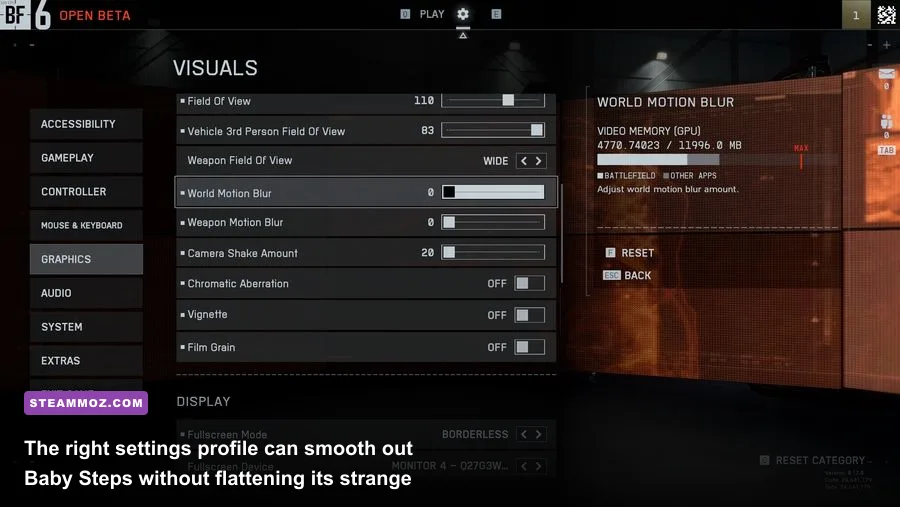
| Motion blur | Off | Small | Sharper camera movement and less visual smearing during falls. |
For a modern mid-range PC, try 1080p, High textures, Medium shadows, Medium foliage, Medium effects, Medium view distance, motion blur off, and a 60 FPS cap. If the GPU stays near 99 percent usage, lower resolution scale to 85 percent before destroying texture quality. If the GPU sits around 60 to 80 percent while FPS remains poor, you’re probably CPU-limited; reduce view distance, foliage, and simulation-heavy options instead.
For older hardware, use 900p or 720p, Medium textures, Low shadows, Low foliage, Low effects, Low-to-Medium view distance, and a 30 FPS cap. A locked 30 with consistent frame times is far more playable here than a volatile 42 FPS that collapses whenever the world streams in. You can compare this approach with our Dungeon Tycoon settings guide, which uses the same principle: protect frame pacing before visual polish.
Choose the right FPS target for Baby Steps
Baby Steps doesn’t need a competitive 144 FPS target. Its core challenge is controlled movement, not reaction-speed combat. The best target is the highest number your PC can hold through hills, campsites, dense vegetation, and physics-heavy moments without repeated drops.
| PC profile | Suggested target | Starting resolution | Profile |
|---|---|---|---|
| Entry-level laptop or GTX 1050-class GPU | 30 FPS locked | 720p to 900p | Low shadows, foliage, effects, and view distance; Medium textures if VRAM allows. |
| GTX 1660, RTX 2060, RX 5600 XT class | 45 or 60 FPS | 1080p | Medium shadows and foliage, High textures, Medium effects. |
| RTX 3060, RX 6600 XT, or similar | 60 FPS locked | 1080p | High textures, Medium-to-High environment settings, reduced post-processing. |
| RTX 4070, RX 7800 XT, or faster | 60 to 120 FPS | 1440p | High settings, but keep a cap if frame-time spikes remain during streaming. |
Use your monitor’s refresh rate as a ceiling, not a promise. On a 60Hz display, cap at 60. On a 120Hz or 144Hz panel, test 90 or 120 only after confirming that busy areas remain stable. Nvidia users can use the Nvidia App or Control Panel to set a per-game maximum frame rate; AMD users can do the same through Radeon Software. An in-game cap is preferable when available because it usually produces cleaner pacing, but an external cap is a useful fallback.
Don’t use V-Sync and an aggressive uncapped frame rate together while diagnosing stutter. Start with V-Sync enabled and a sensible cap. If input feels delayed, test V-Sync off with the same cap and compare frametime behavior using Steam’s performance overlay or PresentMon. The smoother option wins, even if its average FPS number is lower.
Fix stuttering caused by shaders, streaming, and background apps
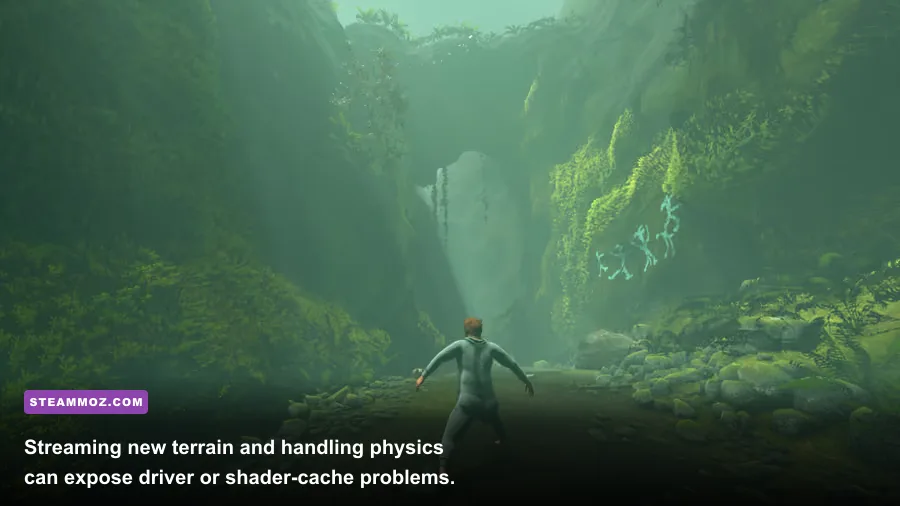
A game can report 60 FPS and still feel awful if individual frames arrive unevenly. That’s the classic difference between average FPS and frame pacing. In Baby Steps, a 100-millisecond hitch can be especially noticeable because movement depends on timing your next foot placement rather than simply holding forward.
After a driver update or fresh installation, the first trip through an area may stutter while shaders compile. Give the game a few minutes, revisit the same route, and see whether the hitch repeats. If the second pass is smoother, the shader cache was likely rebuilding. Repeated stutters on every pass suggest a different problem: insufficient VRAM, background disk activity, an overlay, or CPU saturation.
Install the game on an SSD with at least 20 percent free space. A nearly full mechanical hard drive can turn asset streaming into visible pauses. Pause OneDrive, Dropbox, game downloads, browser updates, and Windows indexing while testing. Don’t use a third-party RAM cleaner; it often forces assets to reload and makes streaming stutter worse.
Check Task Manager while the game runs. A CPU thread pinned at 100 percent with a GPU below 90 percent points toward simulation or background-process limits. Close browser tabs, RGB control suites, launchers, and recording software. If RAM usage is close to your system’s limit, close large applications before lowering textures. If VRAM is full, reduce textures and resolution scale, then restart the game so the renderer can rebuild its allocation cleanly.
For more general troubleshooting habits, our Eternal Destiny crash and stutter guide covers the same useful diagnostic split between GPU saturation, CPU limits, and corrupted files.
Stop crashes linked to Windows, drivers, and overclocking
If verification and overlays don’t solve the problem, look for instability outside the game. A GPU overclock that survives lighter games can fail in a large outdoor scene, especially when power draw and memory usage change rapidly. Return the GPU, CPU, and RAM to stock settings, including XMP or EXPO, for one complete test session. If the crashes disappear, reapply changes one at a time rather than blaming Baby Steps alone.
Check Windows Event Viewer by searching for Event Viewer, opening Windows Logs, and reviewing Application errors at the crash time. An entry naming the game executable suggests an application failure; Display driver stopped responding, LiveKernelEvent 141, or similar errors point toward the GPU driver, overheating, power delivery, or unstable clocks.
Monitor temperatures with a trusted tool. As a practical warning line, sustained GPU temperatures around 85°C or higher and CPU temperatures approaching 95°C deserve attention, although the exact safe limit depends on the model. Clean blocked filters, improve case airflow, and make sure the laptop is plugged in and using its performance mode. Battery-saving profiles can throttle clocks enough to look like a game bug.
Windows Controlled Folder Access and antivirus tools can also interfere with save creation or shader-cache writes. Don’t permanently disable security software. Instead, add the Steam library and the game executable to an appropriate exclusion only if your security tool identifies a block, then remove the exclusion if it changes nothing.
Baby Steps PC requirements and what they mean for FPS
Use the requirements listed on the official Devolver Digital game page and Steam listing as your source of truth, especially after patches. Published minimum specifications are a launch baseline, not a guarantee of 60 FPS at 1080p. They typically describe a playable low-setting target, while a recommended specification is closer to a stable mainstream experience.
| Component | Minimum-class target | Recommended-class target | What it affects |
|---|---|---|---|
| Operating system | 64-bit Windows 10 or newer | Updated Windows 10 or Windows 11 | Driver support, DirectX components, and shader compilation. |
| Memory | 8GB RAM | 16GB RAM | Open-world streaming and avoiding pagefile-related hitching. |
| Graphics | GTX 960 or Radeon R9 280-class | GTX 1070 or Radeon Vega 56-class | Resolution, shadows, effects, and available VRAM. |
| Processor | Older four-core i5 or FX-class CPU | Modern six-core CPU such as a Ryzen 5 or Core i5 equivalent | Physics, world simulation, background streaming, and minimum FPS. |
| Storage | SSD strongly preferred | SSD with free space for updates and cache | Load times and streaming consistency. |
That CPU distinction explains why lowering resolution sometimes barely helps. If your processor is the bottleneck, a faster GPU won’t fix minimum FPS, and reducing textures won’t reduce the cost of simulation. Use the 30 FPS profile, lower view distance and foliage, and close background processes. If the GPU is the bottleneck, resolution scale, shadows, and effects will produce the largest gains.
Last-resort fixes when Baby Steps still crashes
If every step above fails, reinstall the game to a different SSD library and test it without mods, ReShade, custom DLLs, or launch commands. Back up saves first. A clean installation rules out damaged files outside the normal Steam verification scope, including stale configuration data.
Reset the game’s graphics configuration only after recording your current settings. Search Windows for the game’s local configuration folder under your user AppData directory, rename the relevant Baby Steps folder instead of deleting it, and relaunch. Renaming preserves a backup while forcing fresh settings. If the crash disappears, restore options gradually and avoid the setting that triggers it.
Finally, report repeatable crashes through the official Steam community hub or the developer’s support channels. Include your GPU and driver version, CPU, RAM, Windows build, resolution, graphics profile, crash timing, and whether verification helped. A useful report says, for example, that the game crashes when entering a specific area after ten minutes at 1080p with overlays disabled; it doesn’t just say that it crashes.
The winning setup for most players is simple: current stable drivers, verified files, no overlays, an SSD installation, Medium shadows and foliage, reduced effects, and a locked frame-rate target. Start at 60 FPS if your system can hold it, drop to a consistent 30 when it can’t, and judge success by frame-time stability rather than a flashy peak number. Baby Steps is intentionally clumsy; your PC shouldn’t add accidental chaos.